
How to Send Bulk SMS from an Excel List Using Your Phone
To send bulk SMS from Excel, keep one row per person with a phone number (with country code) and a first name column. Import the sheet into QuickText, a Windows app that texts through your own Android phone. Write one message with placeholders, preview each person, send yourself a test, then send at a safe pace.
Table of contents
- How do you send bulk SMS from an Excel list?
- What happened to the QuickText Excel template?
- How should you set up the Excel sheet?
- How do you import the Excel list?
- How do you personalize each text with Excel columns?
- How do you send the texts safely?
- What happens when people reply?
- Can you send bulk SMS from Excel without an API or gateway?
- What are the limits?
How do you send bulk SMS from an Excel list?
You clean up the list in Excel, import it into a sending app, and write one message that pulls names and details from your columns. The app then sends each person their own text from your Android phone, one after another, at a pace you set.
Most people who search for this already have the list. It is a sheet of customers, students, club members or patients with a phone number on every row. Typing the same text into your phone fifty times is slow. Pasting everyone into a group chat is worse, because they all see each other’s numbers and every reply goes to the whole group.
The workflow I use and recommend has six steps:
- Prepare the Excel sheet: one row per person, clean numbers, a first name column.
- Import the .xlsx or .csv file into QuickText and map the columns.
- Write one message with placeholders like
{{first_name}}and a few wording variations. - Preview the exact text each person will get.
- Send yourself a test, then send to the list at a safe pace.
- Answer replies from the PC and let STOP replies block themselves.
The texts go out from your own number through your normal mobile plan. There is no gateway, no new sender number and no shortcode in between. To your contacts, it is a mass text that reads like a normal message from you.
What happened to the QuickText Excel template?
The Excel template is retired. I rebuilt QuickText as a Windows desktop app from the Microsoft Store. It still takes your Excel list, and it adds the parts a workbook could not do well: reading replies, handling opt-outs and pacing larger sends.
If you found this page a while ago, you may remember the old version. QuickText started as an Excel template with VBA. You typed numbers and messages into the workbook, paired your phone through KDE Connect on the PC, and clicked send. It did that job, and plenty of people used it for years.
The limits showed up after the send. Replies landed on the phone, away from the list. Nothing kept track of who asked to stop. Pacing and batches were hard to manage inside a spreadsheet. So I moved the sending into a proper app and kept Excel for what it is good at, which is holding and cleaning the list.
If you still have the old workbook, your contact sheet is not wasted. Save it as .xlsx or .csv and import it into the app as described below. On the PC you no longer need KDE Connect for Windows. Only the phone needs the free KDE Connect app.
How should you set up the Excel sheet?
Use one row per person and one header row. Put the phone number in its own column with the country code, add a first name column, and add any extra columns you want to mention in the text, like an appointment time or a city.
A simple sheet looks like this:
| phone | first_name | last_name | appointment | city |
|---|---|---|---|---|
| +12025550123 | Anna | Miller | Friday at 10 am | Denver |
| +447700900456 | Daniel | Brooks | Monday at 2 pm | Leeds |
Short, lowercase headers make life easier later, because each extra column becomes a placeholder with that name. Write the values the way you want them to read in the text. “Friday at 10 am” reads well inside a sentence. A raw date like 2026-10-02 does not.
Phone number format
Excel likes to “help” with phone numbers. It drops leading zeros, strips the plus sign, and turns long numbers into things like 4.47701E+11. Format the phone column as Text before you paste numbers in. The safest format is the full international one: a plus, the country code, then the number with no spaces or brackets. That removes any guessing about which country a number belongs to. If your list holds local numbers without a country code, QuickText can still convert them during the import, as long as you pick the right country.
Duplicates, blanks and stray spaces
Clean the list before you import it, because every row is a text that goes out. Select the phone column and use Data, Remove Duplicates, so nobody gets the same message twice. Filter the phone column for blanks and delete those rows. If names came from a web form, a quick =TRIM() removes stray spaces that would otherwise show up in the message. Also check the first name column for full names in capitals, since “Hi ANNA MILLER” reads like a machine sent it.
How do you import the Excel list?
On the Contacts page, choose Import from file and pick your .xlsx or .csv. Tell QuickText which column holds the phone number and which hold the names. Every other column comes in as a contact detail you can use as a placeholder.
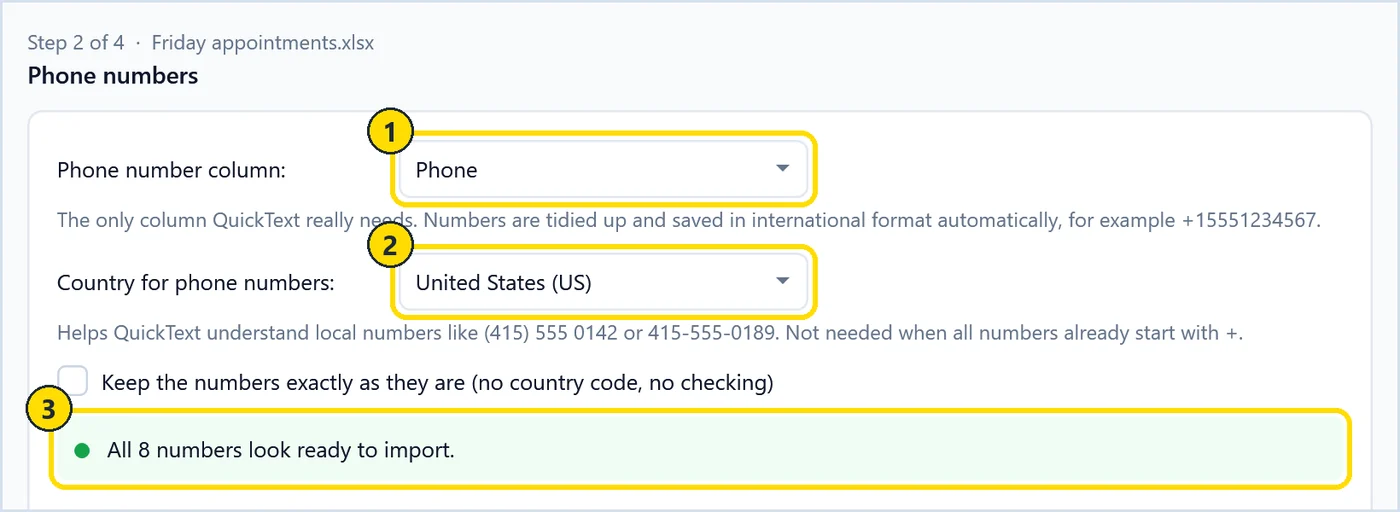
Import from file opens a short wizard. The step that matters most asks which column holds the phone numbers (marker 1) and which country local numbers belong to (marker 2). QuickText then tidies every number into international format and tells you how many look ready (marker 3).
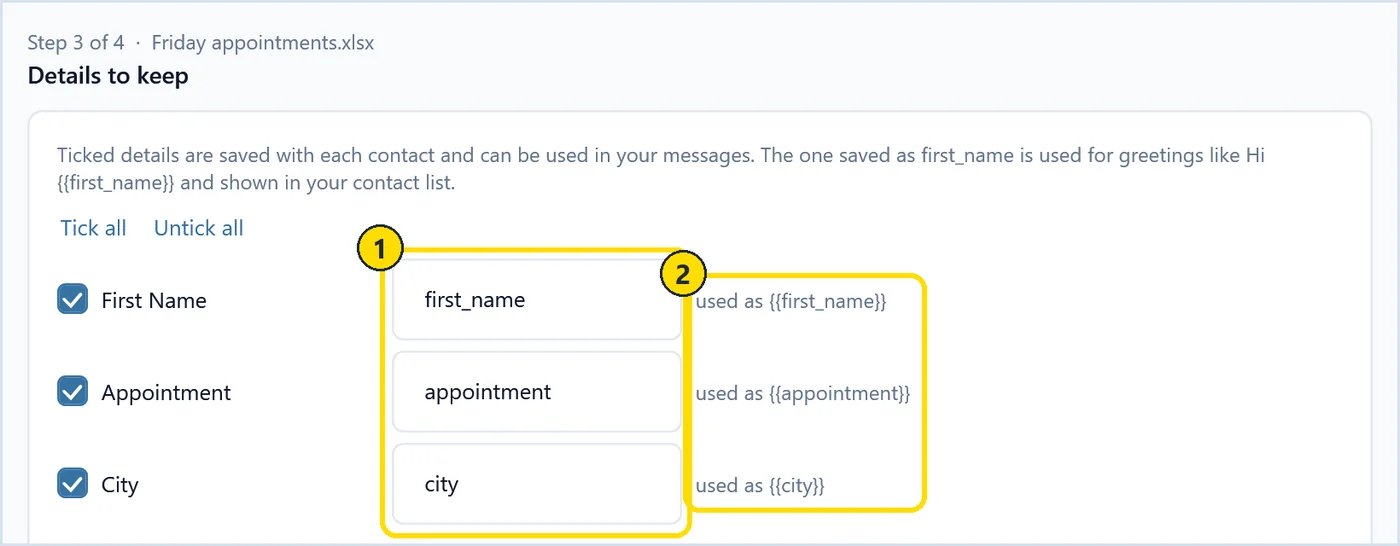
The next step lists your other columns. Tick the ones to keep and give each a short field name (marker 1). The hint beside it shows the placeholder you will type in the message, such as {{appointment}} (marker 2).
Before this step you set up the app once. Install QuickText from the Microsoft Store on your Windows 10 or 11 PC. On your Android phone, install the free KDE Connect app from Google Play or F-Droid, keep both devices on the same Wi-Fi, pair the phone with QuickText and allow SMS permission on the phone. It takes about five minutes. I go through the pairing screen by screen in my guide to sending bulk SMS from your PC with an Android phone.
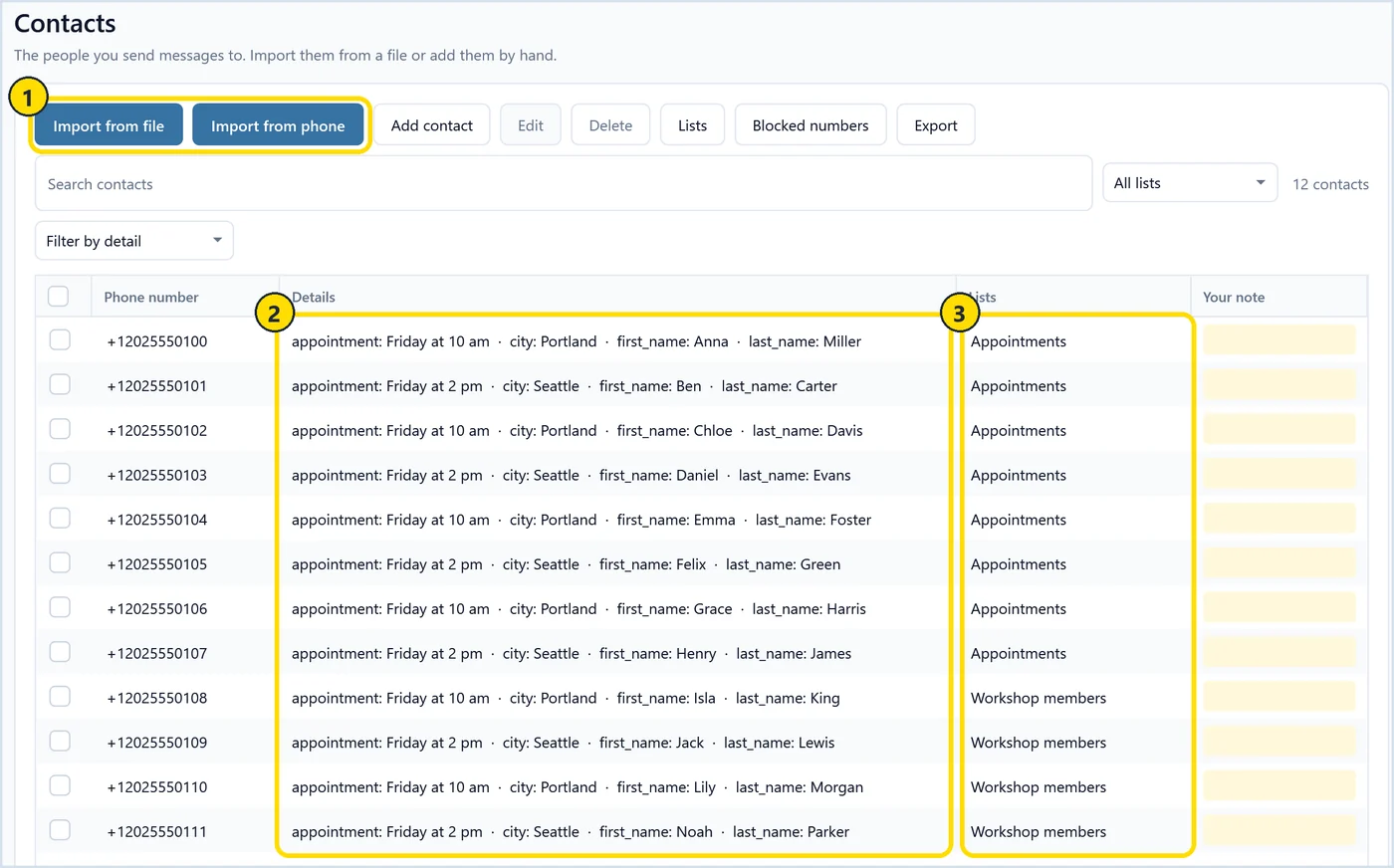
After the import, the Contacts page shows each person with their details. Marker 1 shows the Import from file and Import from phone buttons. Marker 2 is the Details column, where your extra Excel columns (appointment, city, first_name, last_name) now live. Marker 3 shows lists. I put each import into its own list, such as “Appointments” or “Workshop members”, so I can text one group without touching the others.
You can also import contacts from a vCard file or directly from the phone, but for this workflow the Excel file is the source of truth. When the list changes, I fix it in Excel and import again.
How do you personalize each text with Excel columns?
On the Compose page, write one message and use Insert contact field to add placeholders like {{first_name}} or {{appointment}}. Each placeholder is filled from that person’s Excel column. The live preview shows the finished text for every recipient, one by one.
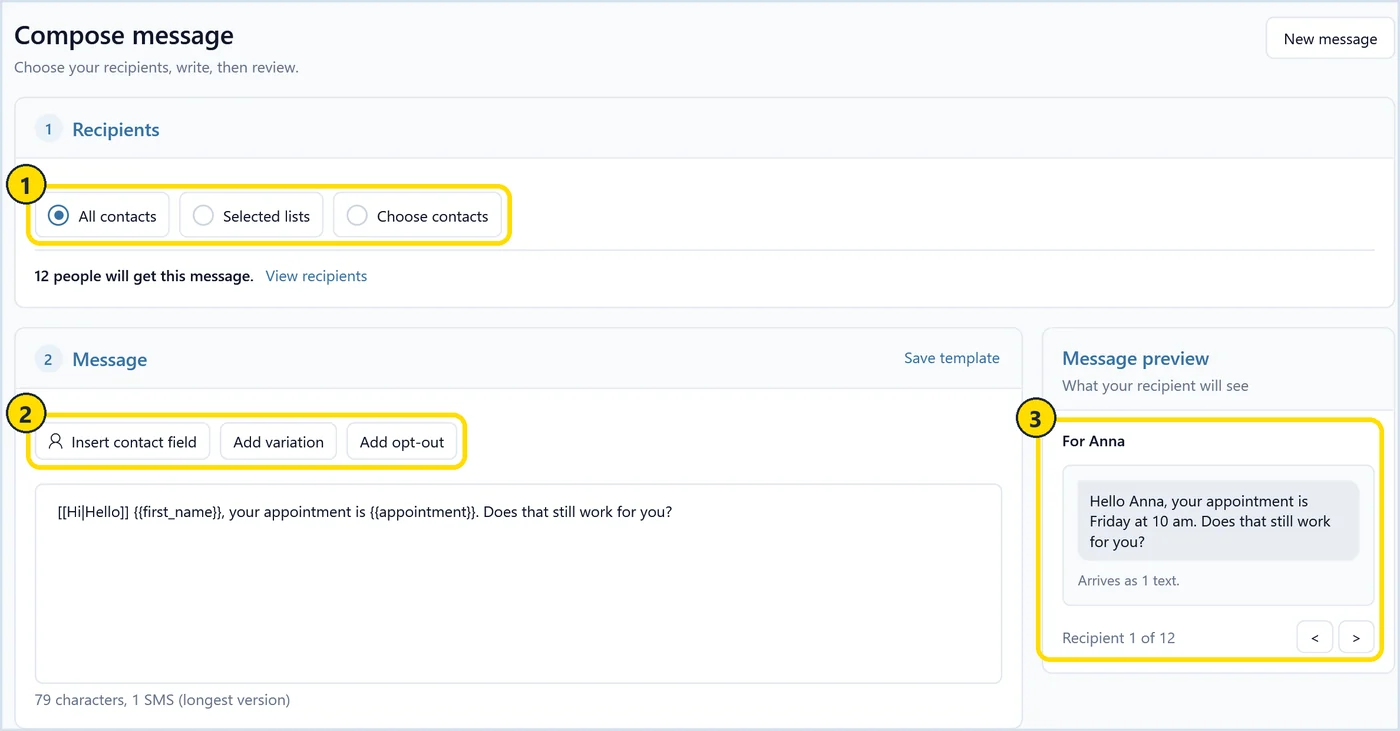
Marker 1 is where you pick recipients: all contacts, selected lists, or contacts you choose by hand. Marker 2 holds the three buttons I use most. Insert contact field adds a placeholder. Add variation adds wording choices written like [[Hi|Hello]], so not every text is identical. Add opt-out adds a short line telling people how to stop messages.
The message in the screenshot is:
[[Hi|Hello]] {{first_name}}, your appointment is {{appointment}}. Does that still work for you?
Marker 3 is the preview. For Anna it reads “Hello Anna, your appointment is Friday at 10 am”, and it tells me this arrives as one text. Click through the recipients before you send. The preview is where you catch an empty first name, a date that reads oddly, or a message that has grown into two SMS segments.
Keep the text short and plain, and end with a question when a reply makes sense. If you want a starting point, the free SMS template generator writes drafts with variations and placeholders already in place. For reminders, my appointment reminder text templates use the same placeholder style. QuickText also runs a message check that flags shortened links, words in capitals and phrases spam filters dislike. It is advice, not a blocker.
How do you send the texts safely?
Send yourself a test first, then send to the list with a pause between messages. QuickText waits 7 to 9 seconds between texts by default, and you can split the list into batches that you start one at a time.
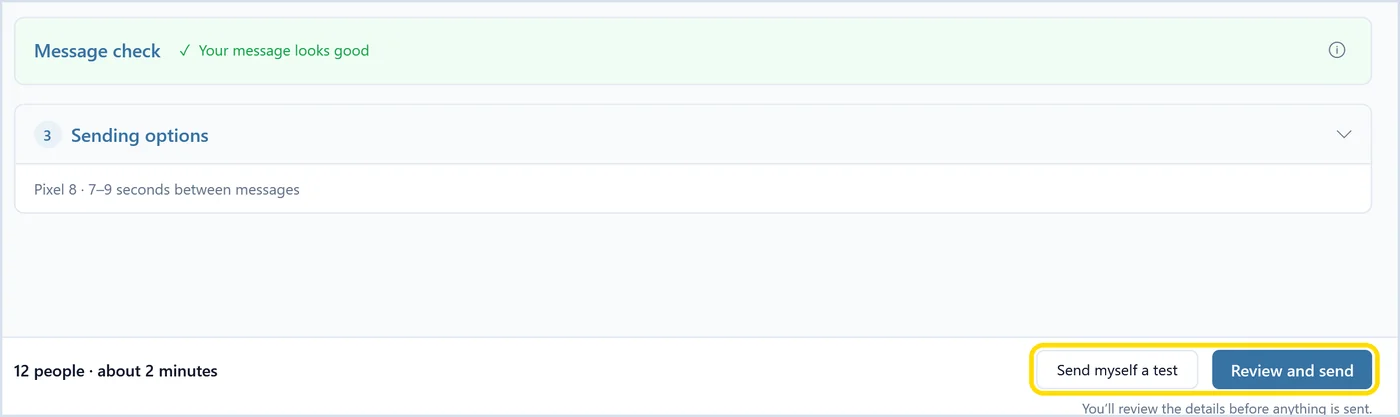
The bottom bar on the Compose page shows how many people the send reaches and roughly how long it takes, for example “12 people, about 2 minutes”. Send myself a test sends the message to your own number, so you see it exactly as a recipient will. Review and send opens a review, and nothing goes out until you confirm it.
In the sending options, marker 1 lets you send from one phone or rotate across two or more paired phones in turns. Marker 2 is the time between messages. Marker 3 splits the send into batches, for example groups of 6. You start each batch when you are ready, and people already reached are skipped, so a pause never causes a double text.
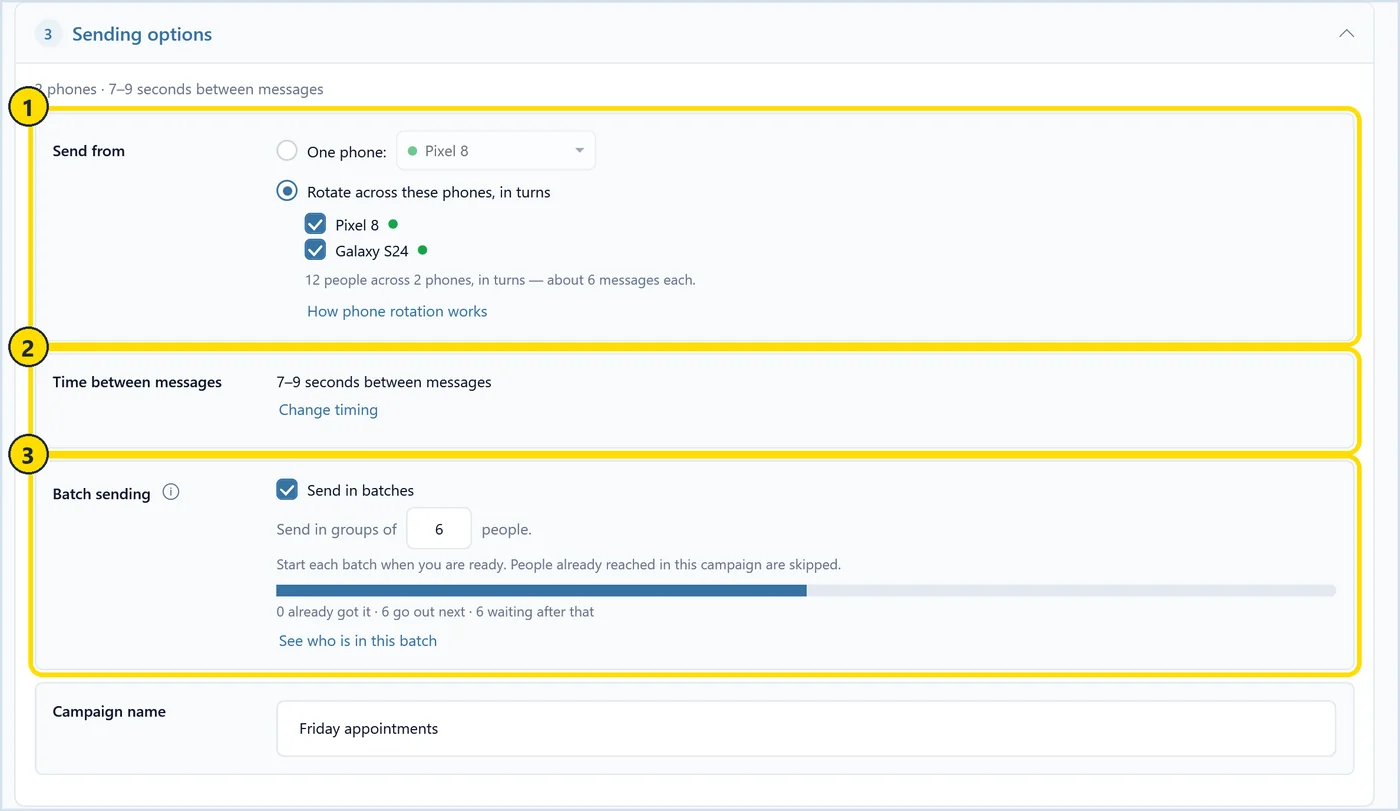
The pacing is deliberate. Your carrier sees your number sending texts, and a steady, human pace looks like what it is: a person texting people they know. I keep the default delay for most sends and use batches for anything bigger than a normal day of texting. My SMS best practices guide covers timing, wording and list size in more detail.
What happens when people reply?
Replies come back to your phone as normal texts, one conversation per person, and QuickText shows them on the Messages page. You can answer from the PC keyboard. If someone replies STOP, their number goes on the block list automatically.
Every person gets their own individual text. It is not a group chat, so recipients never see each other, and each reply comes back only to you. That is a big part of why people answer. The text looks like it came from you, because it did.
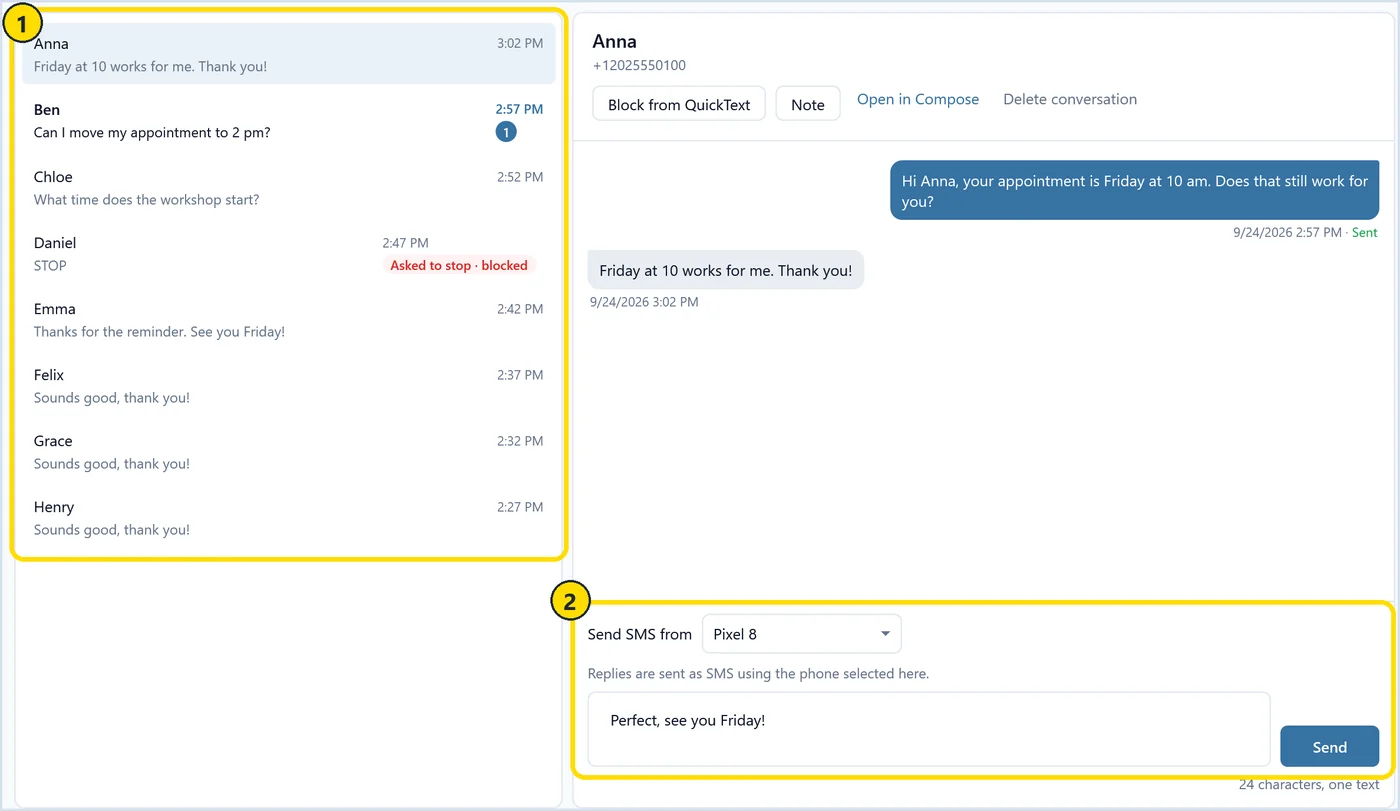
On the Messages page, marker 1 is the conversation list. In the example, one person confirms “Friday at 10 works for me”, another asks to move to 2 pm, and Daniel replied STOP. Marker 2 is the reply box. You pick which phone sends the answer, type, and press Send.
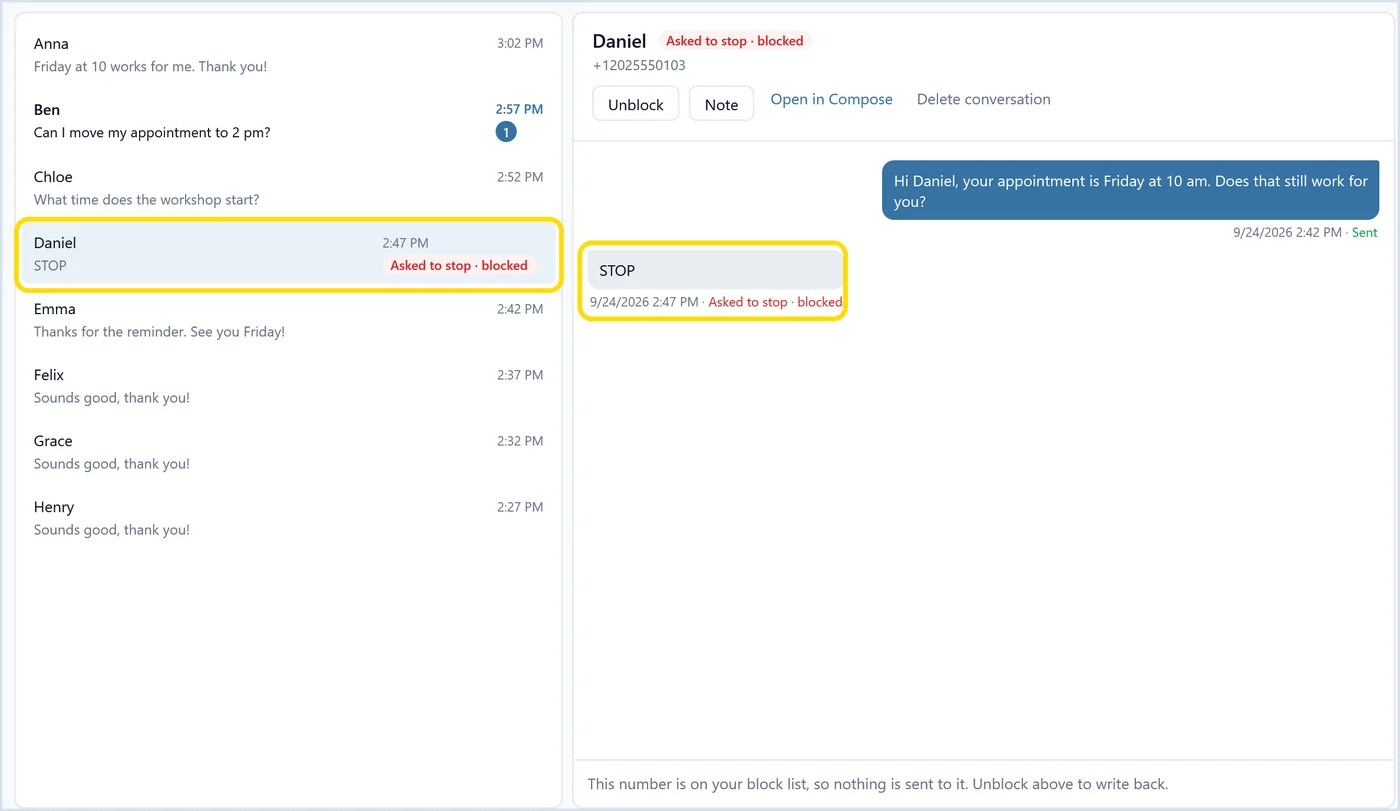
Daniel’s STOP put his number on the block list, and the app marks him as “Asked to stop, blocked” in the list and in the conversation. He stays blocked until you unblock him, for example if he texts back later and asks to hear from you again. The opt-outs guide explains how opt-outs and the block list work.
Can you send bulk SMS from Excel without an API or gateway?
Yes. QuickText sends through your own Android phone and SIM, so there is no SMS API, no gateway account and no API key. The texts use your existing mobile plan, and your carrier’s normal charges and sending limits apply.
The usual way to send SMS from Excel is to connect the sheet to an SMS gateway with an API key, often through a VBA macro or a web service. That works well for large automated volumes. It also means a new sender number, per-message fees, and in the US often a registration process before you can send. Recipients see a number they do not know.
Sending from your own phone is person-to-person texting. It suits lists of people who already know you and expect to hear from you. For the full comparison, including when a registered platform is the better choice, read A2P vs P2P text messaging.
Your data also stays put. Contacts, messages and history are stored locally on your PC and are not uploaded anywhere.
What are the limits?
QuickText needs a Windows 10 or 11 PC and an Android phone with an active SIM. iPhone is not supported. It sends SMS and picture messages (MMS), you start each send yourself, and your carrier decides how much volume is acceptable.
The honest list:
- Android only. iPhones do not let other apps send texts this way.
- SMS and MMS only. Picture messages need mobile data and a plan with MMS, and some carriers charge for them or have switched MMS off. No RCS chats and no group messages.
- No scheduled sending. You click send when you want the texts to go out.
- Paced on purpose. A few hundred texts take a while. That is the trade-off for sending from a real number.
- Your plan applies. If your plan has a text limit or charges per message, those texts count.
- Not for cold marketing. Text people who gave you their number, say who you are, and honor STOP.
The download lets you send 20 real messages, so you can check it works with your phone and your Excel list before you buy a license. Paid plans come with a 14-day money-back guarantee.
Import your Excel list, personalize every text from its columns, and send from your own Android number with replies and opt-outs handled on your PC.