
How to Sync Excel to Google Sheets Without Coding
Select a range in Excel, click a button, and the values land in Google Sheets. XLPrompt posts the selection to a webhook, a no-code platform picks it up and writes it into the sheet. Values only, so any formatting already in Google Sheets survives. No code anywhere.
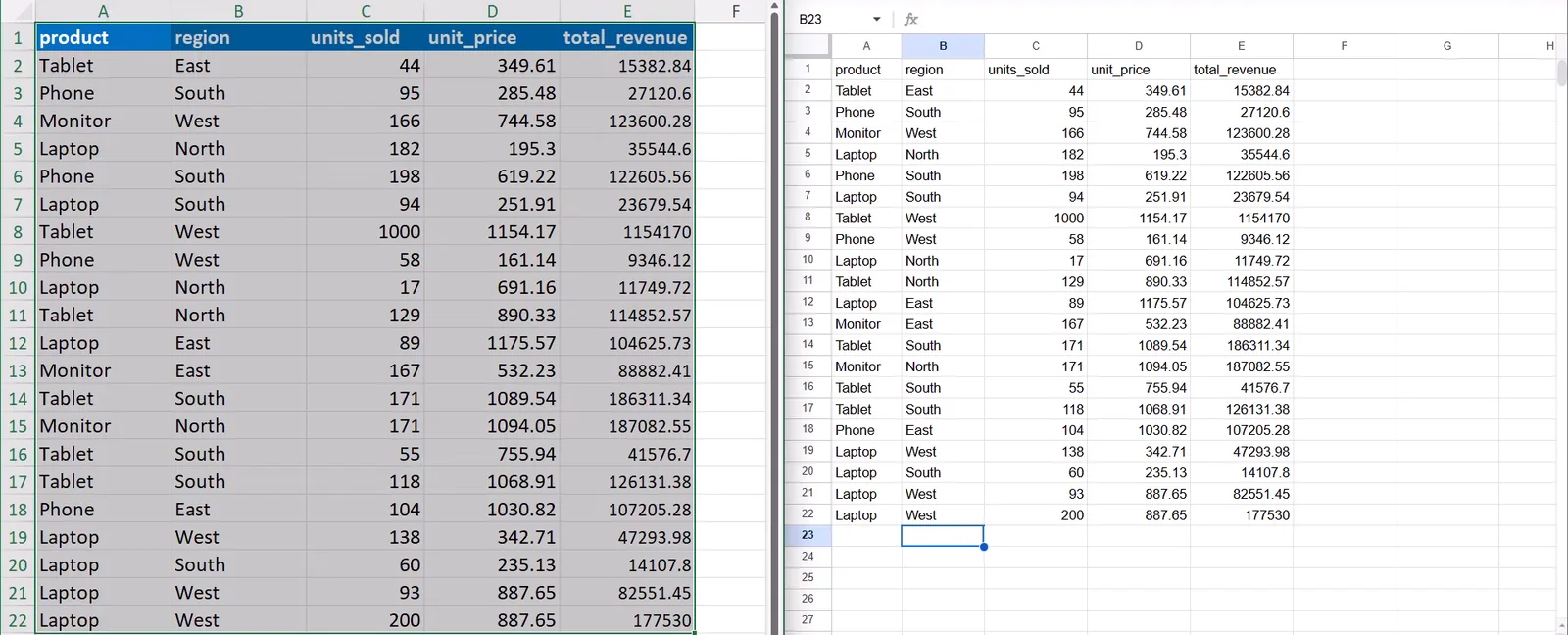
What gets synced
You stay in Excel, select a range, click a button, and the cell values appear in the matching tab and range of a Google Sheet. Formulas, shapes and formatting stay behind, and the formatting that already exists in Google Sheets is not overwritten.
That makes Google Sheets a simple cloud copy of local Excel data, for example as the database behind an app or a dashboard. I use a sheet that way in connecting Streamlit to Google Sheets.
What you need
Three pieces work together: an Excel add-in that sends the selection, an automation platform that receives it, and the Google Sheet it lands in. None of them needs code.
- XLPrompt, my Excel add-in, to send the selected range to a webhook as JSON. I cover its webhook feature on its own in sending Excel data to other apps with a webhook.
- A no-code automation platform to receive the webhook and write to Google Sheets. I use Pabbly Connect; Zapier, Make and n8n work too.
- A Google Sheet where the data will land.
Affiliate link: if you buy Pabbly Connect through it, I may earn a commission, at no extra cost to you.
Prepare the Google Sheet
Create a new Google Sheet with one tab per Excel sheet you want to sync, named exactly like the Excel sheets. I named mine Excel Sync Test and added the tabs Sales Data and Weekly Sales. Matching names let the workflow pick the right tab from the metadata Excel sends.
Create the webhook
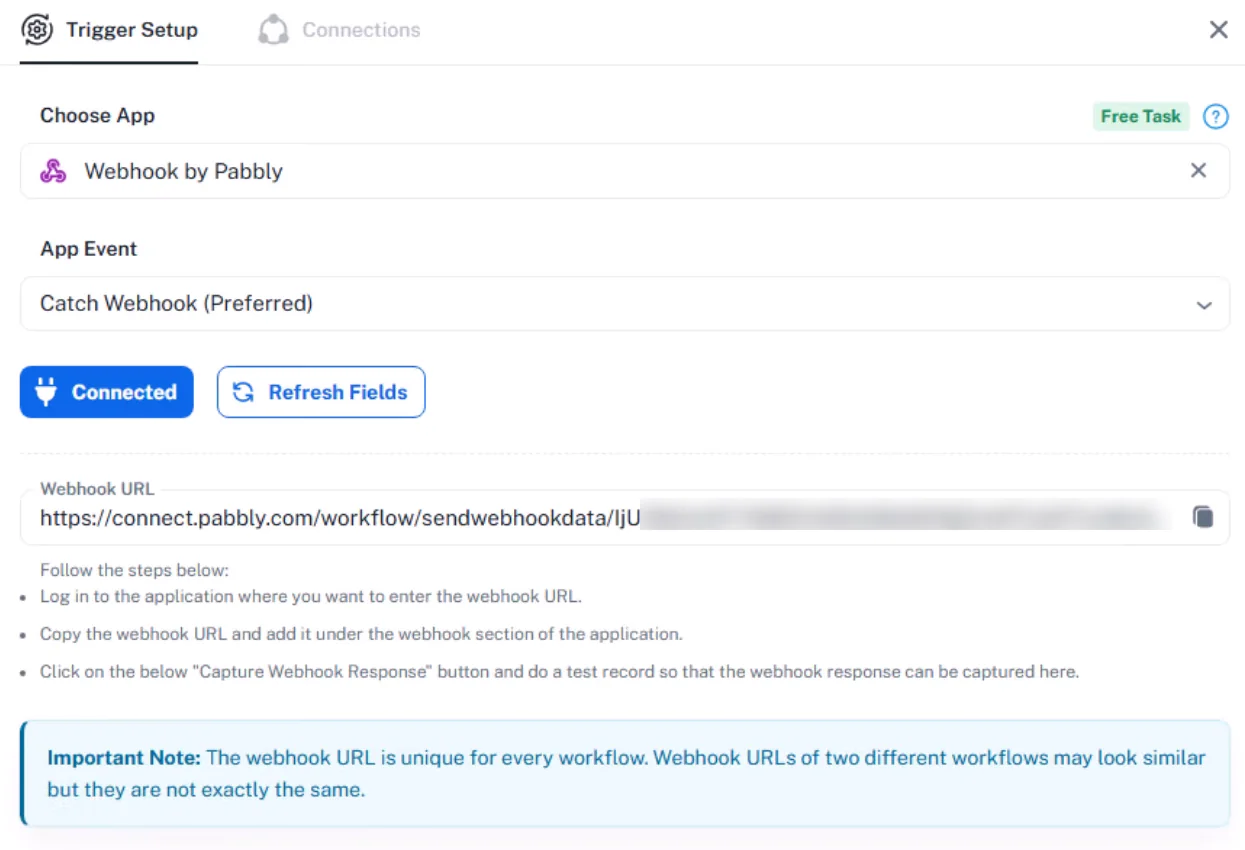
In the automation platform, create a new workflow with a webhook as the trigger. The webhook waits for the data Excel sends. Copy its URL; you paste it into XLPrompt in the next step.
Set up XLPrompt
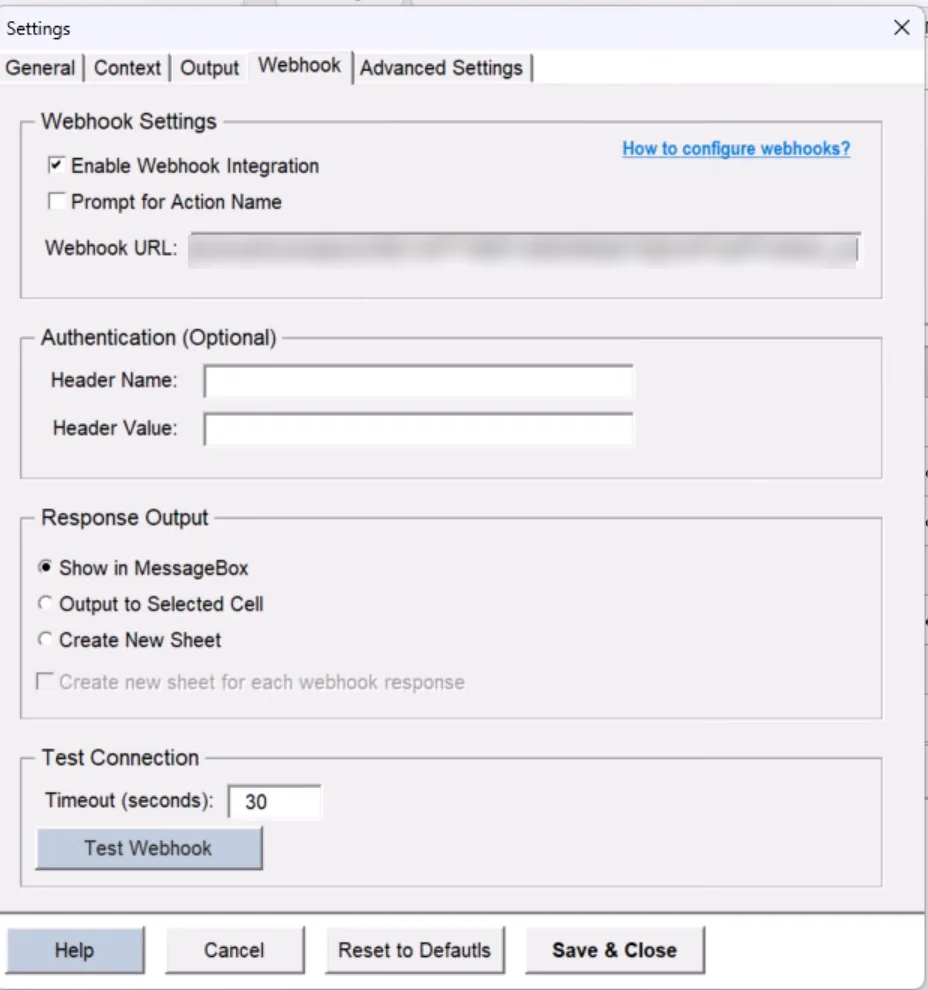
XLPrompt needs the webhook URL, the array output format and two pieces of metadata. All three are set once in the add-in’s Settings and stay saved.
-
Open Settings on the XLPrompt ribbon and go to the Webhook tab.
-
Enable the webhook integration and paste the webhook URL.
-
Choose the array output format under General. Google Sheets expects rows as arrays.
-
Turn on the metadata for the worksheet name and the range address, so the workflow knows where the data belongs.
Clean the brackets
The array from Excel starts and ends with double square brackets, which the Google Sheets action does not accept as they are. Two text replacements in the workflow fix that, without a code step.
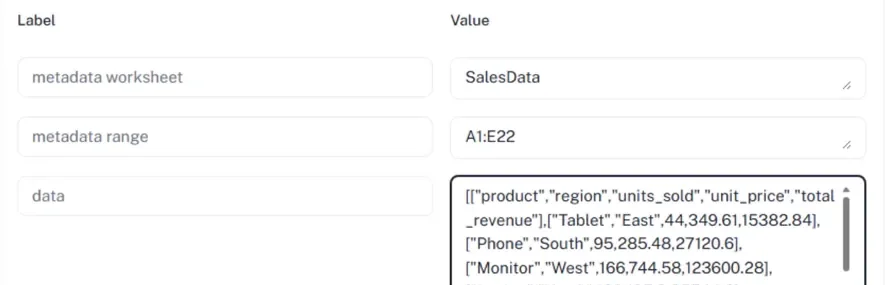
Select a range and click Send to Webhook. The workflow now shows the payload: the metadata and the raw data. Add the platform’s Text Formatter twice with Replace Text: the first turns the double opening brackets into a single one, the second does the same for the closing brackets.
Write to Google Sheets
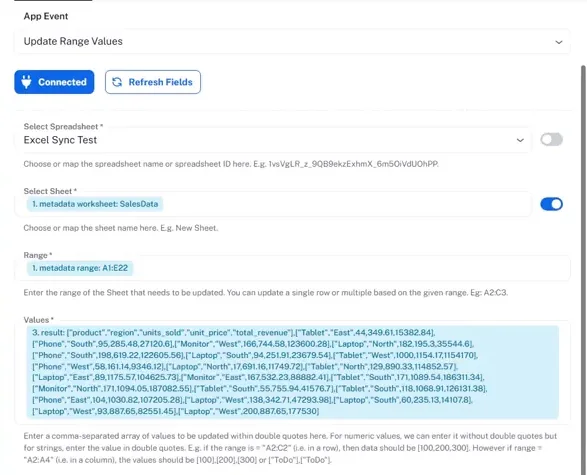
The Google Sheets action Update Range Values writes the cleaned data into the sheet. Map the sheet name and the range from the metadata, and the values from the last Text Formatter step.
Connect your Google account, select the spreadsheet, map the three fields, then save and run a test. If there is no error, the Excel data appears in Google Sheets.
Reply to Excel
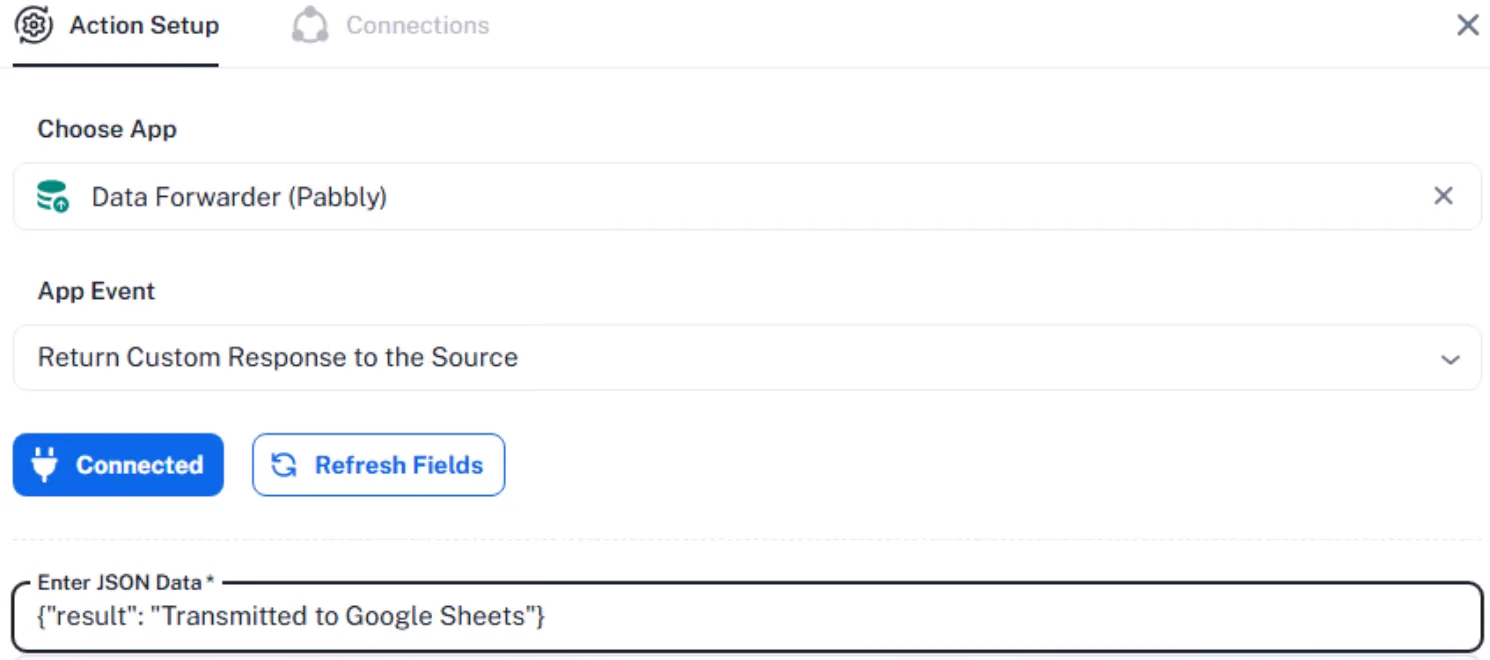
This step is optional. A final step that returns a custom JSON response to the source shows a confirmation in Excel after each send, for example “Result: Transmitted to Google Sheets”.
Limits
This is a one-way push of values, started by you. Nothing flows back from Google Sheets to Excel, and nothing syncs unless you click the button.
- Only cell values are transferred. Formulas, formatting, shapes and conditional formatting do not move over.
- Formatting already in Google Sheets, such as column widths and colors, stays as it is.
- Sheet names and ranges come from the metadata, so one workflow serves several tabs. Some platforms can also create a missing tab on the fly.
- XLPrompt runs in desktop Excel on Windows and Mac (Excel 2010 or later), not in Excel on the web.
The same XLPrompt export also works without a webhook: copy the selection as clean JSON and paste it into ChatGPT or Claude, as I show in turning Excel data into JSON for AI tools.
The Excel add-in that does the sending: turn any selection into structured JSON and post it to a webhook, so a no-code platform can take it anywhere.