
How to Turn Excel Data Into JSON for AI and Dashboards
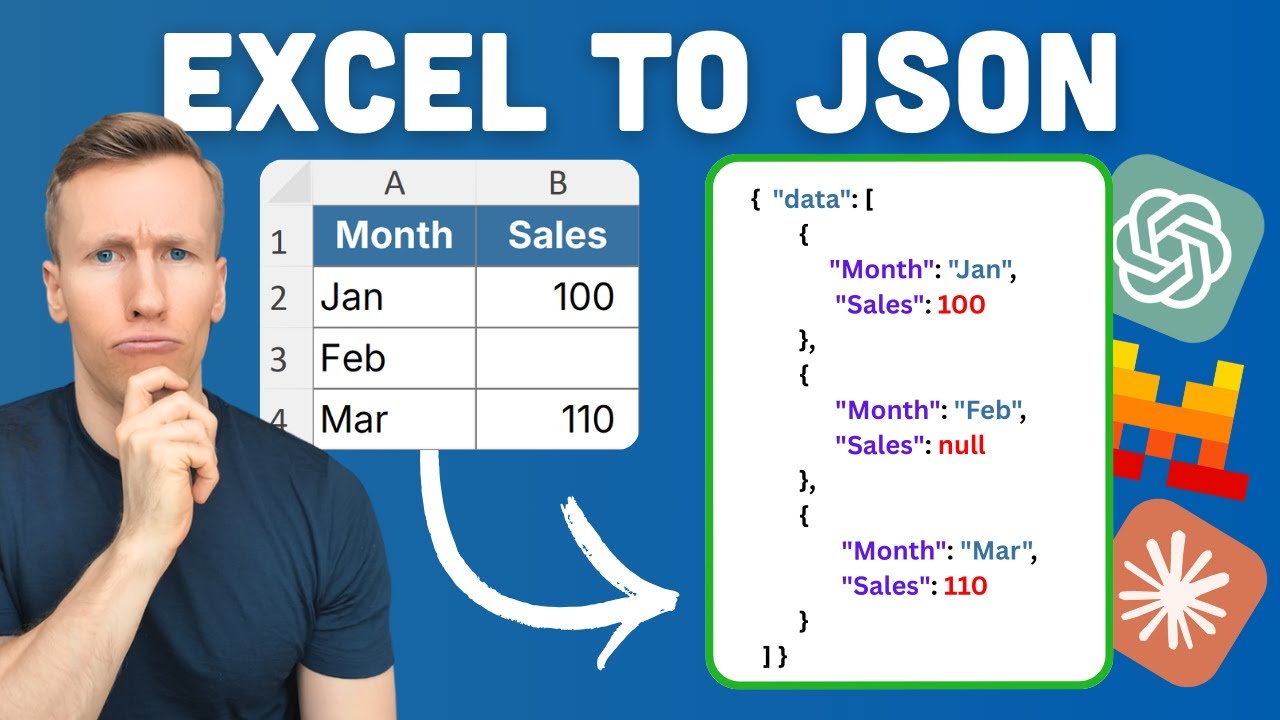
Pasting a raw Excel table into a chat loses its structure, and the model starts guessing. My XLPrompt add-in converts a selected range into clean JSON in one click, saved as a file or copied to the clipboard, optionally with a prompt on top. ChatGPT reads that JSON reliably, and a Streamlit dashboard can use it as its data source.
Why JSON instead of pasted cells
Cells pasted into a chat arrive as loose text, a screenshot has to be read with OCR, and an uploaded workbook needs extra explanation about which sheet and range matter. JSON keeps every value with its column name, so a language model, a Python script or a dashboard reads the table exactly as it is.
Convert a range to JSON
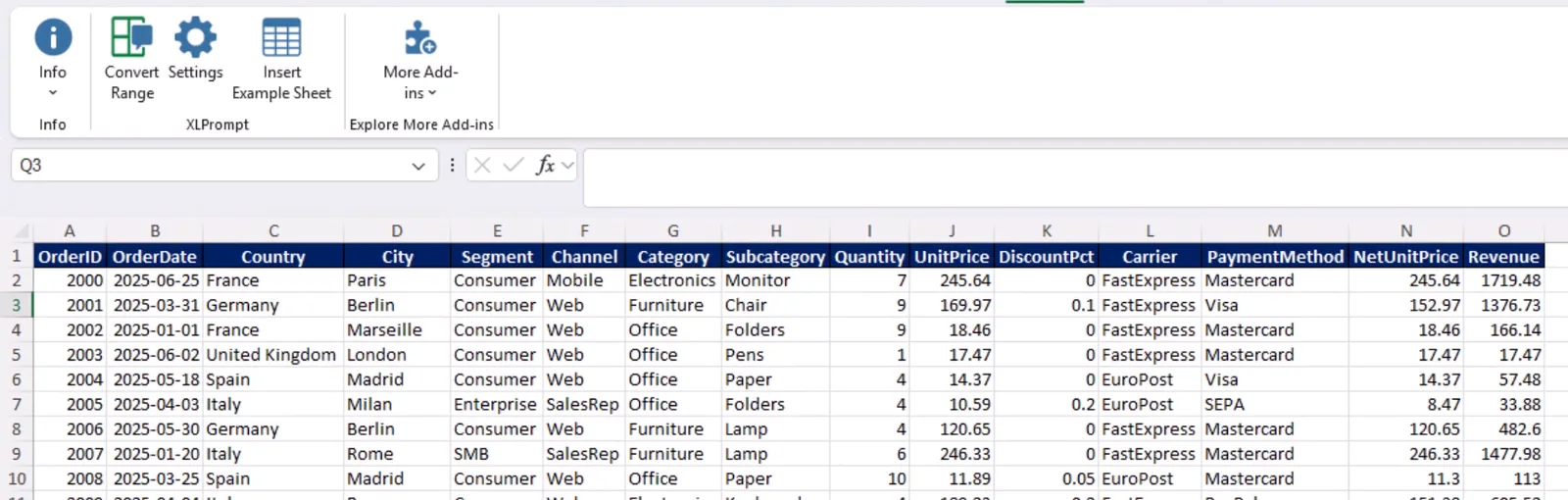
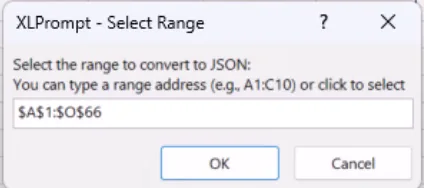
Select the range, click Convert Range on the XLPrompt ribbon group, confirm the selection, and XLPrompt saves the JSON as a file or copies it to the clipboard.
- Select the data range in Excel (headers included if you have them).
- Click the XLPrompt button and confirm the selection.
- Choose whether to save to a file or copy to clipboard.
- Use the resulting JSON wherever you need it.
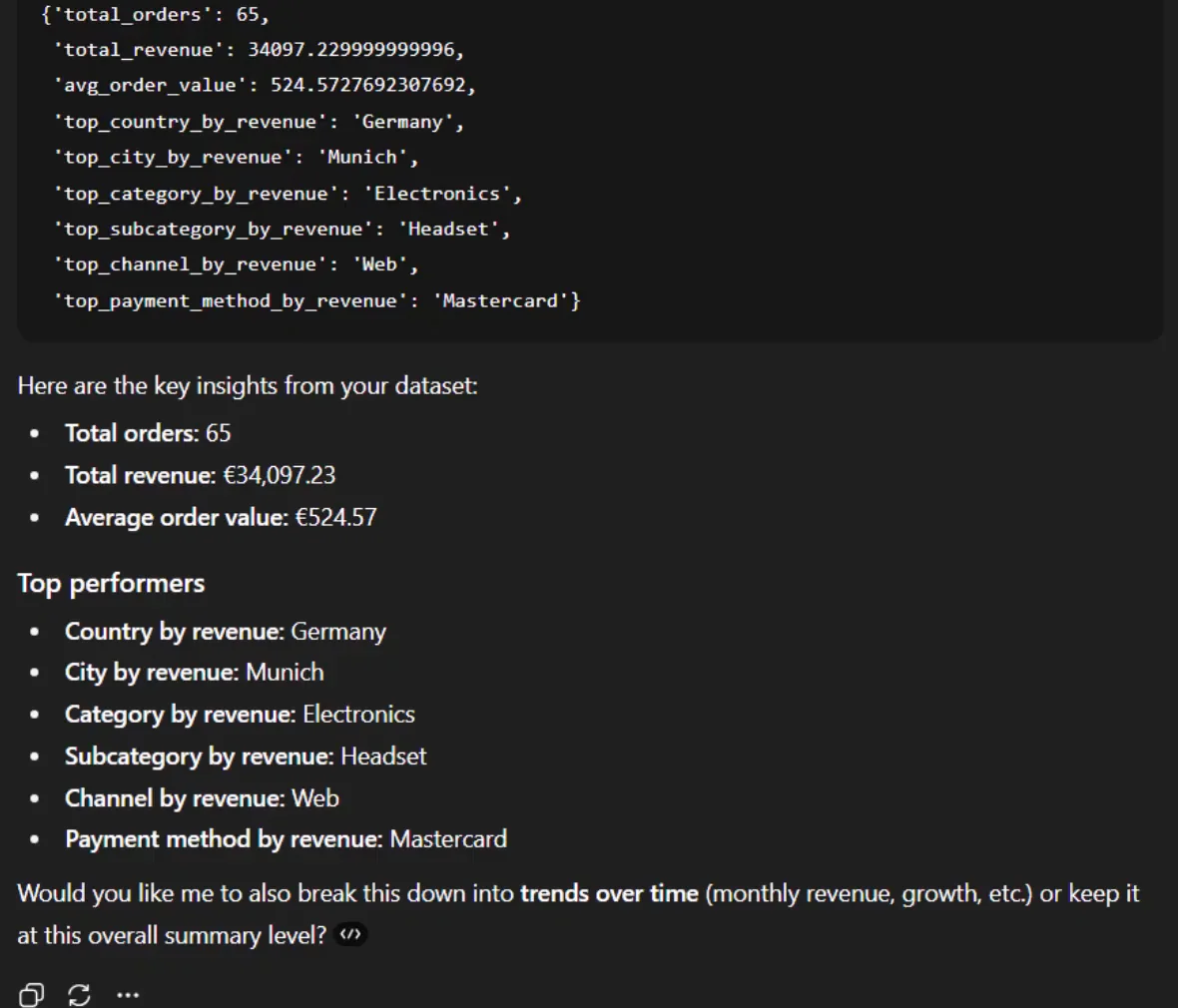
In ChatGPT, I pasted the JSON and asked it to “use Python to analyze my data and give me the key insights”. It returned the total orders, total revenue, average order value and the top performers by country, city, category and channel, computed from the data rather than guessed. Follow-ups such as trends or a two-sentence management summary work the same way. To call ChatGPT from inside Excel instead, see ChatGPT in Excel with xlwings Lite.
Use the JSON for a dashboard
The same JSON file can feed an interactive dashboard. I asked an AI assistant to write a Streamlit app that reads the file, and it produced a dashboard with KPI cards and filters in a few minutes.
- Open your JSON file in a text editor to confirm contents.
- Ask an assistant or write a small script to generate a Streamlit app (dashboard.py).
- Run the app locally with streamlit run dashboard.py.
- Filter by country, segment, or other fields and watch the visualization update.
For a hand-built version of such an app, see the Streamlit sales dashboard tutorial.
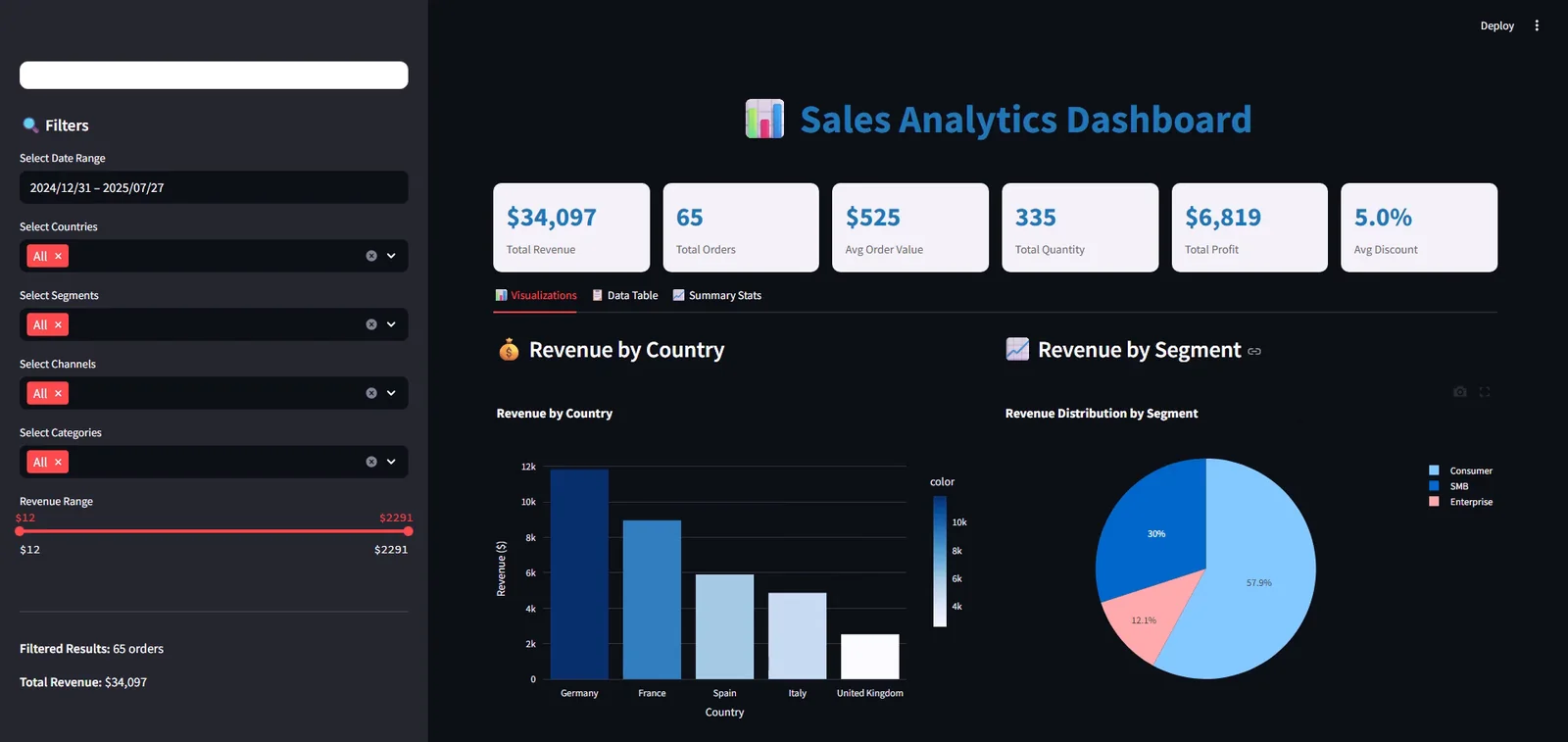
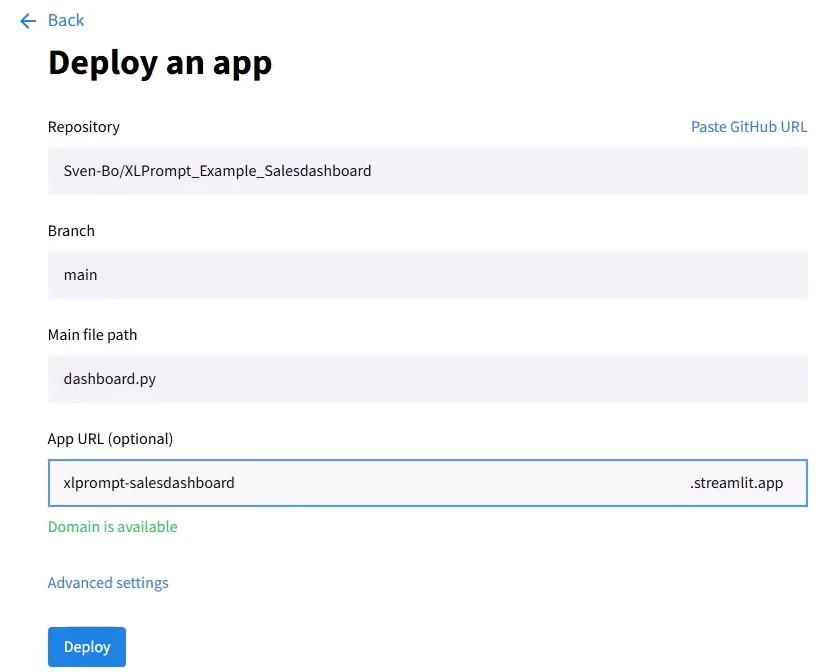
To share the dashboard, deploy it for free on Streamlit Community Cloud: add a .gitignore so your Excel file is not uploaded, push the project to GitHub, and deploy it from Streamlit with a custom URL.
Settings and formats
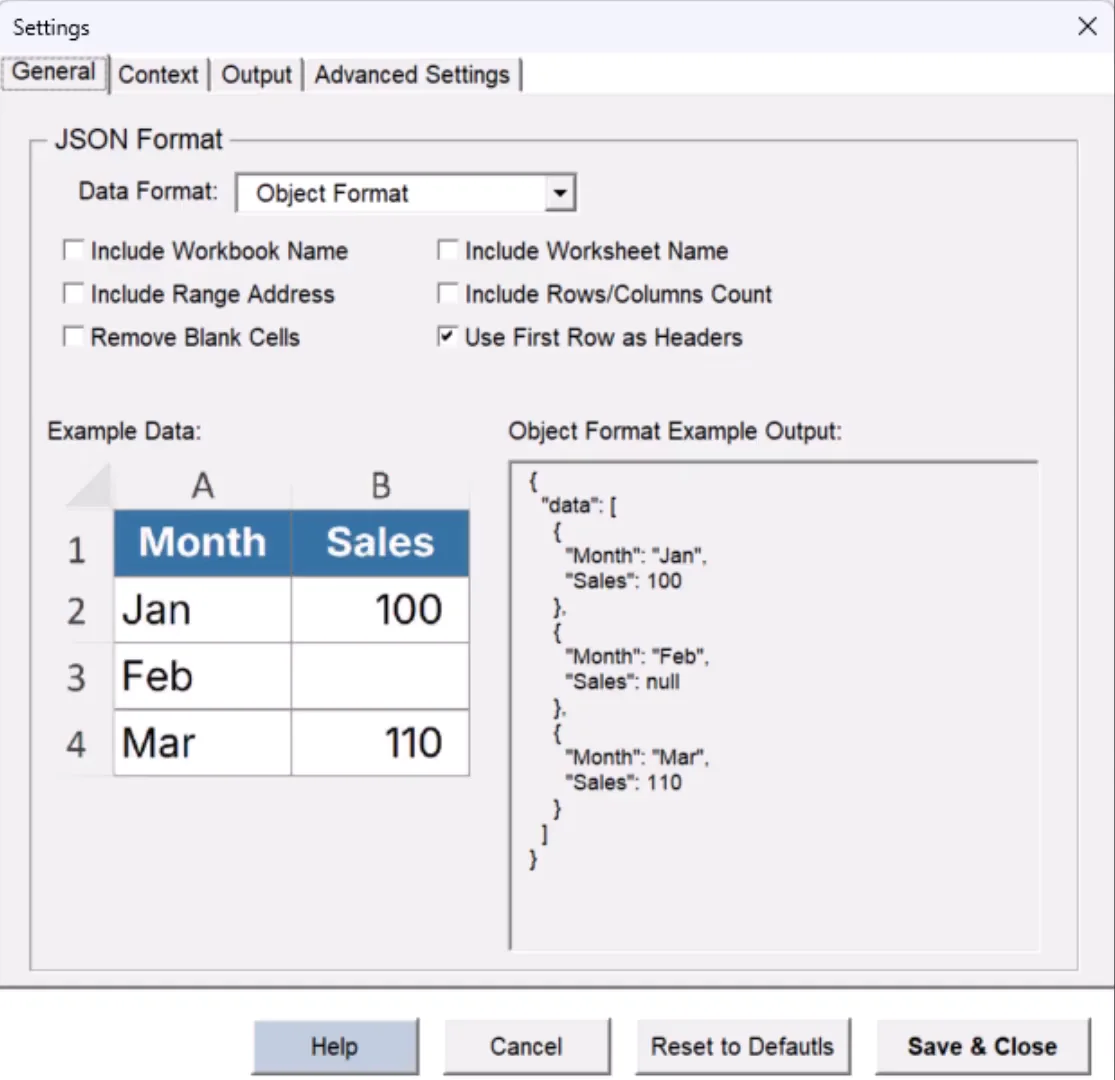
The Settings dialog decides where the JSON goes, whether a prompt sits above it, and how the cells are laid out.
- Output destination: save JSON to file or copy it to clipboard.
- Include a prompt: inject a small prompt block above the JSON (useful when pasting into a chat or sending to an assistant).
- Variables: automatically substitute workbook name, sheet name, and range address into the prompt.
- Blank cell handling: exclude blank values instead of showing nulls.
- Data format: choose object, array, table, or cell format. If your range is a proper table with headers, the object format with the first row set as headers gives the best results.
To test clipboard output, select a range, export to clipboard, and paste into Notepad. The top of the JSON will include your custom prompt text and the actual workbook, worksheet, and range values if you used variables in the settings.
Analyze the following Excel data and provide insights:

This data comes from Excel workbook: 'business_orders.xlsx', sheet: 'XLPrompt_Example', range: 'B3:E39'

{
  "workbook": "business_orders.xlsx",
  "worksheet": "XLPrompt_Example",
  "range": "B3:E39",
  "rows": 37,
  "columns": 4,
  "data": [
    {
      "Month": "January",
      "Product": "Product A",
      "Sales": 18683,
      "Profit": 2850
    },
    {
      "Month": "January",
      "Product": "Product B",
      "Sales": 11421,
      "Profit": 2430
    },
    {
      "Month": "January",
      "Product": "Product C",
      "Sales": 18783,
      "Profit": 5791
    },
    ...
Requirements and a free alternative
XLPrompt is a paid add-in with a one-time license and a 14-day refund; the free version I mentioned in the video no longer exists. It runs in desktop Excel 2010 or later on Windows and Mac, and installing it takes a minute or two.
If you only need to convert a file now and then, my free Excel to JSON converter does that in the browser, without an add-in. To send the JSON on to other apps from a button, see connecting Excel to external apps with XLPrompt.
Turn a selected range into clean JSON, ready to paste into an API call or a prompt.