
Create Custom Excel Formulas Using Python

To create a custom Excel formula with Python, install the free xlwings Lite add-in, write a Python function in its editor and put @func above it. Excel then offers the function under its name in capitals, for example =EXTRACT_EMAILS(A2). The code is saved in the workbook, so colleagues only need the add-in, not Python.
Table of contents
How Python formulas work
A custom formula written in Python is a function that Excel treats like a built-in one. You type it into a cell, pass cells or ranges as arguments, drag it down a column or use it in a table, and it recalculates when its inputs change. If it returns a list or a table, the result spills like any dynamic array formula.
The add-in that makes this work is xlwings Lite. It runs Python inside Excel’s task pane, locally on your computer, without a separate Python installation. That gives your formulas everything Python has: pandas to group and summarize tables, regular expressions to pull patterns out of text, and thousands of packages beyond that.
Two things make it practical for everyday Excel work. The functions are stored inside the normal .xlsx file, not in a separate add-in you have to distribute. And the docstring of each function shows up as help text in Excel’s function wizard, so the person using your formula sees what it expects.
What you need
You need Excel for Microsoft 365 or Excel 2021 or newer and the free xlwings Lite add-in. It works in Excel on Windows, on a Mac and in Excel on the web. Extra Python packages go into the add-in’s requirements.txt tab, followed by a restart of the add-in.
-
Install the add-in. In Excel go to Home, then Add-ins. Search for xlwings Lite and click Add. The pane opens on the right with sample code already loaded.
-
Add packages if you need them. pandas is usually listed already. For anything else, such as httpx for web requests, add a line to requirements.txt and click Restart when the add-in asks.
-
Write your functions in main.py. When you save, xlwings Lite registers the functions, and a new formula is available in Excel a moment later.
My guide to xlwings Lite shows the pane and the difference between scripts, which run on a button click, and custom functions, which live in cells.
Your first custom formula
Write a function, decorate it with @func and save. The sample code that comes with xlwings Lite already contains the classic example: a function called hello that takes a name and returns a greeting. In Excel you call it as =HELLO("Sven").
from xlwings import func


@func
def hello(name):
    """Returns a greeting, e.g. =HELLO("Sven")"""
    return f"Hello {name}!"
The rules are short:
- The Excel name is the Python name in capitals:
extract_emailsbecomesEXTRACT_EMAILS. - Each Python argument becomes a formula argument. An argument with a default value, such as
if_none="No number found", is optional in Excel. - A single cell arrives as a value, a range arrives as a list of rows unless you ask for a DataFrame.
- While the function runs, the cell shows
#BUSY!. If Python raises an error, the cell shows#VALUE!and the message appears when you hover over it.
A formula that returns a table
Tell xlwings to hand the range to your function as a pandas DataFrame, do the work in pandas, and return a DataFrame. The result spills into the cells below and to the right, the same way FILTER or UNIQUE do. A single formula can replace a small pivot table.
This function takes a sales table with Region, Units and Unit Price columns, calculates the revenue per row and returns the total per region, largest first:
import pandas as pd
from xlwings import arg, func, ret


@func
@arg("data", pd.DataFrame, index=False)
@ret(index=False)
def sales_by_region(data):
    """Total revenue per region. Pass the whole table including headers."""
    data["Revenue"] = data["Units"] * data["Unit Price"]
    summary = data.groupby("Region", as_index=False)["Revenue"].sum()
    return summary.sort_values("Revenue", ascending=False)
In Excel, pass the table including its header row, so pandas knows the column names: =SALES_BY_REGION(tblSales[#All]). @arg converts the input to a DataFrame, and @ret(index=False) leaves the pandas index out of the result, so you get exactly two columns, Region and Revenue, with their headers.
Add a row to the sales table and the summary updates by itself. If your data is large, Polars is a fast alternative to pandas and works the same way. My post on using Polars in Excel has examples.
Extract emails and phone numbers
Use Python’s built-in regular expressions. A pattern describes what an email address or a phone number looks like, findall returns every match in the text, and the function joins them into one cell. No extra package is needed, and the formula fills down a column like any other.
import re

from xlwings import func

EMAIL_PATTERN = re.compile(r"[\w.+-]+@[\w-]+(?:\.[\w-]+)+")
# Optional +country code, then digits with spaces, dots, dashes or brackets.
PHONE_PATTERN = re.compile(r"\+?\d[\d\s().-]{6,}\d")


@func
def extract_emails(text):
    """All email addresses in a cell, separated by commas."""
    return ", ".join(EMAIL_PATTERN.findall(str(text or "")))


@func
def extract_phones(text, if_none="No number found"):
    """All phone numbers in a cell, or the if_none text when there is none."""
    matches = PHONE_PATTERN.findall(str(text or ""))
    # at least 8 digits, so short codes and order numbers do not count as phones
    numbers = [m.strip() for m in matches if sum(c.isdigit() for c in m) >= 8]
    return ", ".join(numbers) if numbers else if_none
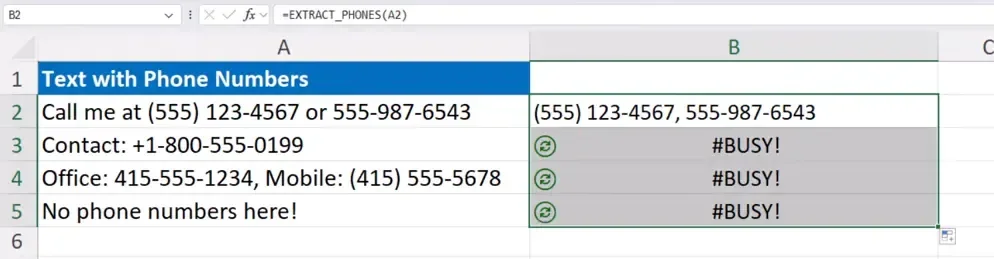
Here is what they return for a few notes from the example workbook. “Call Anna at +1 (555) 201-4477 or write to anna.lee@example.com” returns the email address and the phone number. “Tel. 030 1234 5678 / mobile 0171-555-0199” returns both numbers. “No contact details here, only order 2026-114” returns “No number found”, because the order number has fewer than eight digits.

With several rows, each cell shows #BUSY! for a moment while Python works through them, then fills in. That is normal for xlwings Lite functions, which always run in the background so Excel stays responsive.
Regular expressions are a matter of taste. Phone formats differ by country, so test the pattern on your own data and adjust it. The if_none argument lets you choose what an empty result says, for example =EXTRACT_PHONES(A2, "") for a blank cell.
Formulas that call AI
A custom function can send a prompt and a range to a language model and return the answer to the cell. The video shows a formula that answers a prompt and one that summarizes a weekly sales report in one sentence. You need an API key from the provider, and every calculation is a paid API call.
Keep the key out of your code. xlwings Lite has environment variables in its settings, and your function reads the key from there. Be careful with recalculation too: a formula that calls a model on every change can run up costs on a large sheet. For bigger jobs, a script that runs on a button click is easier to control.
I cover the full setup, including the API key, in the easiest way to use ChatGPT in Excel. If you would rather run a model on your own computer without an API key, see running AI models locally in Excel.
Python, LAMBDA or VBA
LAMBDA is best for short calculations built from existing Excel functions. VBA user-defined functions suit macro-enabled workbooks on the desktop. Python fits when the logic needs text patterns, table operations, web data or packages, and when the file should stay a plain .xlsx that also works in Excel on the web.
| LAMBDA | VBA function | Python with xlwings Lite | |
|---|---|---|---|
| Written in | Excel formulas | VBA | Python |
| File type | .xlsx | .xlsm, macro warning | .xlsx |
| Excel on the web | Yes | No | Yes |
| Regular expressions, grouping tables | Hard | With extra code | Built in, plus pandas |
| Web requests and APIs | No | Possible, with JSON parsing by hand | Yes, with httpx |
| What colleagues need | Nothing | Macros enabled | The free xlwings Lite add-in |
If you already have VBA functions and want to move them over, my post on replacing VBA with Python shows how the two compare in practice.
Example workbook
The workbook below contains the four functions from this post, already stored in the file, with a sales table and a sheet of messy notes to try them on. Open it, install xlwings Lite and type the formulas into the yellow cells.
Custom Excel formulas with Python (example workbook)
HELLO, SALES_BY_REGION, EXTRACT_EMAILS and EXTRACT_PHONES with a Start Here sheet, fictional sales data and sample notes.
Limits
They need Excel 2021 or Microsoft 365 and the xlwings Lite add-in on every computer that calculates them. Python runs inside the browser engine of Excel, so a few packages and direct database connections are not available. Each call is asynchronous, which keeps Excel responsive but shows #BUSY! for a moment.
- Without the add-in the formulas cannot calculate. Send the workbook to someone without xlwings Lite and they see errors instead of results until they install it.
- Packages: pure Python packages and the ones built for Pyodide work, including pandas, NumPy and Polars. Packages that need threads, raw network sockets or compiled code without a Pyodide build do not.
- Web requests go through the browser engine, so the API has to allow browser requests.
- Dates arrive as Excel serial numbers. For DataFrames, name the date columns with
parse_datesin@arg. - Older Excel builds may show errors as text and dates as serial numbers in the results.
One thing custom formulas can do that most people do not expect: keep updating on their own. A function that uses yield instead of return streams new values into the cell, such as a live exchange rate. I show that in custom Excel formulas that update automatically.
To write functions like these yourself, start with my course. It teaches Python from zero for Excel users in 52 short lessons, explained through the Excel you already know, then builds one automation project step by step with AI as a helper.