
TablePop Just Got a Massive Update
The latest TablePop release is aimed at wide tables on small screens: a horizontal scroll mode that freezes the first column, and a responsive collapse mode that folds columns which do not fit into an expandable view. Custom branding and faster large exports too.
Imagine you need to share a wide Excel table with colleagues who prefer a simple web view instead of an Excel file. You want the table interactive, searchable, and mobile-friendly without rebuilding anything by hand. This is exactly where the ability to Turn Excel Tables into Web Pages becomes handy.
Quick context: what this tool does
TablePop converts any Excel table into an interactive HTML report with a single click. The latest update improves usability and customization so your exported web pages look and behave more like a purpose-built dashboard.
Layout and responsiveness: better handling of wide tables
Two new layout options tackle the classic problem of wide tables on small screens.
- Horizontal scrolling and freeze first column: useful when your sheet has many columns and you want the key identifier column to remain visible while scrolling horizontally.
- Responsive collapse mode: only columns that fit on the screen are shown; the rest are collapsed into an expandable view. This improves usability on phones (no awkward rightward scrolling).
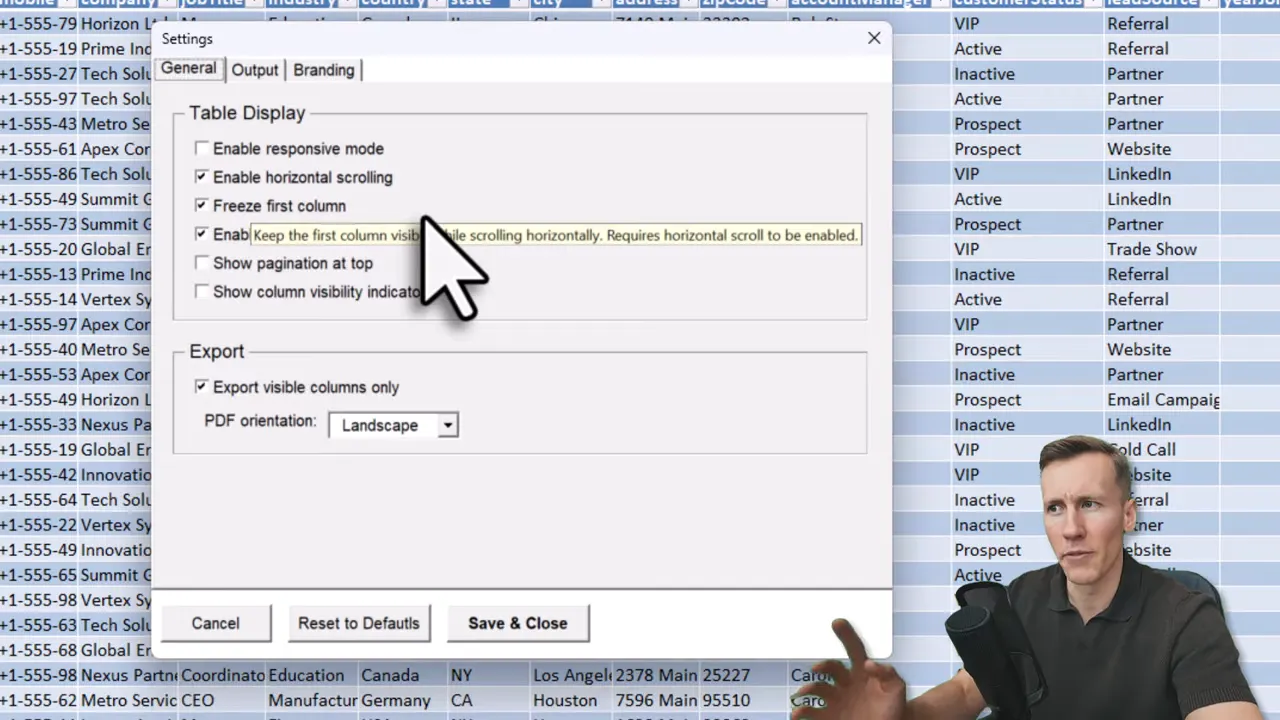
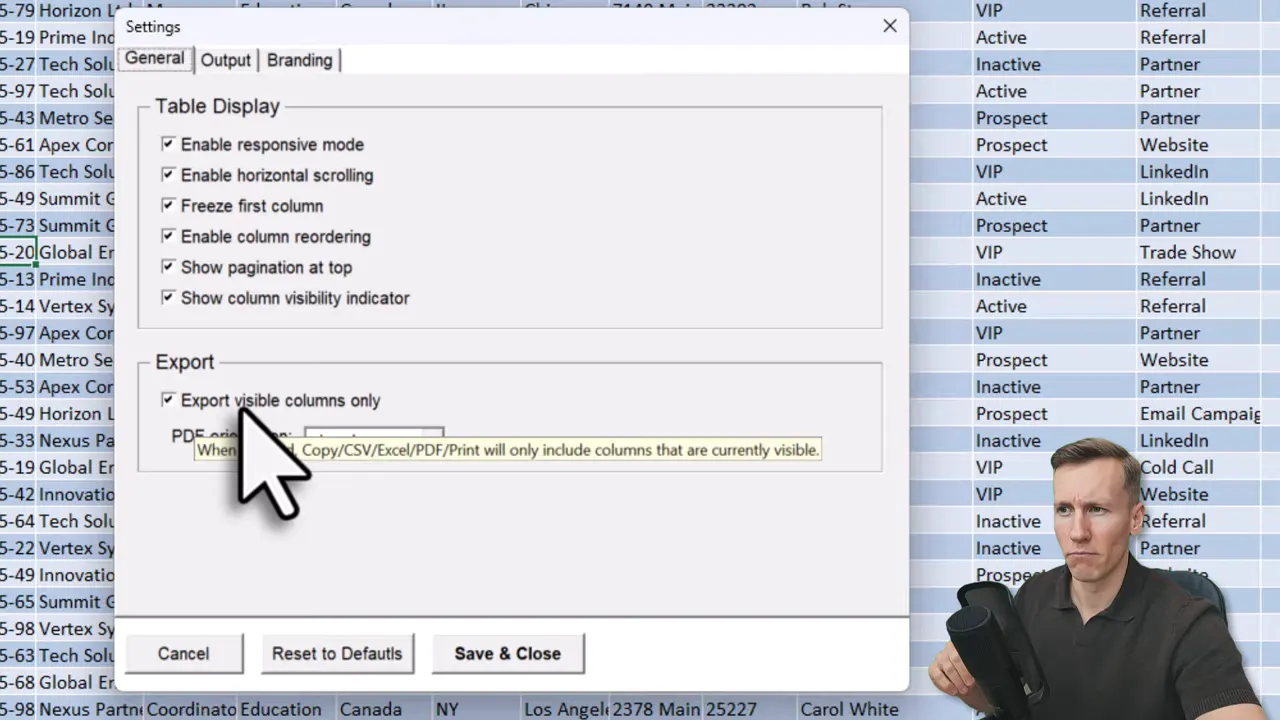
Interactivity: reorder, paginate, and control visibility
The interface is more interactive by default:
- Column reordering: drag a column header to rearrange columns on the fly (no Excel edits required).
- Pagination on top: choose where page controls appear for better layout balance.
- Column visibility indicator: if you hide columns, a clear bar shows that not all columns are visible.
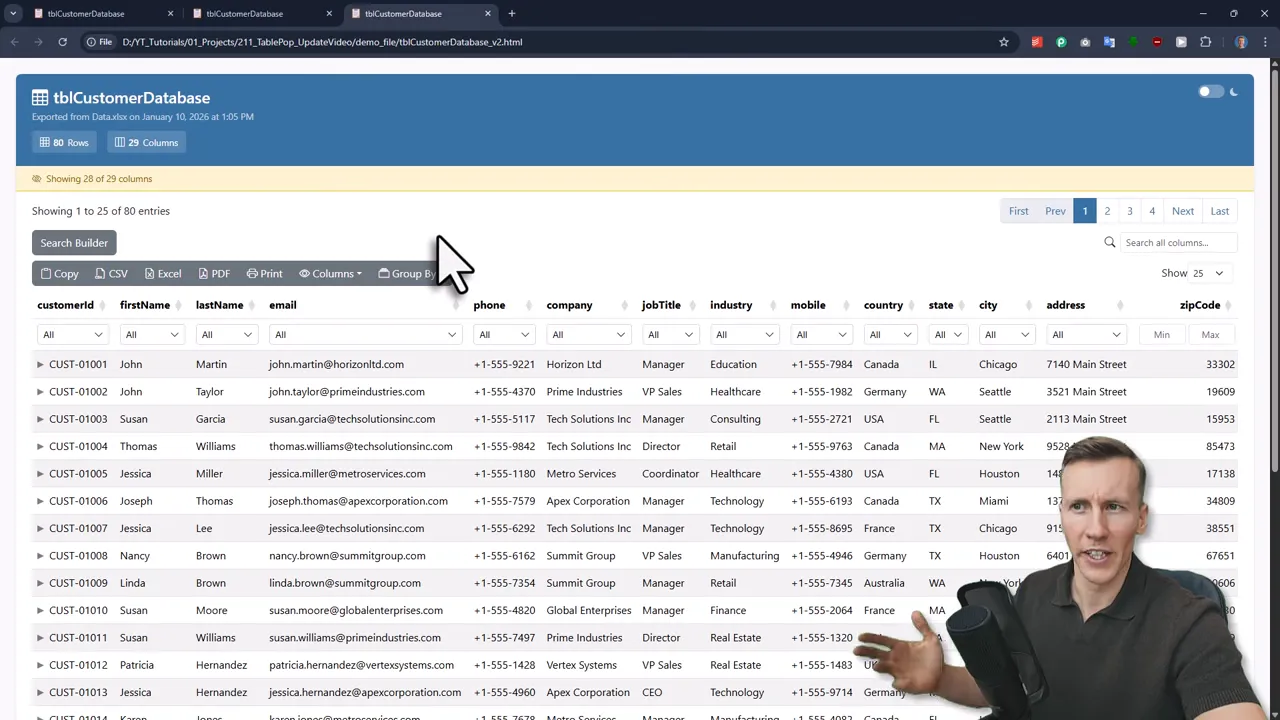
Export improvements: PDFs that match the view
PDF exports now respect the in-page visibility settings. That means if you hide a column in the web report, you can choose to exclude it from the exported PDF. You can also set PDF orientation to portrait or landscape to better suit wide reports.
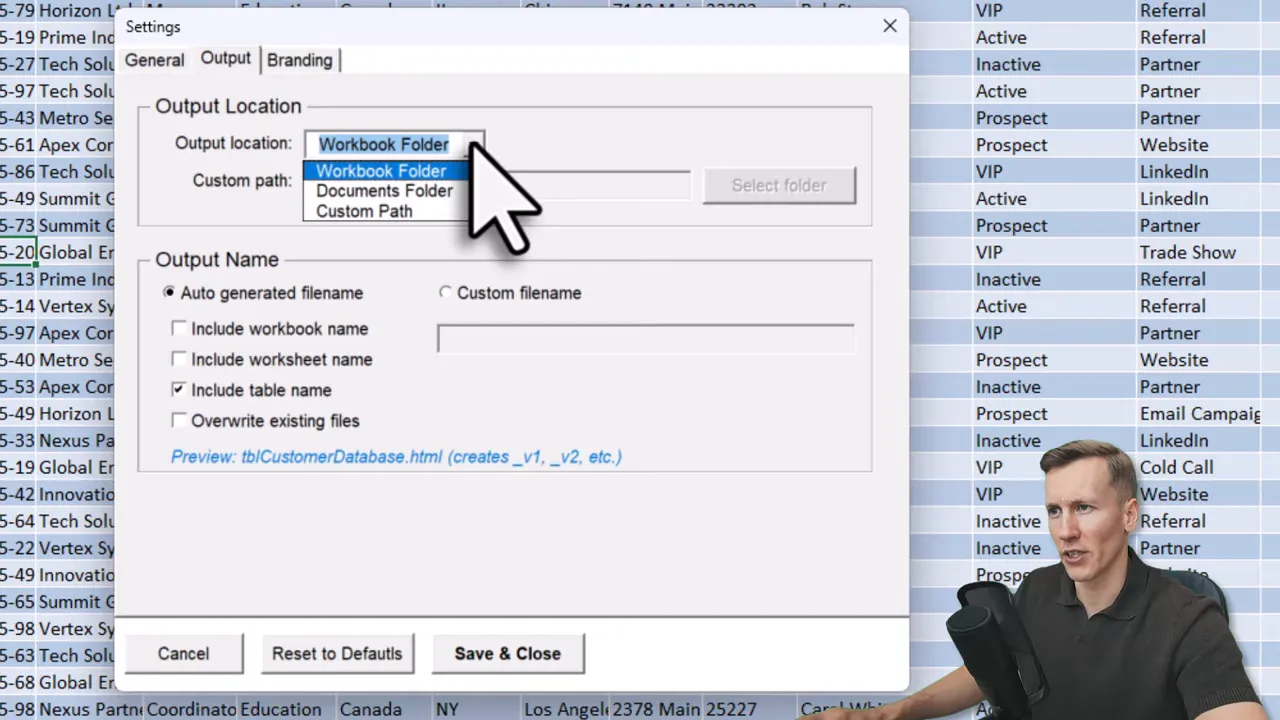
Output options and file naming
The add-in gives more control over where and how the HTML file is saved.
- Choose the default output folder or enter a custom path.
- Include worksheet name or workbook name in the exported filename, see a live preview of the path.
- Versioning is on by default (version 1, 2, etc.). You can enable overwrite or define a custom filename.
Branding and theming (Pro)
For a branded look you can now:
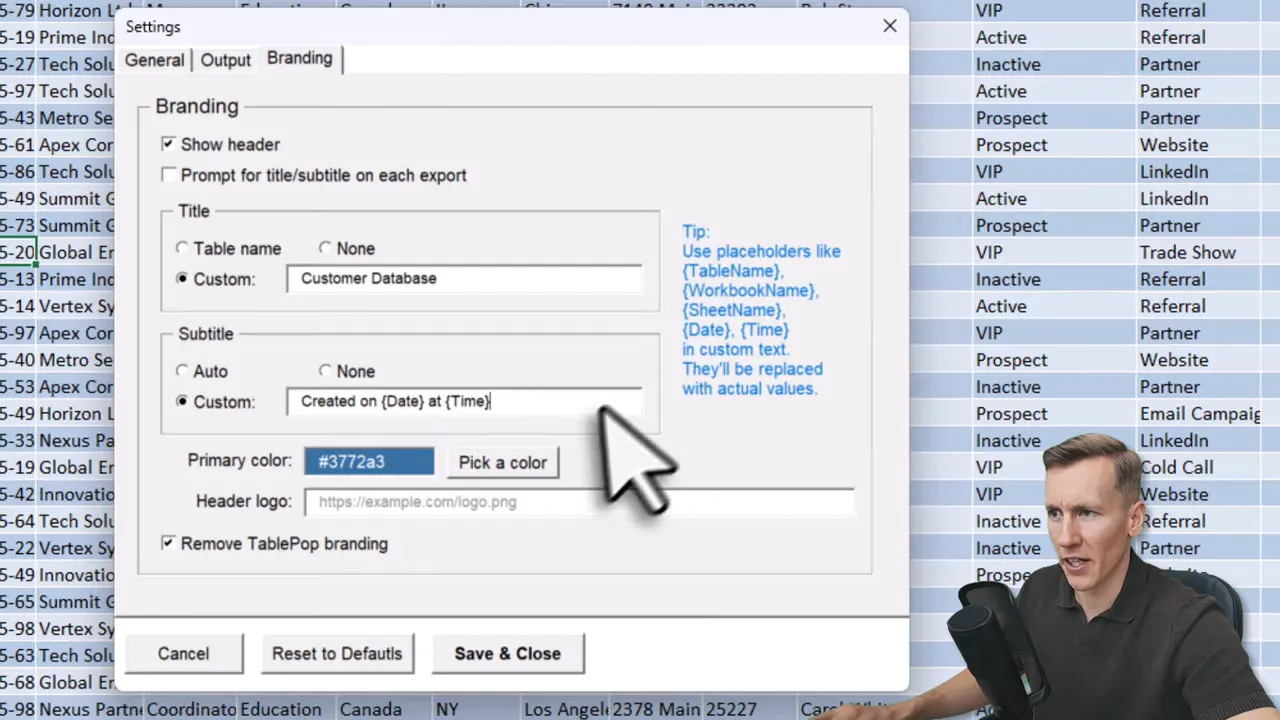
- Show or hide the header, set a custom title and subtitle
- Use placeholders for table name, workbook, sheet, date, and time inside title/subtitle
- Choose a primary color by hex or RGB and include a hosted logo URL for the header
These options help make the exported page feel like part of your product or reporting suite (logo must be hosted online; local file paths are not supported).
Group by and advanced view (Pro)
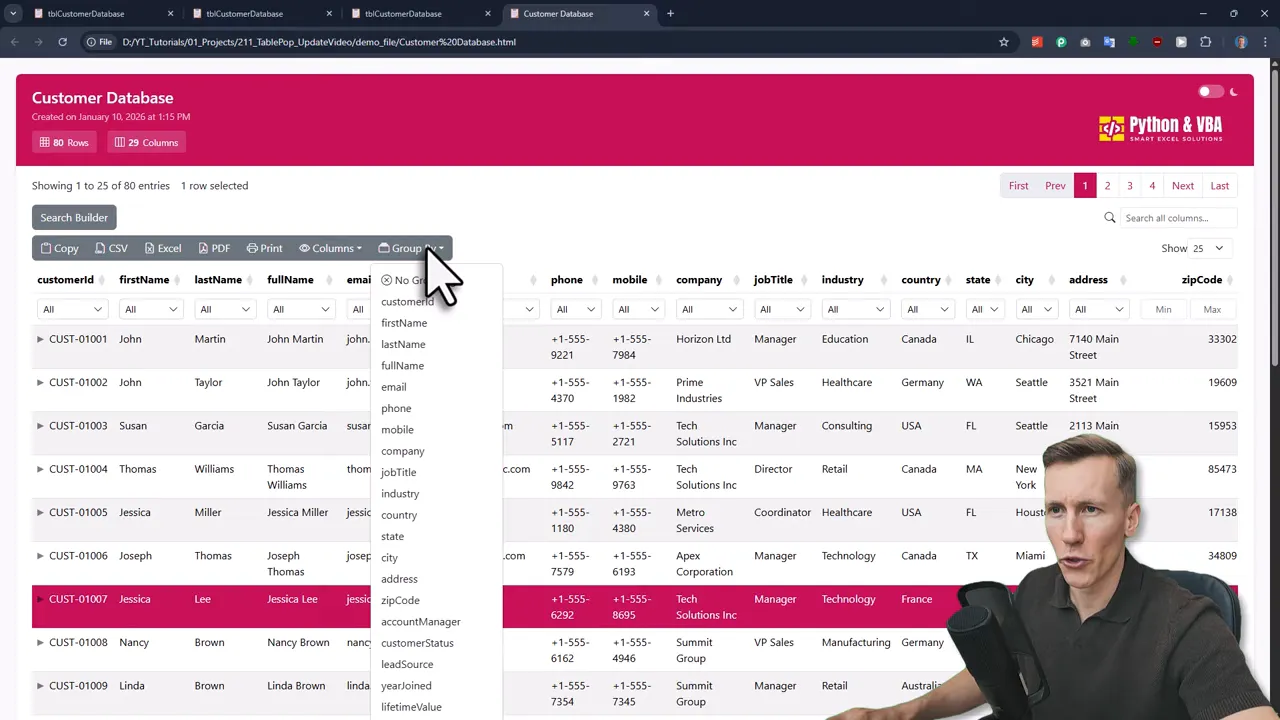
The new group by function lets you aggregate rows visually by any column, for example job title or industry. This is handy when presenting categorical summaries without changing the source data.
Bug fixes and limits to keep in mind
Several stability fixes were added:
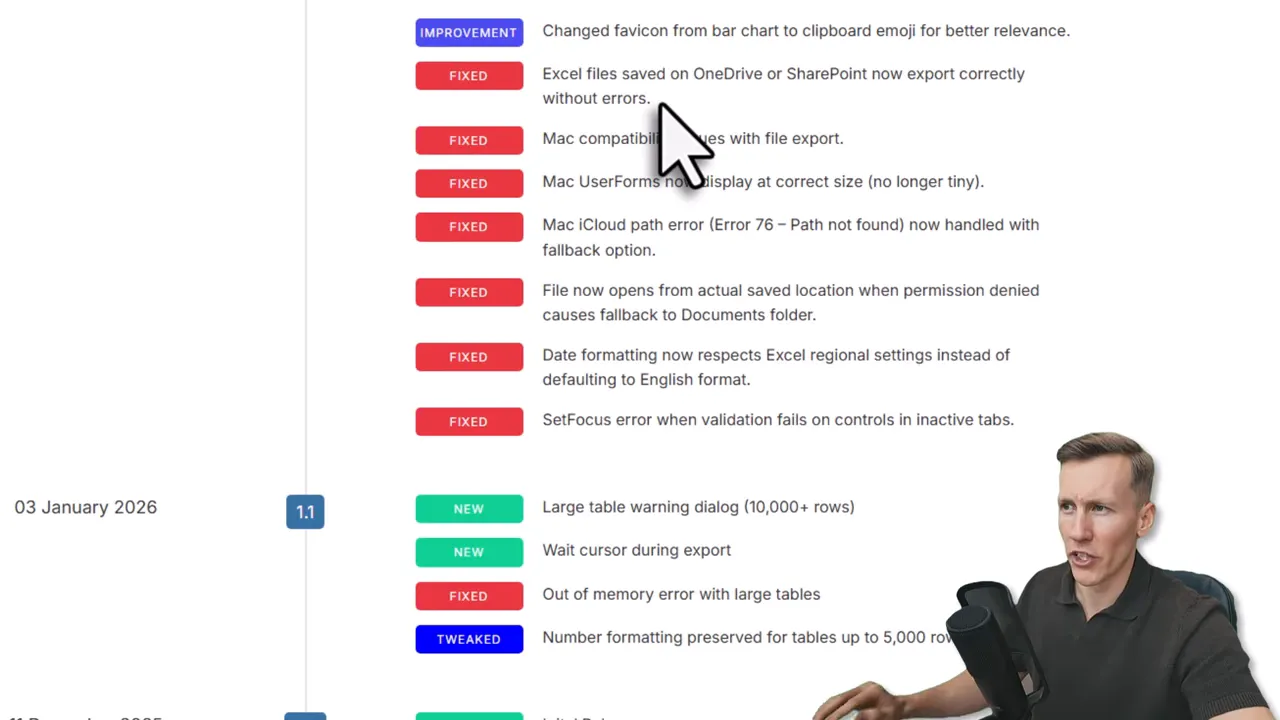
- Saving reports to OneDrive and SharePoint now works without the previous errors.
- Large tables (for example 100,000 rows) are created in chunks to avoid out-of-memory errors during export.
Important caveat: extremely large HTML files will still be slow or unresponsive in the browser because the file size grows with rows and columns. If performance matters, try exporting smaller slices or summarizing data before you Turn Excel Tables into Web Pages.
Updating, feedback, and support
Built-in update checks download the new version directly to your machine. The add-in also links to documentation with step-by-step update instructions. If you have feature ideas, submit them to the feature board where the most requested items get prioritized.
When to use this workflow
Use this approach when you need to share Excel data quickly and want a polished, searchable web presentation. It is especially useful for:
- Internal reports shared across teams without requiring Excel
- Dashboards for stakeholders who prefer a browser over a spreadsheet
- Mobile-friendly views of data where collapsing columns improves readability
Conclusion
TablePop makes it straightforward to Turn Excel Tables into Web Pages while giving more control over layout, export behavior, and branding. The update tightens common pain points like wide tables and cloud-saved workbooks, while leaving a sensible warning about very large exports. If you frequently publish Excel reports as HTML, these improvements help your reports look cleaner and behave better across devices.
Try exporting a sample table with the new responsive and branding options, and you will quickly see how much easier it is to share structured data as a neat web page.
Responsive layouts, frozen columns and custom branding, all in the current release.