
Automating Word Documents from Excel Using Python | 'docxtpl' Tutorial

docxtpl fills placeholders in a Word template with data read from Excel, so one script generates a whole batch of finished documents. You mark up the .docx with Jinja-style tags, load the spreadsheet in Python, and render one document per row.

The foundation of this process is the docxtpl library, which allows you to fill in placeholders in a Word document template with data from various sources, including Excel. This approach simplifies the task of updating documents with the latest information without manually editing each file.
Setting Up Your Environment
To get started, you need to ensure that you have the necessary libraries installed. The primary libraries used in this tutorial are:
- docxtpl – for manipulating Word documents
- xlwings – for interacting with Excel
To install these libraries, you can use the following commands:
pip install docxtpl
pip install xlwings
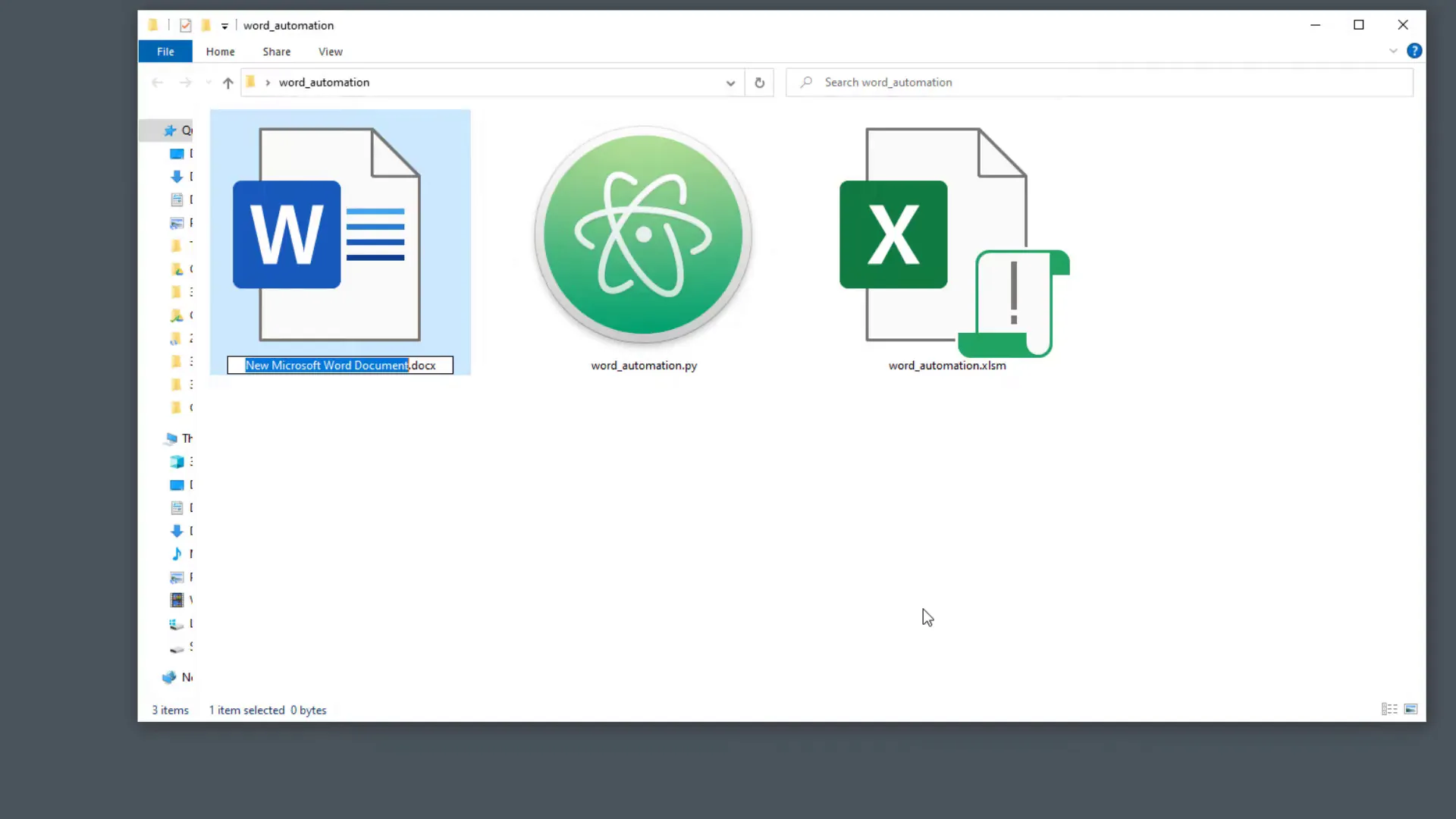
Once you have these libraries installed, you can start by creating a Word document template. This template will contain placeholders that will be replaced with actual data from your Excel file.
Creating the Word Template
In the Word template, you’ll create placeholders for the data you want to insert. Placeholders are indicated using double curly braces, like this: {{ placeholder_name }}.
For example, if you want to insert a sales report, you might include placeholders for the sales figures, categories, and other relevant information.
Writing the Python Script
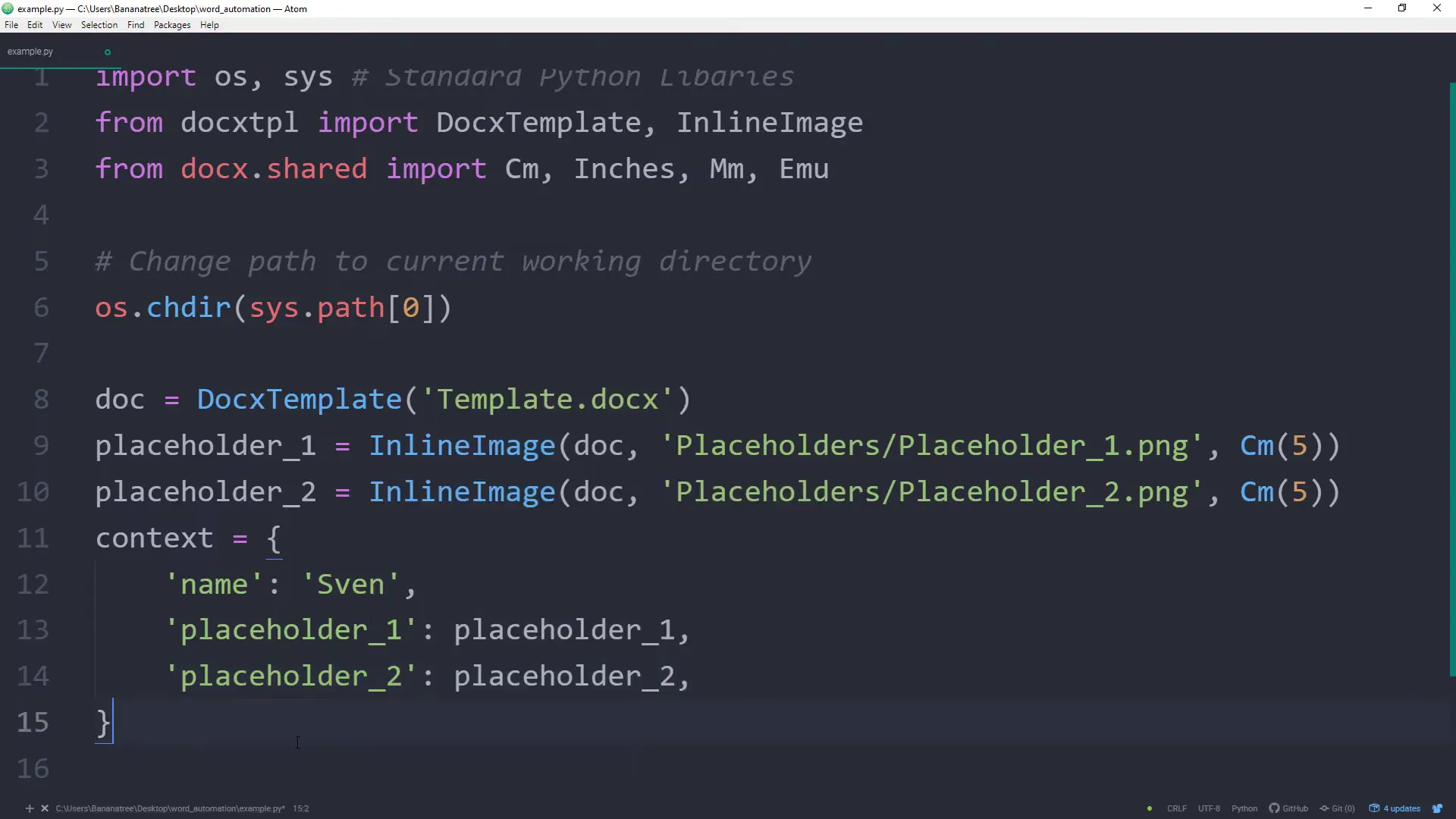
Now, let’s write a Python script that will populate the Word template with data from an Excel file. Here’s a brief overview of the steps involved:
- Import the necessary libraries.
- Load the Excel file and read the data.
- Create a context dictionary that maps the placeholders to the actual data.
- Render the template with the context data.
- Save the populated document.
Here’s how the script might look:
Replacing Placeholders with Data
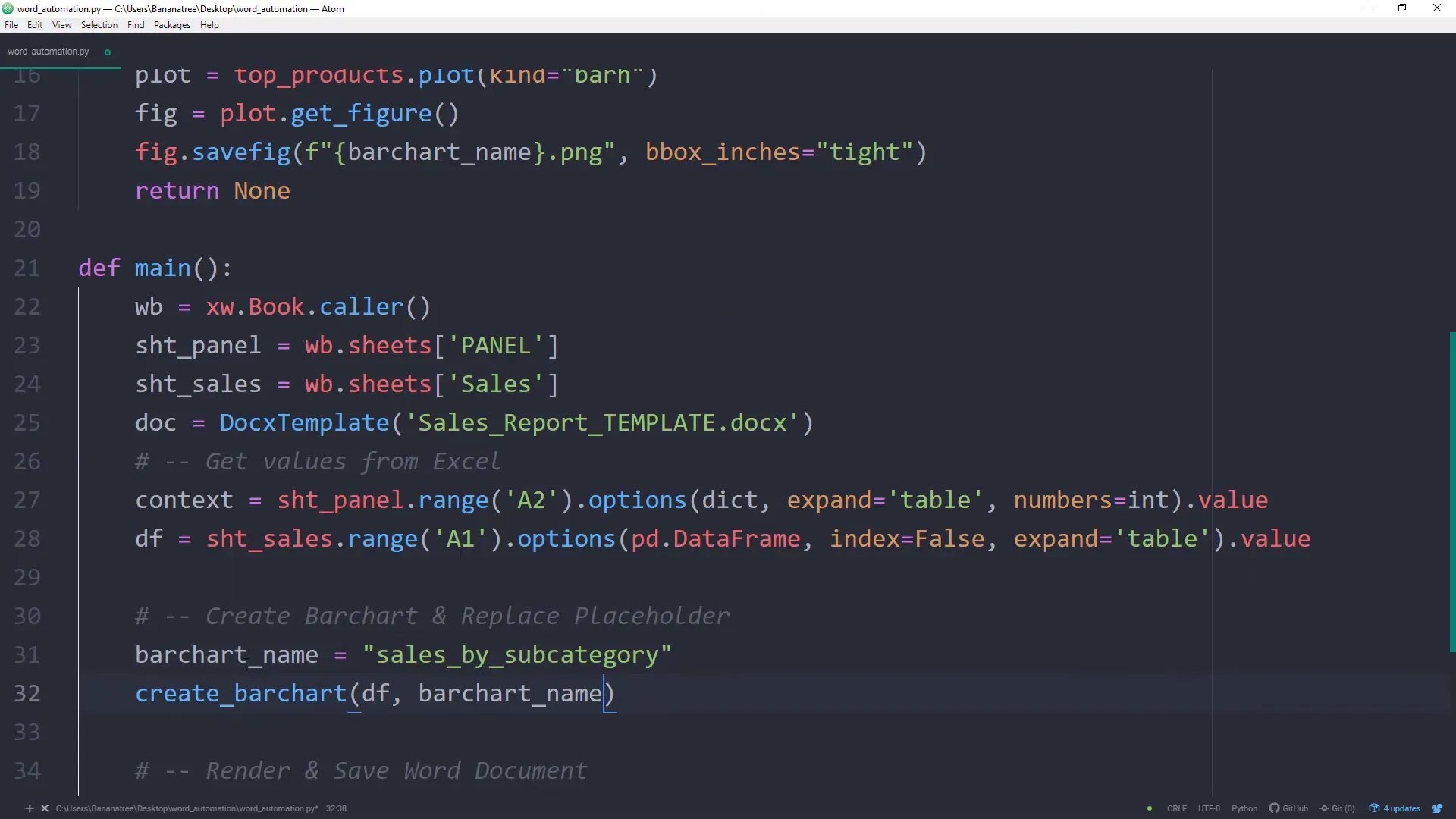
The script reads data from the specified range in your Excel sheet and creates a context dictionary. This dictionary is then used to replace the placeholders in the Word template with the actual data.
After running the script, you should have a new Word document with all the placeholders replaced by the corresponding values from Excel.
Bonus Features
Besides basic data insertion, you can enhance your script to include features like:
- Inserting images dynamically based on Excel data.
- Generating charts or graphs from Excel data and embedding them into the Word document.
- Creating multiple documents from a single template based on different data sets.
Conclusion
Automating the generation of Word documents from Excel data can save you a significant amount of time, especially when dealing with large datasets. By using the docxtpl and xlwings libraries, you can streamline your workflow and ensure that your reports are always up-to-date with minimal effort.
Further Links
If you would rather not maintain the script, this does the same job with no code: a Word template plus your sheet, one document per row.