
How to Send Push Notifications to Your Phone Using Excel VBA
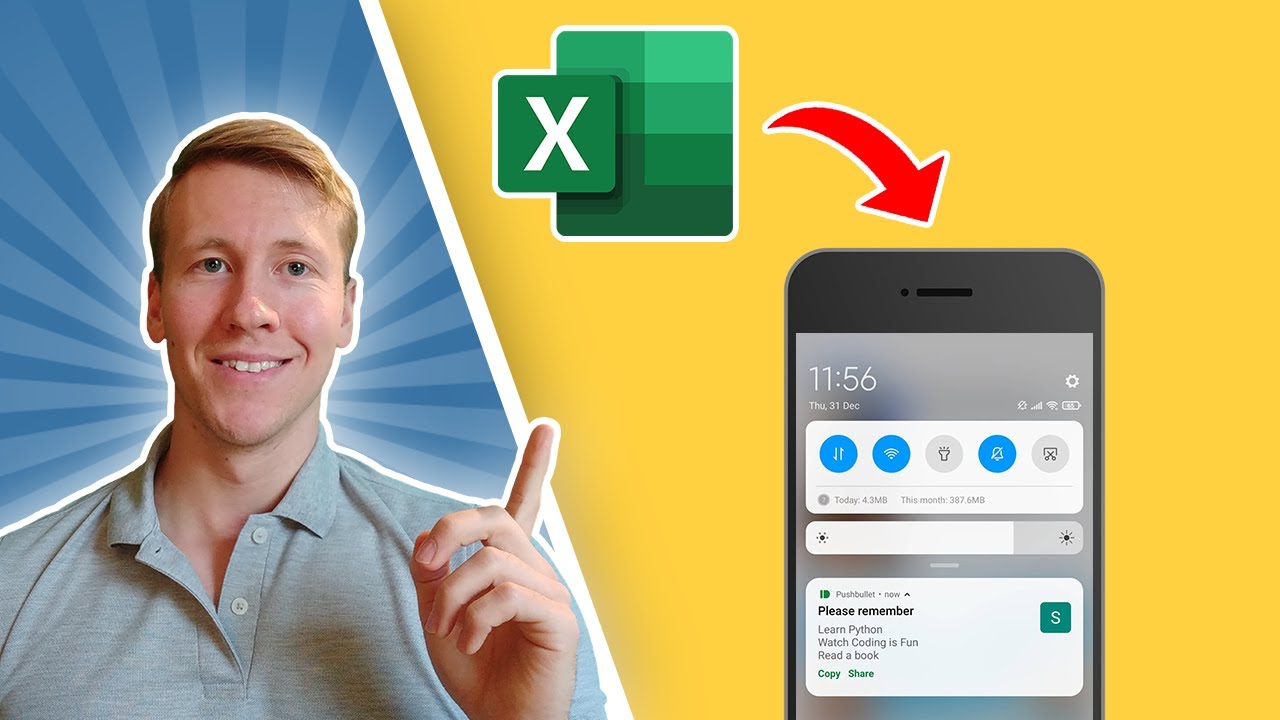
Excel VBA can push a notification to your Android phone through the Pushbullet API: create an account, install the app, generate an access token, and send the title and body from a macro as a POST request. Useful for telling you that a long-running macro has finished.
Set up Pushbullet
Pushbullet delivers the notification to your phone, so you need an account, the app and an access token. Sign up at pushbullet.com with your Google or Facebook account, then install the Pushbullet app on your phone. It is an Android app. Pushbullet no longer offers its iPhone app, so on an iPhone this does not deliver the notification.
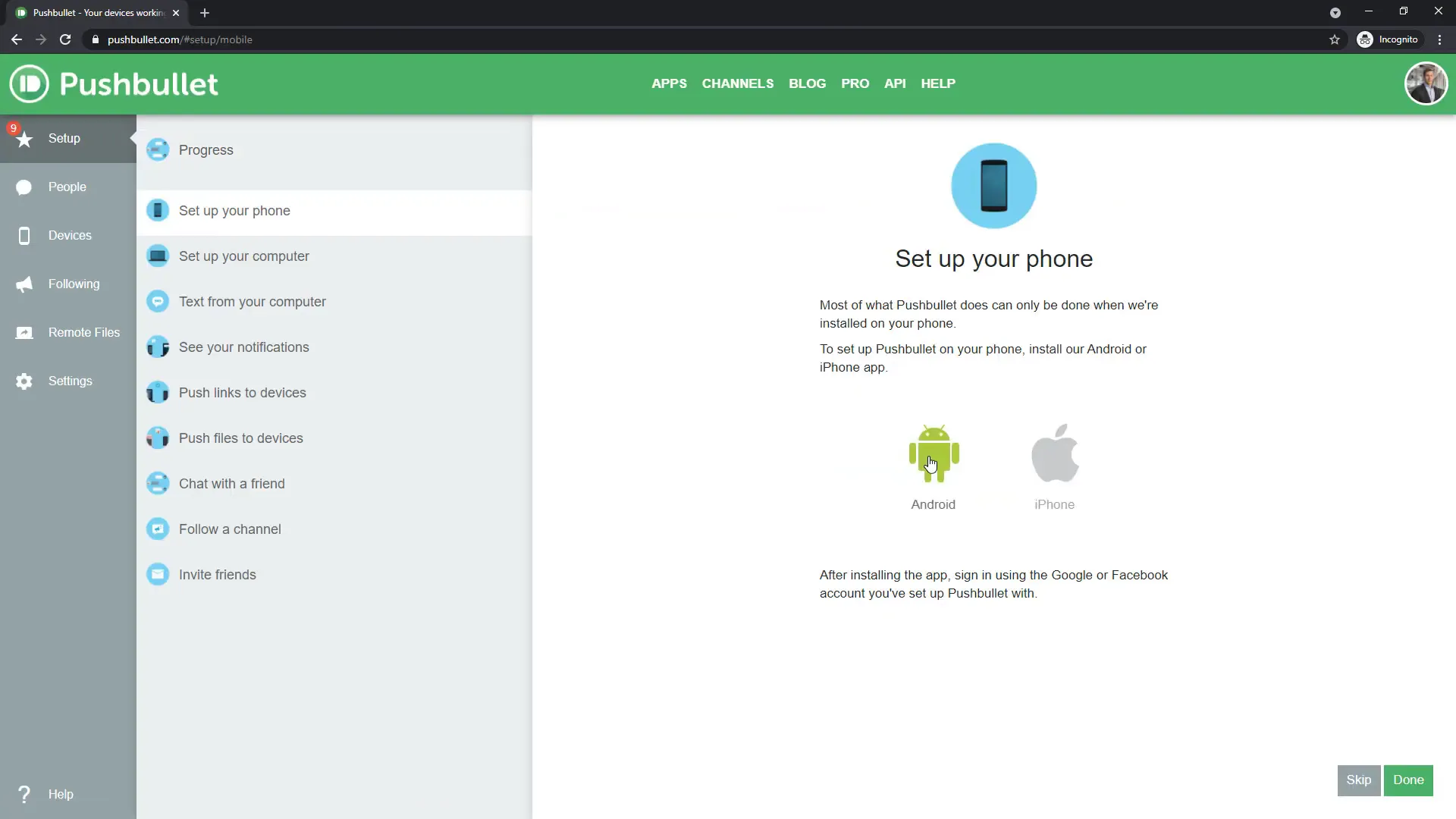
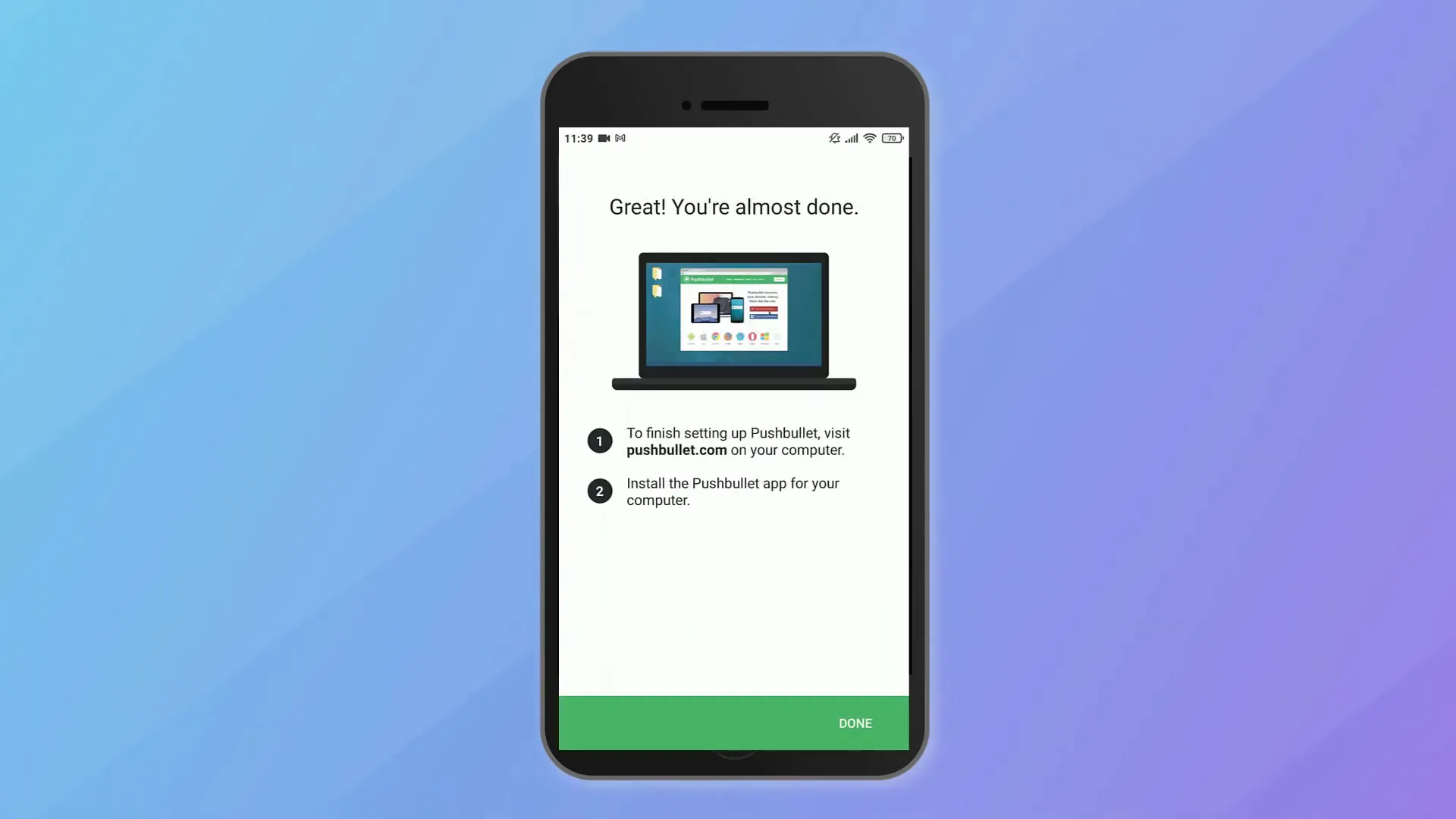
Sign in to the app with the same account and allow it to access your phone’s notifications. The phone then shows up under Devices on the Pushbullet website.
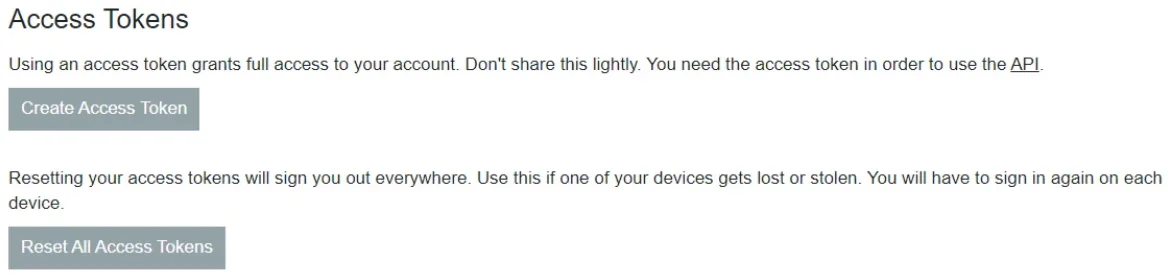
On the website, open Settings and click Create Access Token. Copy the token into cell C4 of your worksheet. Treat it like a password: anyone with the token can send pushes from your account.
Prepare the workbook
The macro reads three cells on Sheet1: the access token in C4, the notification title in C6 and the body text in C7. Put labels next to them so you remember which is which.
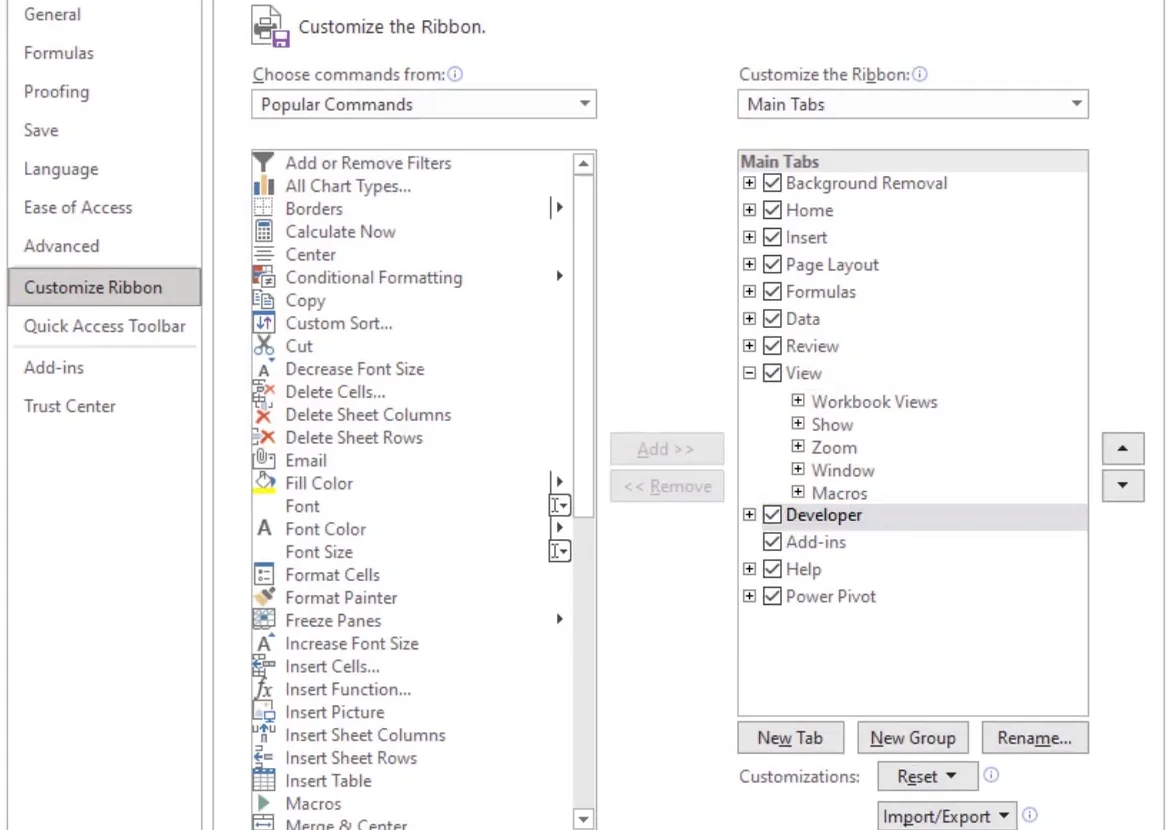
Then open the Visual Basic Editor from the Developer tab. If you do not see that tab, right-click the ribbon, choose Customize the Ribbon, tick Developer and click OK. Insert a new module for the code.
In the video I also set a reference to Microsoft XML, v6.0 under Tools > References. The code creates the request object with CreateObject, so that reference is not strictly needed, but it does no harm.
The VBA code
The macro builds a small JSON message and sends it to the Pushbullet API with a POST request. This is the complete code:
Sub Send_PushNotification()

'Activate "Microsoft XML, v6.0" under Tools > References

Dim wb As Workbook
Dim ws As Worksheet

Set wb = ThisWorkbook
Set ws = wb.Sheets("Sheet1")

'Authentication
ACCESS_TOKEN = "Bearer " & ws.Range("C4").Value

'Variables
pb_title = """" & ws.Range("C6").Value & """"
pb_body = """" & ws.Range("C7").Value & """"

'Use XML HHTP
Set Request = CreateObject("MSXML2.ServerXMLHTTP.6.0")

'Specify Target URL
Url = "https://api.pushbullet.com/v2/pushes"

'Open Post Request
Request.Open "Post", Url, False

'Request Header
Request.setRequestHeader "Authorization", ACCESS_TOKEN
Request.setRequestHeader "Content-Type", "application/json;charset=UTF-8"

'Concatenate PostData
postData = "{""type"":""note"",""title"":" & pb_title & ",""body"":" & pb_body & "}"

'Send the Post Data
Request.send postData

'[OPTIONAL] Get response text (result)
MsgBox Request.responseText

End Sub
What each part does:
- Authentication: the API expects the token in an Authorization header with the word “Bearer” in front, so the code adds it to the value from C4.
- Variables: title and body are wrapped in double quotes, because they go into the JSON message as strings.
- Request:
MSXML2.ServerXMLHTTP.6.0opens a POST request tohttps://api.pushbullet.com/v2/pusheswith the token and a JSON content type. - PostData: a push of type
notewith the title and body. - Response: the message box shows Pushbullet’s answer, which helps when something goes wrong. Delete that line once it works.
Run the macro
Press F5 in the editor, or assign the macro to a button on the sheet. The message box shows Pushbullet’s response, and a moment later the notification arrives on your phone.

The most practical use is to call Send_PushNotification as the last line of a long macro, so your phone tells you when the job is done. You can also write the token, title and body directly into the code instead of reading them from the sheet.

Troubleshooting
The response in the message box tells you most of what went wrong. A JSON answer with an iden means the push was accepted.
- An error about an invalid access token: the token in C4 is wrong, has a space in it, or was deleted in the Pushbullet settings. Create a new one.
- An error about invalid JSON: the title or body contains a double quote or a line break. Remove them, or escape a quote as
\". - Accepted, but nothing on the phone: check that the app is signed in to the same account and still allowed to show notifications.
- A VBA error while you change the code: step through it line by line, as shown in my VBA debugging tip.
If you prefer Python, the same Pushbullet API works from a script that you can schedule to run daily. My Python push notification bot shows how.
Resources
- Example workbook (.xlsm with the macro)
- Pushbullet API documentation