
How to Turn an Excel Table Into a Live Website
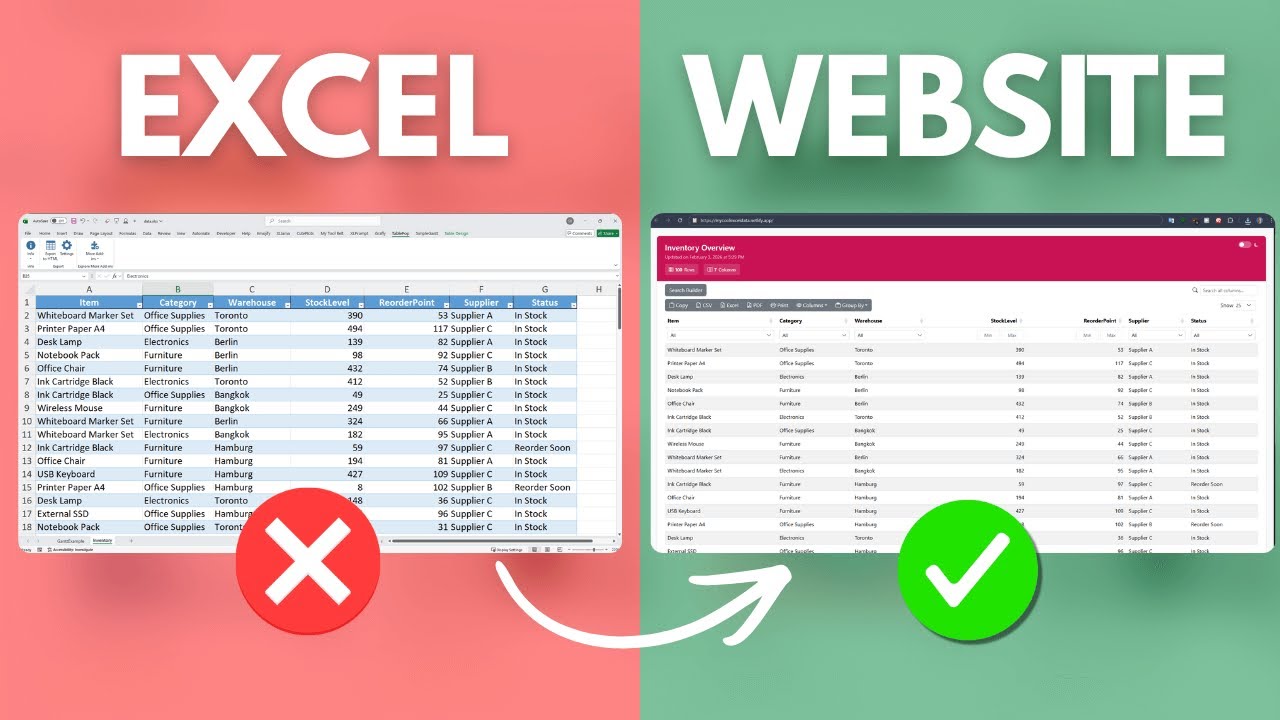
Export your Excel table to an interactive HTML file, rename it index.html, and drag the folder onto Netlify. The result is a live page with search, filtering and export, and Netlify’s free tier covers the hosting. The current TablePop Cloud skips the upload: it publishes the table from Excel and gives you the link.
Two ways to do it
A table becomes a website in one of two ways: you export it to an HTML file and put that file on a static host yourself, or an add-in publishes it for you and hands you the link. The video shows the first way, with TablePop Classic and Netlify.
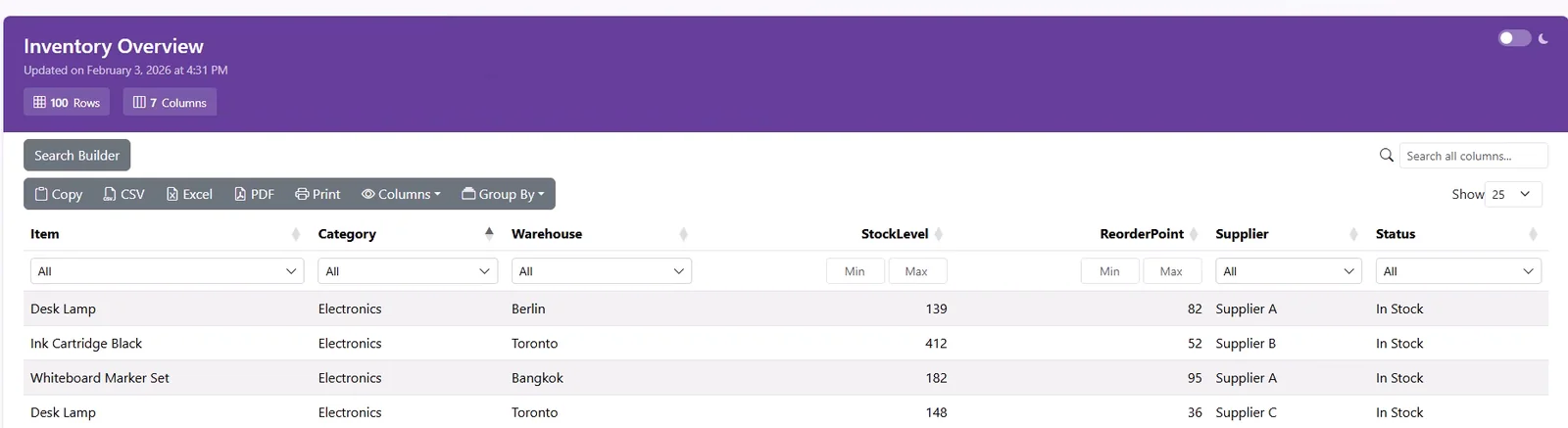
The HTML export from TablePop Classic is an interactive HTML file with search, filters, column hide and show, grouping and PDF export built in. Uploaded to a static host, it behaves like a small web app, although it is a single file and the features run in the visitor’s browser.
The current TablePop Cloud skips the hosting part. It publishes the table as a live page at its own address, gives you a link and an embed code for your website, and its Update button in Excel refreshes the page while the link stays the same.
Export the table
TablePop Classic adds a ribbon tab with an Export to HTML button. Select the table, click the button, and the add-in saves the interactive HTML file in the folder of your workbook.
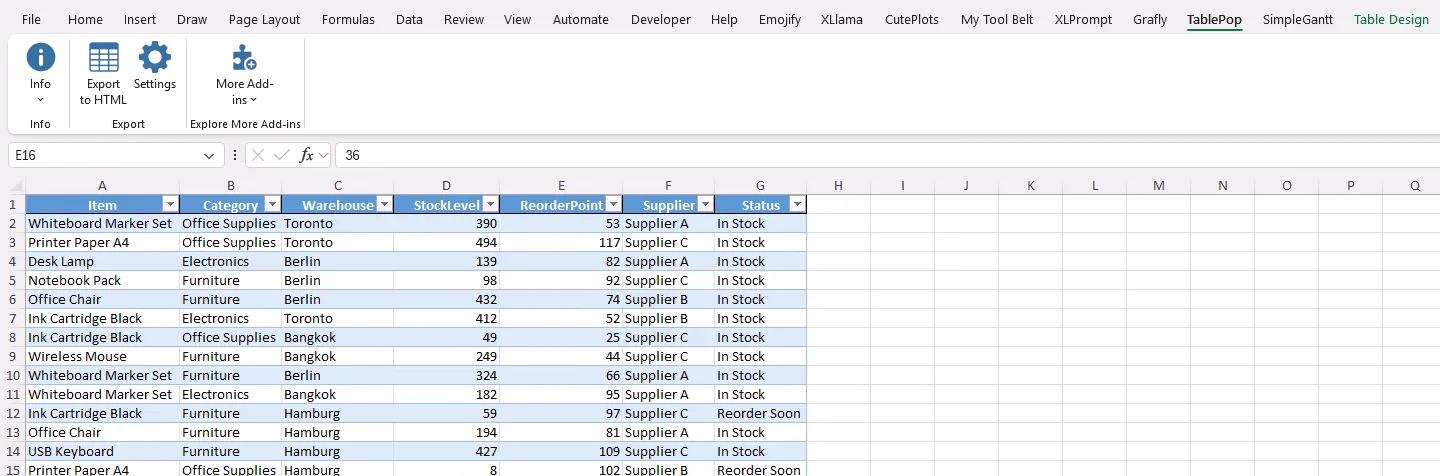
Open the file in your browser before you upload it, and check the search box, the column filters, the grouping options and the export buttons.
Publish on Netlify
Netlify hosts static files on its free tier and accepts a folder by drag and drop, so no command line or Git is needed. The only rule is the file name: a static host serves index.html as the start page of a folder.
-
Prepare the folder. Create a folder for the project, move the exported file into it and rename the file to index.html.
-
Deploy. Sign in to Netlify, choose Add New Project, then Deploy manually, and drag the folder onto the drop area. Netlify publishes it and shows the URL of your page.

-
Update when the data changes. Export again, rename the new file to index.html, overwrite the old one in the folder, and drag the folder onto the Deploys section of your Netlify project. Reload the page and the new data is there.

Other HTML exports
The Netlify steps work for any HTML file, not only tables. A project timeline, a form or a report goes online the same way: rename it to index.html, put it in the folder and deploy.
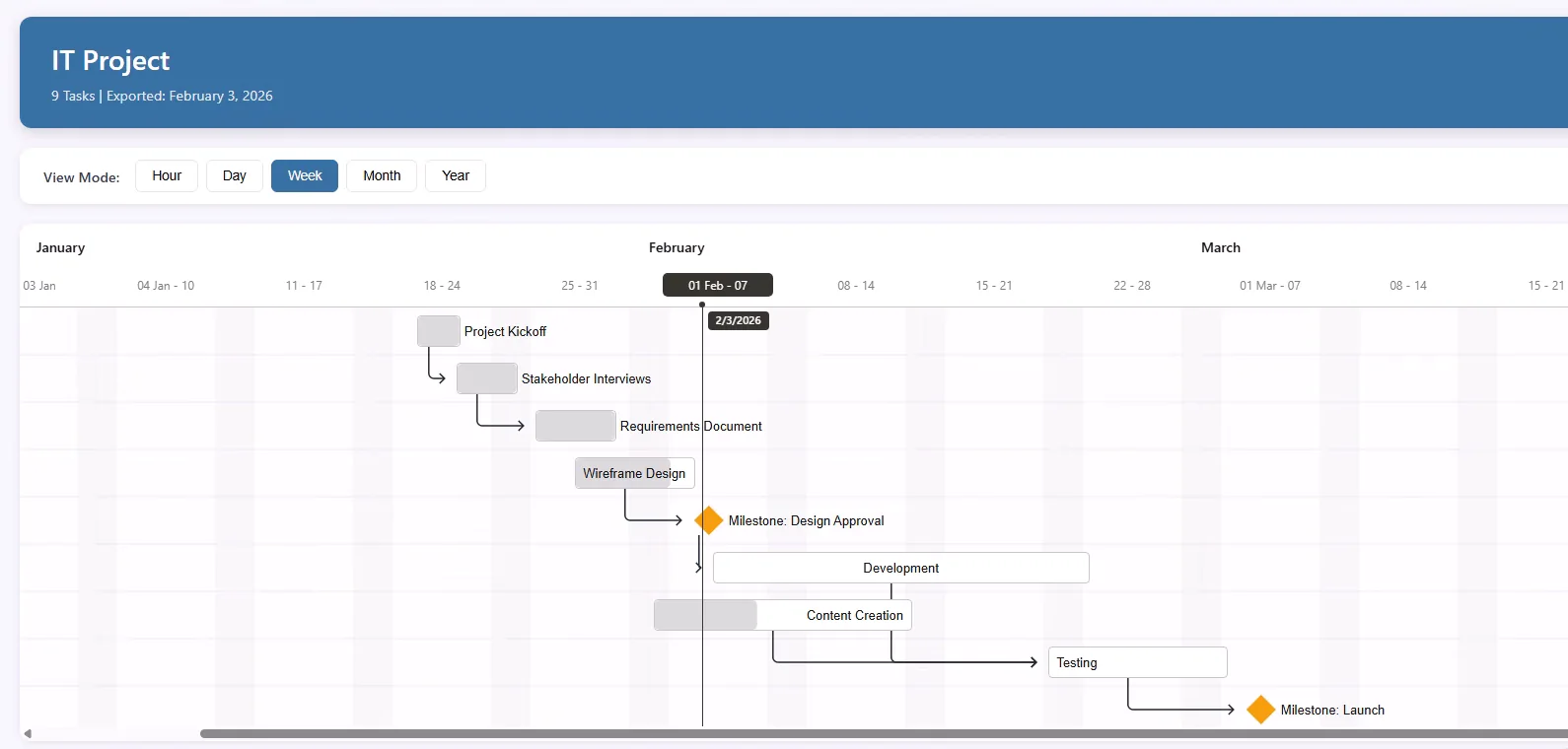
My SimpleGantt add-in, for example, exports a project plan from Excel as an interactive Gantt chart in HTML (the HTML export is part of the licensed features). If you would rather build the chart in Python, see my interactive Gantt chart with Plotly.
Privacy and the URL
A Netlify page is public to anyone who has the link, and the whole table sits inside the HTML file. Do not publish customer, salary or other personal data this way.
- For a nicer address, change the project name in Netlify’s domain settings; the URL follows it.
- TablePop Cloud can put a page behind a password on its Pro plan.
Excel’s Save as Web Page
Excel itself no longer makes interactive web pages. Desktop Excel still has File, Save As, Web Page, but it writes a static copy of the sheet: no search, no filters, and every change means saving and uploading again.
The “Add interactivity” option that older Excel versions offered was removed in Excel 2007. That gap is why an add-in export, or a published page, is the practical route today.
Which option to pick
The right route depends on how often the data changes and who needs to see it. A one-off export suits Netlify; data that changes every week suits a published page with a fixed link.
- You have an HTML export and want it online once: the Netlify drag and drop in this post.
- The data changes and people should always see the latest version: publish from Excel with TablePop Cloud, so the link stays the same.
- You want a real app with logins or inputs: Python and Streamlit, as in turning an Excel file into a web app with Streamlit.
Publish an Excel table as a live, searchable web page from Excel on Windows, Mac and the web. Share the link or embed it, and update it from Excel in one click.