
The calculator works straight away with its standard layout. If your sheet looks different — extra columns like an ID or name, an address split across several columns, or data that starts further down — Layout Setup simply tells it where your addresses are. You only need it if your sheet differs from the standard.
The standard layout #
Destinations go across the top (From), the places you measure from go down the left (To), and the distances fill the grid in between.
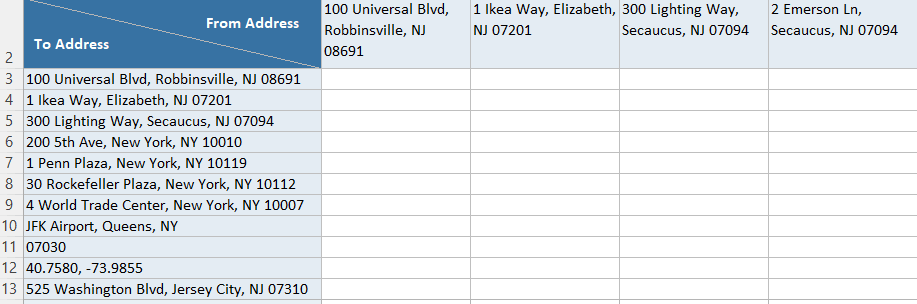
If your sheet already looks like this, you don’t need Layout Setup — just type your addresses and click Calculate Distances.
When to use Layout Setup #
- You keep columns before your addresses (ID, name, status…).
- You have columns after the distances that must stay untouched.
- Your address is split across several columns (Street, City, State, Zip).
- Your data starts on a different row.
The Layout Setup window #
Click the Layout Setup button on the sheet. It asks just two questions, and previews how many cells will be filled.
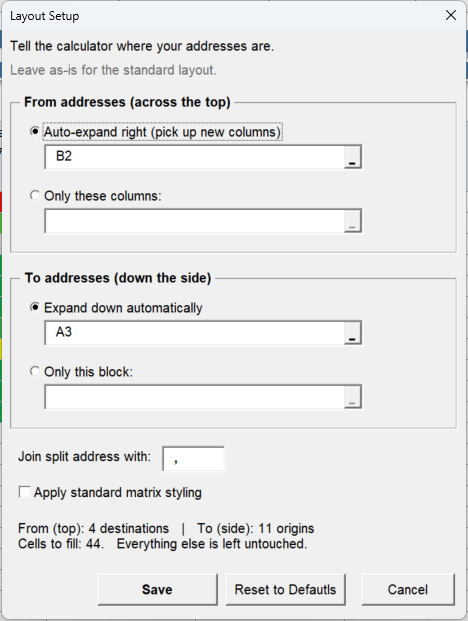
- From (across the top) — your destinations.
- Auto-expand right: use everything from the start cell rightwards (new columns are picked up automatically).
- Only these columns: use exactly the cells you select — choose this when other columns sit next to them and should be ignored.
- To (down the side) — your origins, one per row. Pick one column, or several if the address is split — they’re glued together using the Join split address with text (a comma and a space works well).
Example: an employee list #
Here each person’s driving distance to three offices is calculated. The address is split across four columns, and there are ID/Name columns to ignore:
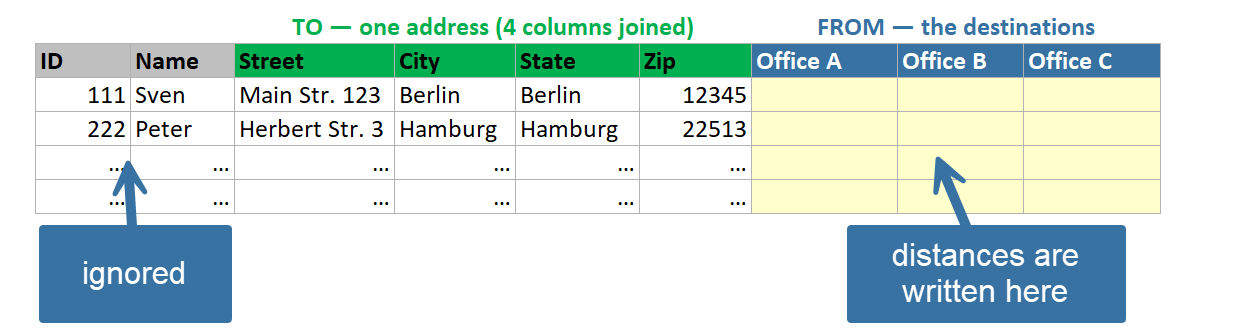
In Layout Setup you’d choose:
| Question | What to pick |
|---|---|
| From (top) | Only these columns → the three office headers |
| To (side) | the four address columns (Street, City, State, Zip) |
| Join with | , (comma + space) |
Your other columns are safe. Only the result cells are filled in — IDs, names, notes and anything you didn’t point at are never read or changed.
FAQ #
How do I go back to the standard layout?
Open Layout Setup and click Reset to Defaults.
Can my addresses be on a different sheet?
Yes — but your From and To addresses must both be on the same sheet.
The heatmap shows no colours
The heatmap compares values within each column, so it needs at least two rows. With a single row, switch the heatmap style to whole matrix on the Settings sheet.
Insert Examples only fills the standard layout. With a custom layout it’s skipped on purpose, so it can never overwrite your data.
