
Create Custom Excel Formulas That Update Automatically
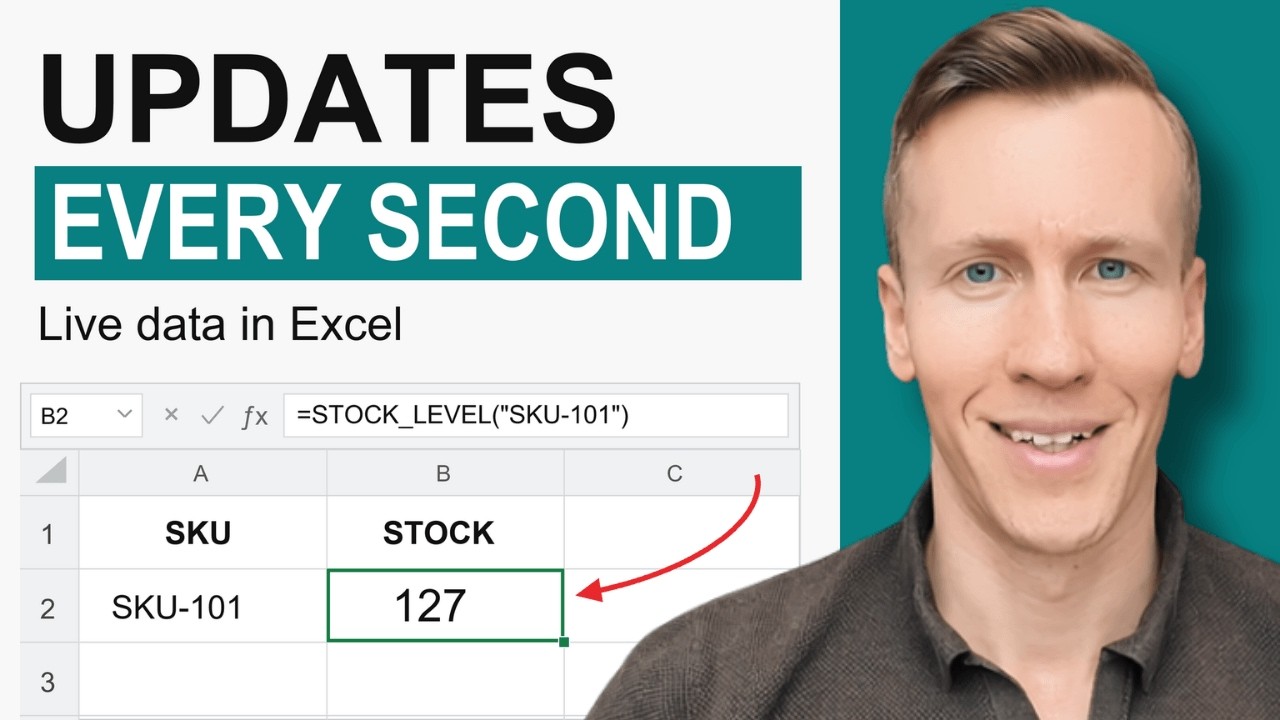
You can create Excel formulas that pull live API data and refresh automatically by using xlwings Lite and a small async Python function. The example below turns =CRYPTO_PRICE(“BTC”) into a live Bitcoin price that updates every second. The full code is available here: download the workbooks and Python code
Create Excel Formulas That Update Automatically
Excel formulas are great until the value you need lives somewhere outside the workbook. Maybe it is a crypto price, a currency rate, stock level from a warehouse, or data from an internal system.
Normally, that means copying data into Excel, pressing refresh, or building something much more complicated than it needs to be. Instead, we can create our own Excel formula that calls an API and keeps updating automatically.
The nice part is that you do not need a local Python installation for this. We will use xlwings Lite, a free Excel add-in that runs Python directly inside Excel. The code stays in the workbook and runs locally, so workbook data does not need to leave your computer.
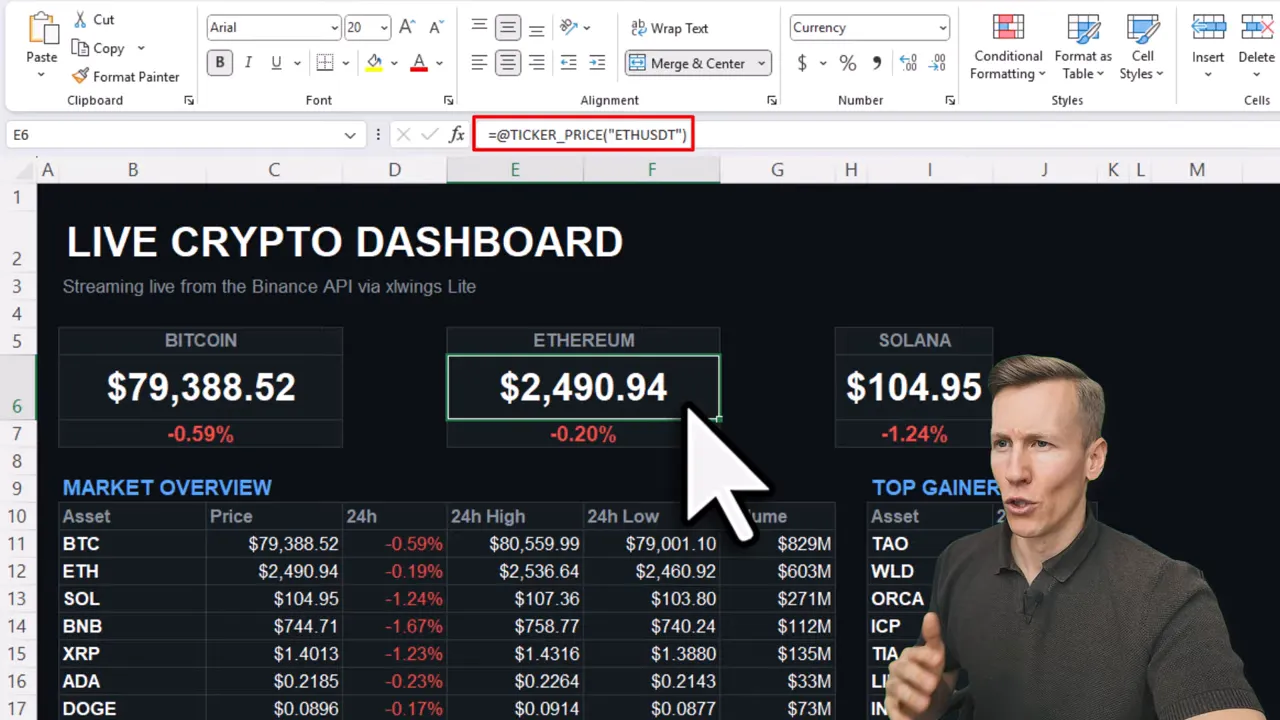
I will use live crypto prices as the example because the result is easy to see. But the same setup works for any API you have access to, including a warehouse database or an internal business tool.
Install xlwings Lite from the Office Add-in Store
First, open Excel and go to Home and then Add-ins. Select More Add-ins, search for xlwings Lite, and click Add.
After installation, Excel opens an xlwings Lite task pane on the right. This is where you can write Python files, add third-party packages, and run your code.
There are two main ways to run Python code with xlwings Lite:
- Run a Python script from a button.
- Create a custom Excel function that can be used like any built-in formula.
We are interested in the second option. A Python function decorated with @func becomes available directly in a worksheet.
For example, a simple function named hello that receives a name can be used in Excel like this:
=HELLO("Sven")That formula can return Hello Sven!. It is a tiny example, but it shows the important idea: Python can become an Excel formula.
If you want more examples of formulas powered by Python, including text extraction and AI-based formulas, have a look at this guide on creating custom Excel formulas using Python.
Use the Binance API for Live Crypto Prices
For this example, prices come from Binance’s public price endpoint. It returns JSON data containing symbols and their current prices. No API key is needed for this endpoint.
The API uses trading pairs such as BTCUSDT. Since USDT is designed to track the US dollar, we can turn a coin symbol like BTC into BTCUSDT and use the returned price as a USD price.
To request data from the web, we need the third-party Python package httpx. In xlwings Lite, open the Requirements tab, add this line, and restart the add-in when prompted:
httpx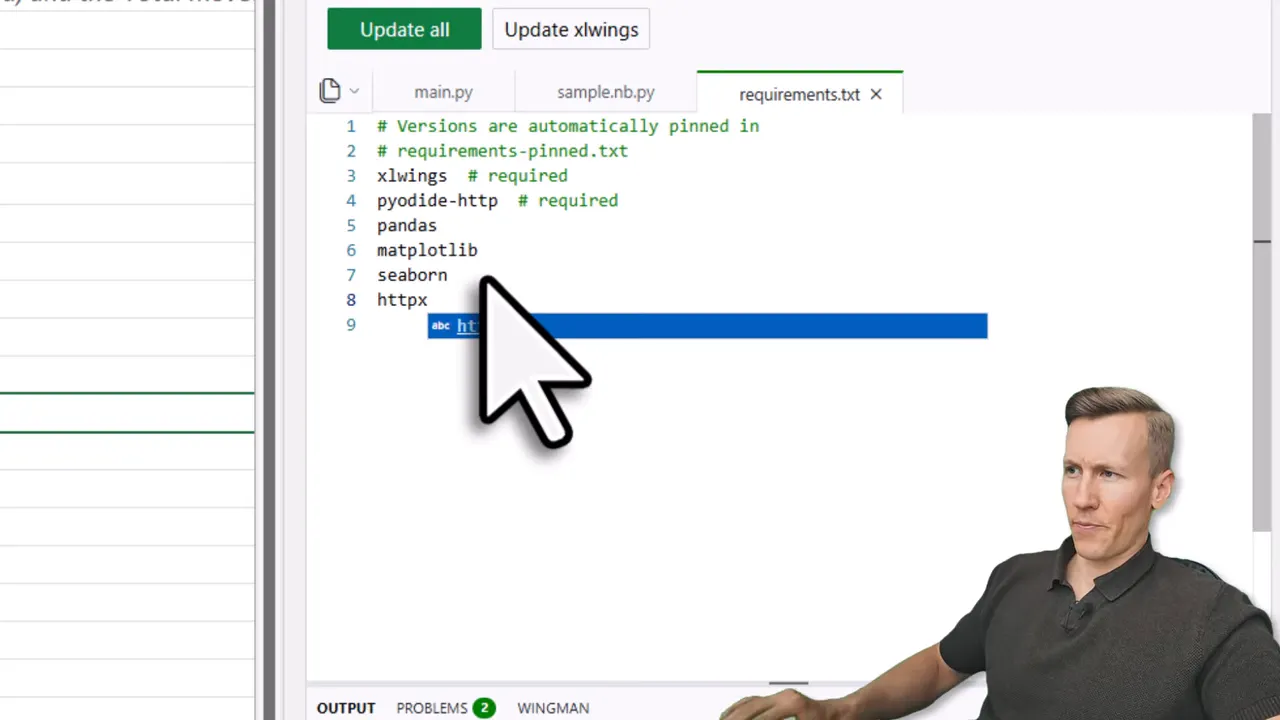
That restart is important. xlwings Lite needs to load the package before the code can import it.
Build the CRYPTO_PRICE Excel Function
Download the complete function from the workbooks and Python code, then put it in main.py inside the xlwings Lite pane.
There are a few important pieces here, so it is worth breaking them down.
@funcexposes the Python function as an Excel formula.coinis the parameter passed from Excel, such as BTC, ETH, or SOL.httpx.AsyncClient()makes the web request to the Binance API.response.json()["price"]extracts only the price from the JSON response.asyncallows Excel to remain responsive while the request is running.
The last two lines are what make the formula live. A normal Python function uses return once and then finishes. Here, yield sends a result back to Excel while keeping the function alive.
The while True loop requests a fresh price, yields it to the sheet, waits one second, and then does it again. That is the whole trick.
Use the Function in Your Worksheet
Once the code is saved, use the formula exactly as you would use a native Excel function:
=CRYPTO_PRICE(A2)If cell A2 contains BTC, the formula returns Bitcoin’s current price. If your coin symbols are listed in a table, enter the formula once in the Price column and Excel can fill it down for the rest of the rows.
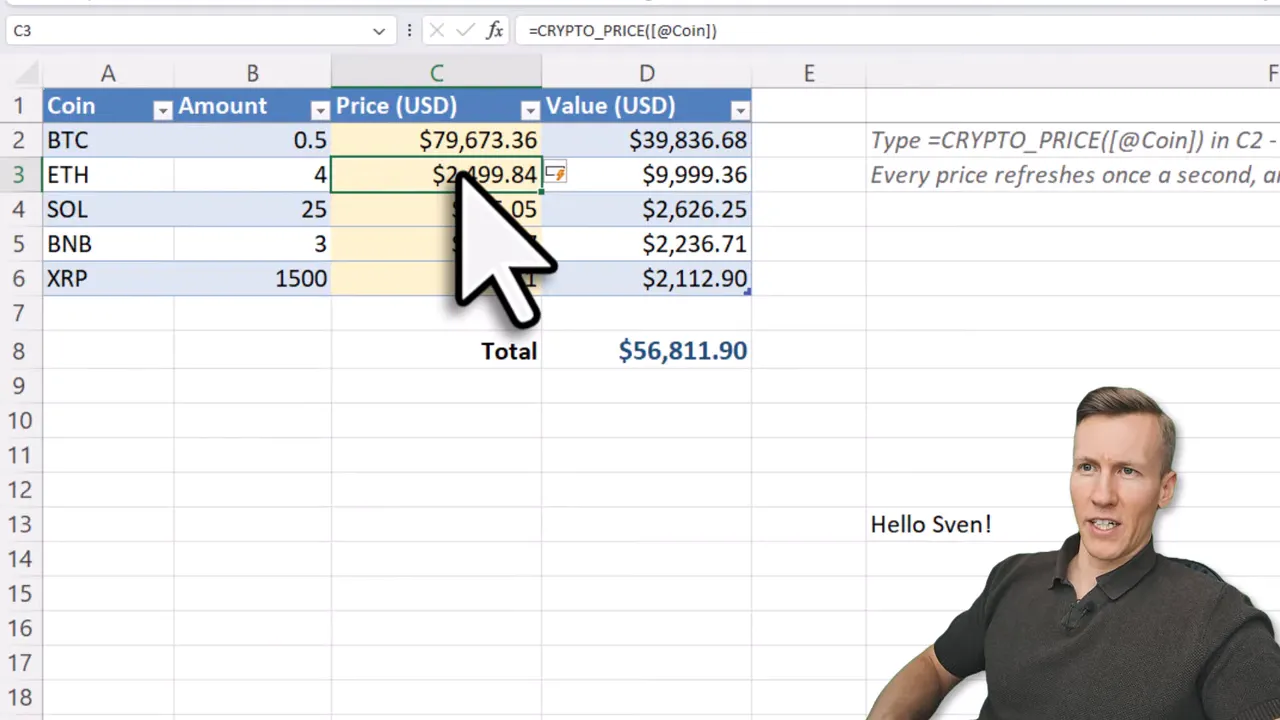
With an Amount column next to the live price, calculating the holding value is just normal Excel:
=[@Amount]*[@[Price USD]]That gives you a live portfolio value without refreshing individual cells manually. More importantly, Excel remains usable while the prices update in the background. You can edit worksheets, add formulas, and continue working as usual.
A small practical note: refreshing every second is useful for a demo dashboard, but it may be overkill for business data. If you only need warehouse availability or exchange rates every few minutes, increase the sleep interval. Your API, and probably your future self, will appreciate it.
Turn Live Data into an Excel Dashboard
Once you have live formulas, Excel can do what it already does well: turn values into something readable.
The crypto dashboard combines separate custom formulas for prices, 24-hour changes, market overview data, and top movers. Conditional formatting highlights positive values in green and negative values in red, so the important changes are visible immediately.
The same approach works nicely for a live exchange rate dashboard. Instead of hardcoding a base currency, use an input cell. Change the base currency to USD, press Enter, and formulas connected to that cell can update the entire dashboard.
This is where combining Python and Excel gets useful. Python handles the API request and data processing. Excel handles tables, formulas, formatting, charts, and the interface people already know how to use. No need to rebuild a spreadsheet in a web app just for the sake of it.
You can download the crypto and exchange-rate dashboard workbooks with the Python code if you want a working starting point.
Adapt the Formula for Your Own API
Crypto prices are only an example. The same pattern can support more practical workflows:
- Show live inventory quantities from a warehouse API.
- Pull current exchange rates into a planning model.
- Fetch order status from an internal system.
- Display operational metrics from a company database that exposes an API.
You can write the integration from scratch, but xlwings Lite also includes an AI assistant called Wingman. After connecting Wingman to a large language model such as Claude or ChatGPT, you can give it the crypto example and ask it to adapt the code to your API.
That does not remove the need to understand what the code is doing, especially when you are dealing with internal systems. But it can save a fair bit of typing and help you get from a working pattern to a useful first version much faster.
For larger Excel workflows, you can also automate Excel with Python using xlwings to build buttons, generate documents, and connect workbooks to other tools.
Share the Workbook Without Shipping a Python Setup
One of the best parts of this approach is portability. The Python code lives inside the workbook, alongside the data and formulas.
If you share the workbook with a colleague, they only need to install xlwings Lite from the Office Add-in Store. They do not need a separate Python installation just to use the custom formulas.
That makes it much easier to distribute a tailored Excel tool without turning the setup into an IT project. You still need to make sure the API is accessible to them, of course, but the workbook and code travel together.
If the Python side of this formula felt like the hard part, the course starts from zero: 52 lessons on merging files, building dashboards, and generating Word documents, written for Excel users with no coding background.