
How to Write Excel VBA in VS Code With xlwings
Open your macro workbook in Excel, open its folder in VS Code and run xlwings vba edit in the terminal. xlwings exports every module as a file and writes your changes back into the workbook each time you save. You get VS Code’s search, extensions and AI help, and still run the macros in Excel.
Table of contents
How it works
VS Code cannot open the VBA project inside an .xlsm file. The xlwings command line tool bridges the gap: it exports each module as a .bas or .cls file into the current folder, watches those files, and writes a module back into the open workbook whenever you save it.
The Visual Basic Editor in Excel has barely changed in decades. With this setup you write the code in VS Code, with a proper search, multiple cursors, Git, extensions and an AI assistant, and you run and debug it in Excel exactly as before. There is no import step in between: save in VS Code, click the button in Excel, and the new code runs.
Set it up
You need the xlwings command line tool, one Excel setting, and VS Code. Python is optional: xlwings publishes a standalone xlwings.exe that runs without it.
-
Allow access to the VBA project. In Excel, go to File > Options > Trust Center > Trust Center Settings > Macro Settings and tick Trust access to the VBA project object model. Without it, no tool can read or write your modules.
-
Get xlwings. Download
xlwings.exefrom the Assets list of the latest xlwings release on GitHub. If you already use Python,pip install xlwingsgives you the same command.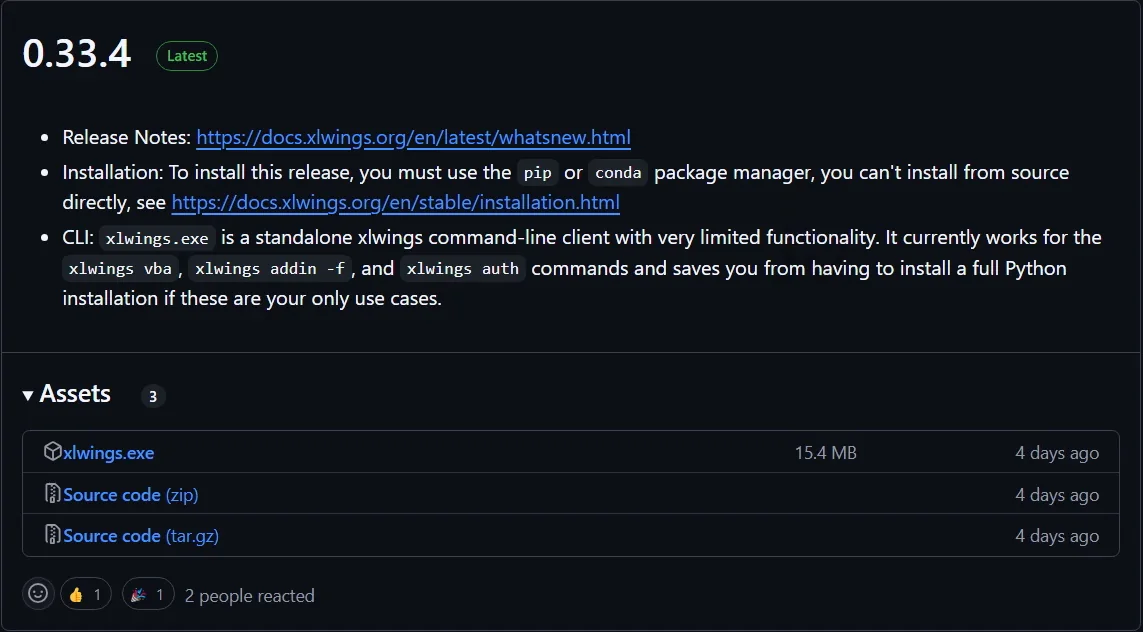
-
Put it on the PATH. Save xlwings.exe in a folder that is on your PATH, so
xlwingsworks from any folder. I copied it into the Windows folder; a folder of your own such asC:\Tools, added to the PATH, does the same without admin rights. You can also skip this step and type the full path to the file each time. -
Open the workbook and the folder. Open your .xlsm in Excel. Then open the folder that contains it in VS Code (File > Open Folder) and start a terminal with Terminal > New Terminal.
-
Start the sync. Run the command below and answer
ywhen it asks you to proceed. The terminal then reports that it is watching for changes, and the module files appear in the folder.xlwings vba edit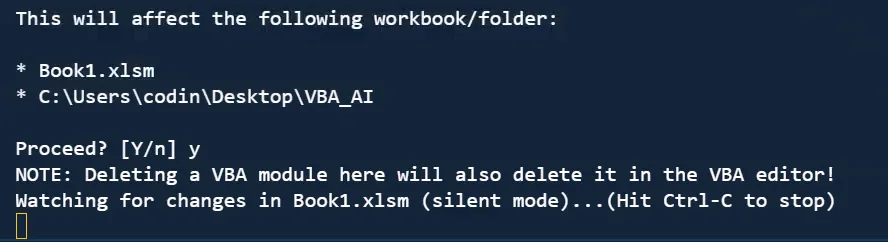
-
Add syntax highlighting. In the Extensions view, install VBA by serkonda7. It colors .bas, .cls and .frm files and adds snippets for Sub, Function and If blocks.
The command works in the VS Code terminal or any other terminal, as long as it runs in the workbook’s folder. Leave it running while you work; press Ctrl+C in the terminal to stop the sync.
Edit and test
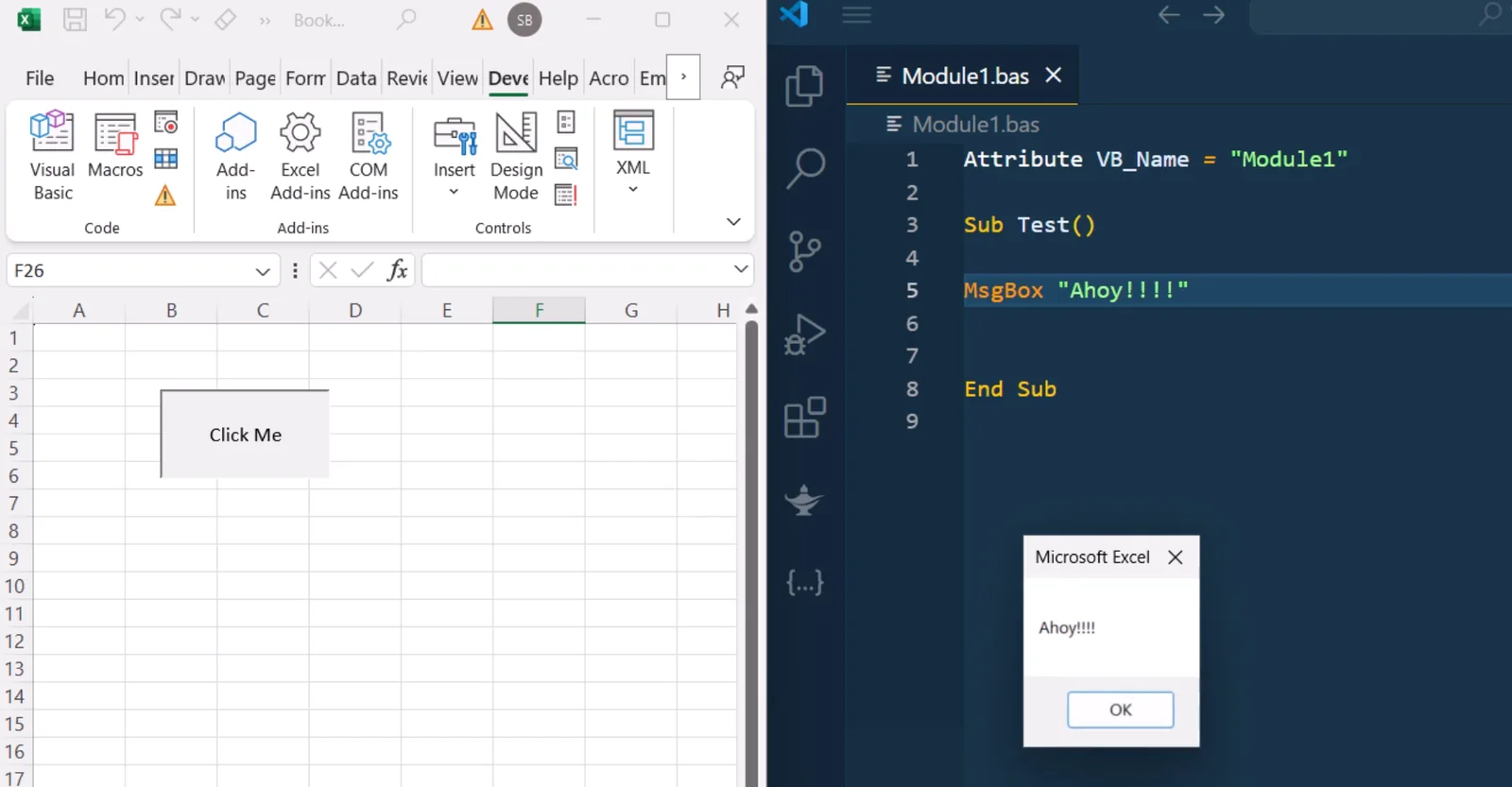
Open a module file such as Module1.bas in VS Code, change the code and save with Ctrl+S. xlwings writes the module into the workbook straight away, so the next time you run the macro in Excel it uses the new code.
In the example above, a button on the sheet runs this macro:
Sub Test()

MsgBox "Ahoy!!!!"

End Sub
Change the message, save, click the button, and Excel shows the new text. Debugging stays in Excel: set breakpoints and step through the code with F8 in the Visual Basic Editor, as described in my VBA debugging tip. Be careful with deleting: as the terminal warns when the sync starts, deleting a module file in the folder also deletes the module in the workbook. Save the workbook in Excel from time to time as well. xlwings changes the modules of the open workbook; the .xlsm file on disk only changes when you save it.
AI help
AI coding assistants such as GitHub Copilot do not work inside Excel’s Visual Basic Editor. In VS Code they do, because the exported modules are plain text files: the assistant completes code as you type and answers questions about the open module.
In the video I used Codeium, which has since been renamed: its VS Code extension is now called the Windsurf Plugin. Any AI extension works the same way. Write a comment that describes what you want, and the assistant suggests the line below it:
Sub Test()

'Copy the value from cell A1 to cell B1
Range("B1").Value = Range("A1").Value

End Sub
Type some text into A1, save in VS Code, click the button, and the text appears in B1. The chat panel works on the whole module. Here I asked for a macro that lists all sheet names in one message box:
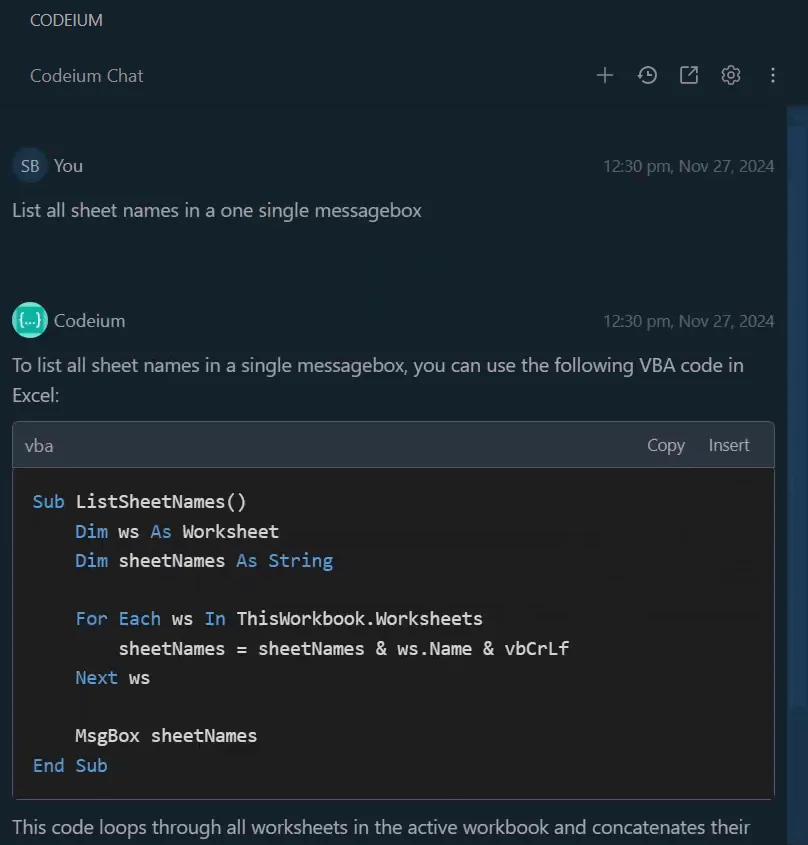
Read what the assistant writes before you run it. VBA code generated this way often looks right and still references the wrong sheet or skips error handling, and a macro cannot be undone with Ctrl+Z.
Other commands
Besides edit, the xlwings CLI has two one-off commands that copy the code in one direction, and an option to name the workbook. All of them need the trust setting from the setup.
| Command | What it does |
|---|---|
xlwings vba edit |
Exports the modules of the active workbook and writes each saved file back into it |
xlwings vba export |
Overwrites the local files with the modules from Excel |
xlwings vba import |
Overwrites the modules in Excel with the local files |
--file (or -f) |
Uses the given workbook instead of the active one, for example xlwings vba edit --file Report.xlsm |
Run xlwings vba export after you change something in the Visual Basic Editor that VS Code cannot edit, such as a UserForm layout, so the local files match the workbook again. The exported files also make VBA code easy to keep in Git.
Troubleshooting
Most problems come from the trust setting, the PATH, or the terminal running in a different folder than the workbook.
- An error about access to the VBA project. Excel’s own wording is “Programmatic access to Visual Basic Project is not trusted”. Tick Trust access to the VBA project object model (setup step 1). On a company PC, IT may have locked this setting.
- ‘xlwings’ is not recognized as an internal or external command. xlwings.exe is not on the PATH. Open a new terminal after changing the PATH, or call the file with its full path.
- Nothing changes in Excel after saving. Check that the terminal still shows it is watching, that the workbook is open, and that you edit the files in the folder where you started the command.
- Your edits in the VBA editor disappear. Saving a file in VS Code writes it over the module in Excel. Edit in one place at a time, and run
xlwings vba exportafter working in the VBA editor.
Limits
This setup improves the editing, not the language. The extension highlights VBA, but VS Code does not know Excel’s object model, so there is no IntelliSense for Range or Worksheet members the way the VBA editor offers it.
- Running, breakpoints and the Immediate window stay in Excel’s Visual Basic Editor.
- UserForms are designed in the VBA editor; VS Code only edits their code.
- The workbook has to be open in Excel while the sync runs.
- The standalone xlwings.exe is a Windows program, and I have only used this workflow on Windows.
If you write a lot of VBA, these free VBA libraries save even more time than a better editor. Thanks to Felix Zumstein, who created xlwings, for making this workflow possible.
Resources
- xlwings releases (standalone xlwings.exe under Assets)
- xlwings command line documentation
- VBA extension for VS Code