
Build an AI Chart Analyzer for Excel With VBA
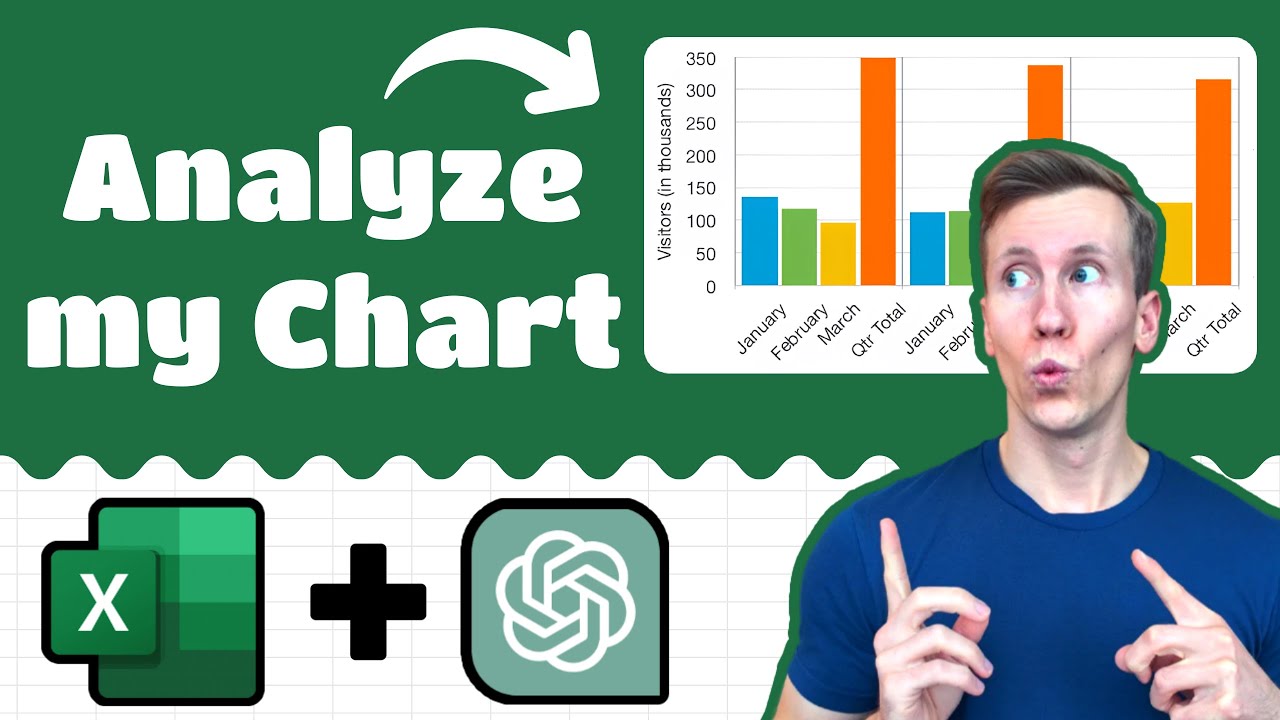
A VBA macro that sends a selected Excel chart or image to an OpenAI vision model and writes the analysis back into the sheet. Stored in your Personal Macro Workbook and pinned to the Quick Access Toolbar, it works in every workbook you open. The code is free on GitHub; the API calls need your own OpenAI key.
Update (November 2026): The video uses gpt-4o, which OpenAI shuts down on January 14, 2027, so the module on GitHub now uses gpt-6-luna with the newer request parameters: replace an older download with the current file rather than only changing the model name.
Table of contents
Install the modules
The analyzer is two VBA modules: JsonConverter for the API response and mAIObjectAnalyzer with the macro itself. Both are on GitHub, together with an example workbook. To use the macro in every workbook, put the modules into your Personal Macro Workbook.
-
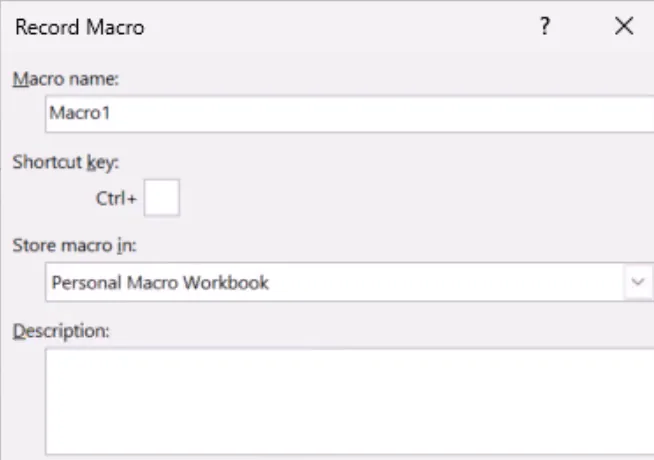
Create the Personal Macro Workbook. If you have never used it, Excel creates it the first time you record a macro into it. On the Developer tab, click Record Macro, set Store macro in to Personal Macro Workbook, then stop the recording.
-
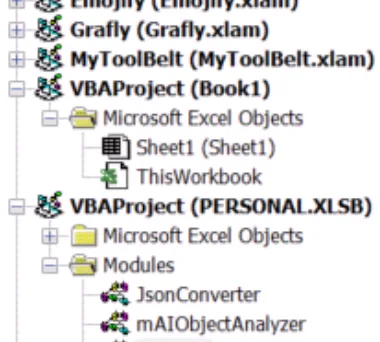
Import the two modules. Download JsonConverter.bas and mAIObjectAnalyzer.bas from the GitHub repository. In the Visual Basic Editor, drag both files onto the PERSONAL.XLSB project, not onto the open workbook.
-
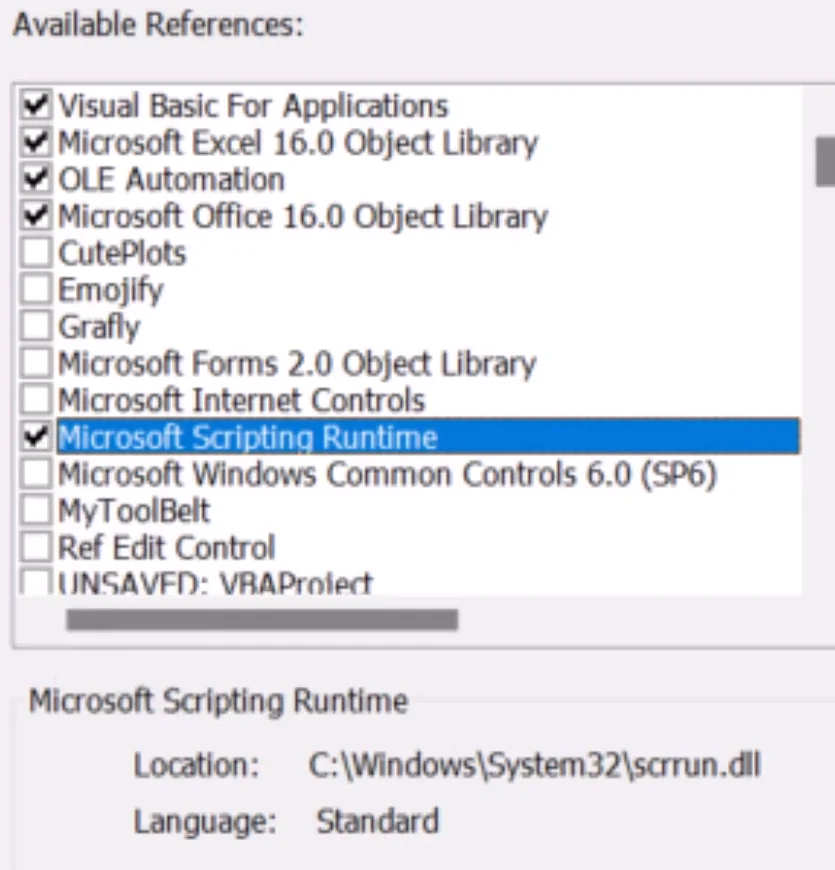
Turn on Microsoft Scripting Runtime. JsonConverter needs it. In the editor, open Tools > References and tick Microsoft Scripting Runtime if it is not ticked yet.
-
Paste your OpenAI API key. Open mAIObjectAnalyzer and replace the placeholder in
API_KEY. The same block at the top of the module holds the model, the default prompt, the token limit and the reasoning effort.
'=======================================
' CONFIGURABLE VARIABLES
'=======================================

' 1) Your OpenAI API Key (Obtain at: https://platform.openai.com/api-keys )
Const API_KEY As String = "YOUR_OPENAI_API_KEY"  ' <<=== REPLACE WITH A REAL KEY!

' 2) OpenAI Model Name - change this line to use another model that accepts images.
'    Current models: https://developers.openai.com/api/docs/models
'    (Updated November 2026: gpt-4o is deprecated and shuts down on January 14, 2027.)
Const MODEL_NAME As String = "gpt-6-luna"

' 3) Fallback prompt if "PromptCell" is missing or empty
Const DEFAULT_PROMPT As String = "Provide the key insights from this image briefly."

' 4) Maximum tokens for the response (this includes the model's internal reasoning)
Const MAX_TOKENS As Long = 1000

' 4b) Reasoning effort: "low" is fast and inexpensive. Other options: "medium", "high"
Const REASONING_EFFORT As String = "low"

' 5) Retry settings for clipboard operations (occasionally VBA fails to paste)
Const MAX_RETRIES As Long = 10
Const RETRY_DELAY As Double = 0.1  ' in seconds

' 6) Named range for the output cell (if missing or invalid, result is shown in a MsgBox)
Const OUTPUT_CELL_RANGE As String = "OutputCell"

' 7) OpenAI Endpoint and XML HTTP ProgID (in case you need to change them)
Const OPENAI_ENDPOINT As String = "https://api.openai.com/v1/chat/completions"
Const XMLHTTP_PROG_ID As String = "MSXML2.XMLHTTP"
The key sits in plain text in PERSONAL.XLSB, so do not share that file. Each analysis is a paid API call billed to your OpenAI account.
Prompt and output cells
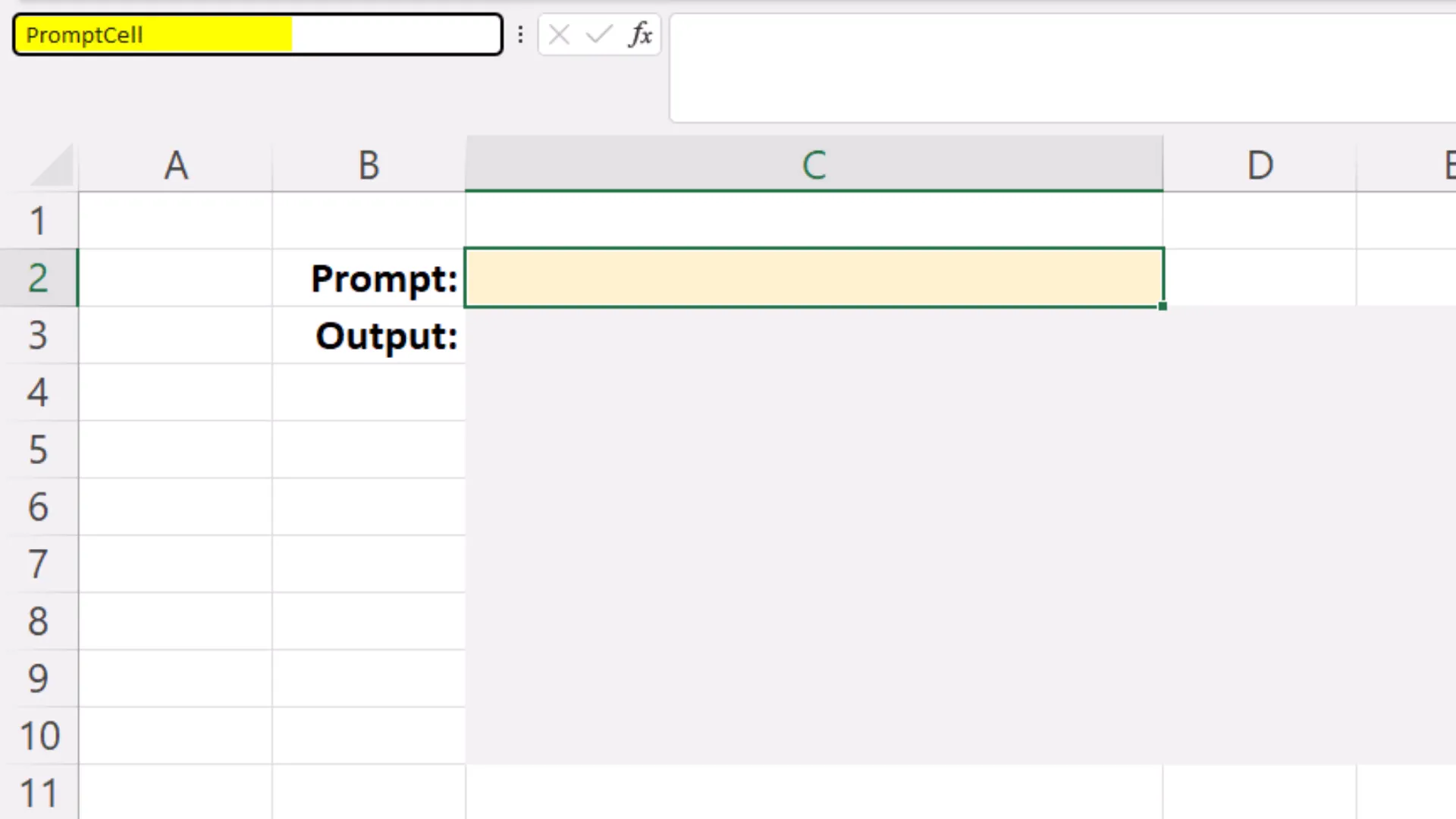
The macro reads its prompt from a cell named PromptCell and writes the answer to a cell named OutputCell. Pick two cells in your sheet, click the first, type PromptCell into the Name Box and press Enter. Do the same with OutputCell for the second.
The code looks for exactly these two names. Each run shows the prompt in an input box first, prefilled from PromptCell (or with the default prompt when that cell is missing or empty), and saves what you confirm back to PromptCell. Without an OutputCell the answer appears in a message box.
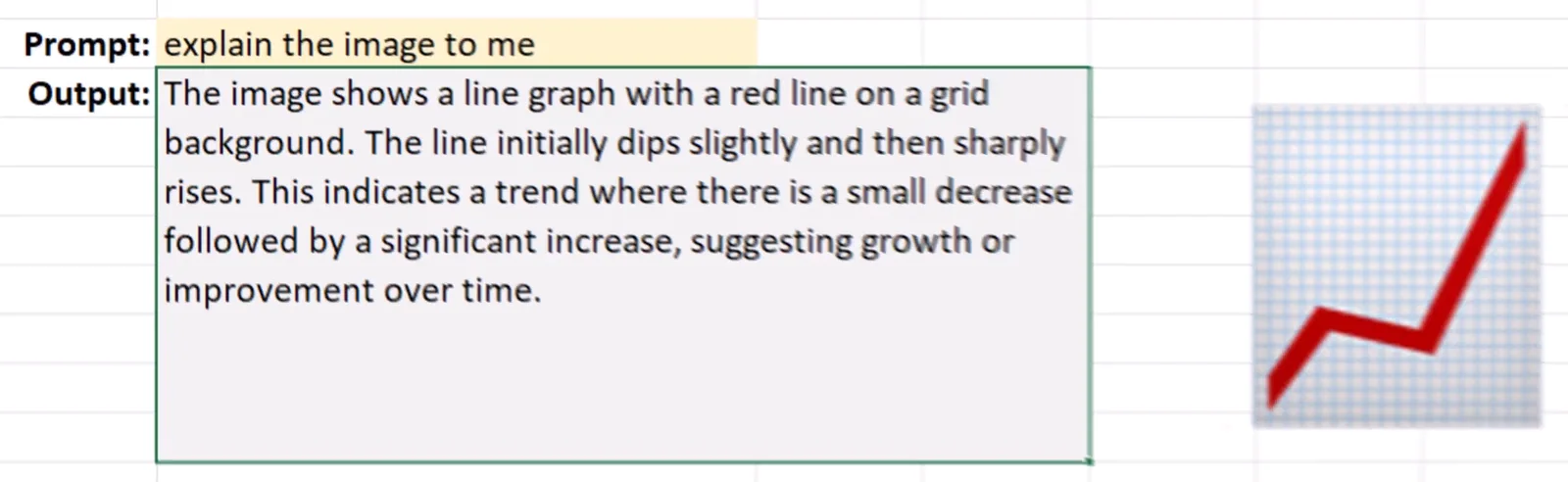
Type a question into the prompt cell, select a chart or picture and run the macro. The analysis lands in the output cell.
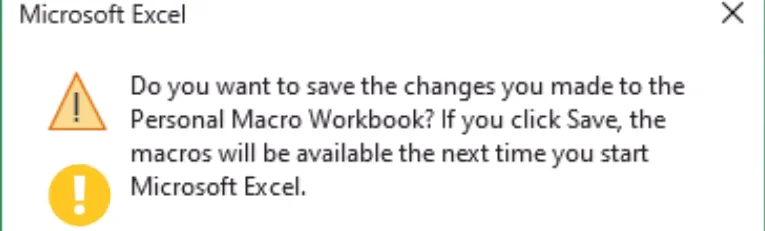
Save the Personal Macro Workbook
Excel only saves the Personal Macro Workbook when you close Excel, and it asks separately. Close Excel, choose Don’t Save for any workbook you do not need, then click Save when Excel asks about the changes to the Personal Macro Workbook. If you skip this, the modules and the API key are gone the next time you open Excel.
Add a toolbar button
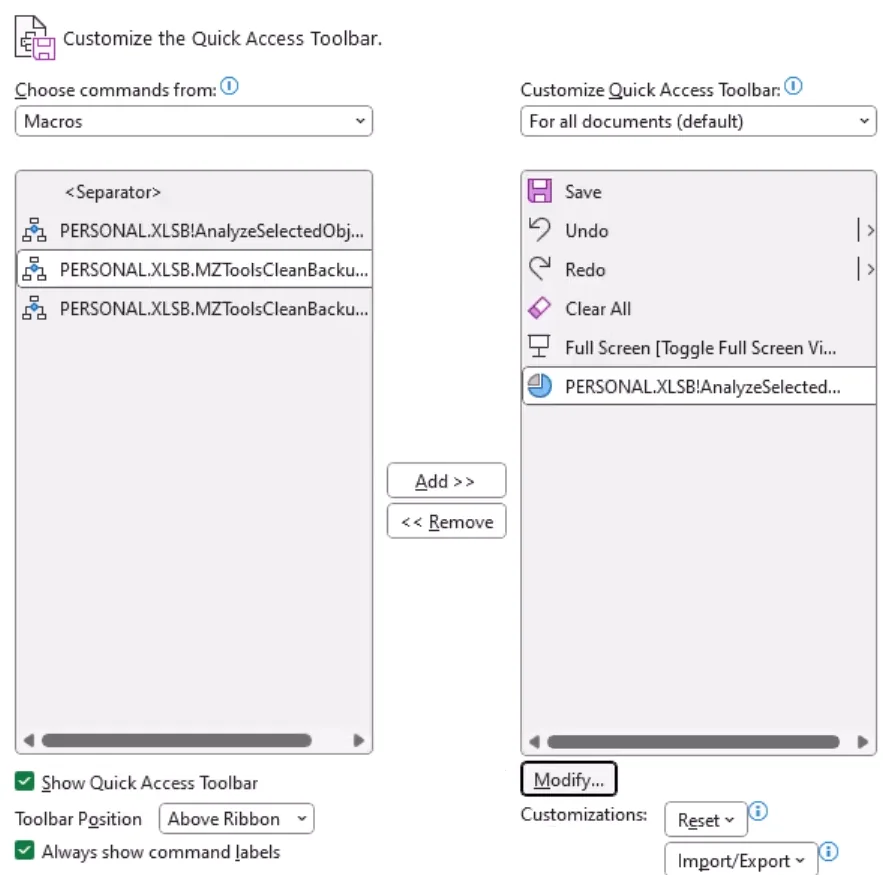
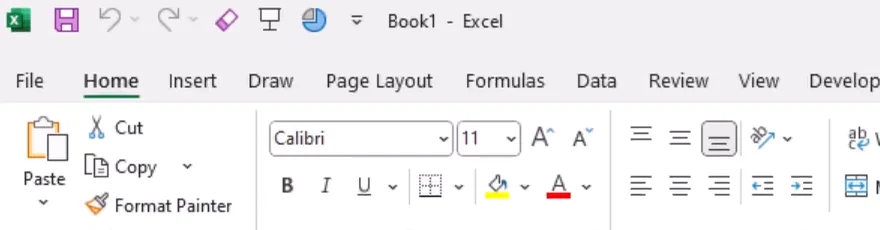
A Quick Access Toolbar button runs the analyzer with one click in any workbook. Click the arrow at the end of the Quick Access Toolbar, choose More Commands, and set Choose commands from to Macros. The list shows PERSONAL.XLSB!AnalyzeSelectedObject.
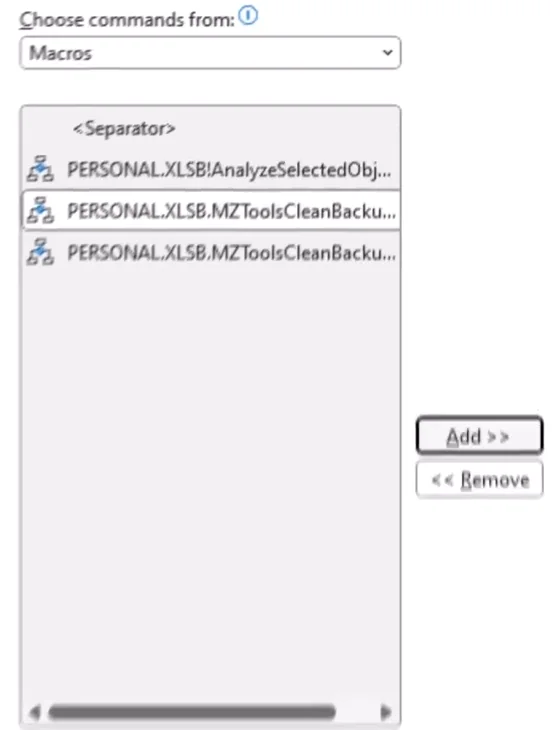
Select it, click Add, and optionally Modify to pick an icon. Click OK to close the dialog.
How the code works
The macro AnalyzeSelectedObject runs seven steps, each with a clear message when something is missing. Knowing them helps when you want to change the model, the prompt or the output, or when a step fails.
First it checks that you replaced the placeholder API key.
    '--- 0) Check API Key first ---
    If InStr(1, API_KEY, "YOUR_OPENAI_API_KEY", vbTextCompare) > 0 Then
        MsgBox "No valid OpenAI API Key found. Please visit " & _
               "https://platform.openai.com/api-keys " & _
               "to create/get your key, then paste it into the code.", vbExclamation
        Exit Sub
    End If
Then it checks the selection. A chart, a picture or a shape works. Anything else, such as a cell range, stops the macro with a message.
    '--- 1) Detect user selection (chart or shape/picture) ---
    GetSelectedChartOrShape selectedChart, selectedShape
    If selectedChart Is Nothing And selectedShape Is Nothing Then
        MsgBox "Unsupported selection. Please select an image, shape, or chart.", vbExclamation
        Exit Sub
    End If
Next it shows the prompt in an input box, prefilled from PromptCell. Cancelling the input box ends the macro.
    '--- 2) Get the final prompt text (from PromptCell or fallback, with an InputBox) ---
    finalPrompt = GetPromptText(DEFAULT_PROMPT)
    If finalPrompt = vbNullString Then Exit Sub ' user canceled
The selected chart or picture is exported to a temporary PNG file. A chart exports directly. A picture or shape is first copied into a temporary chart, and because clipboard operations occasionally fail in VBA, the retry settings at the top of the module control how often it tries.
    '--- 3) Export the chart/picture to a temporary PNG file ---
    tmpFilePath = Environ("Temp") & "\selected_image_or_chart.png"
    If Not selectedChart Is Nothing Then
        If ExportChartAsPNG(selectedChart, tmpFilePath) = False Then
            MsgBox "Failed to export the selected chart.", vbCritical
            Exit Sub
        End If
    ElseIf Not selectedShape Is Nothing Then
        If ExportShapeAsPNG(selectedShape, tmpFilePath) = False Then
            MsgBox "Failed to export the selected shape/picture.", vbCritical
            Exit Sub
        End If
    End If
The PNG is encoded as Base64, because the API expects the image inside the JSON request, and sent with the prompt to OpenAI.
    '--- 4) Convert the PNG file to Base64 ---
    base64Image = EncodeImageToBase64(tmpFilePath)

    '--- 5) Send the image + prompt to OpenAI and retrieve the analysis ---
    resultText = SendOpenAIImageRequest(base64Image, finalPrompt, MODEL_NAME, MAX_TOKENS)
Finally, the answer goes to OutputCell or a message box, and the temporary file is deleted.
    '--- 6) Output the result (named range or fallback to MsgBox) ---
    OutputAnalysisResult resultText

    '--- 7) Cleanup (delete temp file) ---
    On Error Resume Next
    Kill tmpFilePath
    On Error GoTo 0
End Sub
For text answers rather than chart reviews, integrating ChatGPT into Excel uses the same API key and Personal Macro Workbook setup, and the Ask AI formula does it from a cell without any code.
Resources
- GitHub repository (both modules and an example workbook)
- OpenAI models (check which current models accept images)