
How to Integrate ChatGPT into Excel

Four ways to reach ChatGPT from Excel, in increasing order of polish: a macro on the Quick Access Toolbar, a button on the sheet, your own add-in with a ribbon tab, or the ready-made MyToolBelt add-in. All four call the same API underneath.
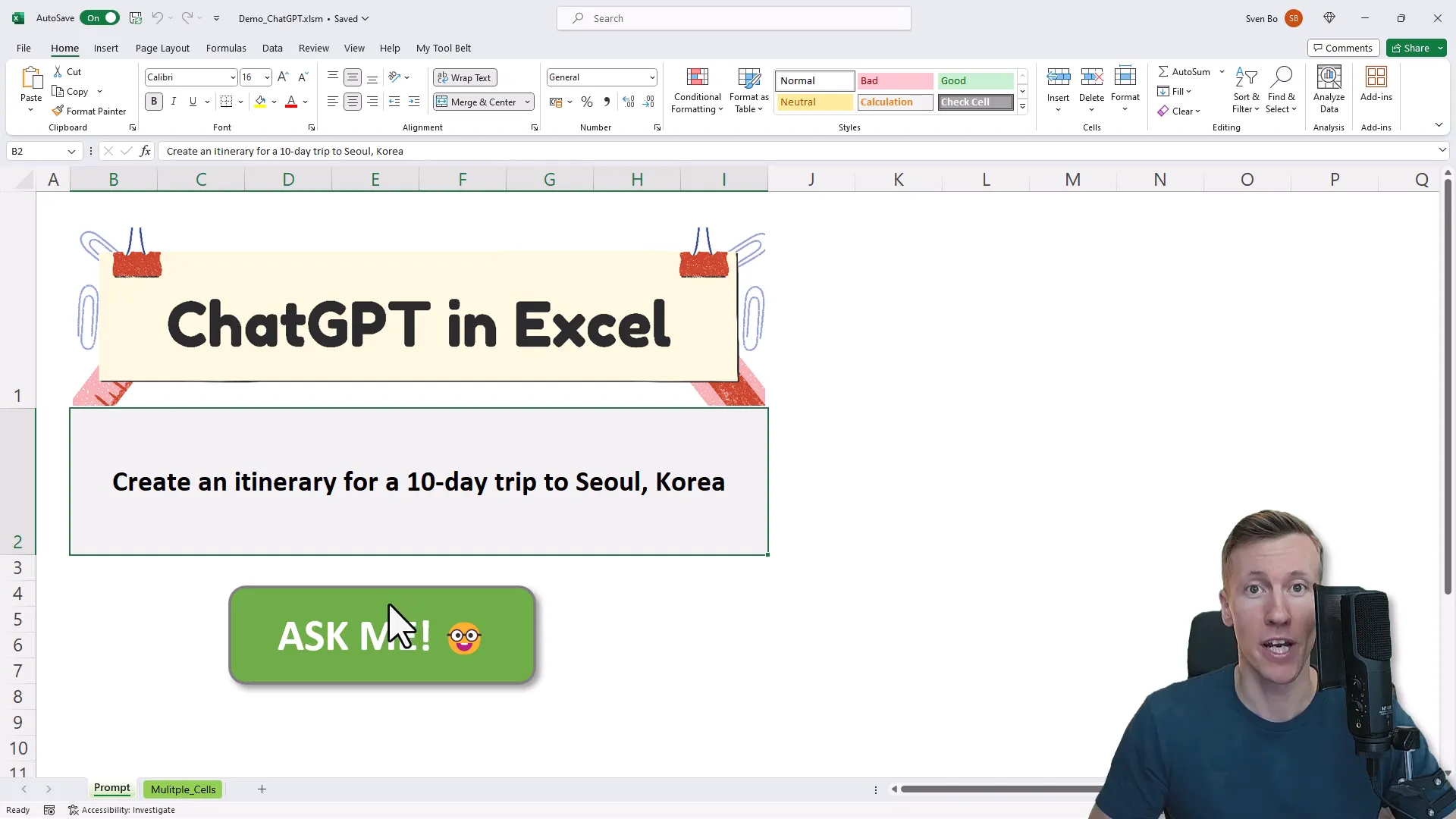
How to Set Things Up
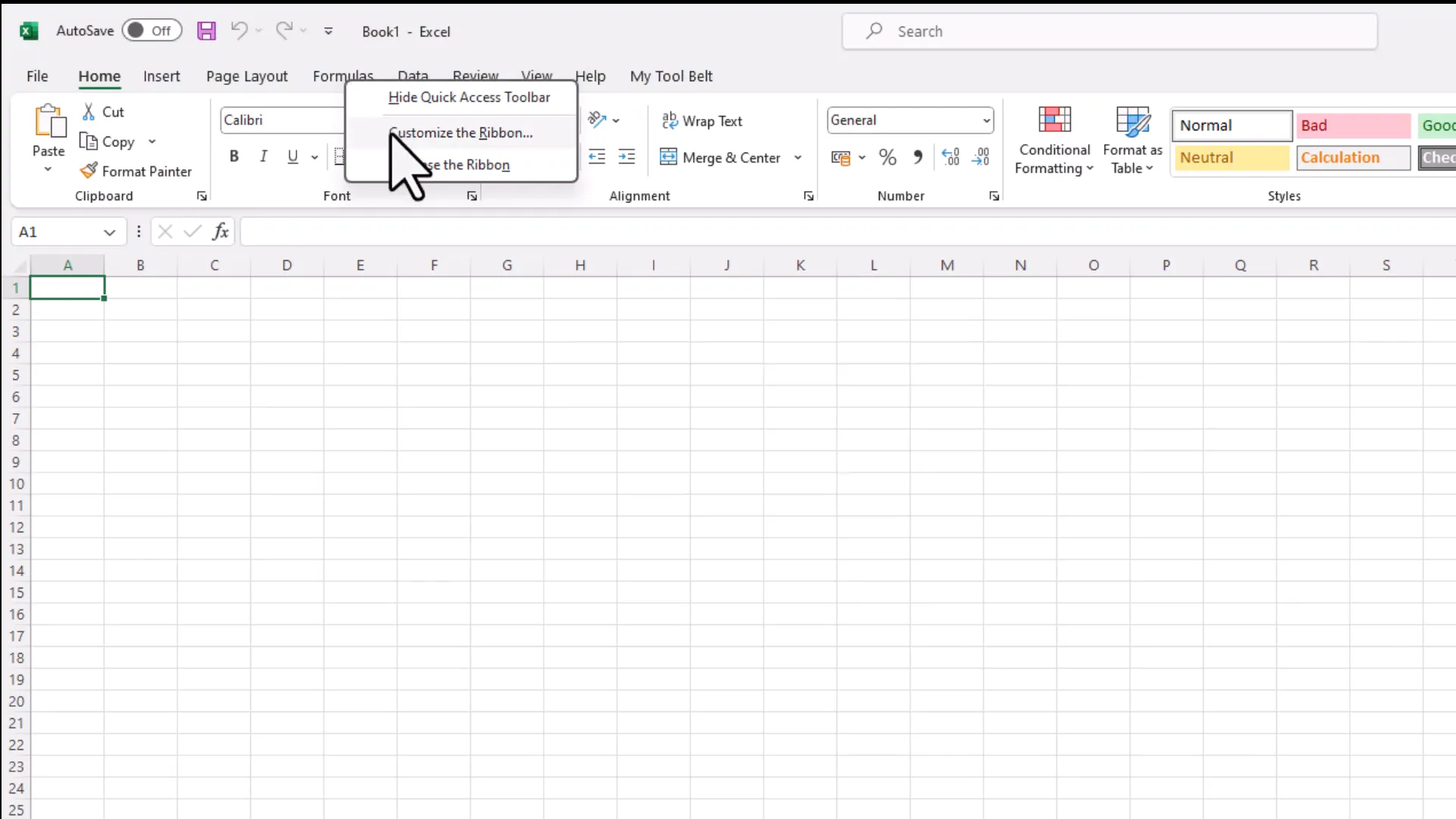
To get started, open a new Excel workbook. You’ll need to enable the Developer tab. Right-click on your ribbon, select ‘Customize the Ribbon’, then check the box next to ‘Developer’ and click ‘OK’. This will add the Developer tab to your ribbon.
Next, click on the Developer tab and select ‘Record Macro’. Ensure you choose ‘Personal Macro Workbook’. Once you’ve clicked ‘OK’, you can immediately stop the recording since we just need to create the personal workbook.
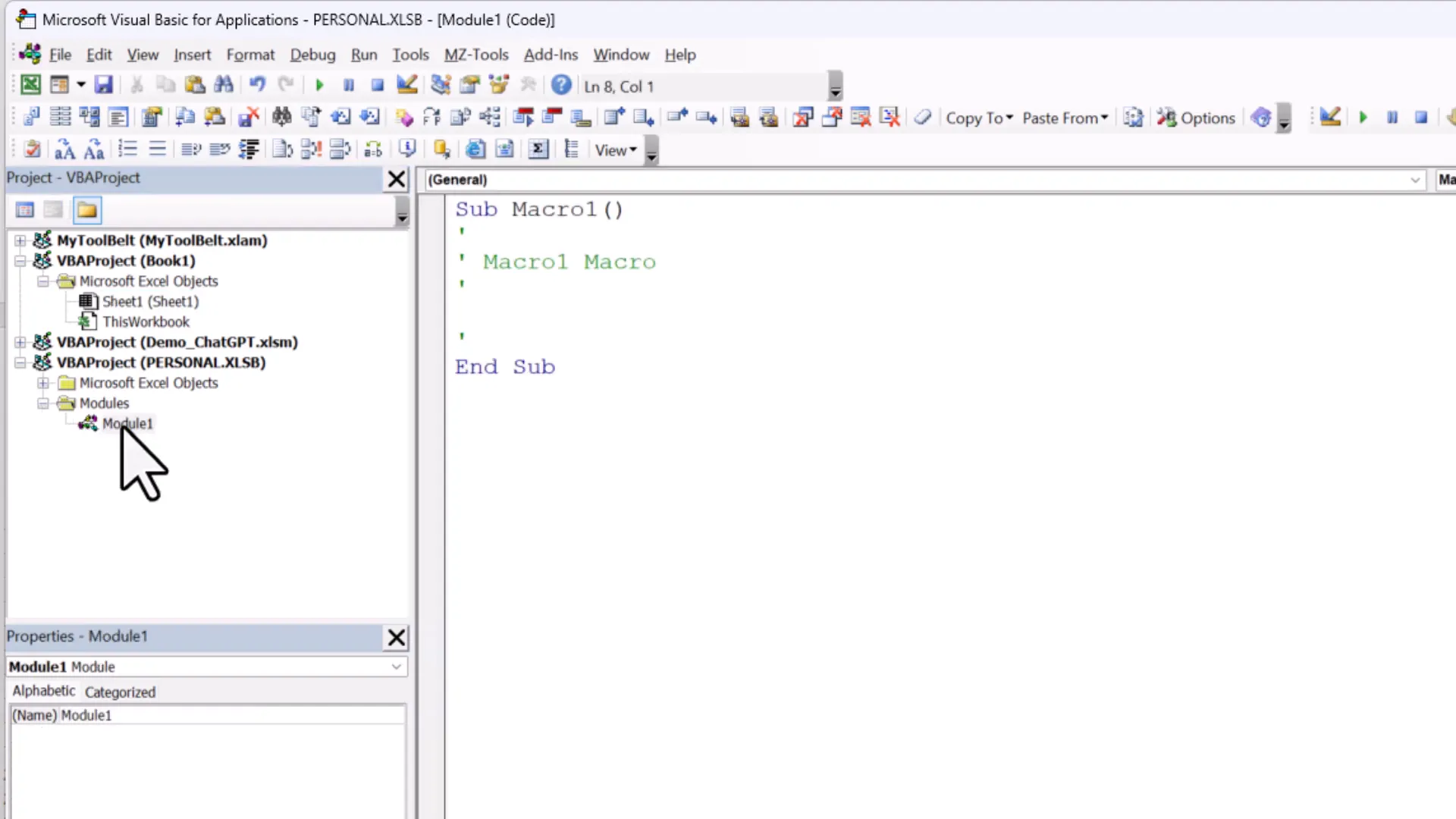
Open the Visual Basic for Applications (VBA) editor. Here, you’ll find your personal workbook where you’ll store the necessary code. You’ll need to download two modules from my GitHub repository: the JSON converter and the ChatGPT module. Links to these can be found in the description.
Run via Quick Access Toolbar
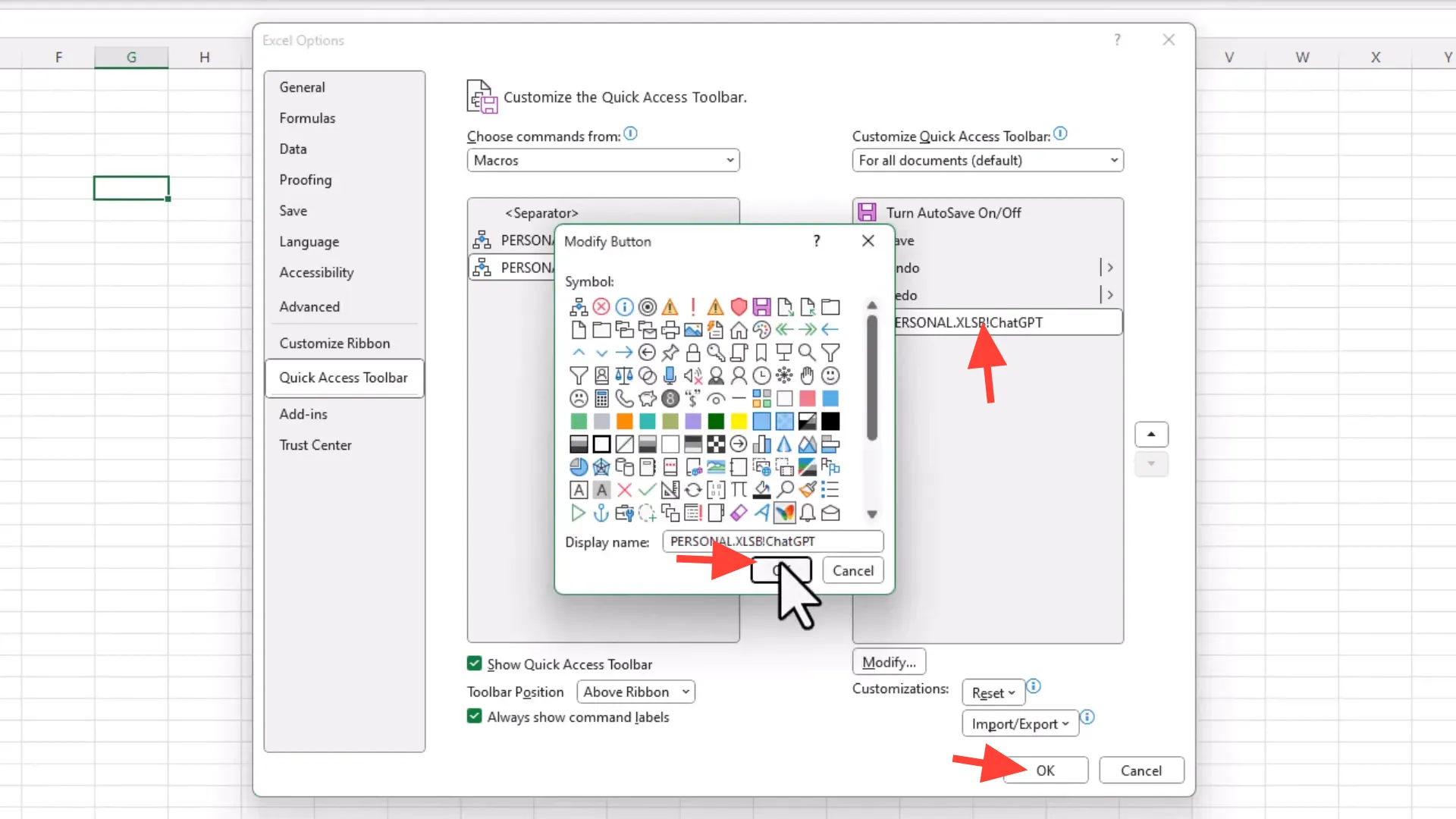
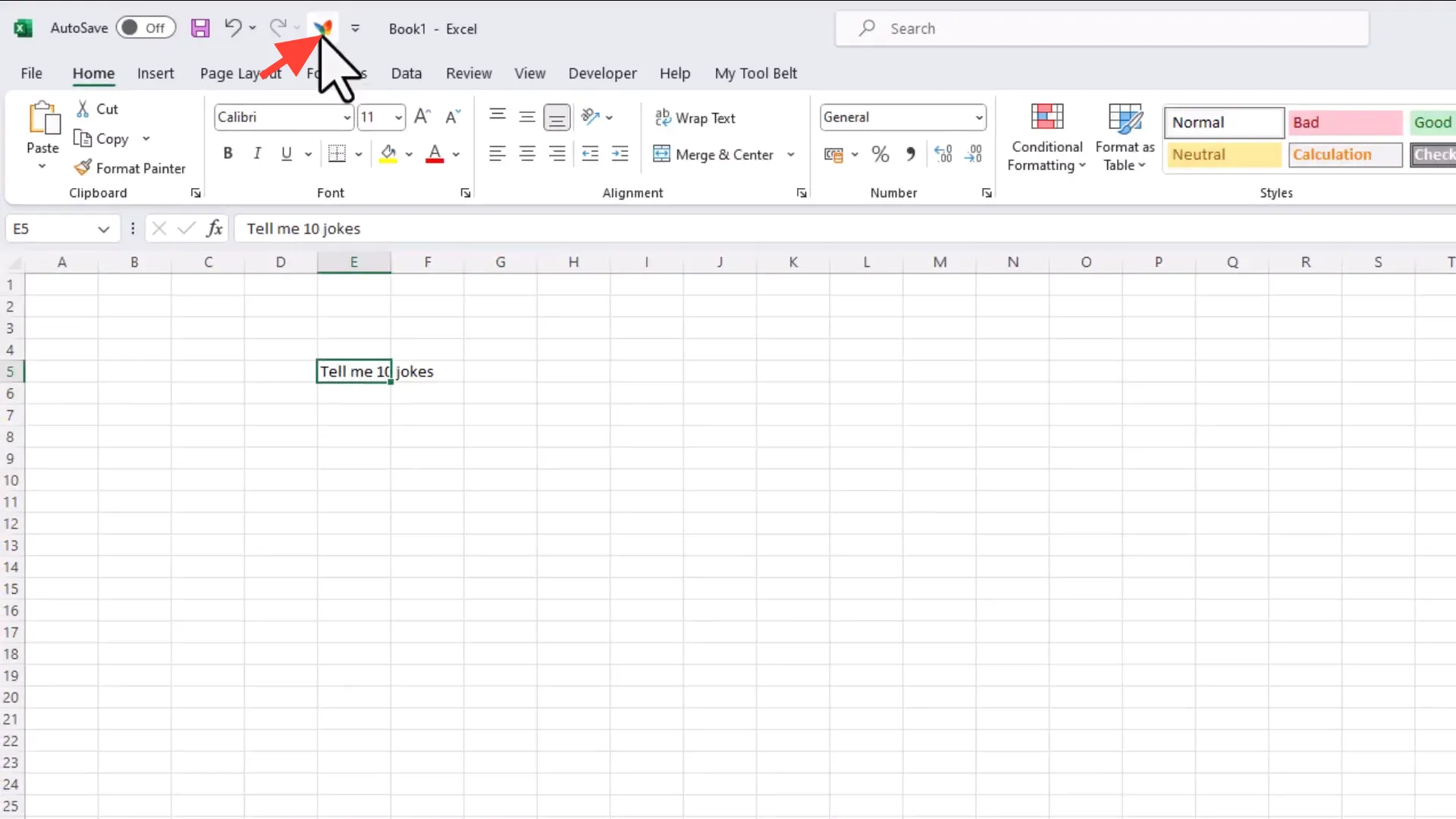
One way to use the ChatGPT functionality is by adding a button to your Quick Access Toolbar. Click on the dropdown menu and select ‘More Commands’. Choose ‘Macros’ from the list, find your ChatGPT macro, and click ‘Add’. You can customize the icon if you wish.
Now, whenever you type a prompt in a cell and click that button, the output will appear in a new worksheet.
Run via Button
Alternatively, you can insert a button directly onto your sheet. Navigate to the Developer tab, click on ‘Insert’, and draw a button. Assign the ChatGPT macro to this button. When you select a cell containing your prompt and click the button, the output will again be displayed in a new sheet.
Run via Own Excel Add-In
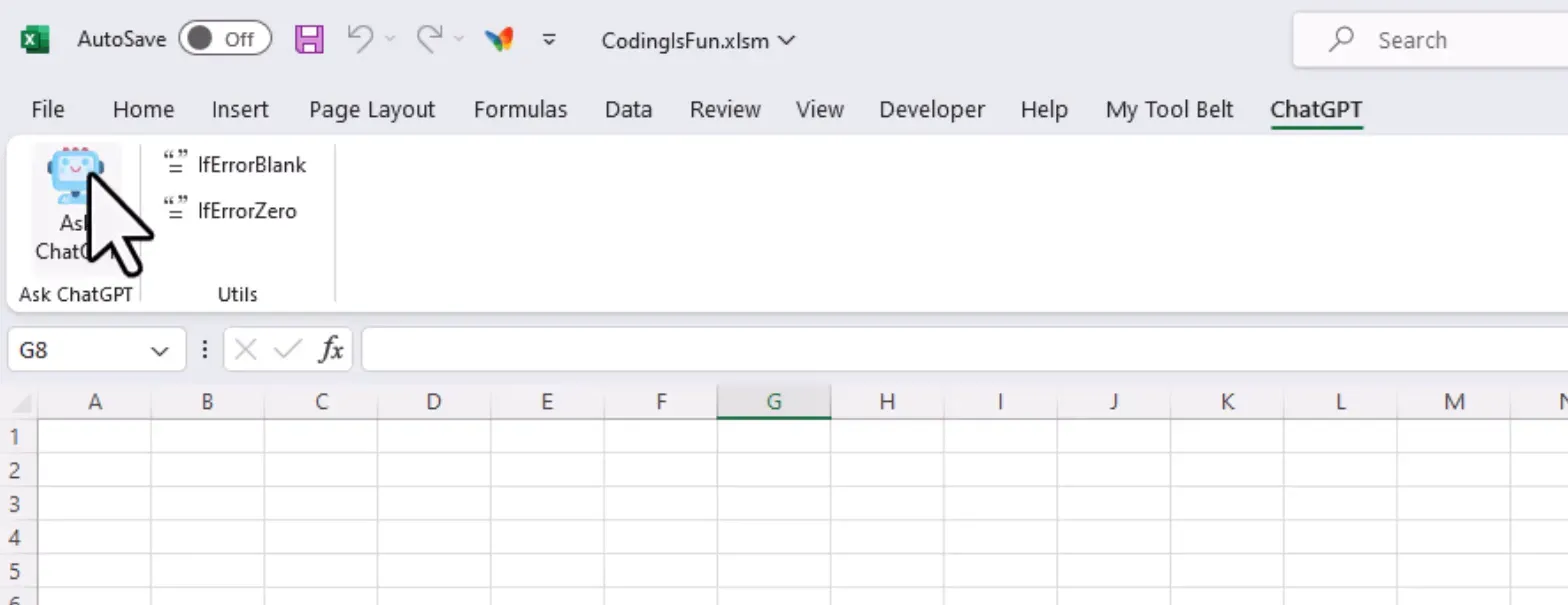
Creating your own Excel add-in is another option. Once the add-in is installed, you’ll have a new ribbon form for accessing ChatGPT functionality. For detailed steps, see my walkthrough on creating a custom Excel add-in.
Run via MyToolBelt Add-In
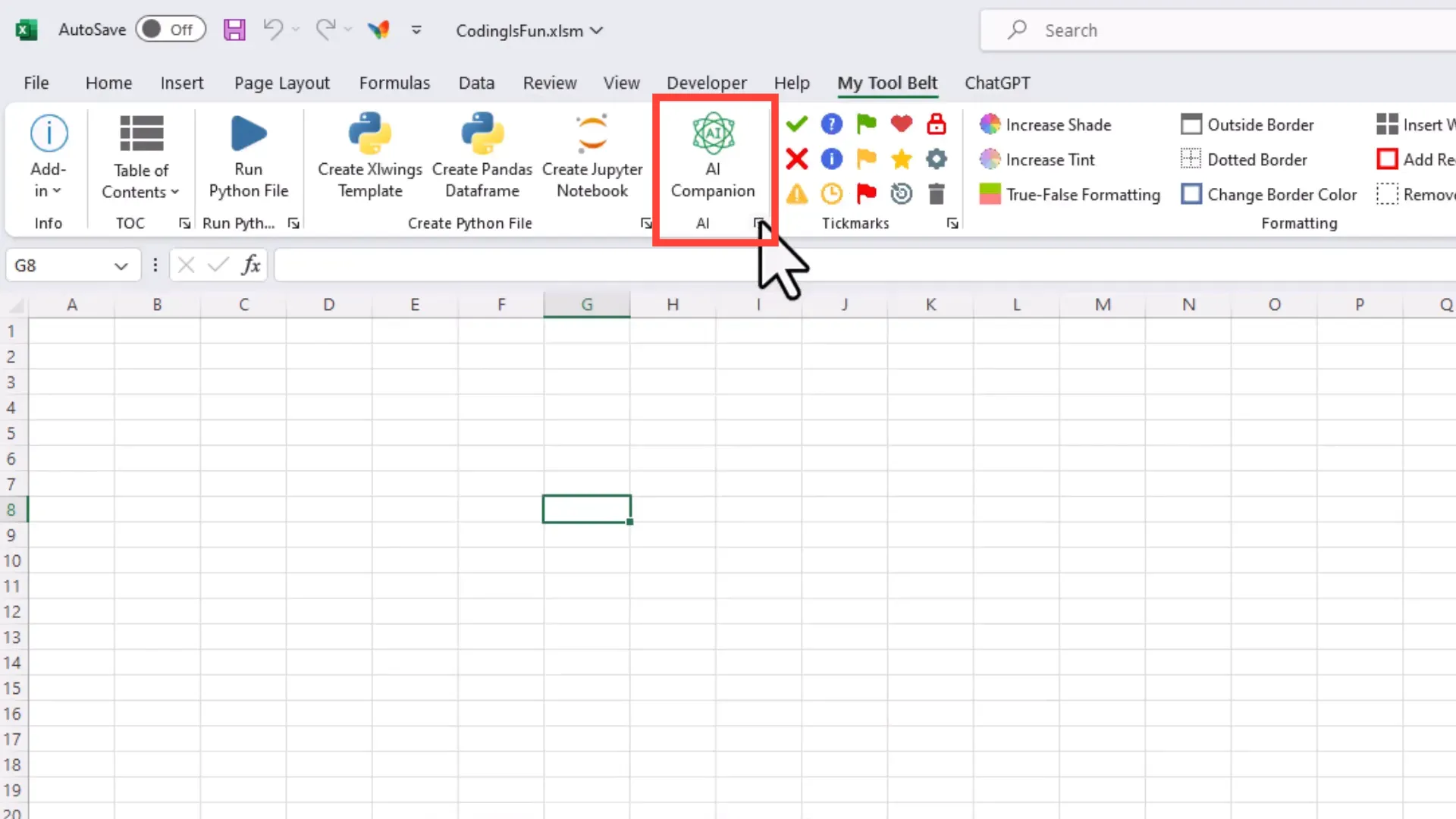
If you prefer a ready-made solution, you can use my MyToolBelt Excel add-in. The code in this add-in is more advanced, allowing you to save your API key and adjust various settings. The free version allows access to the GPT-3.5 Turbo model, while the paid version provides access to GPT-4 and additional features.
Conclusion
By following these steps, you can seamlessly integrate ChatGPT into your Excel workflows, enhancing your productivity and data analysis capabilities. Whether you choose to use a button, the Quick Access Toolbar, or create your own add-in, the possibilities are endless. For further exploration, check out the links in the description for additional resources and tools.
Further Links
If you would rather not build the add-in yourself, this is the finished version: ChatGPT as a worksheet formula, free.