
How to Use GPT-5 in Excel With the Ask AI Formula

The MyToolBelt add-in adds a worksheet formula, ToolBelt_AskAI, that sends a prompt to the OpenAI model you pick (GPT-5 or newer) and returns the answer into the cell. Prompts can include cell references, so one formula dragged down a column processes a whole list. You need desktop Excel on Windows and your own OpenAI API key.
Update (November 2026): OpenAI shuts down the original gpt-5 on December 11, 2026 and the GPT-4o snapshots on January 14, 2027 (see its deprecations page), so pick a newer model in the settings; the formula itself does not change.
Table of contents
What you need
The formula calls the OpenAI API with your own key, so OpenAI bills you for each request. Everything you put into a prompt, including referenced cells, is sent to OpenAI.
- Desktop Excel on Windows. MyToolBelt runs in Excel 2010 and later, including Microsoft 365. Excel for Mac and Excel on the web are not supported.
- MyToolBelt. The free version includes basic AI with five AI formulas per sheet. Pro removes that limit and unlocks the full AI settings.
- An OpenAI API key with a balance. A ChatGPT subscription does not cover API calls.
Install MyToolBelt
MyToolBelt is a regular Excel add-in file (.xlam). You download it, keep it in a permanent folder and load it once through Excel’s add-ins dialog.
-
Download it. Enter your name and email on the MyToolBelt page; the download and the installation steps arrive by email.
-
Unblock the file. Extract the ZIP, right-click MyToolBelt.xlam, choose Properties and select Unblock if it appears.
-
Load it. In Excel go to File, Options, Add-ins, choose Excel Add-ins next to Manage, click Go, then Browse to the file and leave its checkbox ticked.
A My Tool Belt tab appears in the ribbon. If it does not, the missing ribbon guide covers the usual causes. Updates replace the .xlam file in the same way.
API key and model
Paste your API key into the AI settings once and choose the model there. The formula and the AI Companion button both use that model.
To get a key, sign in at platform.openai.com, add balance under Billing, then create a new secret key and copy it. The settings window also opens by itself the first time you use the formula without a key.
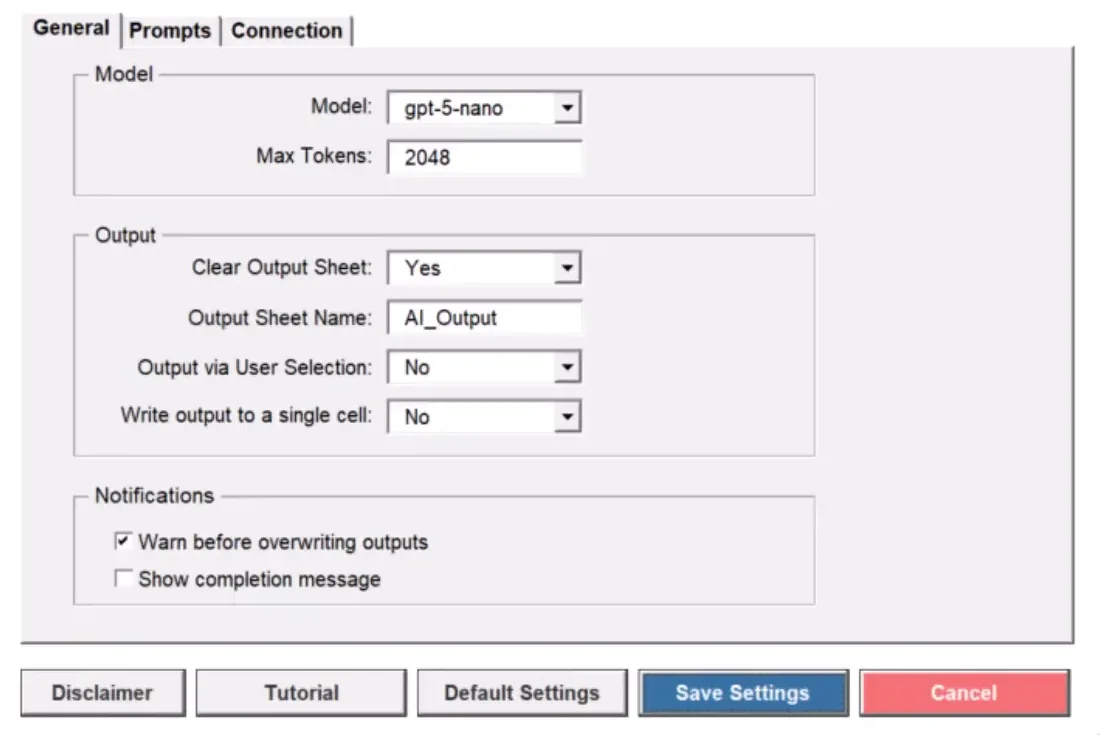
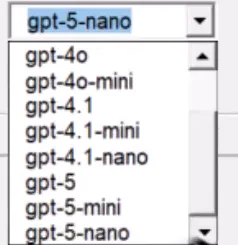
The model list updates itself as OpenAI releases models. When I recorded the video it showed GPT-5, GPT-5 Mini and GPT-5 Nano below the older GPT-4 models.
For spreadsheet tasks such as extraction, classification or translation, a small model is often enough and much faster. Compare a small and a large model on a few rows before you fill a whole column.
The Ask AI formula
ToolBelt_AskAI works like any Excel function: the argument is the prompt, the result is the answer as text. Every cell with the formula is one API request.
=ToolBelt_AskAI("Is Excel or Google Sheets better. Answer in one sentence")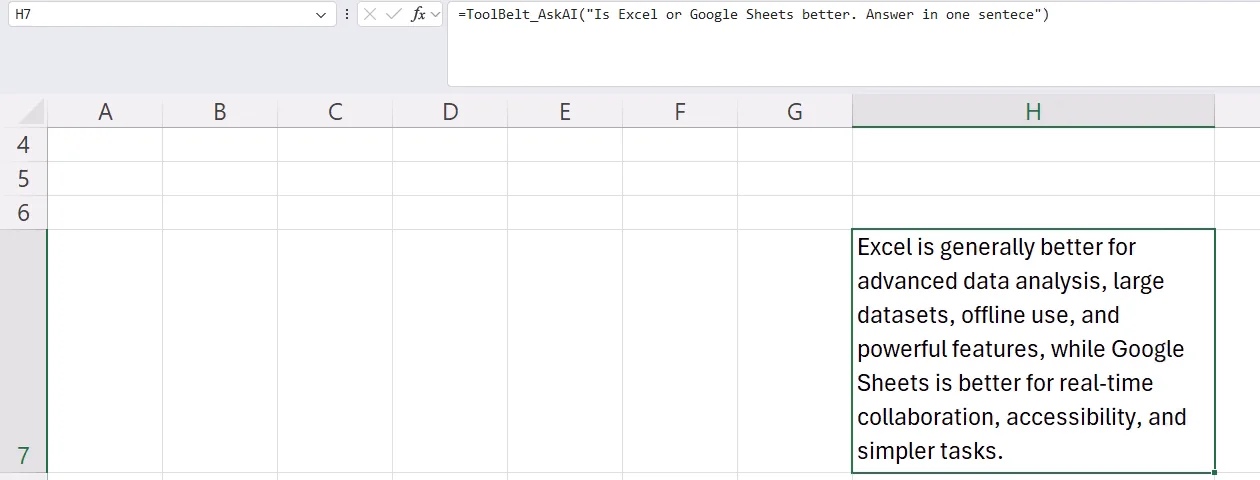
The first time, a disclaimer explains that the prompt is sent to OpenAI and that the API costs money. You can hide it for the future.
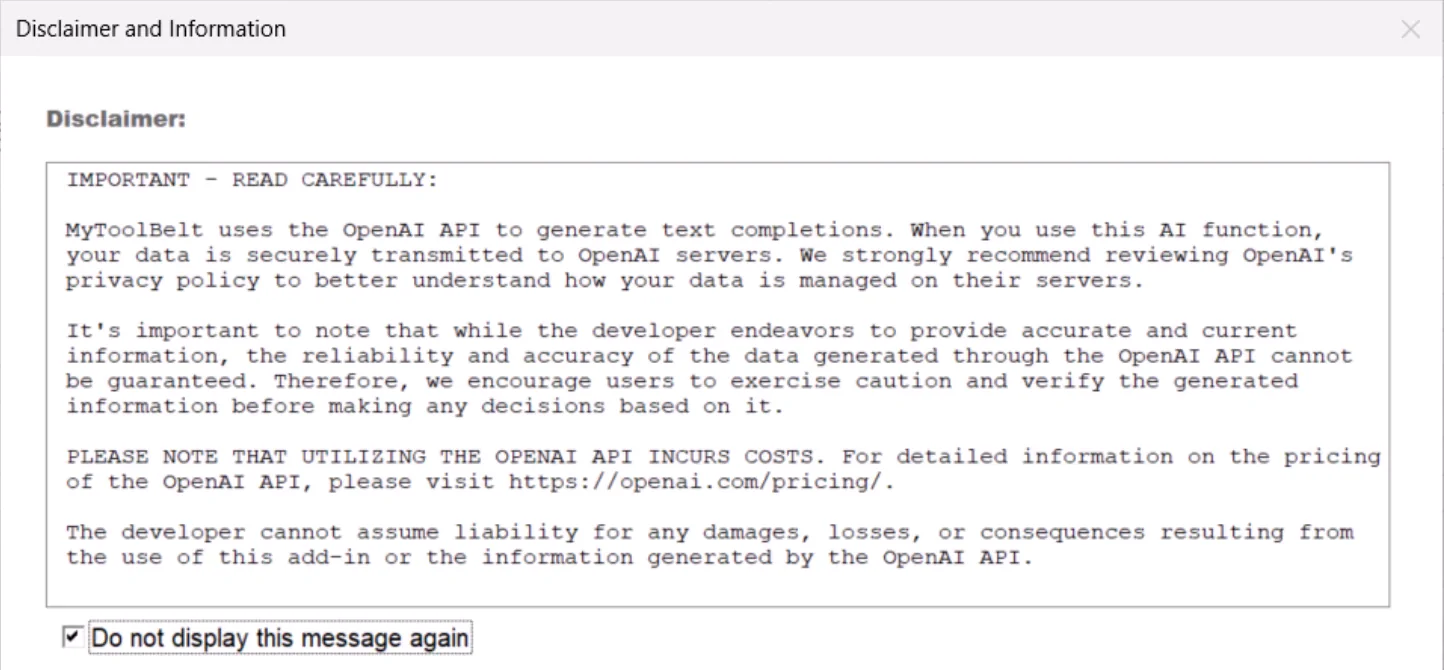
Hundreds of formulas mean hundreds of requests, so a long column takes a while to fill. That is expected.
Build prompts from cells
Join fixed text and cell references into the prompt, then drag the formula down. Each row gets its own answer, and changing a referenced cell sends a new request for that row.
=ToolBelt_AskAI("What are the three most common challenges faced by the " & B3 & " industry? Without preamble. Return only the three most common challenges")
CONCAT works instead of & if you find it easier to read. These are prompt patterns I use with a column of text in A2:
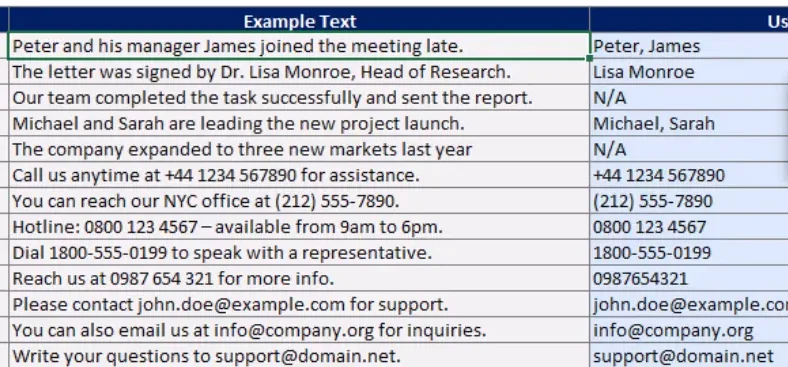
- Extract names: “Extract all names from the text and use commas only if multiple. Return ‘not available’ if none.” Returns “Peter, James”, “Lisa” or “not available”.
- Phone numbers and emails: the same pattern returns a clean, comma-separated list.
- Numbers to words: 128 becomes “one hundred twenty-eight”.
- Translation: English sentences into German or another language.
- Sentiment: classify reviews as positive, neutral or negative.
- Grammar: return a corrected version of a sentence.
For sorting many rows into fixed categories, my guide on categorizing data in Excel compares keyword rules with AI.
Control the output format
Tell the model exactly what to return. “What is the capital of Germany? Return only the city name” gives “Berlin”; without that instruction you get a paragraph.
A cell cannot render Markdown, so a long answer without format instructions arrives full of asterisks and hash signs:
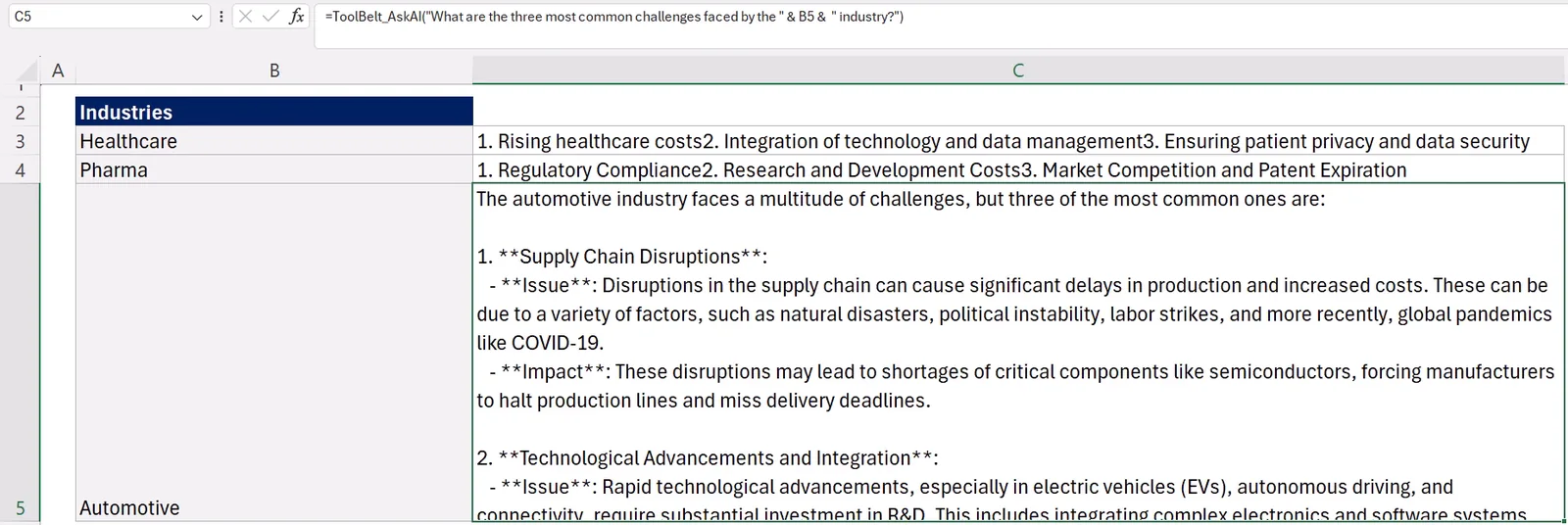
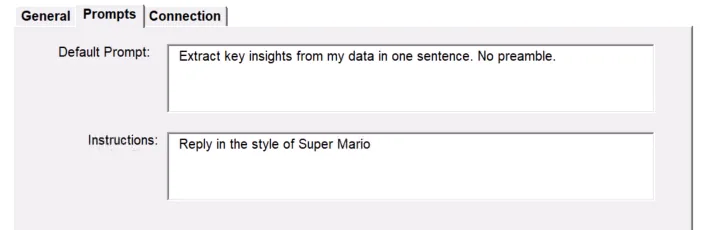
The add-in also sends global instructions with every request. By default they say “No preamble. No markdown. Only return the final result.” You can change them, and the default prompt for the AI Companion, on the Prompts tab of the settings. In the video I switched the style to Super Mario to show that it works.
Convert answers to values
Once the answers are right, turn the formulas into plain text. That stops repeat requests when Excel recalculates, keeps the answers from changing and saves API costs.
MyToolBelt has a “Convert AI formulas to values” option for the selection, the active sheet or the whole workbook. In the demo it replaced 35 formulas on the active sheet in one go. Copy and Paste Values does the same by hand.
Convert before you share a workbook. On a PC without MyToolBelt the formula cells show a #NAME? error instead of the answers.
Analyze a range
For a summary of a whole table, use the AI Companion button instead of a formula. Select the range, click the button, and the answer lands on a new worksheet.
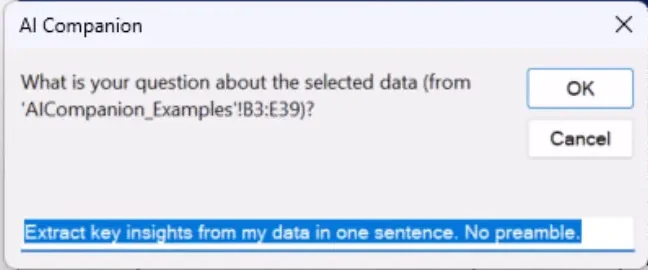
The default prompt is “Extract the key insights from my data in one sentence, no preamble.” You can type your own in the dialog.
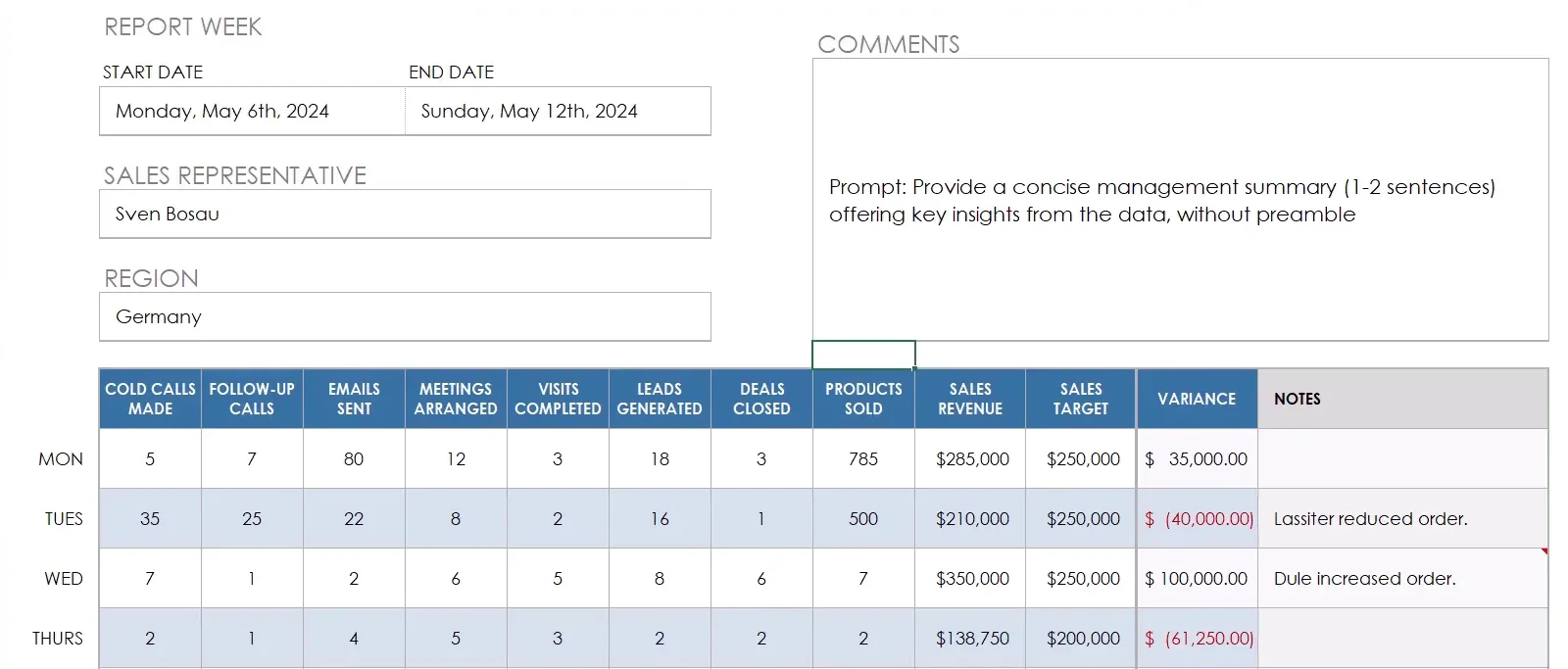
If the instruction is part of the selection, start it with the word “prompt” so the add-in can tell it apart from the data. This weekly sales report has its management summary request in the comments box:
More AI Companion examples, including the answers that were wrong, are in my AI Companion walkthrough.
Local models
If the data must not leave your PC, run an open-source model locally instead. My XLlama add-in connects Excel to Ollama and has its own prompt formula, XLLAMA.PROMPT in the current version.
I ran the same extraction prompts through XLlama with a local Gemma model and got the same results, without cloud traffic or API costs. Running Ollama in Excel covers the model setup.
I use the OpenAI models when answer quality matters and the data may go to the cloud, and a local model for sensitive data or when I do not want per-request costs. Local models need a reasonably fast PC and are usually weaker than the largest cloud models.
The add-in with the Ask AI formula and the AI Companion used in this post. Start with the free version, which includes five AI formulas per sheet.