
How to Use DeepSeek in Excel With VBA (DS_Chat Formula)
Two free VBA modules turn DeepSeek into an Excel formula. Import JsonConverter.bas and mDeepSeek.bas, tick Microsoft Scripting Runtime under Tools > References, add your DeepSeek API key, and type =DS_Chat("your question") in a cell. It calls deepseek-flash and works in desktop Excel on Windows, including Excel 2016.
Update (November 2026): DeepSeek retired the model names deepseek-chat and deepseek-reasoner on July 24, 2026, so the module in the GitHub repository now calls deepseek-flash with thinking turned off; import that new mDeepSeek.bas if your copy still says deepseek-chat.
Table of contents
What you need
You need desktop Excel for Windows with macros allowed, a DeepSeek API account with some balance on it, and two files from my repository. There is no add-in to install and no Python. Excel on a Mac and Excel on the web cannot run this code.
- Excel: Microsoft 365, 2021, 2019 or 2016 on Windows.
- A DeepSeek API key from platform.deepseek.com. The API is billed per token from a prepaid balance, separate from the free DeepSeek chat app.
- The code from github.com/Sven-Bo/Excel-VBA-DeepSeek-Integration:
JsonConverter.bas(reads the JSON answer) andmDeepSeek.bas(the DS_Chat function).
Get a DeepSeek API key
The key authenticates every request Excel sends. You create it on DeepSeek’s developer platform, and the account needs a balance before requests succeed.
-
Sign in. Open platform.deepseek.com and log in or create an account.
-
Add balance. Top up a small amount. Without balance every call returns an error.
-
Create the key. Open API keys, click Create new API key and give it a name such as Excel.
-
Copy it right away and store it somewhere safe. Anyone with the key can spend your balance.
Add the modules
Import both modules into a macro-enabled workbook, turn on one reference, and compile. If the compile step passes, the formula is ready once the key is in place.
-
Show the Developer tab. Right-click the ribbon, choose Customize the Ribbon, tick Developer in the right-hand list and click OK.
-
Download the code. On GitHub, click Code > Download ZIP and extract it.
-
Import the modules. Open a workbook, click Developer > Visual Basic (or press Alt+F11), right-click your VBAProject, choose Import File and import
JsonConverter.bas, thenmDeepSeek.bas.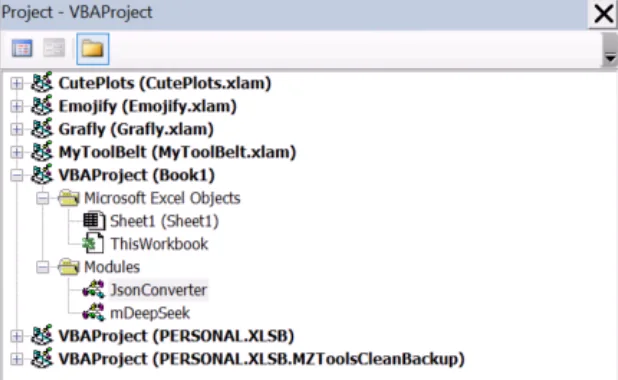
-
Set the reference. In the Visual Basic Editor, go to Tools > References, tick Microsoft Scripting Runtime and click OK. The module notes also list Microsoft XML, v6.0; ticking it as well does no harm.
-
Compile. Choose Debug > Compile VBAProject. No message means everything is in place.
-
Paste the key. At the top of mDeepSeek, replace
YOUR_API_KEY:Private Const API_KEY As String = "YOUR_API_KEY" ' Replace with your DeepSeek API key (https://platform.deepseek.com)Or leave it and keep the key in a cell, as shown in the next section.
-
Save as .xlsm. File > Save As > Excel Macro-Enabled Workbook. A normal .xlsx file drops the code.
-
Test it. Type
=DS_Chat("What is the capital of France?")in a cell and press Enter. The answer appears after a few seconds.
The repository also has a ready demo workbook, DeepSeek_Demo.xlsm. It still contains the older module that calls deepseek-chat, so remove its mDeepSeek module and import the new mDeepSeek.bas before you use it.
Keep the key in a cell
Instead of editing the code, you can put the key in a cell named DS_API_KEY. DS_Chat looks for that name in the active workbook first and falls back to the constant in the code when the name is missing or empty.
-
Paste the key into a cell, for example on a settings sheet.
-
Name the cell. Select it, click into the Name Box left of the formula bar, type
DS_API_KEYand press Enter.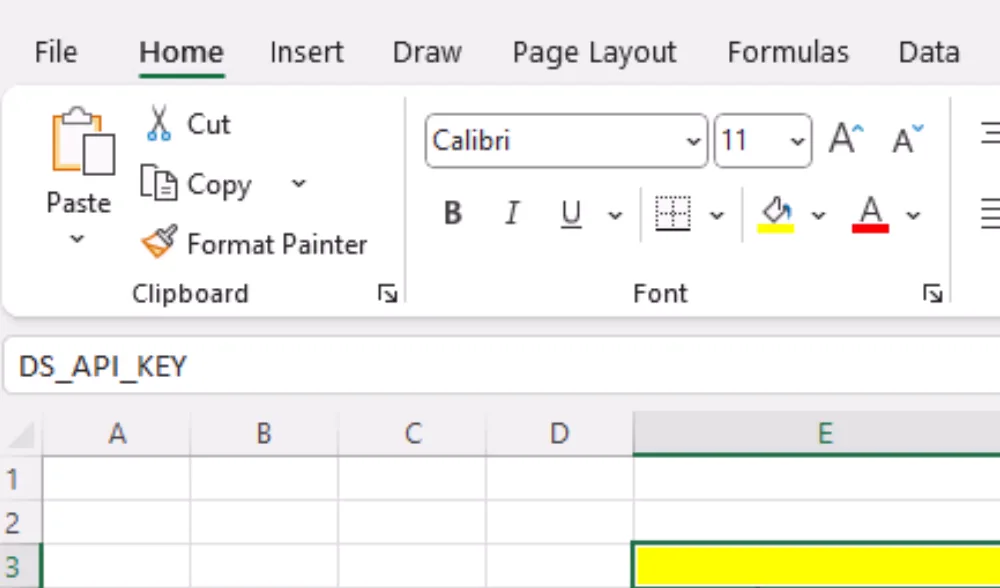
-
Check it. Type a few wrong characters into the cell: DS_Chat now returns an API error. Paste the real key back and the answers return.
A key in a cell travels with the file. Remove it before you send the workbook to anyone.
DS_Chat formula
DS_Chat takes a prompt and returns DeepSeek’s answer as text. The prompt can be typed in quotes, come from a cell, or be built from several cells with &. Fill the formula down to run the same instruction over a list.
=DS_Chat("What is the capital of France?")
=DS_Chat(A2)
=DS_Chat("Summarize this customer feedback in one sentence: " & A2)
=DS_Chat("Explain quantum computing in simple terms.", "deepseek-flash", 0.8, 512, 0.9, 0.5, 0.5)
All arguments after the prompt are optional:
| Argument | Default | What it does |
|---|---|---|
prompt |
required | The text sent to DeepSeek |
model |
deepseek-flash |
The model name |
temperature |
0.7 | 0 gives steady, factual answers; up to 2 gives more varied ones |
max_tokens |
300 | Maximum length of the answer |
top_p |
1 | Nucleus sampling, 0 to 1 |
frequency_penalty |
0 | Discourages repeated words, -2 to 2 |
presence_penalty |
0 | Encourages new topics, -2 to 2 |
To change a later argument, fill in the ones before it too, for example =DS_Chat(A2, "deepseek-flash", 0.7, 1000) for longer answers. A skipped argument (two commas in a row) does not reliably fall back to the default.
Each formula is one API request, and it runs again whenever its input changes or the sheet fully recalculates. When the answers look right, copy the column and paste it as values, so they stay fixed and cost nothing more.
Models and thinking mode
The default model is deepseek-flash with thinking turned off, which gives fast, direct answers like the old deepseek-chat. For harder questions, pass deepseek-v4-pro as the second argument, or let the model reason first by turning thinking on.
| Setting | Use it for |
|---|---|
deepseek-flash (default) |
Short answers, rewriting, classifying, extracting |
deepseek-v4-pro |
Harder tasks where quality matters more than speed |
DEFAULT_THINKING = "enabled" |
Step-by-step reasoning, like the retired deepseek-reasoner |
Thinking is a constant in mDeepSeek, not a formula argument:
' Thinking mode: "disabled" = fast, direct answers (like the old deepseek-chat)
'                "enabled"  = the model reasons first (like the old deepseek-reasoner).
'                             Slower, ignores temperature and the penalties, and
'                             needs a higher max_tokens value.
Private Const DEFAULT_THINKING As String = "disabled"
With thinking enabled, raise max_tokens well above 300, because the reasoning counts toward the limit. DeepSeek’s models and pricing page lists the current names.
Use it in every workbook
The function only exists while the workbook that holds it is open. To use DS_Chat everywhere, save the two modules as your own add-in, or put them into your Personal Macro Workbook. The add-in is the cleaner choice for a formula.
Option 1: save it as an add-in (.xlam)
-
Use a blank workbook with only JsonConverter and mDeepSeek, the reference set and your key in the API_KEY constant.
-
Save as add-in. File > Save As, file type Excel Add-in (*.xlam), name it for example DeepSeekTools, and keep the AddIns folder Excel suggests.
-
Turn it on. File > Options > Add-ins, Manage: Excel Add-ins, Go, tick DeepSeekTools, OK.
Now =DS_Chat() works in every workbook without a prefix, and those workbooks can stay .xlsx files. Put the key in the constant here: the DS_API_KEY cell is only read from the active workbook.
Option 2: Personal Macro Workbook
On the Developer tab, click Record Macro, set Store macro in to Personal Macro Workbook, click OK, then Stop Recording. That creates PERSONAL.XLSB. Import both modules into its project in the Visual Basic Editor and save.
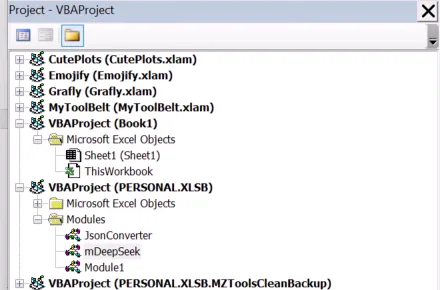
Formulas then need the workbook name in front: =PERSONAL.XLSB!DS_Chat("Tell me a joke about Excel").
Troubleshooting
DS_Chat writes its errors into the cell. “API Error” plus a status code comes from DeepSeek and includes DeepSeek’s own message. “VBA Error” means the code failed before or after the request.
| What you see | Cause and fix |
|---|---|
| Compile error: User-defined type not defined | Microsoft Scripting Runtime is not ticked, or JsonConverter is missing. Tools > References, tick it, compile again. |
#NAME? |
Excel cannot find DS_Chat: the workbook with the code is closed, the file was saved as .xlsx, or the formula lacks the PERSONAL.XLSB! prefix. |
| “Microsoft has blocked macros from running because the source of this file is untrusted” | A downloaded file is blocked. Close it, right-click it, Properties, tick Unblock. |
| API Error: 401 | The key is wrong or deleted. Check the constant and the DS_API_KEY cell; the cell wins when it is not empty. |
| API Error: 402 | The account balance is used up. Top up on the platform. |
| API Error: 400 that mentions the model | An old model name such as deepseek-chat. Import the new module or pass "deepseek-flash". |
| API Error: 429 | Too many requests at once, typical when filling hundreds of rows. Work in smaller batches. |
| The answer stops mid-sentence | It hit max_tokens (300 by default). Pass a higher value as the fourth argument. |
| Excel freezes for a while | Each formula waits for its answer, one after another. Test on a few rows first, then paste results as values. |
For errors in code you changed yourself, step through it line by line with F8; my VBA debugging tip shows how.
FAQ
Can DeepSeek read or create Excel files?
Not through this formula. DS_Chat sends only the text of your prompt and writes the reply into one cell, so DeepSeek never opens the workbook or saves a file. To work with your data, put it into the prompt with &, as in the feedback example above. The DeepSeek chat app lets you attach files and reads the text in them, but it does not hand back an .xlsx file: ask it for a table and paste that into Excel.
Is there a DeepSeek add-in for Excel?
DeepSeek does not publish one. The .xlam option above gives you your own add-in from the two modules. To run DeepSeek models on your own PC instead of the API, see running Ollama models in Excel, where nothing leaves your computer.
Does the same work with Gemini?
Yes, with a different module and a Google key: Gemini in Excel with VBA adds an AskGemini formula and a macro for selected ranges.
Resources
- Excel-VBA-DeepSeek-Integration on GitHub: the modules and the demo workbook
- DeepSeek API platform: keys and balance
- DeepSeek API documentation