
Appointment Reminder Text Templates (Copy and Paste)
A good appointment reminder text says who you are, the day and time, and how to confirm or reschedule, in under 160 characters. Send it a day or two before, during daytime hours, and ask for a one-letter reply. Below are 25 copy-paste templates by use case, plus how to text a whole day of appointments at once from an Excel list.
Table of contents
- What makes a good appointment reminder text?
- How long should an appointment reminder text be?
- When should you send appointment reminder texts?
- Which appointment reminder text templates can you copy?
- Which texts work for confirmations, reschedules and no-shows?
- How do you write a payment or deposit reminder text?
- Why add wording variations to a reminder template?
- How do you send reminder texts to a whole day of appointments?
- How do you handle replies and STOP requests?
- What are the limits of sending reminders this way?
What makes a good appointment reminder text?
A good appointment reminder text answers four things fast: who is texting, which day and time, where the appointment is, and what to do if plans changed. It uses the person’s first name, stays short, and asks for a simple reply.
Start with your business name. Most people have not saved your number, and a text from an unknown number with no name looks like spam. Then give the day and time the way people say it: “Friday at 10 am” beats “10/03 10:00”. Add the place only when it is not obvious, such as a first visit or a job at the customer’s address.
Finally, give one clear action. “Reply C to confirm or R to reschedule” is easy to answer with one thumb, and it tells you who is coming. A text that asks for a reply gets a decision, and that is what cuts no-shows. People who cannot make it tell you early enough to fill the slot.
How long should an appointment reminder text be?
Aim for under 160 characters. That is the size of one standard SMS, so the text arrives as a single message. Longer texts are split into segments and joined on the phone, which usually works but can arrive out of order on older phones.
The 160 limit applies to plain letters, digits and common punctuation. Once a message is longer, each part holds 153 characters, because a few are used to stitch the parts together.
One emoji or special character changes the math. The whole message switches to Unicode, where one SMS holds only 70 characters. Text pasted from Word often carries curly apostrophes, which can turn a one-text reminder into a three-part message. Type straight apostrophes instead.
Placeholders grow, too. A long name plus a long service name can push a 150-character draft over the edge, so check the longest real row, not the template.
When should you send appointment reminder texts?
Send the main reminder 24 to 48 hours before the appointment. That gives people time to reschedule and gives you time to fill the slot. For quick, walk-in style services, a same-day text a few hours ahead also works well.
Match the timing to how far ahead people plan. A dentist or a contractor who needs someone at home benefits from 48 hours. A salon, a gym class or a coaching call usually does fine with 24. Some businesses send both: a 48-hour reminder with the confirm or reschedule question, then a short same-day nudge.
Send during normal daytime hours, roughly 9 am to 8 pm in the customer’s time zone. A reminder at 11 pm wakes people up and gets you blocked.
Be consistent. When the reminder always arrives at about the same time, clients start to expect it. A simple routine is to send them each morning for the next day’s appointments.
Which appointment reminder text templates can you copy?
Copy any template below and swap the placeholders for your own details. {{first_name}} and {{appointment}} come from your contact list, where {{appointment}} holds the day and time, for example “Friday at 10 am”. {{business}} is your business name.
Every placeholder in double curly braces matches a column in your sheet. If you send one by one from your phone, just type the real values in. If you send from a list, each column becomes a field, so {{service}}, {{address}} or {{class}} work the same way as {{first_name}}. Change the wording wherever your own sounds more natural.
General appointment reminder texts
Hi {{first_name}}, this is {{business}}. A reminder of your appointment on {{appointment}}. Reply C to confirm or R to reschedule.
[[Hi|Hello]] {{first_name}}, just a reminder that you’re booked with {{business}} for {{appointment}}. Does that still work for you?
Hi {{first_name}}, see you later today at {{business}} ({{appointment}}). If you are running late, just reply to this text.
Salon, barber and spa reminder texts
Hi {{first_name}}, it’s {{business}}. Your {{service}} is booked for {{appointment}}. Reply C to confirm or R to reschedule. See you soon!
Hey {{first_name}}, your cut at {{business}} is {{appointment}}. Reply C to confirm. Need another time? Reply R and I’ll sort it out.
Hi {{first_name}}, we look forward to seeing you at {{business}} on {{appointment}}. Please arrive 10 minutes early. Reply C to confirm or R to change.
Dental and medical reminder texts
Keep these privacy-safe. A text can be read on a lock screen by anyone nearby, so leave out the reason for the visit, any diagnosis and any treatment details. Name, day, time and a way to reply are enough. Check the health privacy rules that apply to your practice.
Hi {{first_name}}, this is {{business}} reminding you of your appointment on {{appointment}}. Reply C to confirm or call us to reschedule.
Hi {{first_name}}, your appointment with {{business}} is {{appointment}}. Please bring your insurance card. Reply C to confirm or R to reschedule.
Hi {{first_name}}, {{business}} here. Your visit is on {{appointment}}. If you need to cancel, please reply so we can offer the slot to someone else.
Coaching, consulting and freelance reminder texts
Hi {{first_name}}, looking forward to our call on {{appointment}}. The link is in your calendar invite. Reply here if the time no longer works.
Hi {{first_name}}, it’s {{business}}. Quick reminder of our session on {{appointment}}. Send over anything you want to cover and I’ll prepare.
Home services and trades reminder texts
Hi {{first_name}}, this is {{business}}. We’re booked to come by on {{appointment}} at {{address}}. Reply C to confirm or R for a different day.
Hi {{first_name}}, {{business}} here. Your technician will arrive {{appointment}}. Please make sure someone is home. Reply R to reschedule.
Fitness and class reminder texts
Hi {{first_name}}, your spot in {{class}} is saved for {{appointment}}. Can’t make it? Reply R so someone on the waitlist can take it.
Hey {{first_name}}, see you at {{business}} on {{appointment}} for your session. Bring water and a towel. Reply C to confirm.
Which texts work for confirmations, reschedules and no-shows?
Send an appointment confirmation text right after booking, a reschedule text when the time moves, and a friendly no-show follow-up the same day. Each one keeps the conversation going by text, so the next reminder comes from a number the customer already recognizes.
The confirmation matters more than it looks. It is often the first text people get from you, and it is the moment to ask them to save your number. Reschedule and no-show texts usually go to one person at a time, so keep them as saved templates and fill in the new time by hand.
Appointment confirmation texts
Hi {{first_name}}, thanks for booking with {{business}}. You’re confirmed for {{appointment}}. I’ll text you the day before. Reply R to change it.
Hello {{first_name}}, your appointment on {{appointment}} is confirmed. Save this number so you know it’s us when we text. See you then, {{business}}
Reschedule texts
Hi {{first_name}}, no problem. Your appointment has moved to {{new_time}}. Reply C to confirm the new time.
Hi {{first_name}}, {{business}} here. We need to move your appointment on {{appointment}}, sorry about that. Would {{new_time}} work instead?
No-show follow-up texts
Hi {{first_name}}, we missed you today at {{business}}. No worries, it happens. Reply here and we’ll find a new time that suits you.
Hi {{first_name}}, sorry we didn’t see you on {{appointment}}. Want to book another time? Reply YES and I’ll send a few options.
How do you write a payment or deposit reminder text?
A payment reminder text names your business, the amount, the due date and what it is for, in a calm and polite tone. Never ask for card details by text. Say how people normally pay you, or link to your own website.
People are wary of texts about money, because scammers send them too. Use the name they know you by, refer to the real appointment, and if you add a link, use a full link on your own domain rather than a shortener. Spam filters treat it better too.
Hi {{first_name}}, a reminder from {{business}}: the deposit for your appointment on {{appointment}} is due by {{due_date}}. Reply if you have questions.
Hi {{first_name}}, a friendly reminder that invoice {{invoice}} for {{amount}} is due on {{due_date}}. Thank you, {{business}}
Hi {{first_name}}, our records show {{amount}} still open for your visit on {{appointment}}. If you’ve already paid, please ignore this. {{business}}
Why add wording variations to a reminder template?
Variations make each text a little different, so a batch of reminders does not look like identical automated messages. Carriers and phone spam filters watch for the same text going to many numbers. Small changes in greeting and closing make the batch read like personal messages.
A variation is written in double square brackets with the options separated by a vertical bar. For each person, one option is picked:
[[Hi|Hello|Hey]] {{first_name}}, [[a quick reminder|just a heads-up]] that your appointment at {{business}} is {{appointment}}. Reply C to confirm or R to reschedule.
Anna might get “Hello Anna, a quick reminder that” while Ben gets “Hey Ben, just a heads-up that”. Vary the friendly parts, never the facts: the day, time, place and reply codes stay identical in every version. If you want more wording ideas, the SMS Template Generator writes templates with variations and placeholders already in place. Before a big send, paste your draft into the SMS spam checker to catch words and link styles that filters dislike.
How do you send reminder texts to a whole day of appointments?
Keep the day’s appointments in an Excel sheet with first_name and appointment columns, import it into QuickText, insert those fields into your template, check the preview, send yourself a test, and then send. Each person gets their own text from your Android phone and number.
Here is how that works in QuickText, a Windows desktop app I built. It sends through your own Android phone, paired with the PC through the KDE Connect app, so the reminders come from the same number your customers already know. The phone setup takes about five minutes and is covered in my guide to texting from your PC with an Android phone.
Keep tomorrow’s appointments in Excel
Make one row per appointment with at least these columns: phone, first_name and appointment. Write the appointment as text the way you want it to read, for example “Friday at 10 am”. Add service, address or class if your template uses them. Many booking calendars can export bookings to Excel or CSV.
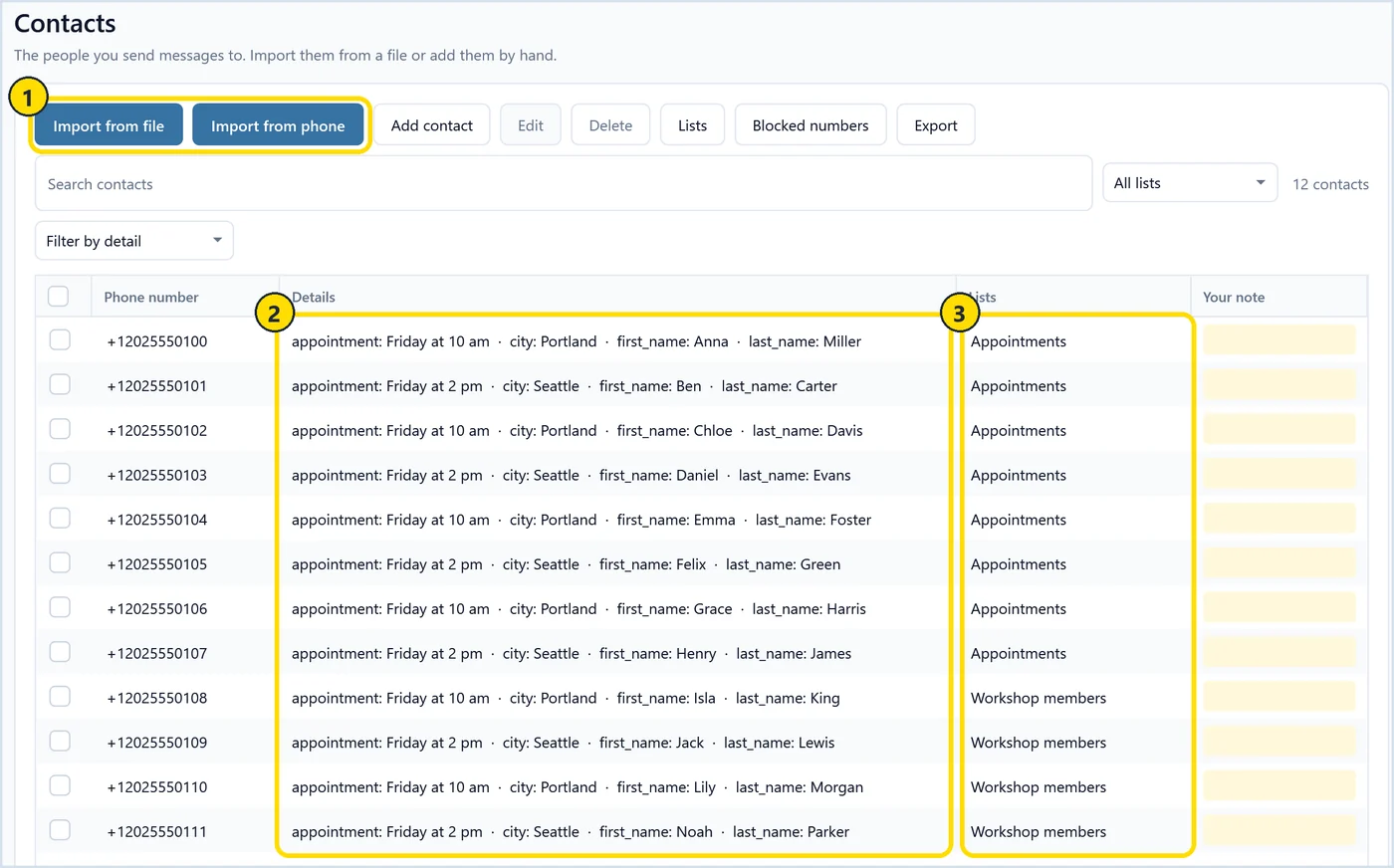
In QuickText, import the file on the Contacts page. Marker 1 shows the import buttons, marker 2 shows how extra columns turn into contact details, and marker 3 shows lists, so tomorrow’s people can sit in their own list. If you are coming from the older Excel-based sender, this post on bulk SMS from an Excel list explains what changed.
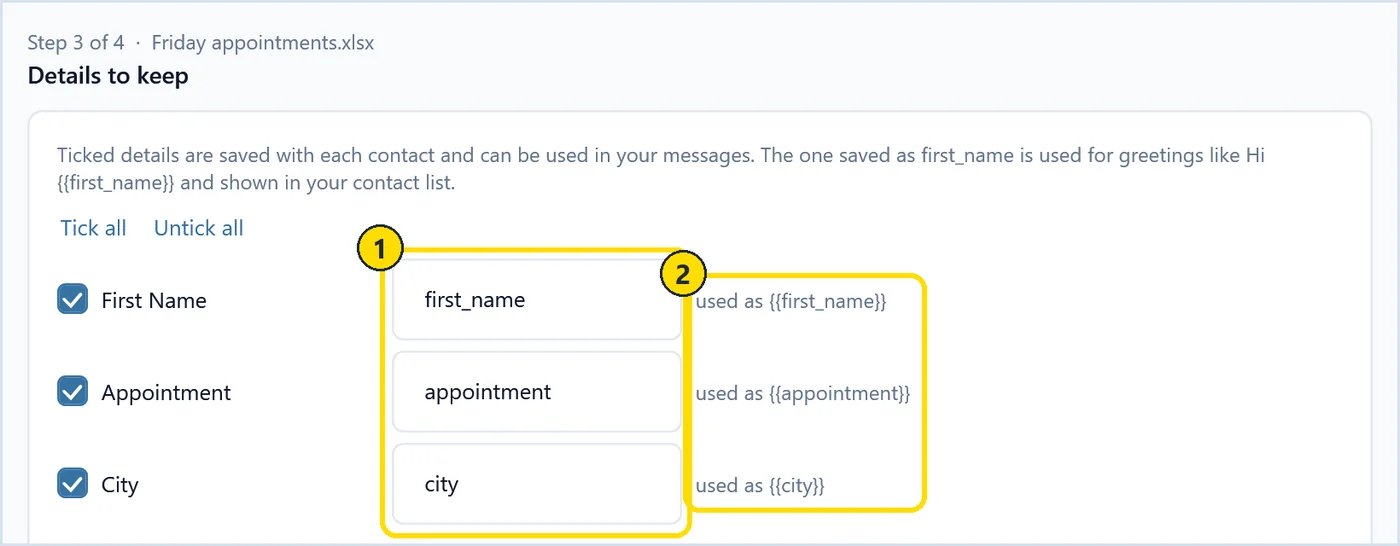
In the import wizard, you pick the phone number column first. Then you tick the columns to keep and name each one (marker 1). The hint beside each name shows the placeholder to use in the template, like {{appointment}} (marker 2).
Write the reminder with contact fields
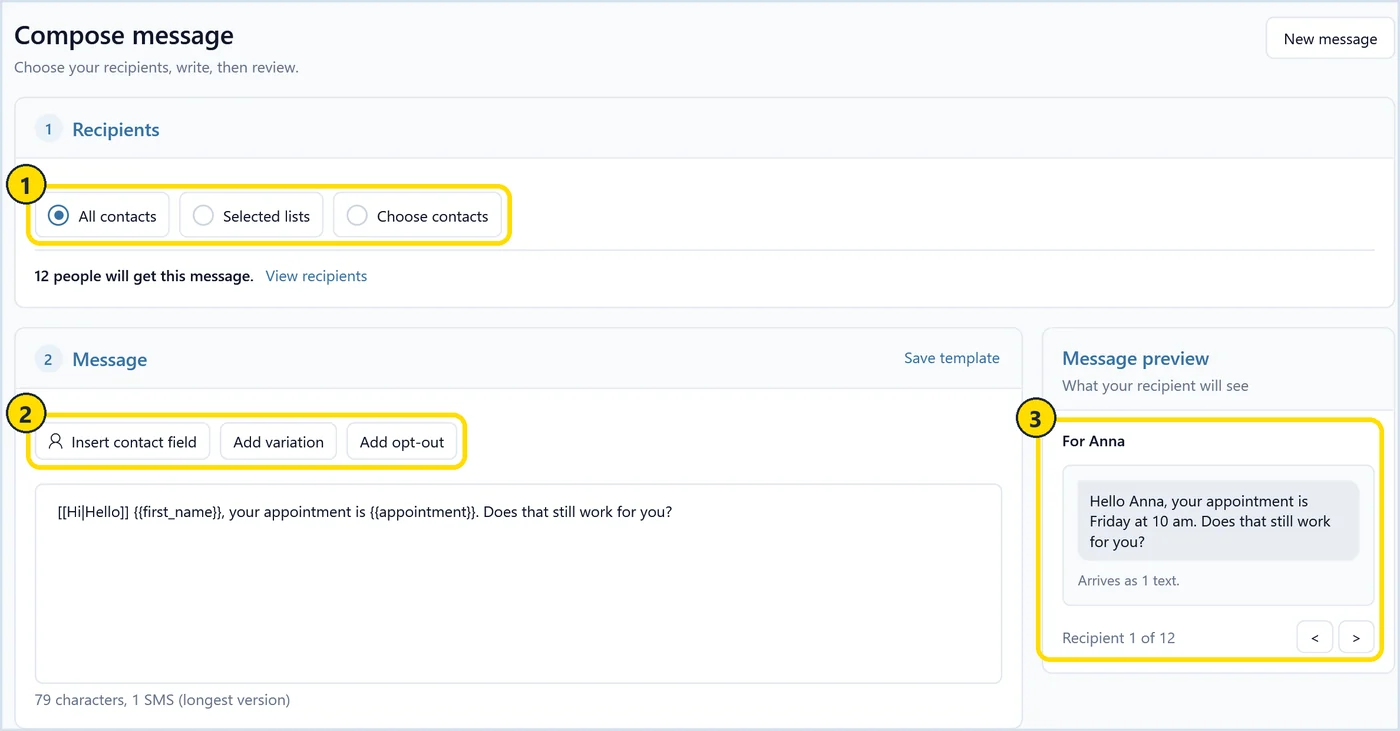
On the Compose page, pick the list as recipients (marker 1). Paste your template and use Insert contact field and Add variation to place {{first_name}}, {{appointment}} and any [[Hi|Hello]] options (marker 2). The preview at marker 3 shows the exact text each person gets, one recipient at a time, and how many texts it takes. Click through a few people, especially anyone with a long name or service.
Test, then send at a steady pace
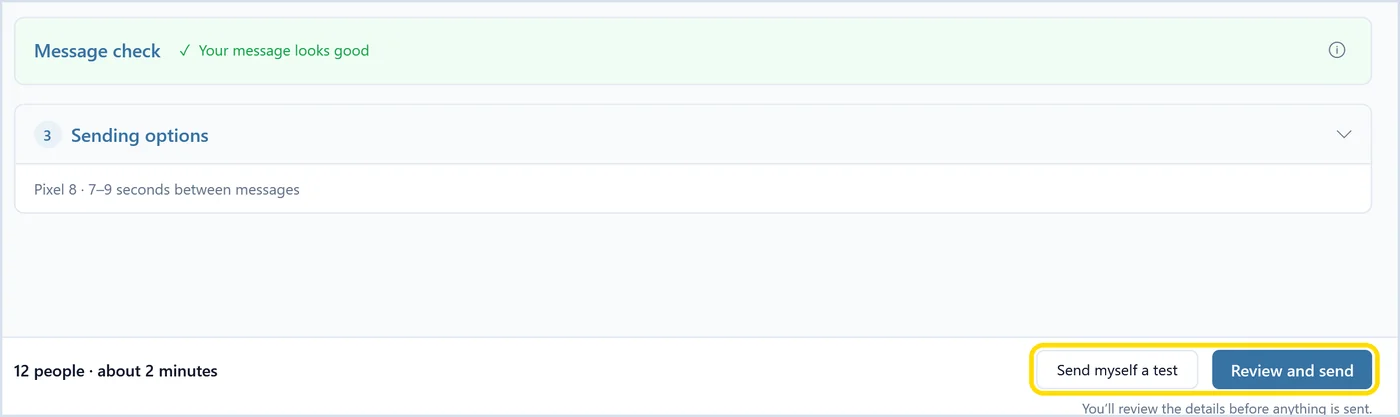
QuickText waits between messages, 7 to 9 seconds by default (marker 2), and can send in batches (marker 3) or rotate across two paired phones (marker 1). A steady pace looks like a person texting, which is what your carrier expects from a personal number. My SMS best practices guide covers sensible volumes.
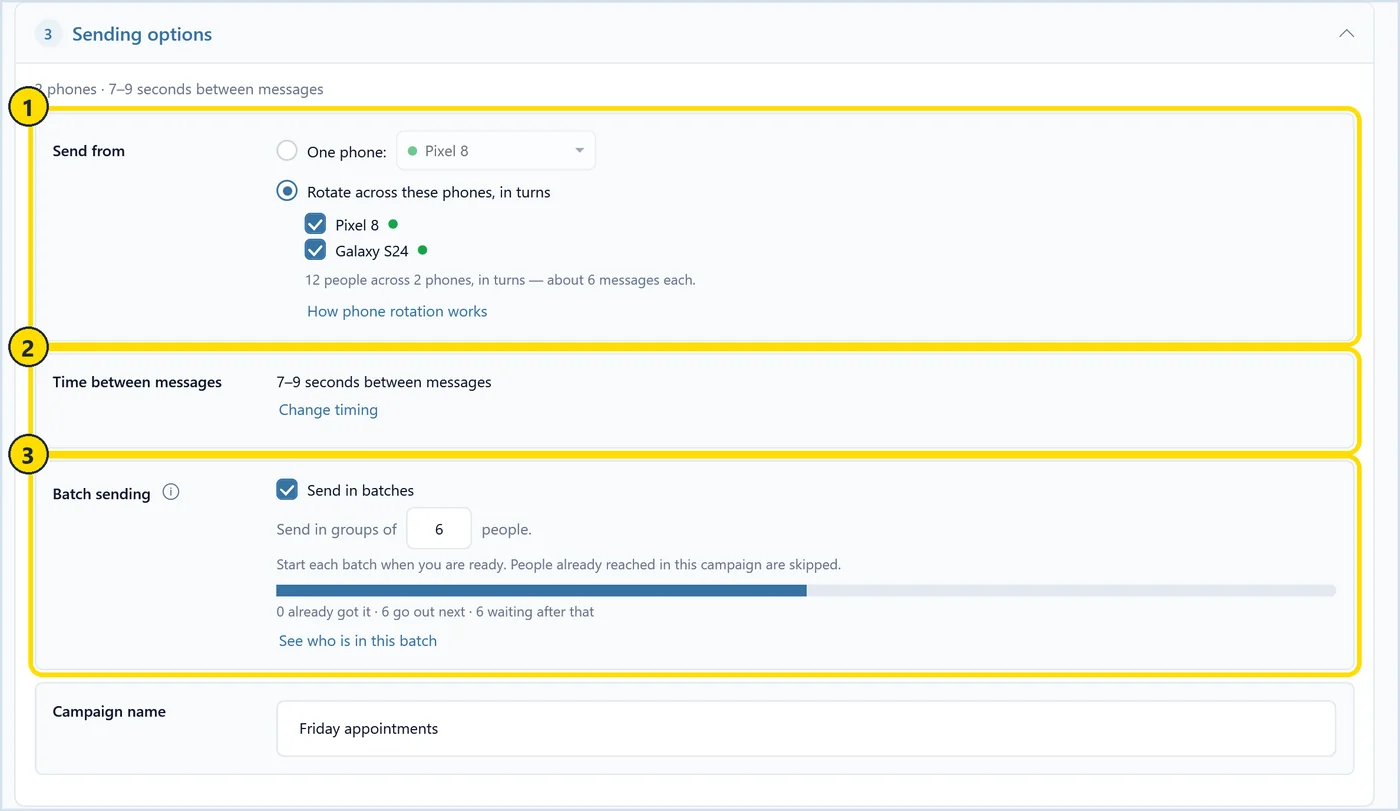
Before the real send, click Send myself a test to see the text on your own phone. Then Review and send shows a summary, such as 12 people in about 2 minutes, before anything goes out.
How do you handle replies and STOP requests?
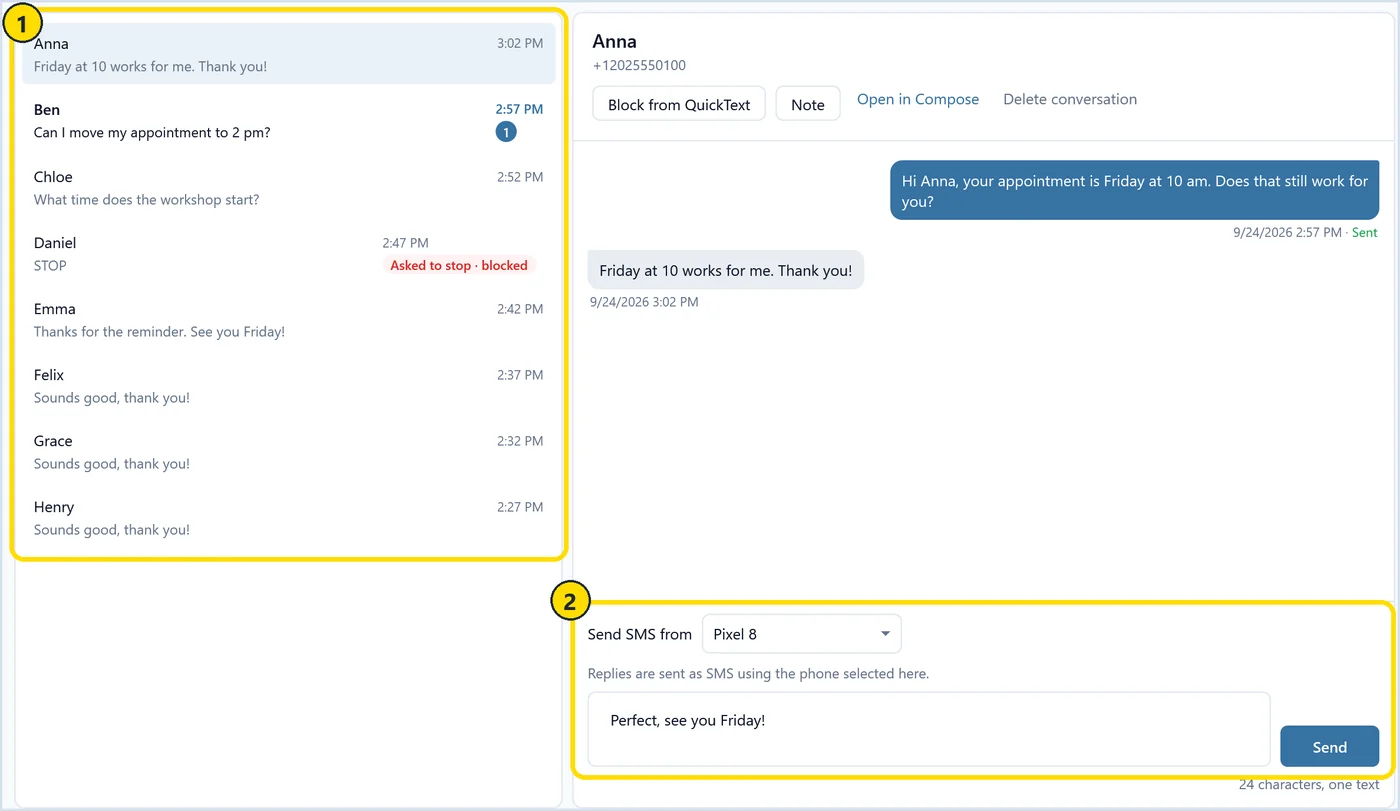
Replies come back one to one, like any normal text, because each person got their own message. You read the C and R answers on the Messages page and reply from your PC keyboard. A STOP reply blocks that number automatically.
Marker 1 shows the conversation list after a morning send: one person confirms Friday at 10, another asks to move to 2 pm, and Daniel replied STOP, so he is marked as asked to stop and blocked. Marker 2 is the reply box, where you type the new time and pick which phone sends it. Go through the list after each send and update your calendar as you go.
Blocked numbers are skipped on later sends, and you can unblock someone who asks to hear from you again. The opt-outs guide explains the details.
What are the limits of sending reminders this way?
QuickText does not schedule sends. You start each one yourself, for example every morning for the next day’s appointments. It sends SMS and, since version 1.6, picture messages (MMS), needs an Android phone with an active SIM, and runs on Windows. iPhones are not supported.
There is no reminder that fires on its own before each booking. If you need fully automated reminders triggered by a booking system, or thousands of texts a day, a registered business texting platform is the better fit, and my A2P vs P2P comparison explains the difference.
It fits a small business with a few dozen appointments a day that wants reminders from its real number. Your carrier plan covers the texts, and your contacts stay on your PC. The download lets you send 20 real messages to check it works with your phone before you buy a license, and paid plans come with a 14-day money-back guarantee.
Import tomorrow’s appointments from Excel and send each person a personal reminder from your own Android phone. Replies come back to your PC.