
“Unlimited texting” sounds like a free pass to message as much as you want. But your mobile plan still has rules about how you use it, including business messages and large batches of texts.
QuickText is the engine. Your carrier decides the speed limit.
Check your carrier’s fair use policy to find out what your plan allows. Sending too many texts too quickly, or using the plan in a way it does not allow, can lead to restrictions. Here is how I would write and pace my messages with QuickText.
Find out what your carrier allows #
Start by asking your carrier about your plan. Tell them how you use QuickText and roughly how many people you want to text. Ask whether that business use is allowed, what daily or hourly limits apply, and whether they count each SMS part separately.
This takes away some of the guessing. Carriers do not share every filtering rule, but they can explain your plan and what to do if your number has been restricted.
From my experience: around 100–300 SMS per day has generally been fine when spread throughout the day. I would send some in the morning and some in the afternoon. That is my experience, not a guaranteed allowance. It depends on your carrier and plan.
If your number is already restricted, contact the carrier before sending more. Adding a longer delay will not lift the restriction.
SMS works differently from email #
Think of your text as the start of a conversation. Say who you are, why you are texting, and what the person needs to know. Keep it brief. Long newsletter-style copy can become several SMS parts, even when the phone shows one message.
Carriers may look at how many texts you send, how quickly you send them, the wording, and whether people reply. Ask a useful question in your first message and make time to answer. The aim is a real conversation, not a question added just to get a response.
Make your message personal and useful #
For an agency, an open-house invitation is a good example. Send it to buyers who agreed to receive property updates, with each person’s name filled in. Include the address, viewing time, your name, and a simple question.
DON’T · PUSHY & GENERIC
Unknown numberText message · SMS
Saturday · Open-house invitation
2 SMS parts
No personal greeting, a shortened link, and no way to opt out.
DO · PERSONAL & RELEVANT
Anna · Miller HomesText message · SMS
Saturday · Open-house invitation
1 SMS part
A personal greeting, viewing details, a useful question, and an opt-out.
Illustrated phone screens, not delivery records. The QuickText screenshots below use the same property announcement.
| Do | Don’t |
|---|---|
| Use a name and context. Say who you are and why you are texting. | Send a generic pitch to people who did not agree to hear from you. |
| Vary the wording naturally. Use contact fields and spintext. | Assume changing a greeting guarantees delivery. |
| Keep it short. Check the SMS parts after names are filled in. | Assume 200 recipients always means 200 SMS. Long texts can use multiple parts. |
| Use normal sentence case. Write as you would speak to the person. | Shout with ALL CAPS, “ACT NOW”, or excessive punctuation. |
| Leave links out when possible. If needed, use a recognizable full address. | Use shortened or unexplained links. |
| Ask a relevant question. Make time to answer replies. | Add a pointless question just to get a response. |
| Send in smaller groups. Leave pauses and spread messages across the day. | Send the whole day’s volume in one burst or keep sending after a restriction. |
| Respect every opt-out. Include a STOP line and review flagged replies. | Keep texting someone who asked to stop. |
| Use the Message check and preview. Fix missing details and review warnings. | Treat a green check as carrier approval or a delivery guarantee. |
Use QuickText’s Message check #
QuickText checks your message while you write it in Compose. Read the findings, fix missing details, and preview a few recipients to see the finished text.
The Message check can flag issues such as duplicate numbers, missing names, shortened links, and long texts. A green result means the local checks found no issues. It does not guarantee delivery.
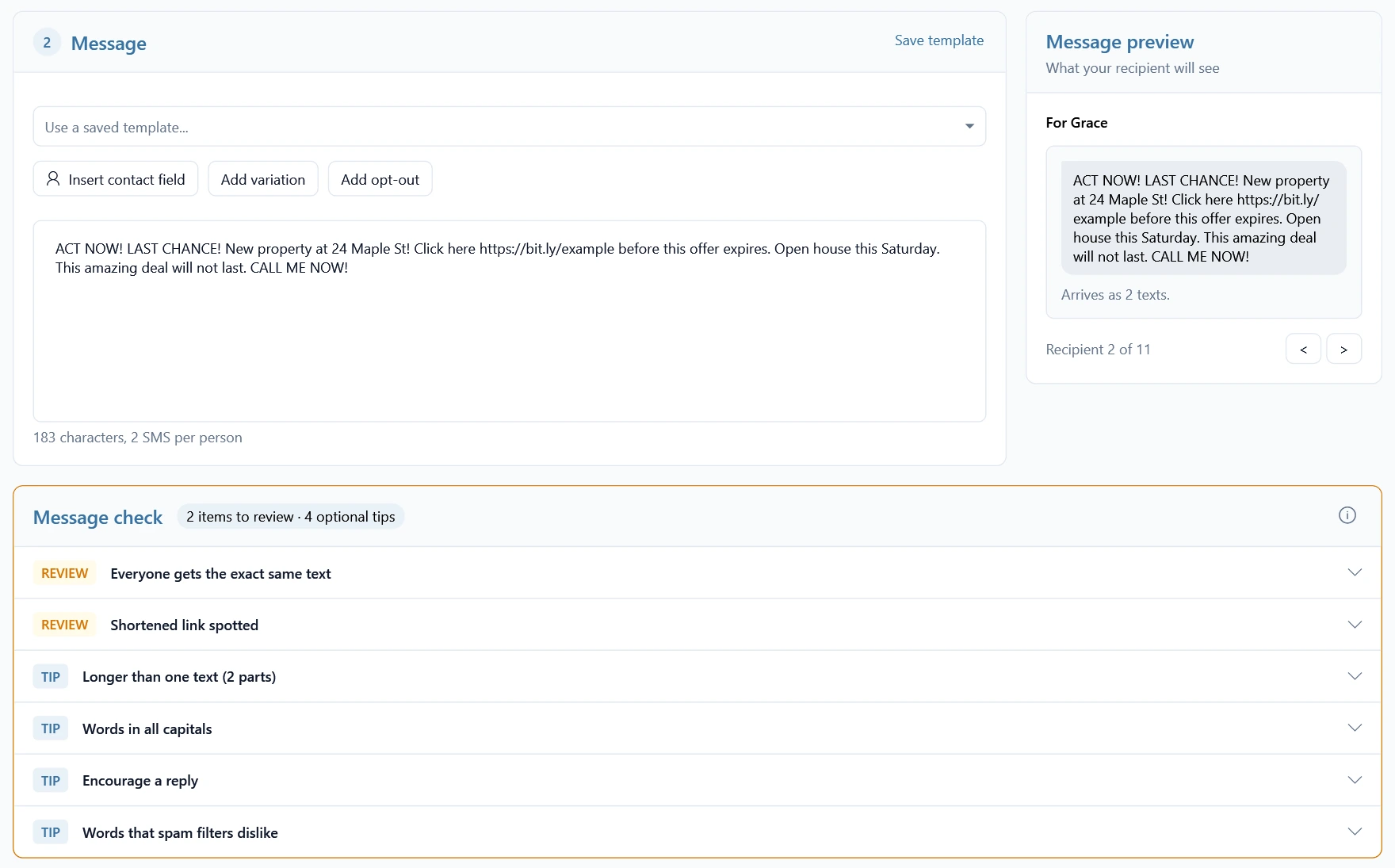
A message that needs work #
This example is pushy, uses a shortened link, and leaves out a way to opt out. It also takes more than one SMS part.
A clearer message #
This version gives buyers the viewing details, introduces the agency, and asks whether they would like to come.
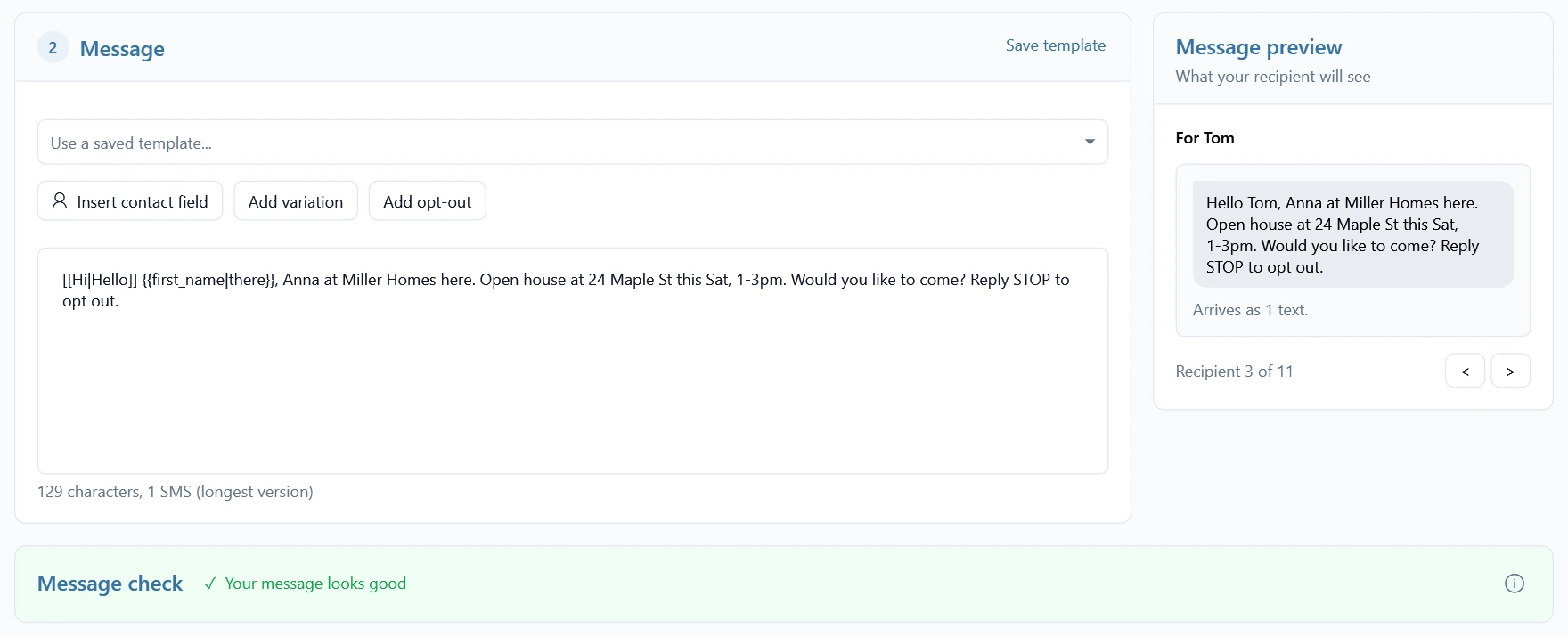
Try this QuickText template:
[[Hi|Hello]] {{first_name|there}}, Anna at Miller Homes here. Open house at 24 Maple St this Sat, 1-3pm. Would you like to come? Reply STOP to opt out.
{{first_name|there}} adds the person’s first name, or “there” if it is missing. [[Hi|Hello]] chooses one greeting. This is spintext: a simple way to vary the wording. Preview each version to make sure it reads well.
You can also try my SMS spam checker for a separate review of wording, links, and message length. Neither checker can see your carrier’s private rules.
Why can a short message count as several SMS? #
Standard SMS text fits up to 160 units in one part. An emoji or some special characters can change the whole message to Unicode, which fits only 70 units in one part. Try adding an emoji below and watch the count change.
Standard text fits up to 160 units in one SMS.
200 recipients × 1 part = 200 SMS
Counted in your browser. Nothing sent or saved. Use the finished text with names filled in.
Why 160 becomes 70, and why we count “units”
Standard SMS (GSM-7): 160 units for one part, or 153 per part for a longer message. Unicode: 70 units for one part, or 67 per part for a longer message. Joining information takes up the remaining space.
Some GSM-7 symbols, such as ^ and €, count twice. An emoji can use two or more Unicode units. Some accented letters, including é, ñ, ü, and ø, are already in GSM-7 and do not trigger Unicode.
One displayed character does not always equal one unit. Keep essential details and the opt-out line, then check the final count after personalization. Two parts sent to 200 people means 400 SMS parts, which your carrier may count or charge for separately.
Spread your messages throughout the day #
In QuickText, go to Compose → Sending options → Change timing. You can adjust the pause between messages or spread the send over a time window. Use Send in batches to split your list across separate runs.
For example, if your carrier permits 200 SMS per day, you could send 100 in the morning and 100 in the afternoon, with pauses between messages. Count SMS parts and any other texts sent from the same SIM.
Choose a pace that fits your carrier’s rules and leaves you time to answer replies.
Make it easy to stop receiving messages #
Text people who agreed to receive your updates. Include a clear line such as Reply STOP to opt out. In Compose, you can use Add opt-out to add it.
QuickText’s automatic opt-out blocking is on by default. Clear STOP replies from eligible QuickText conversations add the number to your block list. QuickText then skips that number in future sends, including messages still waiting in a running campaign.
Keep reply collection enabled, QuickText running, and your phone connected so replies can come through. Review requests such as “not interested” or “wrong number” yourself. QuickText flags these for review rather than blocking them automatically.
Find blocked numbers under Contacts → Blocked numbers. Read the opt-out guide for details.
P2P and A2P: what is the difference? #
P2P means person-to-person: people texting each other in their personal capacity. A2P means application-to-person, commonly used for business updates and campaigns. Business messaging services have their own sending limits and may require sender or campaign registration.
The advice about clear messages, permission, and opt-outs applies to both. QuickText sends through your Android phone and SIM, but using your own number does not automatically make business outreach personal traffic.
The US industry’s CTIA guidance treats someone texting on behalf of a business as a non-consumer sender. Ask your carrier whether your plan allows your use.
Before your next batch #
Preview a few personalized messages, read the Message check, confirm the SMS count, and check your timing settings. Send yourself a test. Then make sure you have time to answer the people who reply.
These are the habits I would build into every send with QuickText.