
Need help or have a question? Send it through the contact form and I will get back to you. The exact error message and a screenshot help a lot; you can attach both right in the form.
Write from inside QuickText #
You can also send your question straight from the app, and I reply by email.
- Open Account & help and go to Help and support.
- Choose a topic under What is this about?. Most topics show a blue box with the quickest fix first. Its links take you right to the place that fixes it, such as Check my setup, Send a test text, Change timing or Send test picture.
- Still stuck? Click Contact support in the box (for some topics it reads Still not connecting?, Still not working? or Still not arriving? first). The form opens below.
- Enter your name, your email address and your message, then click Send message.
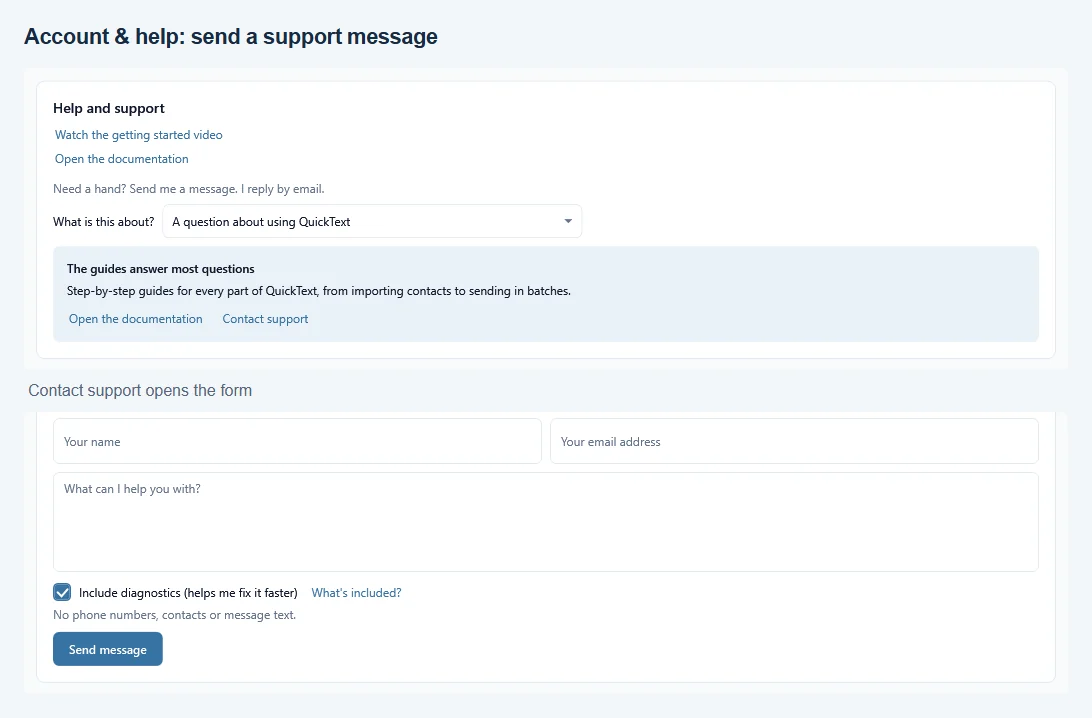
The topics:
- A question about using QuickText: a link to these guides.
- My phone won’t connect: Check my setup and the connection guide.
- A message was handed to my phone but never went out: the quick fix guide, Send a test text, and a tip for sent texts missing from your phone’s Messages app (the conversation may be archived).
- A text left my phone, but the person did not get it: carrier tips and Change timing.
- A picture message didn’t arrive: mobile data, Send test picture and your plan. If your picture size is High quality, Switch to Standard changes it right there.
- An idea or feedback: See what others suggested and vote on ideas opens the feature board. The form is right below it for a personal note.
- Something else: the form, straight away.
Include diagnostics (helps me fix it faster) is ticked by default. It adds a fresh connection check, your setup, the app’s recent error log and your phone’s recent connection history, so I can often see the cause without asking. It carries no phone numbers, contacts or message text, and your PC’s name is not sent. Click What’s included? to read the exact text before you send. Untick the box to send only the basics, such as your plan and the app and Windows versions.
After you click Send message, a small window shows each step: checking your connection, collecting diagnostics and sending to support. Sending can take up to a minute. When it says “Sent. I’ll reply by email.” you are done. If something goes wrong, click Retry.
If no answer comes back in time, the window says “It may already have been sent. Check your email before sending again.” Your message may well have arrived. A confirmation email usually comes within a few minutes, but not every address gets one. If nothing arrives, click Send again; a second copy does no harm. Otherwise click Close.
The full list of what a support message contains is in the QuickText SMS Privacy Policy.