
A list is a group of contacts, for example Customers, VIP or Team. Once people are on a list, you can send a message to the whole list at once. One person can be on as many lists as you like.
QuickText has no empty lists: a list appears the moment you put the first person on it. So you create a list and fill it in one step.
Create a list and add people #
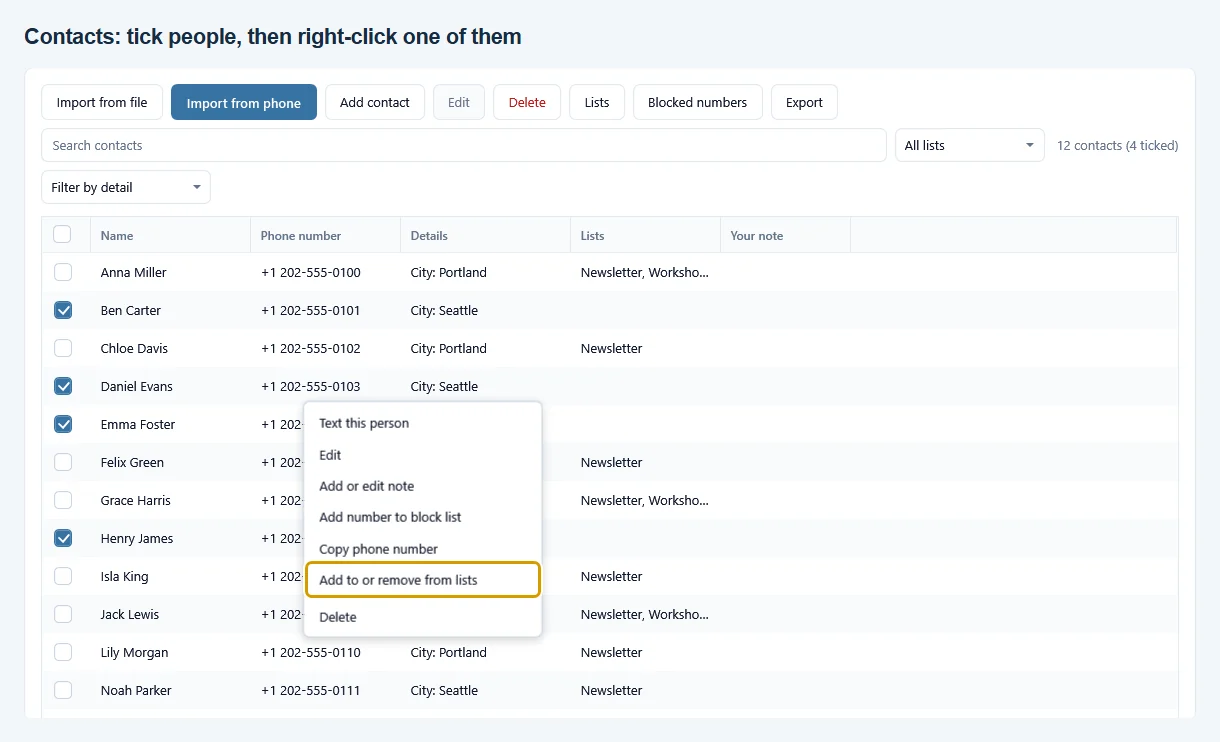
- Open the Contacts page.
- Tick the people you want on the list. The box at the top of the tick column ticks everyone shown, which is handy after a search.
- Right-click one of the ticked people and choose Add to or remove from lists.
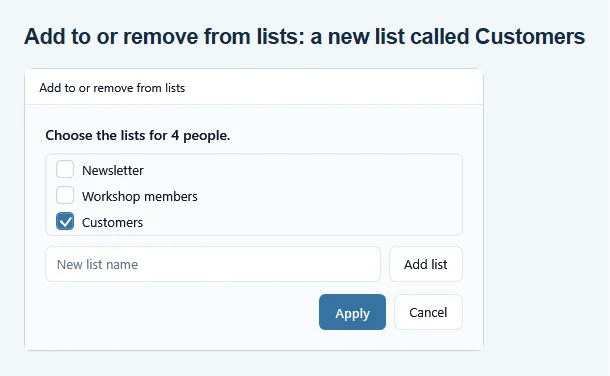
- Type a name under New list name, for example Customers, and click Add list.
- Click Apply.
The window lists your existing lists and the new one, already ticked. The same window adds people to lists you already have: tick the list and click Apply. A half-filled box means only some of the ticked people are on that list. Leave it as it is and nothing changes for that list.
One person at a time #
Open a contact with Edit (or double-click the row). Under Lists (optional), tick the lists this person belongs to, or type a new name and click Add list.
Put everyone from an import on a list #
When you import a CSV, Excel or vCard file, or use Import from phone, the last step of the import window says Add everyone to these lists. Tick a list or type a new name there, and every imported person lands on it. This keeps one import apart from your other people. See Import contacts from your phone.
Send to a list #
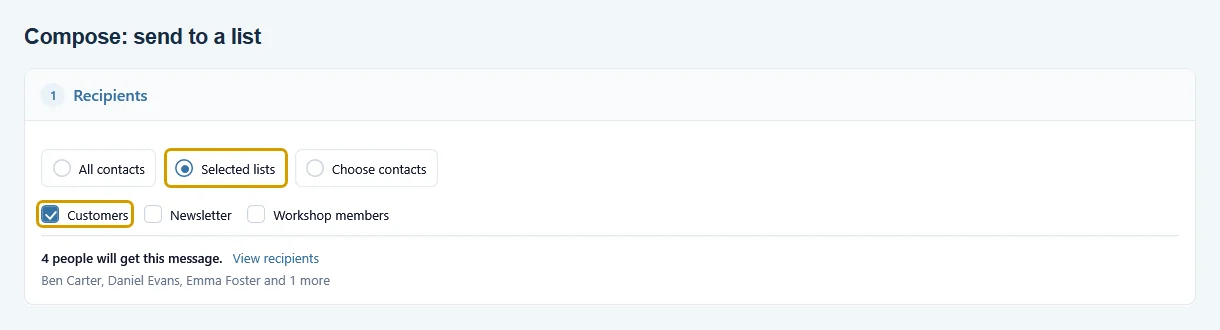
On the Compose page, choose Selected lists and tick one or more lists. View recipients shows exactly who is included. Someone on two of the ticked lists still gets one message, and blocked numbers are always left out.
See, rename or delete lists #
- To see who is on a list, pick it in the All lists filter next to the search box on the Contacts page. It shows only the people on that list. The Lists column shows every list a person is on.
- To rename or delete a list, click Lists on the Contacts page. Deleting a list never deletes people. Your contacts stay, they just leave that list.
- To take people off a list, tick them, right-click, choose Add to or remove from lists, untick the list and click Apply.
From QuickText 1.7, Claude or ChatGPT on your PC can sort contacts into lists for you. See Use QuickText with Claude or ChatGPT (AI assistant).