
Picture messages need a few things texts do not: mobile data on your phone, a carrier and plan that take picture messages, and a phone on the other end that can download them. Find what you see below, or work through the checks in order.
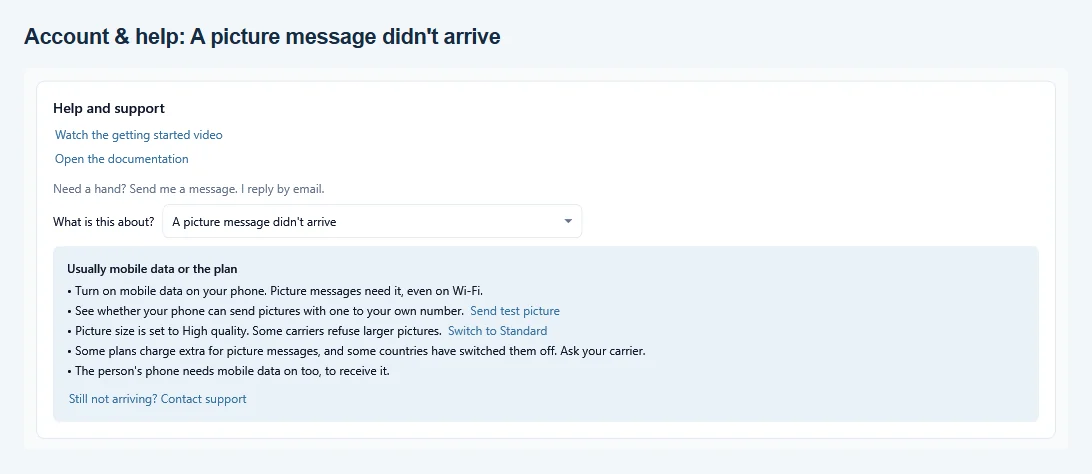
The same checks are in the app: open Account & help and choose A picture message didn’t arrive.
| What you see | Go to |
|---|---|
| Status says Not confirmed, or sending paused with “Pictures aren’t going out” | See the fix |
| Status says Failed | See the fix |
| The test picture to yourself is not confirmed | See the fix |
| “This phone can’t send pictures yet” | See the fix |
| Status says Sent, but the person never got it | See the fix |
| Status says Couldn’t check, or stays Handed to phone | See the fix |
| “This picture can’t be opened” | See the fix |
1. Turn on mobile data on your phone #
This is the most common cause. Carriers send picture messages over mobile data, so a phone on Wi-Fi with mobile data off cannot send them. A few carriers can also send them over Wi-Fi calling, but most cannot. Not confirmed means the phone never showed the picture as sent, which is exactly what happens when mobile data is off.
- Turn on mobile data on the phone. Keep Wi-Fi on too, so QuickText still reaches the phone.
- Back in QuickText, click Continue sending if the send paused, or use Results > Follow up > Retry failed afterwards. Nobody who already got the picture gets it twice.
A Not confirmed picture may still show up late, so QuickText waits about 10 minutes before it offers that person again. Meanwhile it says “1 picture is still being checked. It’s offered again if it didn’t go out.”
2. Check that your carrier and plan take picture messages #
Failed means your phone tried, but the carrier refused the picture. Not every plan includes picture messages, and some carriers have switched MMS off completely, for example in Germany and Switzerland. Others charge for each picture message, for example in the UK, even on plans with unlimited texts.
- Send one picture by hand from your phone’s messaging app to the same person. If that fails too, the problem is your plan or carrier, not QuickText.
- Ask your carrier whether your plan includes picture messages (MMS) and what they cost.
- Check in History that the number is correct.
3. Send the test picture to yourself, then to a second phone #
Each phone sends one test picture to your own number before its first picture message. Run it again under Settings > Sending > Test picture (Test again next to the phone). In Account & help, the Send test picture link in the picture topic takes you there.
- The test is confirmed and arrives: your phone and plan work. Continue with step 6.
- “Your phone didn’t send the picture”: mobile data is off or the plan has no picture messages. Go back to step 1 and step 2.
- “Your phone tried, but the carrier refused the picture”: your plan or carrier does not take picture messages. See step 2.
- “Your phone went offline before it could confirm”: keep the phone on the same Wi-Fi as your PC and try again.
To rule out the other end, also send a picture by hand to a second phone you can check, such as a colleague’s. If it arrives there, the first person’s phone or carrier is the likely cause.
4. Use the Standard picture size #
QuickText makes every picture smaller before it goes out, so there is nothing to resize yourself. Under Settings > Sending > Picture size, Standard (works with all carriers) fits every carrier. High quality (most US and Canadian carriers) allows larger pictures that some carriers refuse, so switch back to Standard if pictures stop arriving. While High quality is set, the picture topic in Account & help says “Picture size is set to High quality. Some carriers refuse larger pictures.” Click Switch to Standard there to change it in one step.
5. Update the KDE Connect app on your phone #
“This phone can’t send pictures yet” means the KDE Connect app on that phone is too old for pictures. Update it from the Play Store (version 1.33 or newer), open it once, then click Refresh on the Your phone page. Texts keep working in the meantime. In a rotation, a phone with an older app simply sits out picture campaigns.
6. Sent, but the person never got it #
Sent means your phone and carrier sent the picture message. From there, the person’s carrier and phone deliver it.
- Their phone needs mobile data too. A phone downloads a picture message over mobile data, so with mobile data off the picture may not come through.
- iPhones receive picture messages normally, as long as MMS Messaging is turned on in the iPhone’s Messages settings. A text from an unknown number can also be filtered: see iPhones can hide texts from unknown numbers.
- Carriers watch bulk picture messages closely. The same picture to many people can be filtered. Send in smaller batches and keep the text personal.
QuickText sends each picture to one person at a time, so group messaging settings on your phone or theirs play no part.
“Couldn’t check”, or the status stays “Handed to phone” #
QuickText checks your phone’s message list for a few minutes after each picture. Couldn’t check means the phone went offline before QuickText could find out, so the picture may still have gone out. A status that stays on Handed to phone usually means QuickText was closed while it was still checking.
- Open the conversation in your phone’s messaging app and look for the picture.
- If it is not there, pick that person in Compose and send it again. Retry failed leaves these people out on purpose, so nobody gets a picture twice.
- Next time, keep QuickText open and the phone connected for a few minutes after the last picture.
“This picture can’t be opened” #
QuickText could not read the file. HEIC and WebP pictures need the matching picture extension in Windows. Save the picture as a JPG and add it again. A file that is not a picture at all gets “That file isn’t a picture. Use a JPG, PNG, GIF, BMP, HEIC or WebP file.”
Still not arriving? #
Open Account & help, choose A picture message didn’t arrive and click Still not arriving? Contact support. Leave Include diagnostics ticked: for pictures it adds counts of your recent picture results, your picture size setting and which phones can send pictures. It never includes a picture. See Support.
How picture messages work from start to finish: Send picture messages (MMS).