
If your phone will not connect, find the message you see in QuickText below and follow the steps. Start with the built-in setup check.
Quickest first step: on the Your phone page, click Check my setup. QuickText tests the whole connection, from your network and firewall to your phone, and tells you exactly what is wrong. Rows with a blue info icon are only for your information, not problems.
Paired, but not reachable
Paired means your phone and PC know each other. Not reachable means the phone is not answering right now. One of these four steps brings it back in almost every case.
- Open the KDE Connect app on your phone. Android puts background apps to sleep. Opening it once reconnects within a few seconds. This alone fixes most cases.
To check from the phone, open the menu (☰) and tap Pair new device: when it works, your PC is listed under Connected devices as QuickText on followed by your computer name.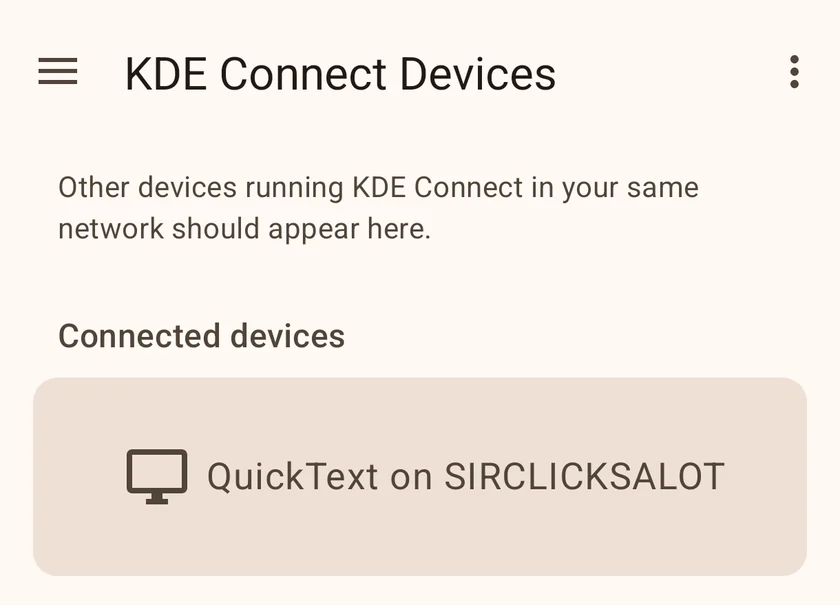
- Let it run in the background. Follow Keep KDE Connect running: choose your phone brand for the battery settings and step-by-step instructions.
- Same Wi-Fi on both sides. Phone and PC must be on the same reachable local network; the PC may use Ethernet. Mobile data does not work, and guest networks often block devices from seeing each other.
- Click Refresh after each step. On the Your phone page, the row turns green when the phone answers. The phone-row Test connection checks reachability. Use the separate SMS test card to confirm text sending.
Found, but not paired yet
QuickText can see your phone, so both are on the same Wi-Fi with KDE Connect running. It just needs pairing.
- On the Your phone page, click Pair next to your phone.
- Pick up your phone and tap Accept in the KDE Connect app.
- The status changes to Connected. Ready to send. Click Send a test to confirm.
No phone found
QuickText cannot see your phone at all. Usually KDE Connect is not running on the phone, or the two are on different networks.
- Open the KDE Connect app on your phone. If it is not installed yet, get it from the Play Store first, then open it.
- Put both on the same Wi-Fi. Not mobile data, and not a guest network.
- Click Refresh on the Your phone page. Your phone should appear in the list.
Still nothing? Windows Firewall may be blocking QuickText, which is what listens for your phone now. On the Your phone page, run Check my setup: when no phone is found, it offers a firewall button. Make sure QuickText SMS is allowed for private networks (the connection uses ports 1714 to 1764).
The pairing request times out or is refused
While a request is in flight, QuickText shows the code and a countdown, and draws what your phone should be showing. Your phone cancels its own request after about 25 seconds, so the window is short.
- No request appeared on the phone. Open the KDE Connect app on the phone and leave it on screen, then click Pair again. If the phone shows nothing at all, check the date and time on both the phone and this PC, and set both to automatic. If either clock is more than half an hour out, the phone ignores the request without showing anything.
- The codes are different. Do not accept. Something else on your network answered instead of your phone. Close the request on the phone, click Refresh on the Your phone page, and pair again from the row that carries your phone name.
- You tapped Accept but nothing changed. Click Refresh. If the row still offers Pair, the answer did not reach your PC; check that both are on the same wi-fi and try once more.
On the phone, this PC appears as QuickText on followed by your computer name. There is no KDE Connect program to install on your PC, so nothing on this side needs to be started first.
The phone unpaired QuickText
A phone can drop the pairing from its side, for example when KDE Connect is reinstalled or its data is cleared. QuickText then says so on the Your phone page, and nothing can be sent until you pair again.
- Open the KDE Connect app on your phone.
- On the Your phone page, click Pair next to it and tap Accept on the phone.
- Send yourself a test message. After a fresh pairing, Android asks for the SMS permission again, so the test is worth doing.
QuickText is blocked by antivirus or firewall
If QuickText hangs or shows a permission error when it connects, your antivirus or firewall is most likely blocking it.
- Check recent blocked-app events in your security software. In Windows Security, open Virus & threat protection > Protection history.
- If an event names QuickText, verify the official installer and ask your IT team or security vendor to allow that specific operation. Keep antivirus and firewall protection enabled.
Check the exact security event and confirm that the file came from the official download. A general scan result does not diagnose the event on this PC. See Antivirus or firewall warning (false positive).
If it was your antivirus, please send me a quick email with the name of the software you use. I will reach out to them to fix the false positive, so you and others will not need to whitelist QuickText in future.