
The Messages page brings incoming texts and your QuickText sends into one conversation per person. Choose a conversation on the left, read it on the right, and write back at the bottom.
Include messages outside QuickText conversations #
QuickText replies are collected according to Settings > Messages. To include other incoming texts, click Include phone messages in the banner at the top of the Messages page, or turn on Include texts from outside QuickText conversations under Settings > Messages. The confirmation explains that QuickText saves copies on this PC, including them in database backups and message exports. Not interested? Click Not now to hide the banner for good. You can turn phone messages on later: click Message settings on the Messages page. Messages remain available when you change pages, disconnect your phone or restart QuickText.
If syncing is off but imported copies are already saved, the page explains that those messages are still available and offers Resume syncing. This also works for copies imported by older versions. Resuming asks for confirmation; opening the page does not turn syncing on.
Use All messages to see everything saved, or QuickText conversations to focus on numbers contacted through QuickText. A conversation can contain both kinds of incoming message without showing duplicate copies.
Phone syncing starts with the last seven days. Load older messages requests more history. A check requests up to 100 conversations per connected phone, with 25 recent messages per conversation, or 100 when loading older messages. Availability depends on what KDE Connect shares; this is not a complete phone backup.
Older imported phone history starts as read, so setup does not fill the unread badge. Eligible QuickText replies and messages you already had keep their read status. New messages arriving after you enable syncing are unread.
What is supported #
- Incoming one-to-one texts and picture messages shared by your paired Android phones. For a picture, QuickText keeps its text and the small preview your phone shares; the full-size picture stays on your phone.
- Quick replies sent as a text or a picture message, plus the sending history recorded by QuickText.
- No RCS chats or group conversations.
- Messages sent directly in your phone’s messaging app may not appear here. WhatsApp and other chat apps are not included.
Write back from your PC #
- Select a conversation on the Messages page.
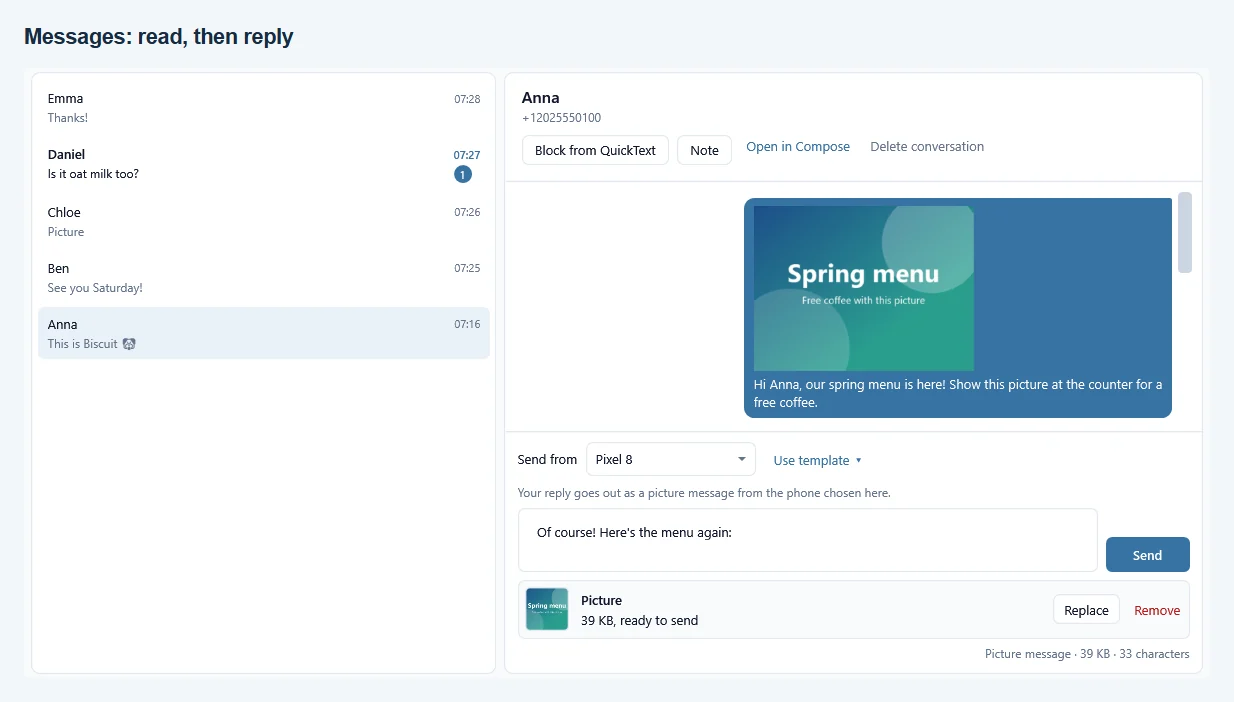
- Check Send from. It defaults to the phone that received the latest message. You can choose another paired phone, and that choice is remembered for this conversation during the current app session.
- Type your answer and click Send, or press Ctrl+Enter. Enter alone inserts a new line.
Use template next to Send from adds a saved template’s text, and its picture if it has one. Details like {{first_name}} are filled in for this person.
Once you start typing, new incoming messages do not change the sending phone for your draft. Check the selected phone when a person contacts more than one of your numbers.
The selected phone must be paired and connected. QuickText does not silently switch to another connected phone. Replies use your mobile plan, count toward any remaining QuickText free messages, and appear in History. Failed outgoing attempts remain visible in the conversation too. Test mode must be off to send a real reply. Named service senders without a replyable SMS number remain readable, with an explanation in place of the reply box.
Pictures in conversations #
- Picture messages you sent show their picture in your bubble.
- A picture someone sends you shows as a small preview. Click it to see it larger. Full-size pictures stay on your phone.
- A picture without text reads Picture in the conversation list.
- To reply with a picture, click Add picture in the reply box, or drop or paste a picture into it. The note above the box then says your reply goes out as a picture message. A phone sends its first picture only after a one-time test picture to your own number, offered right there.
Mobile data, picture size and the test picture are explained in Send picture messages (MMS).
Find and manage messages #
- Search by name, number, incoming message text or notes. Use Show and the date range to narrow the list.
- Selecting a conversation while the page is open marks its saved incoming messages read. The sidebar shows the unread message count.
- Mark all as read clears the unread count for all saved incoming messages, including conversations hidden by filters. It does not mark messages read on your phone.
- Note adds a private note. Block from QuickText prevents future QuickText sends to that number; it does not block the sender on your phone.
- Export saves the incoming messages in the shown conversations to Excel or CSV. A Picture column says Yes or No; the picture itself is never exported.
- Deleting saved messages leaves your phone, sent history and block list unchanged. Clear all includes messages hidden by filters.
STOP and unrelated phone messages #
Automatic opt-out handling applies to incoming messages from numbers this PC previously texted through QuickText, subject to the existing reply settings and timestamp check. A quick reply counts as a QuickText send. QuickText cannot determine which specific earlier message a person is answering.
An unrelated imported STOP does not automatically block anyone or count as a campaign opt-out. You can still use Block from QuickText manually. For eligible QuickText replies, clear stop words can block automatically; less certain wording is flagged for review. See Handle opt-outs.
Syncing, notifications and deletion #
Check messages requests available messages from connected phones. QuickText reply recovery can request up to 100 recent messages per eligible conversation on reconnection. When phone-message syncing is enabled, incoming conversation snapshots also request a bounded set of recent texts so earlier messages are not hidden by the latest one. New eligible QuickText replies can trigger Windows notifications according to Settings; unrelated imported phone messages do not trigger those reply notifications.
Turning off Include texts from outside QuickText conversations under Settings > Messages stops saving new phone-message copies but keeps existing copies. Delete saved phone copies in Settings removes the imported copies and remembers their fingerprints so later checks do not import them again. Eligible QuickText replies are kept separately. Existing backups and exported files are unchanged.
Turning off Keep replies to messages sent from QuickText under Settings > Messages stops the QuickText reply recorder, its automatic blocking and its notifications. Optional phone syncing is controlled separately. See Privacy and your phone.
Delete local app data in Settings removes saved messages on this PC and resets phone-message syncing to off. It does not delete SMS on your phone. If you pair again and enable phone messages, available phone history can be imported again.