
QuickText is not limited to one phone. Pair as many as you like, then either choose which one your messages go through (switching takes a click), or let one campaign rotate across several phones automatically.
Use several phones when you need to choose which business number sends a message or distribute a campaign across your available phones. Each SIM still has its own carrier policy and limits; adding phones does not guarantee delivery.
The phone list on the Your phone page only appears once QuickText sees more than one phone. With a single phone there is no choice to make, so the page just shows that phone’s status.
Add another phone #
- Install KDE Connect on it. The same free KDE Connect app your first phone uses. Open it once after installing.
- Put it on the same wi-fi as your PC. Not mobile data, and not a guest network. The phone then appears in the list by itself, usually within a few seconds. If it does not, click Refresh.
- Click Pair next to it. Check that the code shown on the phone matches the one on your PC, then tap Accept on the phone.
- Allow SMS on that phone. Android asks each phone separately, so the permission you granted on the first phone does nothing for the second one. Details here: Allow SMS on your phone.
You pair a phone once. It stays in the list afterwards, and QuickText reconnects to it by itself whenever it is back on your network.
Pick the phone that sends #
Click Use this phone in its row. The In use badge moves over, and QuickText confirms with “Done. Your messages will be sent through …”. Nothing needs pairing again.
There is also a shortcut on Compose: expand Sending options, then use Send from > One phone and its dropdown. You can switch the sending phone without leaving your message. Picking a phone there is exactly the same switch.
The card at the top of the page always names the phone that is in use, so it appears twice on screen: once as the headline and once in the list below, where the switching happens.
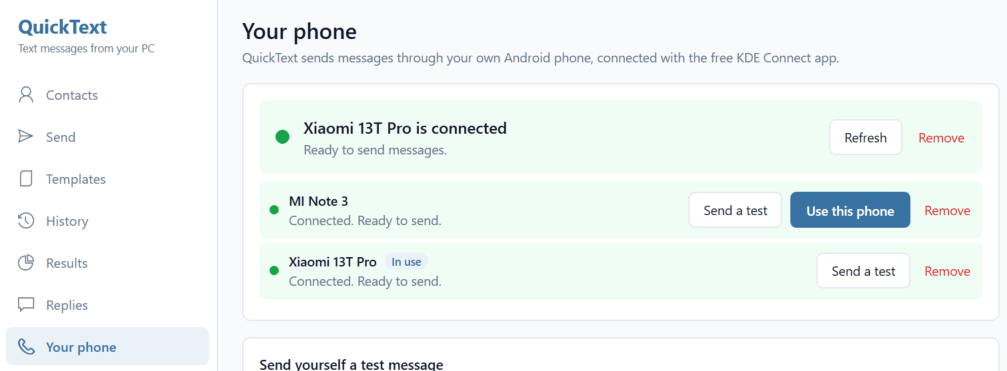
The choice is remembered, so it survives closing the app. If no phone has been chosen yet, QuickText picks a connected one for you and tells you which.
Rotate one campaign across several phones #
A campaign can take turns across several phones. Once a second phone is paired:
- On Compose, expand Sending options.
- Under Send from, choose Rotate across these phones, in turns.
- Tick the phones you want to use, then check the summary underneath.
The first message goes out through the first ticked phone, the second through the next one, and so on, round-robin.
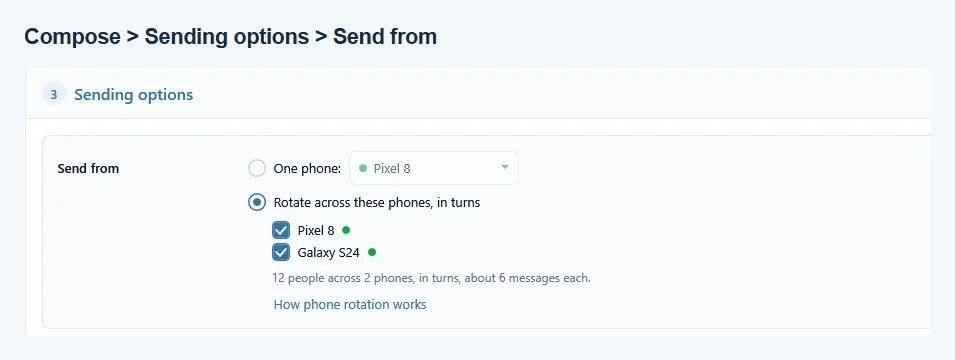
- The split is automatic and even. 200 people across 10 phones is 20 messages per phone. Nobody maps messages to phones by hand.
- Your pace applies to the whole run. Whatever delay or time window you set on the Compose page paces the campaign as one; each phone sends at a fraction of that pace; each SIM remains subject to its carrier’s rules.
- A phone that drops off is parked, not fatal. If one phone stops answering mid-run, the others take over its share and the run continues where possible; check the results for any failed messages. The finished view names the parked phone and shows how many each phone handled.
- History remembers which phone sent what. Every entry on the History page carries the phone it went out through.
- Picture messages rotate only across phones that can send pictures. Every ticked phone needs its one-time test picture first, and the summary says which phones are ready. A phone whose KDE Connect app is too old for pictures sits out. See Send picture messages (MMS).
Right before a rotation send, QuickText checks every ticked phone and, if some are offline, offers to go ahead with just the connected ones. Skipped people (block list, missing number) do not use up a phone’s turn, so the split stays even.
Not sure what it will do? Turn on test mode in Settings and send: the run is simulated, nothing goes out, and the results show exactly which phone each message would have used.
What the chosen phone decides #
The rotation above covers the Compose page’s campaigns. Everything else QuickText sends goes out through the phone that is in use at that moment:
- single-phone sends on the Compose page,
- the test message on the Your phone page,
- Import from phone on the Contacts page, which reads the address book of that phone.
Incoming replies are the exception. QuickText picks them up from every connected phone and matches them against the people you texted, so a reply to a message sent from your second phone still lands on the Messages page while the first phone is the one in use.
On the Messages page, Send from defaults to the phone that received the latest message. You can explicitly choose another paired phone for that conversation without changing the global phone in use. Your choice is remembered during the current app session. If that phone is offline, reconnect it or select another yourself; QuickText does not silently switch.
When the chosen phone is offline #
QuickText never switches phones behind your back. It offers the switch and waits for you.
- On the Your phone page it names the phone that is offline, names the other one that is ready, and points you at Use this phone.
- On the Compose page, if another paired phone is connected, the warning carries a one-click Switch to … instead (it is connected right now) link.
A phone that stays unreachable is a connection problem rather than a choice of phone: Phone will not connect.
Test a phone you just added #
Test connection in a phone’s row only checks the connection to that phone. It does not send a text. The real proof is the Send yourself a test message card further down the page, and that card uses the phone that is in use. So click Use this phone on the new phone first, then send yourself the test.
Picture messages need one more check per phone: a test picture to your own number. Settings > Sending > Test picture lists every paired phone with a Send test picture button (Test again once it has passed), and each row on the Your phone page shows whether pictures are ready on that phone.
Your license covers any number of phones. It is computers that are counted, three of them, and you can free a slot yourself in your account.