
KDE Connect needs permission on your phone to send text messages. Android asks for this once, and it is easy to miss. This is also the one step your PC cannot check for you.
If QuickText says Handed to phone and no text ever arrives, a missing SMS permission is one possible cause. The steps below fix it. QuickText also points at this guide by itself when a test message goes unanswered by a phone that has never shared a message with it.
Watch the walkthrough #
The exact menu names look a little different depending on your phone brand and Android version, but the labels and available controls vary by phone.
Or follow the steps by hand #
-
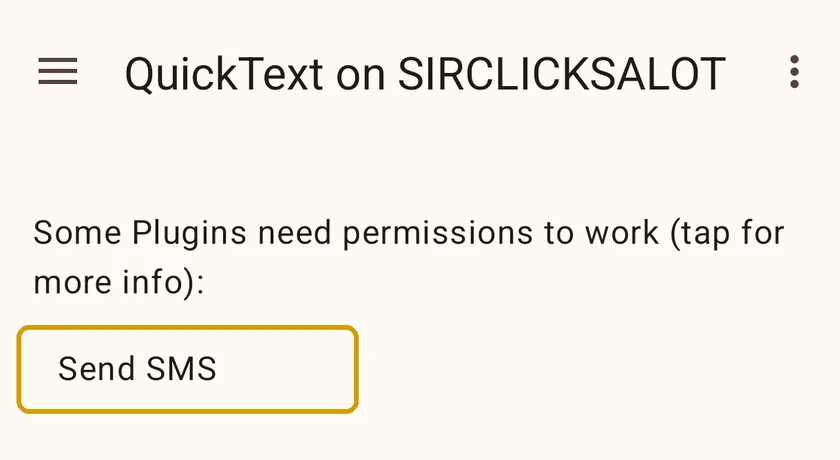
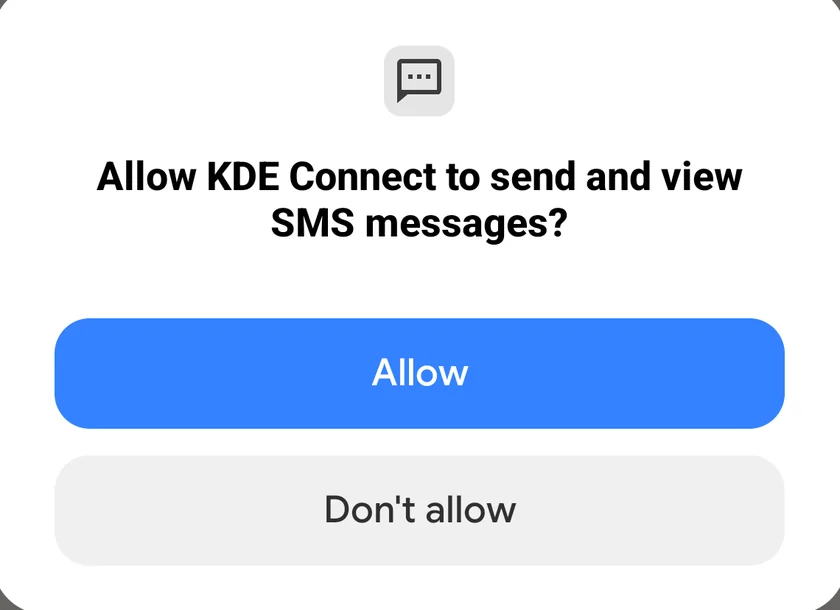
Allow Send SMS in KDE Connect. Open the KDE Connect app on your phone. If it shows a list of devices, tap your PC: it is called QuickText on followed by your computer name. If you see Send SMS under “Some Plugins need permissions to work”, tap it, tap OK, and allow every request that follows.
-
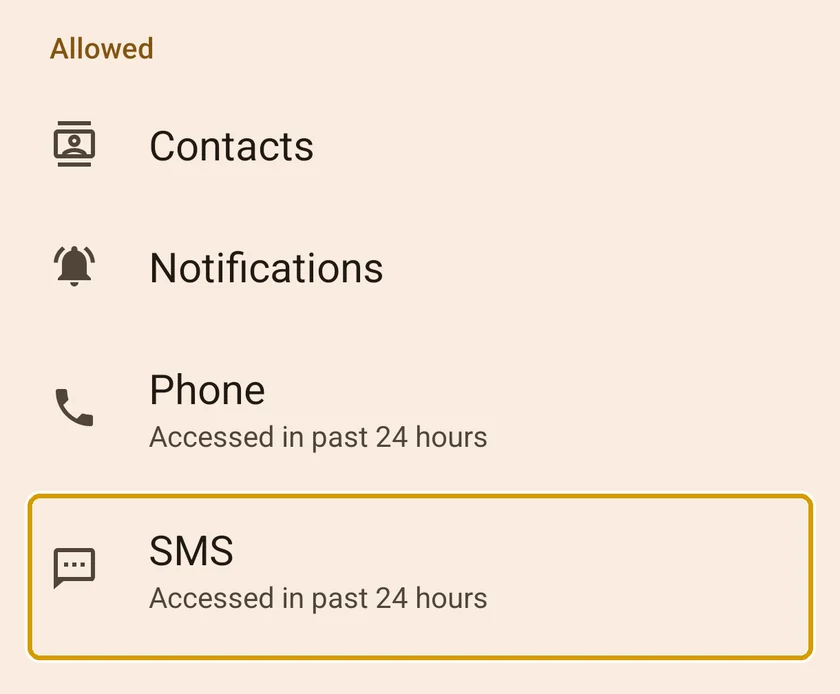
Check the app permissions. Close KDE Connect, then long press its app icon and tap App info (or the “i” icon). Open Permissions (App permissions on Xiaomi) and make sure SMS is listed under Allowed.
-
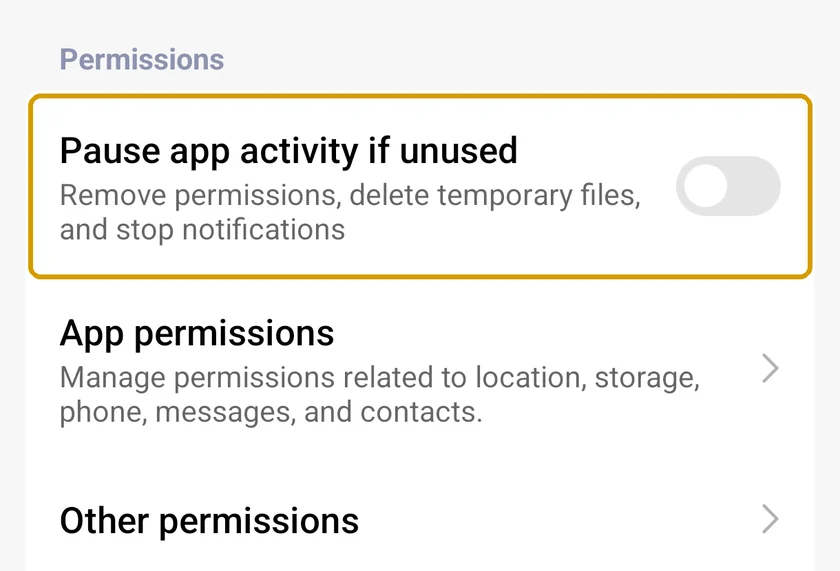
Stop Android from pausing the app. Still in App info, look for a toggle like “Pause app activity if unused” or “Manage app if unused” and turn it off. Otherwise Android can quietly remove the SMS permission after a while.
-
If your phone has an “Other permissions” menu, check it. Back in App info, open Other permissions and make sure Send SMS (sometimes called Service SMS) is allowed.
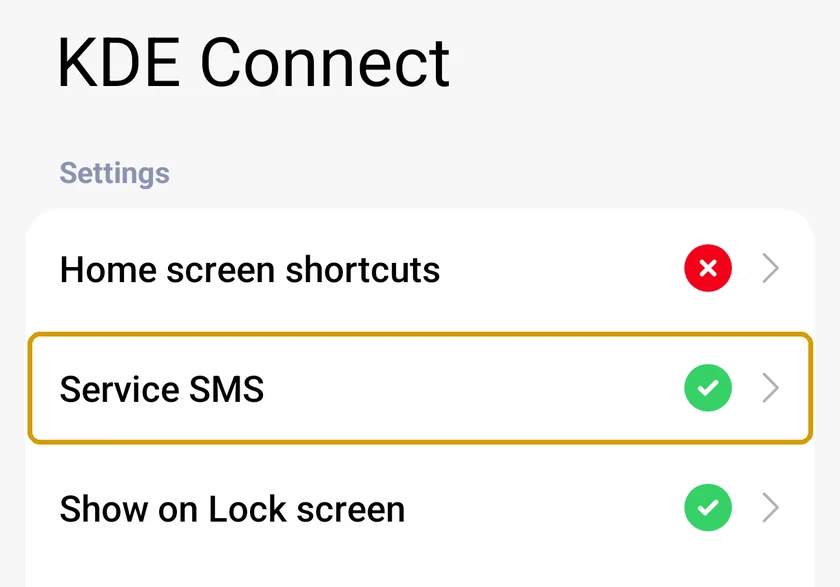
-
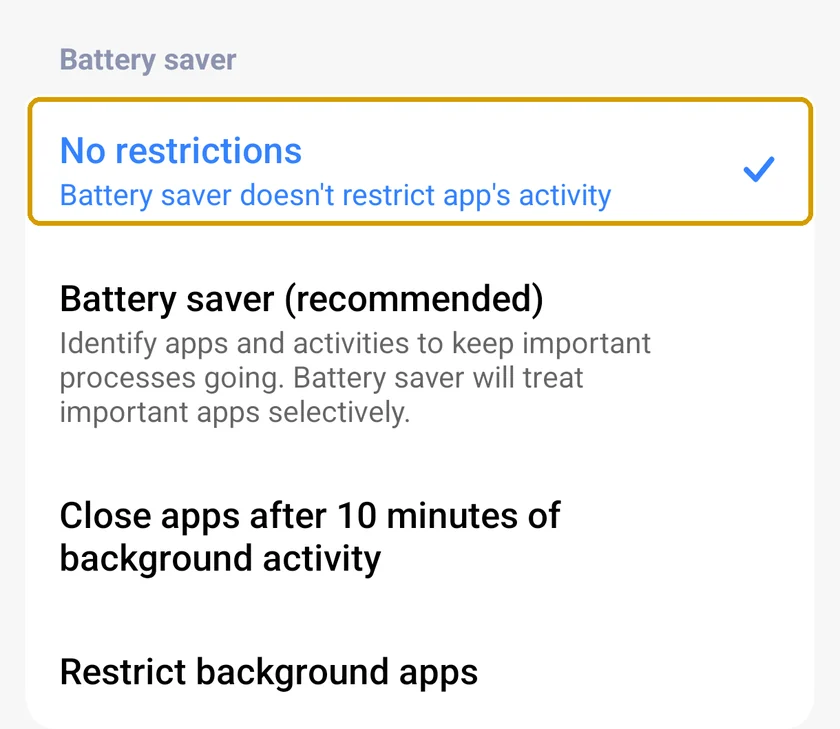
Remove battery restrictions. Back in App info, open Battery (Power > Battery saver on Xiaomi) and choose Unrestricted (or No restrictions). This keeps KDE Connect running in the background while it sends.
For the exact menus on your phone, see Keep KDE Connect running. Choose your phone brand to follow the step-by-step instructions.
Nothing to check on your PC #
There is no KDE Connect program on your PC any more, and no plugin settings to tick there. QuickText talks to your phone itself, so the SMS permission on the phone is the only permission involved.
Now open the Your phone page in QuickText and send yourself a test message. QuickText waits for your phone to confirm the text went out and says Sent when it did, which is the proof that the permission is set correctly.