
Phone connects when KDE Connect is open, then disappears when the screen locks? Your phone may be putting the app to sleep. Choose your phone brand and follow the steps on your phone.
Not sure? Choose “Other / I am not sure” for the basic Android steps.
Open KDE Connect once before you start. Keep the phone and PC on the same Wi-Fi. Allowing background activity can use a little more battery.
Samsung
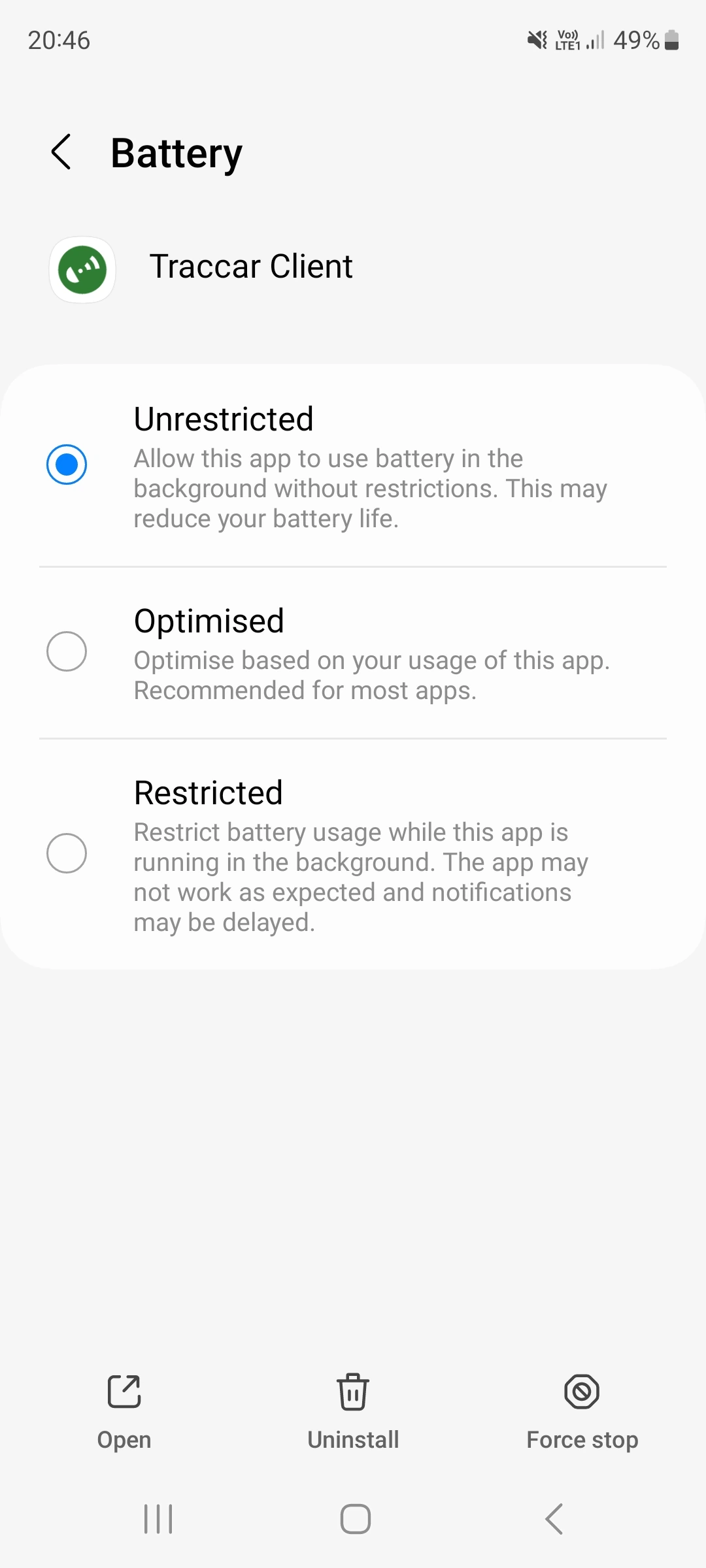
- Remove battery restrictions. Open Settings > Apps > KDE Connect > Battery. Choose Unrestricted.
- Remove KDE Connect from sleeping apps. Open Settings > Battery > Background usage limits. Remove KDE Connect from Sleeping apps and Deep sleeping apps if listed.
- Add it to Never sleeping apps, if available. In Never sleeping apps, tap +, select KDE Connect, then Add. If KDE Connect is missing because it is already unrestricted, skip this step.
My settings look different
Samsung Galaxy / One UI. Battery menus can also sit inside Device care or Battery and device care.
On some Galaxy phones, start in Battery and device care > Battery. To remove an app from a sleeping list, open the three-dot menu, choose Remove apps, select KDE Connect, and confirm. Older phones may show Optimize battery usage instead of Unrestricted; select All apps and turn optimization off for KDE Connect. Battery may be called App battery usage. If you see Allow background usage, enable it and tap its text to look for Unrestricted.
Use the setting names as search terms in your phone’s Settings. If an optional menu is absent, skip it.
See a screenshot example
Sources and version notes
Sources checked September 12, 2026. Samsung Galaxy / One UI. Battery menus can also sit inside Device care or Battery and device care. Menu names can change with model, region and software updates.
Xiaomi / Redmi / POCO
- Choose No restrictions for KDE Connect. Long-press the KDE Connect icon and tap App info > Power. Under Battery saver, choose No restrictions. You can also find KDE Connect under Settings > Battery.
- Enable Background autostart. Open Settings > Apps > Background autostart (on HyperOS 2: Settings > Apps > Permissions > Background autostart). Search for KDE Connect and turn it on.
My settings look different
HyperOS and MIUI. Checked on HyperOS 3 (October 2026); the battery path is also documented for Xiaomi 15 / HyperOS 2 and the autostart path for Xiaomi 14T.
MIUI: try Settings > Apps > Manage apps > KDE Connect > Battery saver > No restrictions. Autostart may be directly in App info or in Security > Permissions. If you use Close all in Recent apps, open KDE Connect first, find its preview in Recent apps, and look for Lock or a padlock. The gesture varies: try the preview menu or a downward swipe. This can protect it from Close all; it does not replace the battery settings. If KDE Connect is not listed under Battery, long-press its icon and open App info > Battery saver.
Use the setting names as search terms in your phone’s Settings. If an optional menu is absent, skip it.
See screenshots
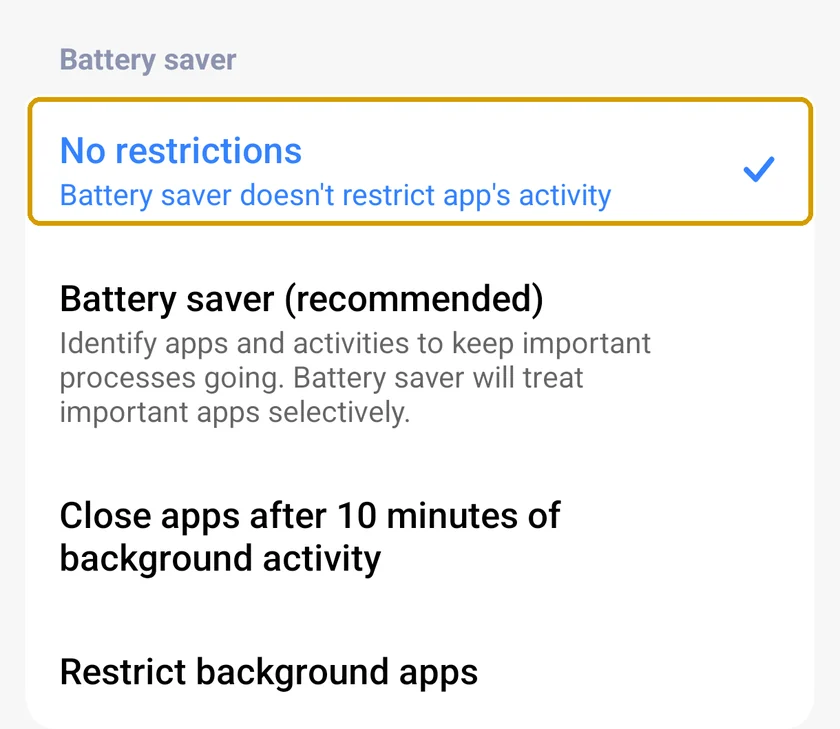
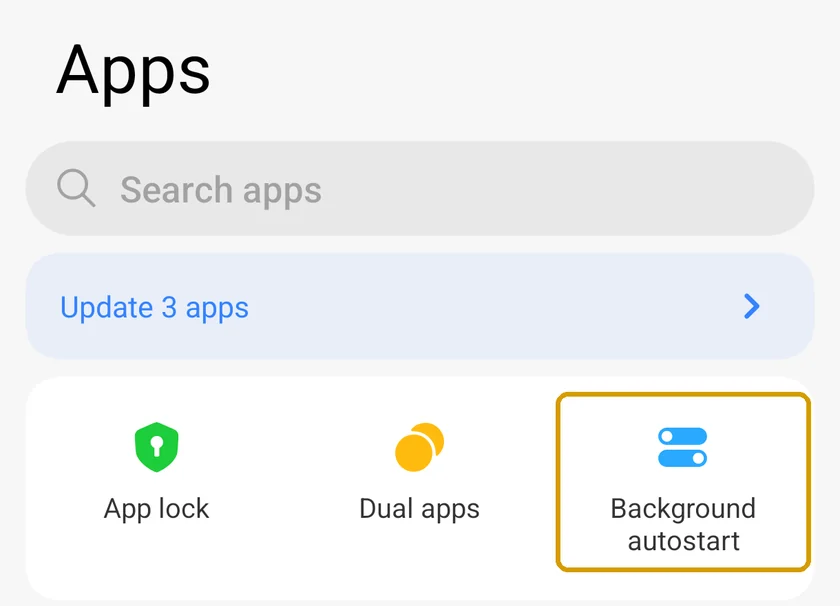
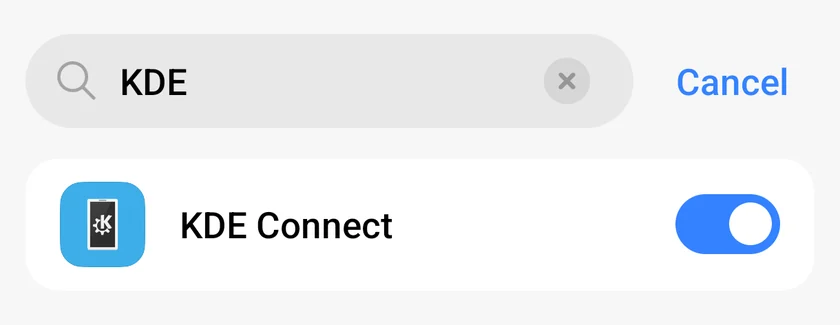
Screenshots from a Xiaomi 13T Pro on HyperOS 3. Tap an image to enlarge it.
Sources and version notes
Sources checked September 12, 2026. HyperOS and MIUI. Checked on HyperOS 3 (October 2026); the battery path is also documented for Xiaomi 15 / HyperOS 2 and the autostart path for Xiaomi 14T. Menu names can change with model, region and software updates.
Google Pixel
- Open the app battery settings. Go to Settings > Apps > See all apps > KDE Connect > App battery usage.
- Allow unrestricted background usage. Turn Allow background usage on. Tap the Allow background usage text, then choose Unrestricted.
My settings look different
Pixel Android settings. Tap the words Allow background usage as well as enabling the switch.
On older versions, the choices may appear directly under Battery. If you see Battery optimization instead, choose All apps > KDE Connect > Don’t optimize. You can leave Adaptive Battery enabled for the rest of the phone.
Use the setting names as search terms in your phone’s Settings. If an optional menu is absent, skip it.
Sources and version notes
Sources checked September 12, 2026. Pixel Android settings. Tap the words Allow background usage as well as enabling the switch. Menu names can change with model, region and software updates.
OnePlus
- Allow KDE Connect to run in the background. Open Settings > Battery > More settings > App battery management > KDE Connect. Turn on Allow background activity. Leave Allow foreground activity on.
My settings look different
OxygenOS. This path is documented in the OxygenOS 14 manual; newer versions may move it into the app info screen.
Another route is Settings > Apps > App management > KDE Connect > Battery usage. On older OxygenOS, choose Battery optimization > All apps > KDE Connect > Don’t optimize. If disconnects only happen overnight, check Battery > More settings > Sleep standby optimization. If you use Close all in Recent apps, open KDE Connect first, find its preview in Recent apps, and look for Lock or a padlock. The gesture varies: try the preview menu or a downward swipe. This can protect it from Close all; it does not replace the battery settings.
Use the setting names as search terms in your phone’s Settings. If an optional menu is absent, skip it.
Sources and version notes
Sources checked September 12, 2026. OxygenOS. This path is documented in the OxygenOS 14 manual; newer versions may move it into the app info screen. Menu names can change with model, region and software updates.
OPPO
- Allow background activity. Long-press KDE Connect, open App info > Battery usage, and enable Allow background activity. Older versions call this Run in background or place it under Power Saver.
- Allow automatic startup, if shown. In KDE Connect’s App info, enable Allow Auto Start-up if available. If your phone has a separate Auto launch manager, allow KDE Connect there.
My settings look different
ColorOS. Menu names vary; the available source includes older ColorOS examples.
If Battery usage is missing, search Settings for App battery management and select KDE Connect. On older ColorOS, look in Security > Startup manager. If you use Close all in Recent apps, open KDE Connect first, find its preview in Recent apps, and look for Lock or a padlock. The gesture varies: try the preview menu or a downward swipe. This can protect it from Close all; it does not replace the battery settings.
Use the setting names as search terms in your phone’s Settings. If an optional menu is absent, skip it.
Sources and version notes
Sources checked September 12, 2026. ColorOS. Menu names vary; the available source includes older ColorOS examples. Menu names can change with model, region and software updates.
realme
- Allow background activity and auto launch. Open Settings > Battery > App battery management > KDE Connect. Enable Allow background activity and Allow auto launch if shown. Leave Allow foreground activity on.
My settings look different
realme UI. Some versions put App battery management inside Power saving settings.
Try Battery > Power saving settings > App battery management if the shorter route is missing. If App quick freeze is enabled for KDE Connect, exclude it. If you use Close all in Recent apps, open KDE Connect first, find its preview in Recent apps, and look for Lock or a padlock. The gesture varies: try the preview menu or a downward swipe. This can protect it from Close all; it does not replace the battery settings.
Use the setting names as search terms in your phone’s Settings. If an optional menu is absent, skip it.
Sources and version notes
Sources checked September 12, 2026. realme UI. Some versions put App battery management inside Power saving settings. Menu names can change with model, region and software updates.
vivo / iQOO
- Allow background power usage. Open Settings > Battery > Background power consumption management > KDE Connect. Choose the option that allows background power usage. Some versions label it Don’t restrict background power usage.
- Allow Autostart, if available. Search Settings for Autostart. Open the app list and turn KDE Connect on. On some versions, this is under More settings > Applications > Autostart.
My settings look different
Funtouch OS examples, including Android 13. OriginOS and some iQOO models use different menus.
If the first menu is missing, open KDE Connect’s App info > Battery and choose Unrestricted. Older versions use High background power consumption or i Manager > App manager > Autostart manager. If you use Close all in Recent apps, open KDE Connect first, find its preview in Recent apps, and look for Lock or a padlock. The gesture varies: try the preview menu or a downward swipe. This can protect it from Close all; it does not replace the battery settings.
Use the setting names as search terms in your phone’s Settings. If an optional menu is absent, skip it.
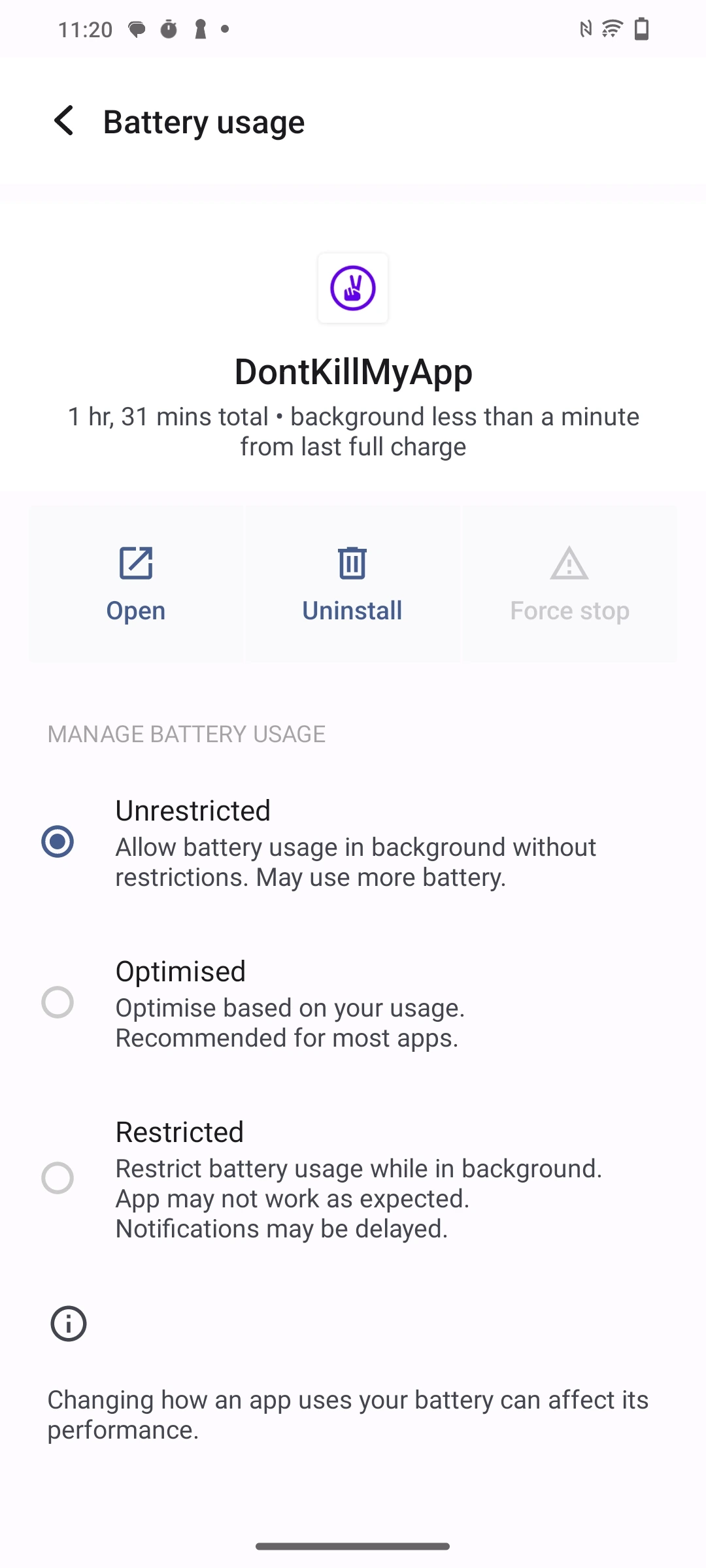
See a screenshot example
Sources and version notes
Sources checked September 12, 2026. Funtouch OS examples, including Android 13. OriginOS and some iQOO models use different menus. Menu names can change with model, region and software updates.
Huawei
- Manage app launch yourself. Search Settings for App launch. Find KDE Connect and turn Manage automatically off for this app.
- Allow the app to start and stay open. In Manage manually, turn on Auto-launch, Secondary launch, and Run in background. Tap OK or Continue if asked.
- Exclude KDE Connect from battery optimization. Search Settings for Battery optimization. Choose All apps > KDE Connect > Don’t allow. Here, Don’t allow means do not allow battery optimization; it does not block KDE Connect.
My settings look different
For Huawei phones with the Android version of KDE Connect installed, including EMUI. Menu names vary with the software version.
On older EMUI, search for Ignore battery optimization and choose Allow instead: the wording is reversed because you are allowing the exception. App launch can also be under Battery or Phone Manager. Change KDE Connect’s entry, leaving other apps as they are.
Use the setting names as search terms in your phone’s Settings. If an optional menu is absent, skip it.
Sources and version notes
Sources checked September 12, 2026. For Huawei phones with the Android version of KDE Connect installed, including EMUI. Menu names vary with the software version. Menu names can change with model, region and software updates.
Honor
- Manage app launch yourself. Search Settings for App launch. Find KDE Connect and turn Manage automatically off for this app.
- Allow the app to start and stay open. In Manage manually, turn on Auto-launch, Secondary launch, and Run in background. Tap OK or Continue if asked.
- Exclude KDE Connect from battery optimization. Search Settings for Battery optimization. Switch to All apps, choose KDE Connect, then Don’t allow. This refuses battery optimization for the app.
My settings look different
Honor / MagicOS. Use Settings search if App launch is not visible under Apps.
If your menu says Ignore battery optimization, allow the exception instead. If you use Close all in Recent apps, open KDE Connect first, find its preview in Recent apps, and look for Lock or a padlock. The gesture varies: try the preview menu or a downward swipe. This can protect it from Close all; it does not replace the battery settings.
Use the setting names as search terms in your phone’s Settings. If an optional menu is absent, skip it.
Sources and version notes
Sources checked September 12, 2026. Honor / MagicOS. Use Settings search if App launch is not visible under Apps. Menu names can change with model, region and software updates.
Motorola
- Set app battery usage to Unrestricted. Open Settings > Apps > See all apps > KDE Connect > App battery usage. Choose Unrestricted. If there is an Allow background usage switch, enable it and tap the text to open the choices.
My settings look different
Motorola Android. Some versions put Unrestricted behind the Allow background usage text.
On older phones, look under Apps & notifications > KDE Connect > Advanced > Battery. Remove Background restriction if shown. Some models also have a Managing background apps menu in Settings search; allow KDE Connect there if present.
Use the setting names as search terms in your phone’s Settings. If an optional menu is absent, skip it.
Sources and version notes
Sources checked September 12, 2026. Motorola Android. Some versions put Unrestricted behind the Allow background usage text. Menu names can change with model, region and software updates.
Sony
- Exclude KDE Connect from battery optimization. Search phone Settings for Battery optimization. Switch the list to All apps, choose KDE Connect, then Don’t optimize. Confirm with Done or OK if asked.
- Check STAMINA mode while using QuickText. Open Settings > Battery > STAMINA mode. Turn STAMINA mode off while testing or sending with QuickText if it is interrupting the connection.
My settings look different
Xperia. Older models use Power-saving feature; newer ones may offer the standard Android battery choices.
If your phone offers Apps & notifications > Advanced > Special app access > Power-saving feature, set KDE Connect to Excepted. Some models call Battery Power management.
Use the setting names as search terms in your phone’s Settings. If an optional menu is absent, skip it.
Sources and version notes
Sources checked September 12, 2026. Xperia. Older models use Power-saving feature; newer ones may offer the standard Android battery choices. Menu names can change with model, region and software updates.
ASUS
- Exclude KDE Connect from battery optimization. Search phone Settings for Battery optimization. Switch the list to All apps, choose KDE Connect, then Don’t optimize. Confirm with Done or OK if asked.
- Turn off background app management for KDE Connect, if shown. Long-press KDE Connect, choose App info > Battery, and turn Background app management off if present.
My settings look different
Zenfone / ROG Phone. Background app management is documented by ASUS support for ROG Phone 3; menus differ on newer models.
On newer models, look for App battery usage > Unrestricted. Older ASUS phones may have Mobile Manager > PowerMaster; check its startup restrictions if the app still stops.
Use the setting names as search terms in your phone’s Settings. If an optional menu is absent, skip it.
Sources and version notes
Sources checked September 12, 2026. Zenfone / ROG Phone. Background app management is documented by ASUS support for ROG Phone 3; menus differ on newer models. Menu names can change with model, region and software updates.
Nokia / HMD
- Exclude KDE Connect from battery optimization. Search phone Settings for Battery optimization. Switch the list to All apps, choose KDE Connect, then Don’t optimize. Confirm with Done or OK if asked.
My settings look different
Start with standard Android settings. Older Nokia 1, 3.1 and 5.1 models have additional restrictions that this basic guide cannot always resolve.
Newer models may offer App info > App battery usage > Unrestricted. If a DuraSpeed app list is visible, allow KDE Connect there. If it still disconnects, use the connection checks below and contact support with the exact phone model; this guide does not require developer commands.
Use the setting names as search terms in your phone’s Settings. If an optional menu is absent, skip it.
Sources and version notes
Sources checked September 12, 2026. Start with standard Android settings. Older Nokia 1, 3.1 and 5.1 models have additional restrictions that this basic guide cannot always resolve. Menu names can change with model, region and software updates.
TECNO
- Allow KDE Connect to start in the background. Open Phone Master > Toolbox > Auto-start management. Allow KDE Connect to run in the background.
- Exclude KDE Connect from battery optimization. Search phone Settings for Battery optimization. Switch the list to All apps, choose KDE Connect, then Don’t optimize. Confirm with Done or OK if asked.
My settings look different
HiOS / Phone Master examples. Follow only the menus available on your model.
If you use Close all in Recent apps, open KDE Connect first, find its preview in Recent apps, and look for Lock or a padlock. The gesture varies: try the preview menu or a downward swipe. This can protect it from Close all; it does not replace the battery settings. If it disconnects only with the screen off or overnight, check Phone Master or Power Marathon for Screen off sleep or Sleep Mode Optimization. Disable the relevant sleep mode while using QuickText.
Use the setting names as search terms in your phone’s Settings. If an optional menu is absent, skip it.
Sources and version notes
Sources checked September 12, 2026. HiOS / Phone Master examples. Follow only the menus available on your model. Menu names can change with model, region and software updates.
Blackview
- Exclude KDE Connect from battery optimization. Search phone Settings for Battery optimization. Switch the list to All apps, choose KDE Connect, then Don’t optimize. Confirm with Done or OK if asked.
- Allow KDE Connect in DuraSpeed, if installed. Open Settings > Smart Assist > DuraSpeed (or search Settings for DuraSpeed). Turn KDE Connect on in the list of apps allowed in the background.
My settings look different
DokeOS / Blackview examples. DuraSpeed and Basic Service are present only on some models.
If your phone has Basic Service > App Manager > App auto start, allow KDE Connect. On BV9200 / Android 12, System Manager > App Management > Permission Manager > Auto Clean contains a protected-app list; add KDE Connect to that list.
Use the setting names as search terms in your phone’s Settings. If an optional menu is absent, skip it.
Sources and version notes
Sources checked September 12, 2026. DokeOS / Blackview examples. DuraSpeed and Basic Service are present only on some models. Menu names can change with model, region and software updates.
Unihertz
- Exclude KDE Connect from battery optimization. Search phone Settings for Battery optimization. Switch the list to All apps, choose KDE Connect, then Don’t optimize. Confirm with Done or OK if asked.
- Remove KDE Connect from App blocker restrictions. Search Settings for App blocker, then select KDE Connect. Turn off Boot blocker, Start blocker, Background blocker, and Background cleanup for this app.
My settings look different
Includes the Jelly Star App blocker menu. Settings search may find it even when it is absent from Intelligent assistance.
App blocker may also be under Settings > Intelligent assistance. On newer Android versions, use Unrestricted under KDE Connect’s Battery settings if available.
Use the setting names as search terms in your phone’s Settings. If an optional menu is absent, skip it.
Sources and version notes
Sources checked September 12, 2026. Includes the Jelly Star App blocker menu. Settings search may find it even when it is absent from Intelligent assistance. Menu names can change with model, region and software updates.
Ulefone / RugOne
- Remove battery restrictions. Open Settings > Apps > KDE Connect > Battery (sometimes App battery usage). Choose Unrestricted. If you see Allow background usage, enable it and tap its text to look for Unrestricted.
- Manage app launch yourself. Search Settings for App launch. Find KDE Connect and turn Manage automatically off for this app.
- Allow the app to start and stay open. In Manage manually, turn on Auto-launch, Secondary launch, and Run in background. Tap OK or Continue if asked.
My settings look different
Vendor-specific menus vary. Start with the app battery setting, then check App launch if your model includes it.
If App launch only offers a master switch for every app, keep the app-specific battery exception and test first. Some models also use DuraSpeed; allow KDE Connect in its app list if available. These settings can be reset by phone updates, so recheck them if the problem returns.
Use the setting names as search terms in your phone’s Settings. If an optional menu is absent, skip it.
Sources and version notes
Sources checked September 12, 2026. Vendor-specific menus vary. Start with the app battery setting, then check App launch if your model includes it. Menu names can change with model, region and software updates.
HTC
- Do not optimize KDE Connect. Open Settings > Power > Battery optimization. Change Not optimized to All apps, select KDE Connect, choose Don’t optimize, and tap Done.
My settings look different
Older HTC Android / Sense menus. Newer models may use the standard App battery usage screen.
If there is no Power menu, search Settings for Battery optimization, or open KDE Connect’s App info > Battery and choose Unrestricted.
Use the setting names as search terms in your phone’s Settings. If an optional menu is absent, skip it.
Sources and version notes
Sources checked September 12, 2026. Older HTC Android / Sense menus. Newer models may use the standard App battery usage screen. Menu names can change with model, region and software updates.
Lenovo
- Exclude KDE Connect from battery optimization. Search phone Settings for Battery optimization. Switch the list to All apps, choose KDE Connect, then Don’t optimize. Confirm with Done or OK if asked.
My settings look different
Standard Android battery settings, with an additional Recent apps tip for the older Lenovo P2.
Lenovo P2: open KDE Connect, open the Recent apps overview, and enable the padlock on its preview. Avoid swiping that preview away. The available vendor-specific source is for P2, so other Lenovo models may differ.
Use the setting names as search terms in your phone’s Settings. If an optional menu is absent, skip it.
Sources and version notes
Sources checked September 12, 2026. Standard Android battery settings, with an additional Recent apps tip for the older Lenovo P2. Menu names can change with model, region and software updates.
Meizu
- Allow KDE Connect in background processes. Open Security > Permissions > Background processes. Find KDE Connect and allow it to run in the background.
- Exclude KDE Connect from battery optimization. Search phone Settings for Battery optimization. Switch the list to All apps, choose KDE Connect, then Don’t optimize. Confirm with Done or OK if asked.
My settings look different
Older Flyme examples. Start with the background-process permission if available.
Some models offer Battery manager > Protected apps; protect KDE Connect there. If its Battery page has Keep running after screen off, enable it.
Use the setting names as search terms in your phone’s Settings. If an optional menu is absent, skip it.
Sources and version notes
Sources checked September 12, 2026. Older Flyme examples. Start with the background-process permission if available. Menu names can change with model, region and software updates.
Wiko
- Exclude KDE Connect from battery optimization. Search phone Settings for Battery optimization. Switch the list to All apps, choose KDE Connect, then Don’t optimize. Confirm with Done or OK if asked.
- Allow KDE Connect in the background app list. Open Phone Assist > Power Saver > Advanced settings. Find the background-app whitelist and add KDE Connect to the allowed apps.
My settings look different
Older Wiko / Phone Assist examples. Labels vary considerably between models.
Some models call Phone Assist Phone Assistant or Phone Manager. If Close apps after screen lock is enabled for KDE Connect, turn it off. In Auto launch management, allow KDE Connect’s auto-launch and secondary launch if shown.
Use the setting names as search terms in your phone’s Settings. If an optional menu is absent, skip it.
Sources and version notes
Sources checked September 12, 2026. Older Wiko / Phone Assist examples. Labels vary considerably between models. Menu names can change with model, region and software updates.
Other / I am not sure
- Remove battery restrictions. Open Settings > Apps > KDE Connect > Battery (sometimes App battery usage). Choose Unrestricted. If you see Allow background usage, enable it and tap its text to look for Unrestricted.
My settings look different
Standard Android starting point. If a label is missing, use Settings search or the alternatives below.
On older Android, search for Battery optimization, choose All apps > KDE Connect > Don’t optimize. If your phone has a separate Autostart, App launch, or background-app manager, allow KDE Connect there too.
Use the setting names as search terms in your phone’s Settings. If an optional menu is absent, skip it.
Sources and version notes
Sources checked September 12, 2026. Standard Android starting point. If a label is missing, use Settings search or the alternatives below. Menu names can change with model, region and software updates.
Optional: check that it stays connected
This checks whether KDE Connect keeps working in the background. Leave the phone locked during the test: reopening the app could reconnect it and hide the problem.
- Open KDE Connect, then lock the phone and leave it idle for a few minutes. Keep the PC awake and both devices on the same Wi-Fi.
- With the phone still locked, open Your phone > Refresh in QuickText, then Send a test to your own number. Normal SMS charges may apply.
If it sends, KDE Connect is reachable in the background. This is a quick check; test after a longer idle period if that is when it used to disconnect.
Still disconnecting?
Temporarily turn off Battery Saver, Power saving or Ultra battery saver while using QuickText, then repeat the test. Open KDE Connect again after a phone restart. Avoid Force stop or clearing it from Recent apps while sending.
In KDE Connect settings, leave Persistent notification (or Show persistent notification) enabled if available. This is the app’s ongoing connection indicator, separate from notification access to your other apps.
If the phone is unreachable even with KDE Connect open, check the network instead: Phone will not connect. If it connects but cannot send, follow Allow SMS on your phone.
If the issue comes back after a phone update, recheck these settings. For help, contact support with your phone model, Android version, and whether it disconnects immediately or only after being idle.
Selected instructions and screenshot examples adapted from Don’t Kill My App! by Urbandroid Team under CC BY 4.0. Text shortened and tailored to KDE Connect. This guide and its screenshots are hosted here.