
To use Gmail Blaster you need an app password for your Gmail account. An app password lets Gmail Blaster send email on your behalf without ever handling your real Google password.
Step by step #
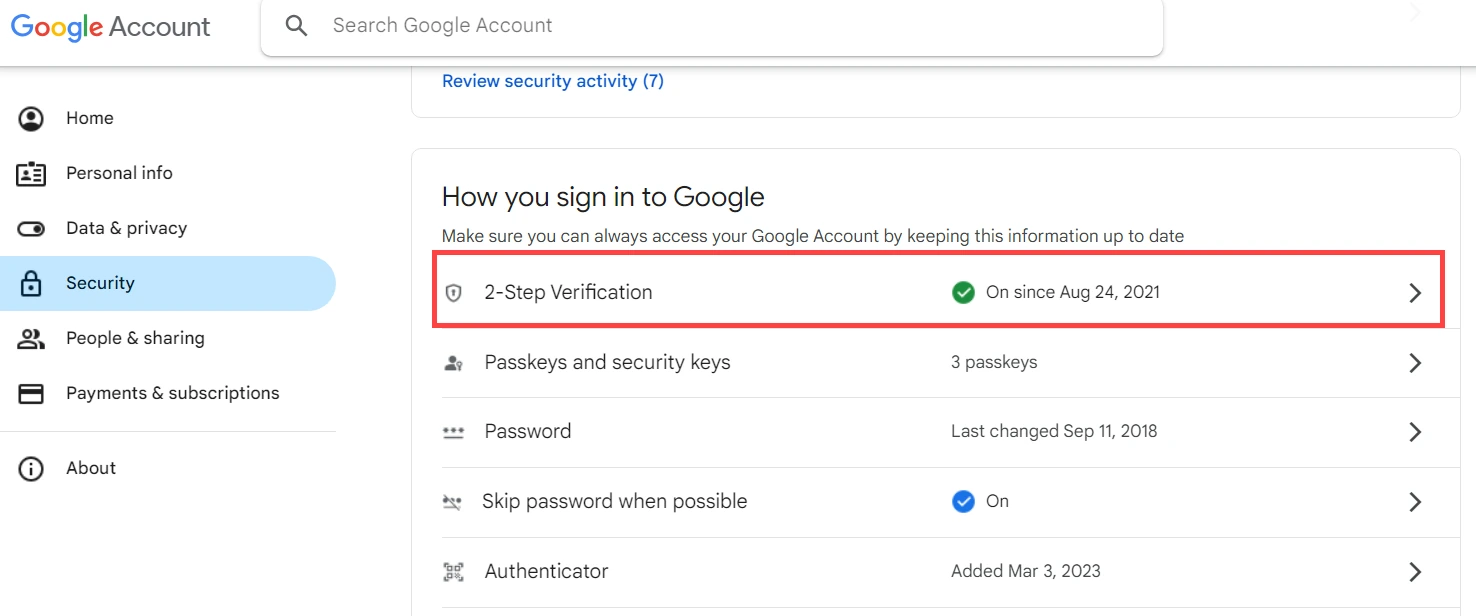
Step 1: Turn on 2-step verification
App passwords are only available once 2-step verification is on.
- Open your Google Account security page.
- Scroll to the How you sign in to Google section.
- Click 2-Step Verification and follow the instructions if you have not set it up already.
Step 2: Generate the app password
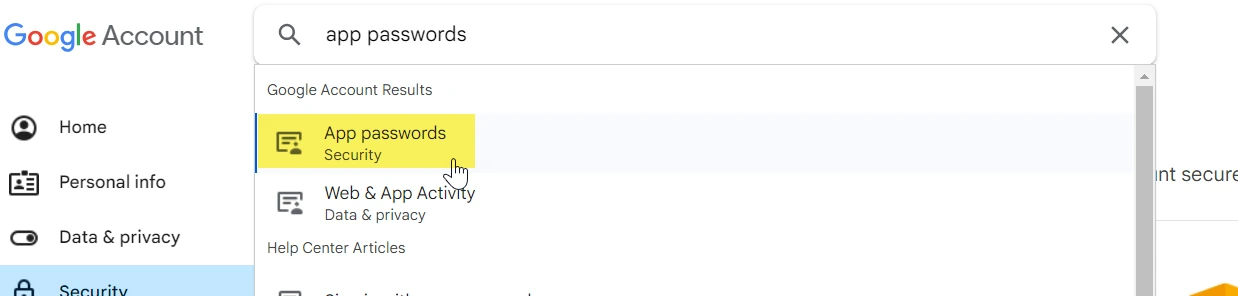
- On the Google Account security page, type “App Passwords” into the search bar at the top.
- Click App passwords when it appears in the results.
- You may be prompted to sign in again.
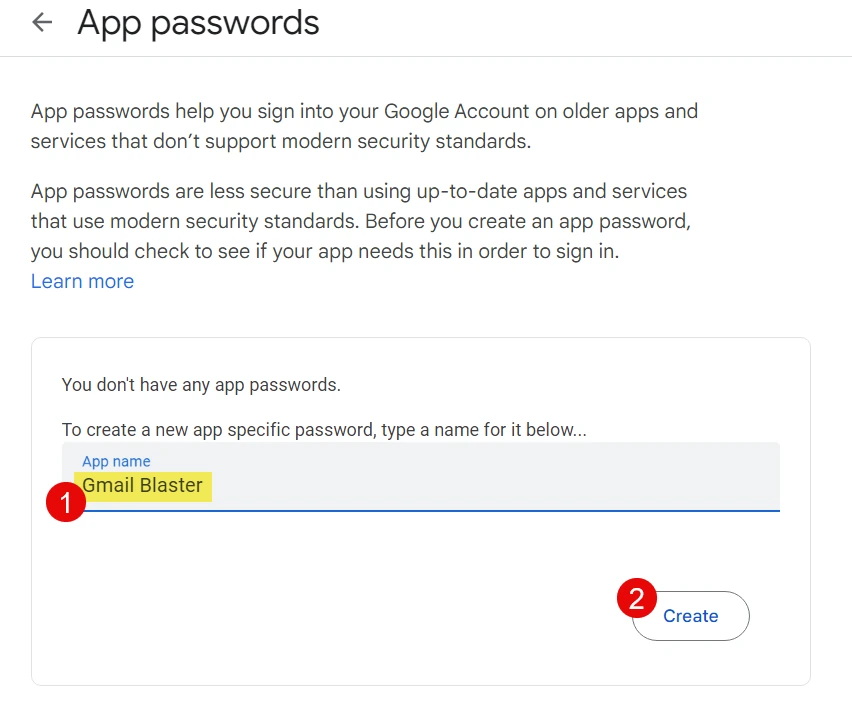
- Type a name for the app, for example “Gmail Blaster”, and click Generate.
Step 3: Enter the app password in Gmail Blaster
- Open the SETTINGS sheet in your Excel file.
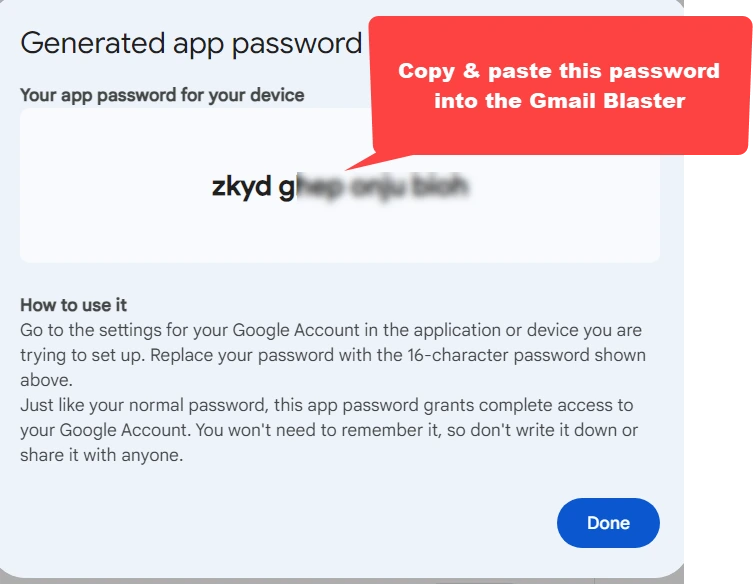
- Paste the 16-character app password into the GMAIL_PASSWORD field.
- Gmail Blaster now uses this password to send email from your Gmail account.
Important notes #
- Your regular Gmail password will not work with Gmail Blaster. You must use the app password.
- Changing your Google Account password revokes existing app passwords. Generate a new one if Google has revoked it or you deleted it.
If it does not work #
- If App passwords is missing even with 2-Step Verification on, your organization may restrict it, your account may use security-key-only verification, or Advanced Protection may be enabled. Check Google’s current app-password guidance.
- Check that the app password is pasted into the GMAIL_PASSWORD field correctly, with no stray spaces.