
This guide walks you through installing Office2MD and activating your license. The whole process takes about a minute.
Step 1: Install from the Microsoft Store #
Office2MD installs from the Microsoft Store in one click, and updates itself from there whenever a new version ships.

Click Get on the Store page. Windows installs the app and adds it to your Start menu.
Step 2: Activate your license #
- Open Office2MD from the Start menu.
- Accept the End User License Agreement on first launch.
- Paste the license key from your order confirmation email into the activation field.
- Click Activate.
That is it. Drop files onto the app and they are converted to Markdown.
No license key yet? Choose Try Free on the activation screen. You get 10 conversions with every feature unlocked, text recognition included, before a license is needed.
Installing without the Microsoft Store
Some company PCs block the Microsoft Store. A direct installer is available for those, and gives you exactly the same app with the same license key:
https://pythonandvba.com/go/office2md-download
Save the file to your Downloads folder and double-click it. Windows may show a blue Windows protected your PC warning when an installer has not established enough reputation. If you downloaded Office2MD from the link above and your organization permits it, use these steps:
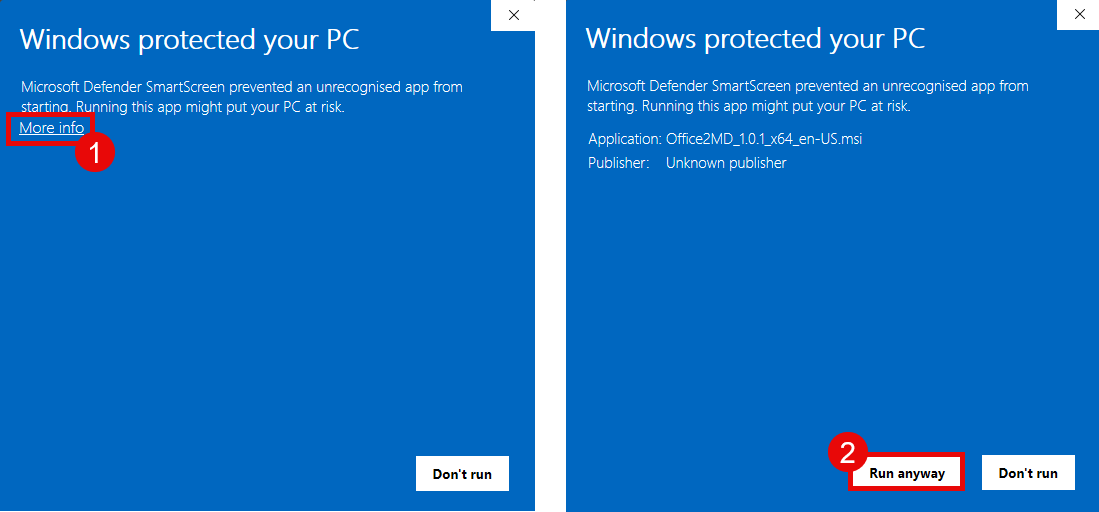
- Click More info.
- Click Run anyway. If your organization blocks this option, contact IT or use the Microsoft Store version.
- Click Next through each installer screen, accept the defaults, and click Finish.
- Activate your license as described in Step 2 above.
Installed this way, Office2MD tells you when a new version is available and you download it yourself.