
When you double-click the Office2MD installer, Windows may show this error:
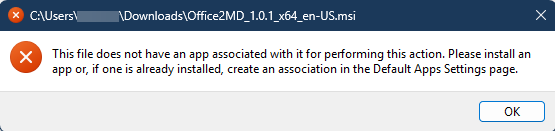
This message can indicate a problem with the Windows file association for .msi installers. It does not by itself identify what caused the problem. The steps below try opening the file with Windows Installer (msiexec.exe).
You can skip this problem entirely by installing Office2MD from the Microsoft Store instead. The Store does not use .msi files, so a broken file association cannot affect it, and your license key works exactly the same.
If you would rather stay with the installer, try the methods below in order. Start with Method 1 and only move on if it doesn’t work.
Method 1: Right click and install #
- Open the folder containing the downloaded installer (usually Downloads).
- Right-click the
Office2MD_...x64-en-US.msifile. - Choose Install from the menu.
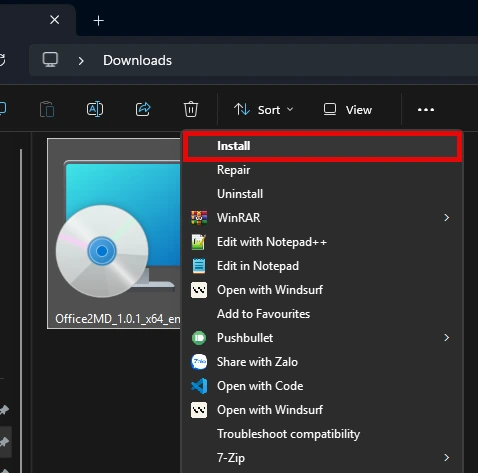
On Windows 11, you may need to click Show more options first to see the Install entry.
Method 2: Use the command builder #
If Install is missing or also fails, use the small helper below to build the exact command for your installer. No manual typing required.
Step 1. Open File Explorer, find the downloaded installer, then right-click it and choose Copy as path.
Step 4. Press Win + R, type cmd, press Enter, then right-click inside the black window to paste the command and press Enter. The installer dialog will open.
Method 3: Repair Windows installer #
If neither method above works, try re-registering Windows Installer:
- Press Win, type
cmd, right-click Command Prompt, choose Run as administrator. - Run these two commands, one after the other:
msiexec /unregister msiexec /regserver - Then go back and try Method 1 again.
If all three methods fail, your Windows file associations are likely damaged system wide. Running sfc /scannow from an elevated Command Prompt can repair them. This is a standard Windows repair tool.