
How to Use Google Gemini in Excel With VBA (AskGemini Formula)
Excel has no official Gemini add-in, but my free VBA modules add one. Import them, paste a Google AI Studio API key, then type =AskGemini("your question") in a cell, or select a range and run the Gemini macro. Saved as an .xlam add-in, the formula works in every workbook. Windows desktop Excel only.
Update (November 2026): The module in the GitHub repository now calls gemini-3.5-flash-lite, because Google deprecated gemini-2.5-flash; the demo workbook still holds the old module until you import the new mGemini.bas (step 3 below).
Table of contents
What you need
You need desktop Excel for Windows with macros allowed, a free Google account for the API key, and the four files from my repository. The code calls Google’s official Gemini API directly from VBA. There is nothing to install, and it does not work on a Mac or in Excel on the web.
- Excel: Microsoft 365, 2021, 2019 or 2016 on Windows. The macro stops on a Mac with a “Windows only” message.
- A Gemini API key from Google AI Studio.
- The code from github.com/Sven-Bo/gemini-excel-vba:
Dictionary.cls,JsonConverter.bas,mGemini.basand the optionalmGeminiDemo.bas, plus a ready demo workbook,Gemini_in_Excel_Demo.xlsm.
Get a Gemini API key
The key is what lets Excel send requests to Gemini on your account. Google AI Studio creates one in under a minute, and the free tier is enough to try everything in this post.
-
Open Google AI Studio. Go to aistudio.google.com/apikey and sign in with your Google account.
-
Create the key. Click Create API key and pick or create a Google Cloud project for it.
-
Copy it. Keep it somewhere safe. Anyone with the key can send requests on your account.
Add the modules
The quickest start is the demo workbook from the repository. To add Gemini to your own workbook instead, import the three required files into it. Either way, the API key goes into one line of the mGemini module.
-
Download the repository. On GitHub, click Code > Download ZIP and extract it. If you plan to open the demo workbook, right-click
Gemini_in_Excel_Demo.xlsm, choose Properties, tick Unblock and click OK. Without that, Excel blocks the macros in a downloaded file.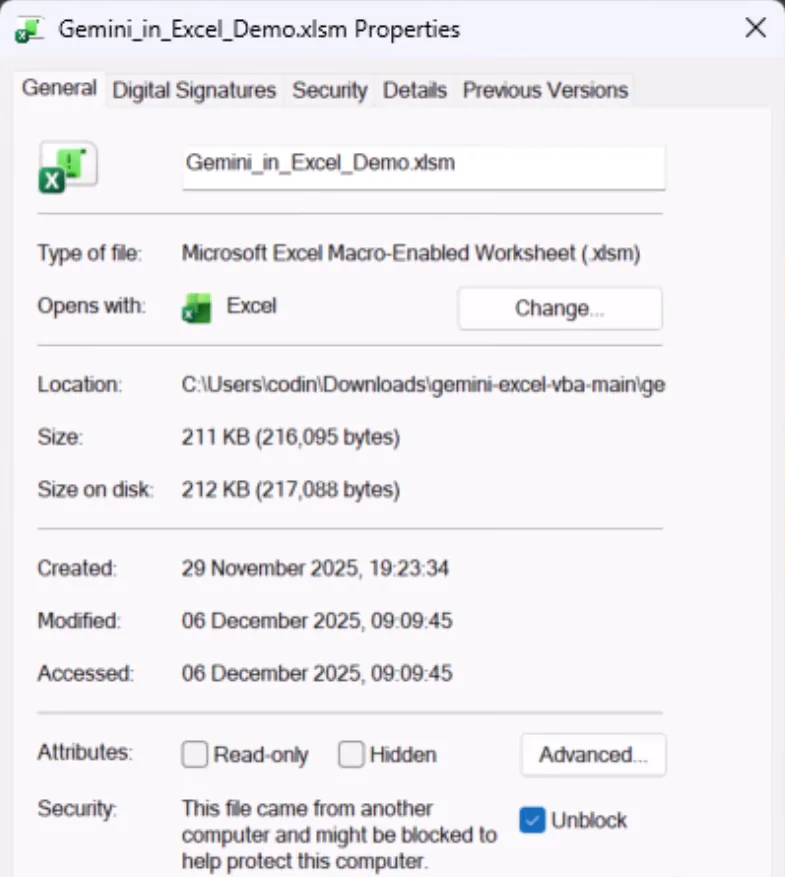
-
Open the Visual Basic Editor. Press Alt+F11. If you use the demo workbook, the modules are already there. For your own workbook, right-click its VBAProject, choose Import File and import
Dictionary.cls,JsonConverter.basandmGemini.basfrom thesrcfolder, in that order.mGeminiDemo.basis optional and only builds the demo sheet.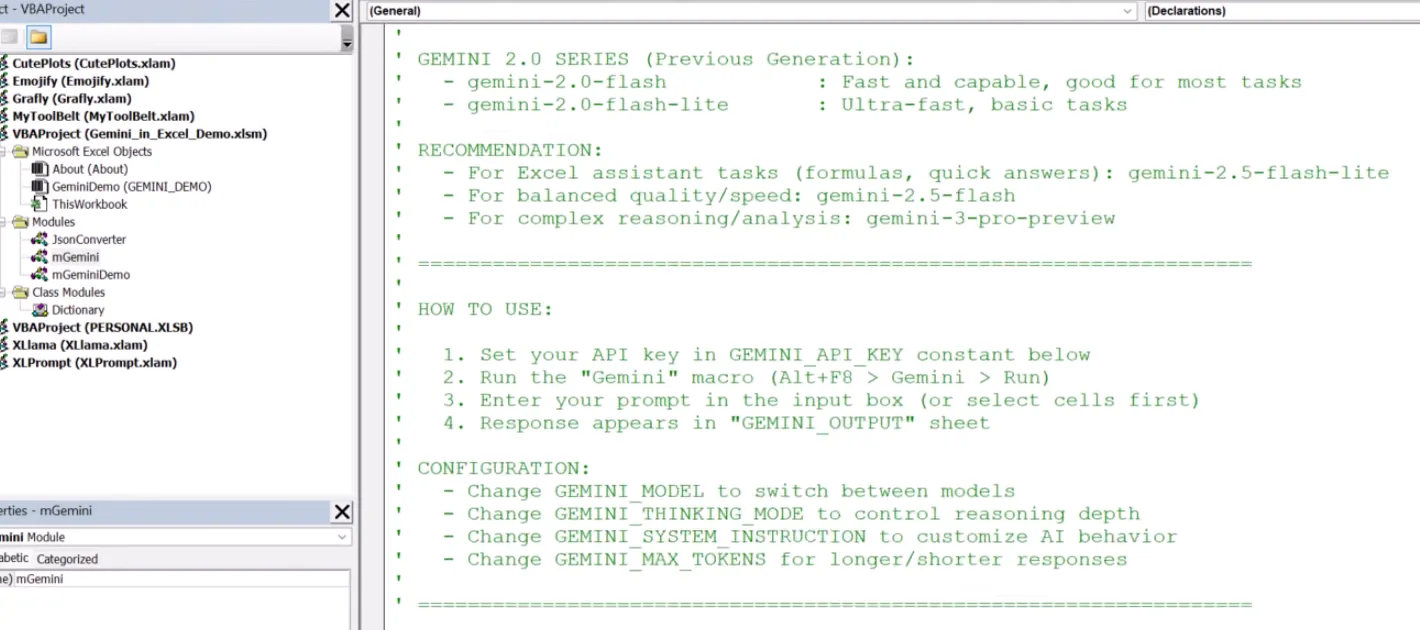
-
Update the demo workbook’s module. The demo workbook still contains the older mGemini module. In the Visual Basic Editor, right-click mGemini, choose Remove mGemini (answer No to the export question), then use File > Import File to import
src/mGemini.bas. Skip this step if you imported the files into your own workbook. -
Paste your key. Open the mGemini module and replace
YOUR_API_KEYat the top of the configuration section:' API Key - Get yours from: https://aistudio.google.com/apikey ' IMPORTANT: Keep this key secure and never share it publicly! Const GEMINI_API_KEY As String = "YOUR_API_KEY" '<<<<< CHANGE ME !!! ' Model Selection (see AVAILABLE MODELS above) ' Options: "gemini-3.5-flash-lite", "gemini-3.6-flash", "gemini-3.8-flash" Const GEMINI_MODEL As String = "gemini-3.5-flash-lite" -
Save as a macro-enabled workbook. Use File > Save As and pick Excel Macro-Enabled Workbook (*.xlsm). A normal .xlsx file drops the code.
-
Test it. In any cell, type
=AskGemini("Tell me an Excel related joke"). After a few seconds the answer appears in the cell.
AskGemini formula
AskGemini works like any Excel function: give it a prompt as text or a cell reference, and it returns Gemini’s answer into the cell. Join a fixed instruction with cell values and fill the formula down to process a whole list.
=AskGemini("What is 2+2?")
=AskGemini(A1)
=AskGemini("Translate to French: " & A1)
=AskGemini("Extract the first name from this email address. Reply with the name only: " & B2)
Three things to know before you fill it down a long column:
- Every calculation is one API request. A formula runs again when its input cell changes or when you force a full recalculation. Once you like the results, copy the column and paste it as values, so the answers stay fixed and no further requests are sent.
- Excel waits for each answer. The call is synchronous, so 200 formulas mean 200 requests in a row. Test on ten rows first.
- Ask for short answers. “Reply with the name only” or “answer in one sentence” keeps the output usable in a cell.
Ask about a selected range
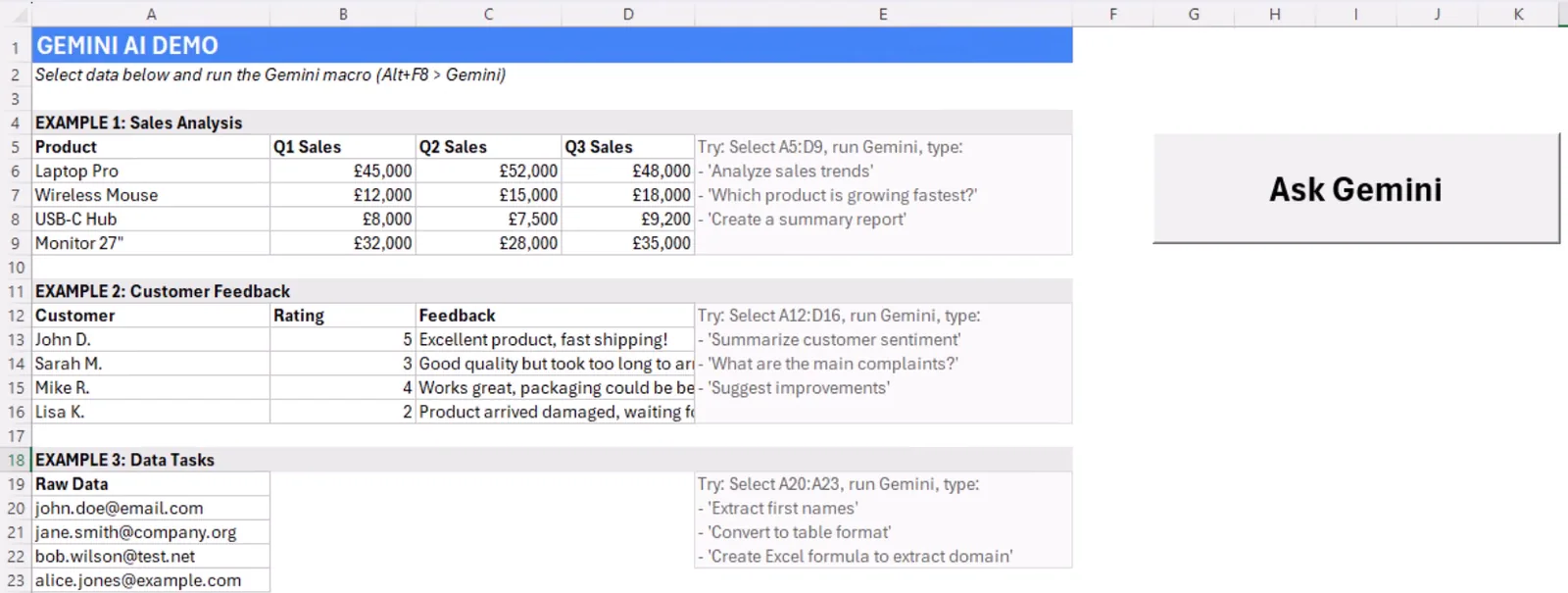
The Gemini macro sends a selected range together with your instruction, which suits tables: summarize sales, rate feedback, or extract names from a list. The answer lands on a sheet named GEMINI_OUTPUT, one line per cell.
-
Select the data. The macro reads the selected cells row by row, with tabs between columns, so the table structure survives.
-
Run the macro. Press Alt+F8, select Gemini and click Run, or click the Ask Gemini button on the demo sheet.
-
Type the instruction. For example “Analyze my sales, answer in one sentence”. The macro sends your instruction first and the data below it.
-
Read the answer. The GEMINI_OUTPUT sheet opens with the reply. Each run clears that sheet first, so copy anything you want to keep.

Two constants in mGemini control this behavior:
| Setting | Value | What happens |
|---|---|---|
GEMINI_INPUT_MODE |
both (default) |
Selected cells are sent as data, and an input box asks for the instruction. With nothing selected, only the input box appears. |
GEMINI_INPUT_MODE |
selection |
Only the selected cells are sent, no input box. |
GEMINI_INPUT_MODE |
inputbox |
Always asks for a prompt and ignores the selection. |
GEMINI_INPUT_MODE |
auto |
Sends the selection if it holds text, otherwise asks. |
GEMINI_OUTPUT_MODE |
lines (default) |
Each line of the answer goes into its own cell, A1, A2 and so on. |
GEMINI_OUTPUT_MODE |
single |
The whole answer goes into A1 with line breaks kept. |
Use it in every workbook
Code in one workbook only works while that workbook is open. To have Gemini available everywhere, either save the modules as your own Excel add-in, which is best for the formula, or copy them into your Personal Macro Workbook, which is best for the macro and a toolbar button.
Option 1: save it as an add-in (.xlam)
-
Start from a blank workbook that contains only
Dictionary.cls,JsonConverter.basandmGemini.bas, with your key pasted in. -
Save it as an add-in. File > Save As, choose Excel Add-in (*.xlam) as the file type and name it, for example, GeminiTools. Excel switches to its AddIns folder; keep that location.
-
Turn it on. Go to File > Options > Add-ins, choose Excel Add-ins in the Manage box, click Go, tick GeminiTools and click OK.
From then on =AskGemini() works in every workbook without a prefix. Because the code lives in the add-in, your own workbooks can stay .xlsx files. Anyone you send such a file to sees an error in those cells unless they have the add-in too.
Option 2: Personal Macro Workbook and a toolbar button
-
Create PERSONAL.XLSB if you have none. On the Developer tab, click Record Macro, set Store macro in to Personal Macro Workbook, click OK and then Stop Recording.
-
Copy the modules. In the Visual Basic Editor, drag the three modules from your Gemini workbook onto the PERSONAL.XLSB project. Paste your key in its mGemini module and save.
-
Add a button. File > Options > Quick Access Toolbar, set Choose commands from to Macros, select PERSONAL.XLSB!Gemini and click Add.
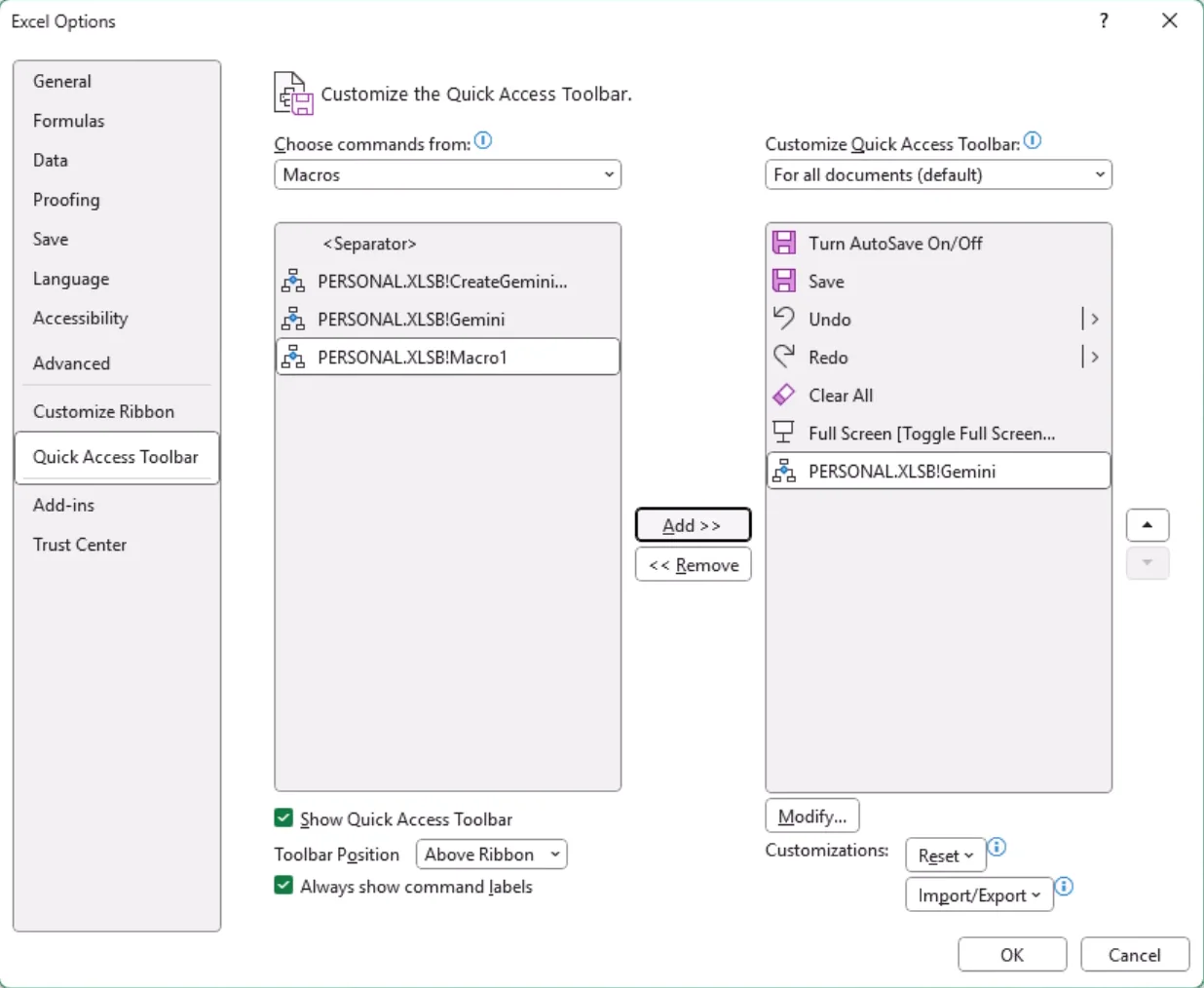
Functions in PERSONAL.XLSB need the workbook name in front: =PERSONAL.XLSB!AskGemini("your question"). Use one option, not both, so it stays clear which copy of the code and which key Excel uses.
Choose a model
The model is one constant, GEMINI_MODEL, at the top of mGemini. The default, gemini-3.5-flash-lite, is fast and inexpensive and handles cell-sized tasks well. Switch to a larger model only when answers need more reasoning.
| Model | Use it for |
|---|---|
gemini-3.5-flash-lite (default) |
Formulas, short answers, translation, extraction |
gemini-3.6-flash |
Better quality at moderate speed |
gemini-3.8-flash |
Harder analysis and reasoning |
gemini-2.5-flash-lite |
Older model that is still available |
gemini-2.5-flash, the old default, is deprecated: from December 1, 2026 Google reroutes its requests to gemini-3.5-flash-lite. gemini-3-pro-preview is shut down and returns an error. Google’s model list has the current names.
GEMINI_THINKING_MODE sets how long Gemini 3.x models reason before they answer: level_minimal (Flash-Lite and 3.6 Flash only), level_low, level_medium or level_high. An empty string keeps each model’s default. budget_0 turns thinking off on the older 2.5 models.
Cost and privacy
gemini-3.5-flash-lite has a free tier with rate limits, and a paid tier billed per token once you enable billing on the project. Free-tier prompts are not private: Google’s terms let it use content sent on unpaid quota to improve its products.
The details are in Google’s Gemini API pricing page and the Gemini API terms. Every cell you select or reference is sent to Google, so leave out client data, staff records and anything else you would not paste into a website.
For data that must stay on your PC, run an open model locally instead. My XLlama add-in does that with Ollama and adds an =XLLAMA.PROMPT formula for desktop Excel on Windows; running Ollama in Excel shows the setup.
Troubleshooting
Most problems are a blocked file, a missing module, a wrong key or an old model name. The formula shows short error codes in the cell, and the macro shows a message box with Google’s explanation, which usually names the cause.
| What you see | Cause and fix |
|---|---|
| “Microsoft has blocked macros from running because the source of this file is untrusted” | The downloaded file is still blocked. Close it, tick Unblock in its Properties, open it again. |
#NAME? |
Excel cannot find the function. The code is in another workbook that is closed, or in PERSONAL.XLSB without the PERSONAL.XLSB! prefix, or the file was saved as .xlsx. |
| Compile error: User-defined type not defined | Dictionary.cls or JsonConverter.bas was not imported. Import both, then Debug > Compile VBAProject. |
#API_ERROR_400 or #API_ERROR_403 |
The key is wrong, incomplete or not allowed to use the Gemini API. Copy it again from AI Studio. |
#API_ERROR_404 |
The model name does not exist (any more). Set GEMINI_MODEL to a current name. |
#API_ERROR_429 |
Rate limit. Too many requests at once, common when a formula fills hundreds of rows. Wait, then work in smaller batches. |
#NO_INTERNET |
Windows reports no connection. A proxy or VPN can also block the request. |
| Answer ends with a truncation note | The reply hit GEMINI_MAX_TOKENS (8192). Raise it or ask for a shorter answer. |
| Double quotes in your prompt arrive as single quotes | The module swaps them on purpose so the request stays valid JSON. |
To find a bug in your own changes to the code, step through it line by line with F8; my VBA debugging tip shows how.
FAQ
Is there an official Gemini add-in for Excel?
No. Google builds Gemini into Google Sheets, and Microsoft’s assistant in Excel is Copilot. In Excel itself, the options are code like this module that calls the Gemini API, or a third-party add-in that does the same and sends your data through its own service.
Can Gemini read or create Excel files?
The Gemini chat app accepts uploaded spreadsheets and can answer questions about them, but it works on a copy outside Excel. The VBA module in this post never opens or writes a file: it sends text from your prompt or selection and writes the answer back into cells of the open workbook.
Does it work with DeepSeek or ChatGPT too?
The pattern is the same for other providers: a VBA function sends the prompt over HTTPS and parses the JSON answer. DeepSeek in Excel and ChatGPT in Excel each come with their own module.
Resources
- gemini-excel-vba on GitHub: the modules and the demo workbook
- Google AI Studio API keys
- Gemini models