
How to Hide "Made with Streamlit", the Menu and the Header
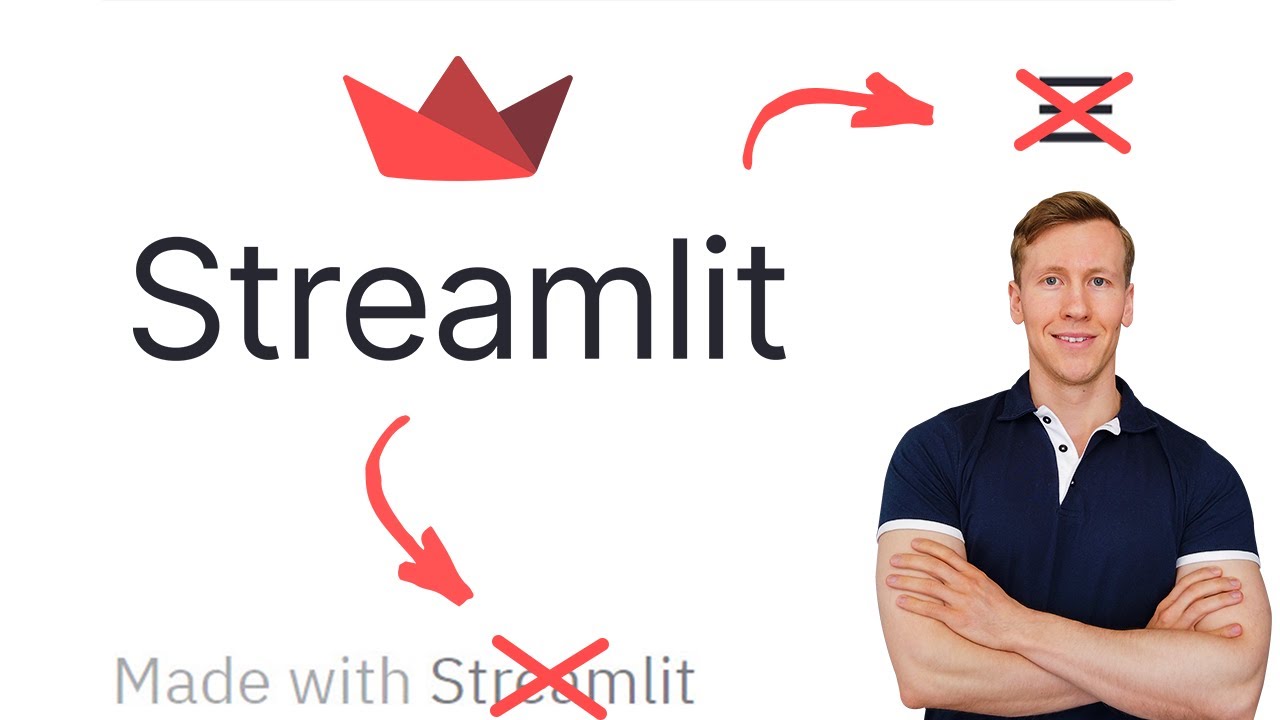
Paste a short CSS block into your app with st.markdown and unsafe_allow_html=True: it hides the hamburger menu, the Deploy button and the header. The “Made with Streamlit” footer is gone by default since Streamlit 1.29. If you only want to hide the menu, the config option client.toolbarMode = “minimal” does it without CSS.
The code
This CSS block hides the menu, the header and the old footer, and it still works in current Streamlit versions. Paste it anywhere in your script, save, and refresh the page:
hide_st_style = """
            <style>
            #MainMenu {visibility: hidden;}
            footer {visibility: hidden;}
            header {visibility: hidden;}
            </style>
            """
st.markdown(hide_st_style, unsafe_allow_html=True)
Each line targets one element:
- #MainMenu is the three-dot menu in the top right corner. Older versions drew it as a hamburger icon.
- header is the bar across the top. It holds the menu, the Deploy button, the running indicator and the button that reopens a collapsed sidebar.
- footer was the “Made with Streamlit” line at the bottom of the page.
I use visibility: hidden rather than display: none on purpose. The header keeps its space, so the layout does not jump when the page loads.
What it hides today
In Streamlit 1.67, a plain app shows a Deploy button and the three-dot menu at the top right when you run it locally:
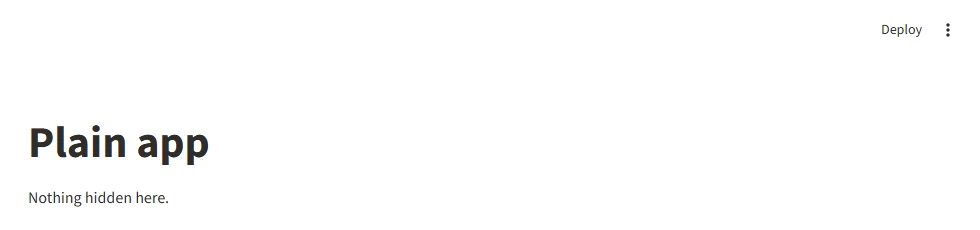
With the snippet in place, both disappear and the page shows only your own content. The footer line is not there in either case, because Streamlit removed the “Made with Streamlit” footer in version 1.29. The footer rule is harmless, so I keep it for apps that still run on an older version.
Hide the menu without CSS
Streamlit has a config option for the toolbar. Create a folder named .streamlit next to your script, add a file called config.toml, and write:
[client]
toolbarMode = "minimal"
In minimal mode Streamlit hides the menu and the developer options such as Deploy, Rerun and Clear cache, unless something is set externally, for example by Streamlit Community Cloud. The header bar itself stays. The other values are auto (the default), developer and viewer, which hides only the developer options. You can also pass it once on the command line:
streamlit run app.py --client.toolbarMode minimalI prefer the config option when all I want is a clean menu, because it does not depend on the internal element names that CSS selectors rely on.
Keep the sidebar button
Hiding the header has one side effect: the button that expands a collapsed sidebar lives inside the header. When the header is hidden, a visitor who collapses the sidebar has no visible way to open it again. If your app has a sidebar, hide only the menu and the Deploy button and leave the header alone:
st.markdown(
    """
    <style>
    #MainMenu {visibility: hidden;}
    [data-testid="stAppDeployButton"] {display: none;}
    </style>
    """,
    unsafe_allow_html=True,
)
With this version or with toolbarMode = “minimal”, the expand button of a collapsed sidebar stays visible in Streamlit 1.67. Selectors like stAppDeployButton are internal names that Streamlit can rename in a later release, so check the result after you upgrade. Right-click the element and choose Inspect to find its current name.
The Community Cloud badge
CSS inside your app cannot hide the Community Cloud badge. On Streamlit Community Cloud, the badge and the Manage app button are drawn by the hosting page around your app, not by your script, so your stylesheet never reaches them.
If the branding matters, host the app yourself, for example on Render, where only your own app is on the page.
Troubleshooting
When the menu stays visible, the style block usually never reached the page. Check these three things in order:
- unsafe_allow_html=True is missing. Without it, Streamlit escapes the HTML and the style block is ignored.
- The code sits inside an if branch that does not run. Put the style block near the top of the script so it runs on every rerun, for example right after
st.set_page_config. - The page is cached. Do a hard refresh with Ctrl+F5 after you save.
On a multi-page app the style block only applies to the page that runs it. Put it in a small function in a shared module and call it at the top of every page, or define it once in the main script when you use st.navigation.
Style the rest of the app
The same technique, CSS injected with st.markdown, styles anything else on the page. Widgets with a key get a matching CSS class, which makes single buttons and inputs easy to target.
I go through that in styling a Streamlit app with custom CSS, and I hide these elements as the last step of the Excel dashboard I built in Streamlit.