
How to Mail Merge from Excel to Outlook or Gmail Without Word
A mail merge from Excel sends one personal email to every row of your list. The classic way runs through Word: Mailings, Start Mail Merge, E-mail Messages, then Finish & Merge sends through classic Outlook. It works for simple emails, but it cannot attach a different file per person and does not send through Gmail. A mail merge app reads the Excel file directly and sends through Outlook or Gmail.
Table of contents
What a mail merge is
A mail merge takes one email you write once and sends a separate copy to each person on a list. Fields like a first name or an amount are filled in from that person’s row in Excel, so every email reads as if you wrote it by hand.
The classic example is a monthly report. You have a sales list in Excel with each rep’s email address, region and numbers. Instead of copying each rep’s numbers into a new email, you write one email with placeholders and let the merge fill them in. Anna gets the North numbers, Ben gets South, and nobody sees anyone else’s address.
It is not the same as BCC. With BCC everyone gets the identical text. With a mail merge each email is addressed to one person and can say “Hi Anna” or “your invoice of $480.00 is due on Dec 15”, and replies come back to you one by one. In Word the term also covers printed letters and labels. This post is only about email, from an Excel list to Outlook or Gmail.
Prepare the Excel list
Put one person per row and one piece of information per column, with the column names in row 1. You need at least an email column. Add a column for every detail you want in the email, such as first name, company, amount or due date, and leave no blank rows inside the list.
A clean list prevents most mail merge problems:
- Use short, plain column names like First name, Email, Company. Word turns spaces into underscores, so First name shows up there as First_name.
- Keep one email address per cell. Check for typos like a missing dot after the @.
- Remove duplicates, or one person gets the same email twice.
- Format dates and amounts in Excel the way you want them to read in the email.
- Save and close the workbook before you start the merge.
The template below is a starting point. Its Check column flags a missing email, an address that looks wrong and a duplicate row before you send anything.
Mail merge contact list template
A ready Excel list with first name, email, company, due date, amount and invoice file columns, plus a Check column that flags missing, broken and duplicate addresses. Works with Word, SheetCourier and Python scripts.
Mail merge with Word and Outlook
In Word, open the Mailings tab, choose Start Mail Merge and E-mail Messages, pick your Excel file with Select Recipients, write the email with merge fields, preview it, and click Finish & Merge, Send Email Messages. Word hands every email to classic Outlook, which sends them from your default account.
-
Start an email merge. Open a blank document in Word. On the Mailings tab, click Start Mail Merge and pick E-mail Messages.
-
Connect your Excel list. Click Select Recipients, then Use an Existing List, and open your workbook. Pick the sheet that holds the list and keep “First row of data contains column headers” ticked.
-
Write the email and add fields. Type the message. Where a detail should change per person, click Insert Merge Field and pick the column, for example First_name. Word shows it as a field in angle quotes.
-
Preview. Click Preview Results and use the arrows to step through the people. This is where you catch an empty field or a date in the wrong format.
-
Send. Click Finish & Merge and Send Email Messages. In the dialog, set To to your email column, type the Subject line and choose HTML as the mail format. Click OK.
-
Check Outlook. The emails pass through Outlook’s Outbox and land in Sent Items. Keep Outlook open until the Outbox is empty.
Before step 5, test the merge on a copy of your list with only your own address in it.
Limits of Word’s mail merge
Word’s email merge is built for one plain message per row. It cannot attach a different file to each person, has no CC or BCC, cannot put fields in the subject line, and sends only through classic Outlook, so the new Outlook and Gmail on the web are out.
| What you want | Word mail merge |
|---|---|
| A first name or amount in the email text | Yes, with Insert Merge Field |
| A field in the subject line | No, the subject is the same for everyone |
| A different file attached for each person | No. The only attachment option sends the merged document itself |
| CC or BCC per person | No |
| Each person’s own rows from a second table | Not built in, only with workarounds |
| Send through Gmail | Only if your Gmail account is the default account in classic Outlook |
| The new Outlook for Windows | No, other apps cannot send through it |
| Stay under your provider’s daily limit | No, everything is handed to Outlook at once |
If you send a short note to each row and have Word and classic Outlook, Word’s mail merge is fine, and I would keep using it for that. It becomes painful when each person needs their own invoice, their own numbers or a personal subject line, or when you send the same report every month and have to rebuild the merge each time.
The new Outlook catches many people out. Classic Outlook lets other programs like Word send through it. The new Outlook for Windows and Outlook on the web do not. If Word complains that there is no email program, check whether the New Outlook switch at the top right of Outlook is on.
Mail merge to Gmail
Yes, but not with Word on its own. You can add your Gmail account to classic Outlook and merge through it, use a Google Sheets add-on, write a short Python script, or use a desktop app that reads the Excel file and sends through Gmail with an app password.
- Word plus classic Outlook with Gmail added. If Gmail is the default account in classic Outlook, Word’s merge goes out from your Gmail address. All the Word limits above still apply.
- A Google Sheets add-on. Tools like YAMM, Mailmeteor and GMass send from Gmail. Your list has to live in Google Sheets rather than in your Excel file on your PC, and most of them are subscriptions with a small free daily quota.
- Gmail’s own mail merge. Some paid Google Workspace plans have a mail merge built into Gmail. It is not available on a free Gmail account, so check your plan first.
- A Python script. If you like code, Python’s smtplib can read your Excel rows and send through Gmail. I show a full script in my post on sending Gmail from Excel with Python.
- A desktop app. SheetCourier reads the Excel file on your PC and sends through Gmail, Outlook or another account. That is the route I show below.
Every route that sends from your own Gmail address uses Google’s normal limits: about 500 emails a day for a free Gmail account and about 2,000 for Google Workspace. Gmail’s app passwords, its sending limits and the Workspace mail merge are covered in how to send bulk email from Gmail using Excel.
Mail merge without Word
Use an app that reads the Excel file itself. In SheetCourier you pick the workbook, it finds the email column, you write the email with fields like {{First name}}, check every email in a preview, and send from your own Outlook or Gmail account, one email at a time.
I built SheetCourier for exactly this job. It is a Windows app from the Microsoft Store and replaces my older Excel tool Gmail Blaster, which is no longer sold. The flow below uses the example from the video: monthly sales numbers for a team of reps.
-
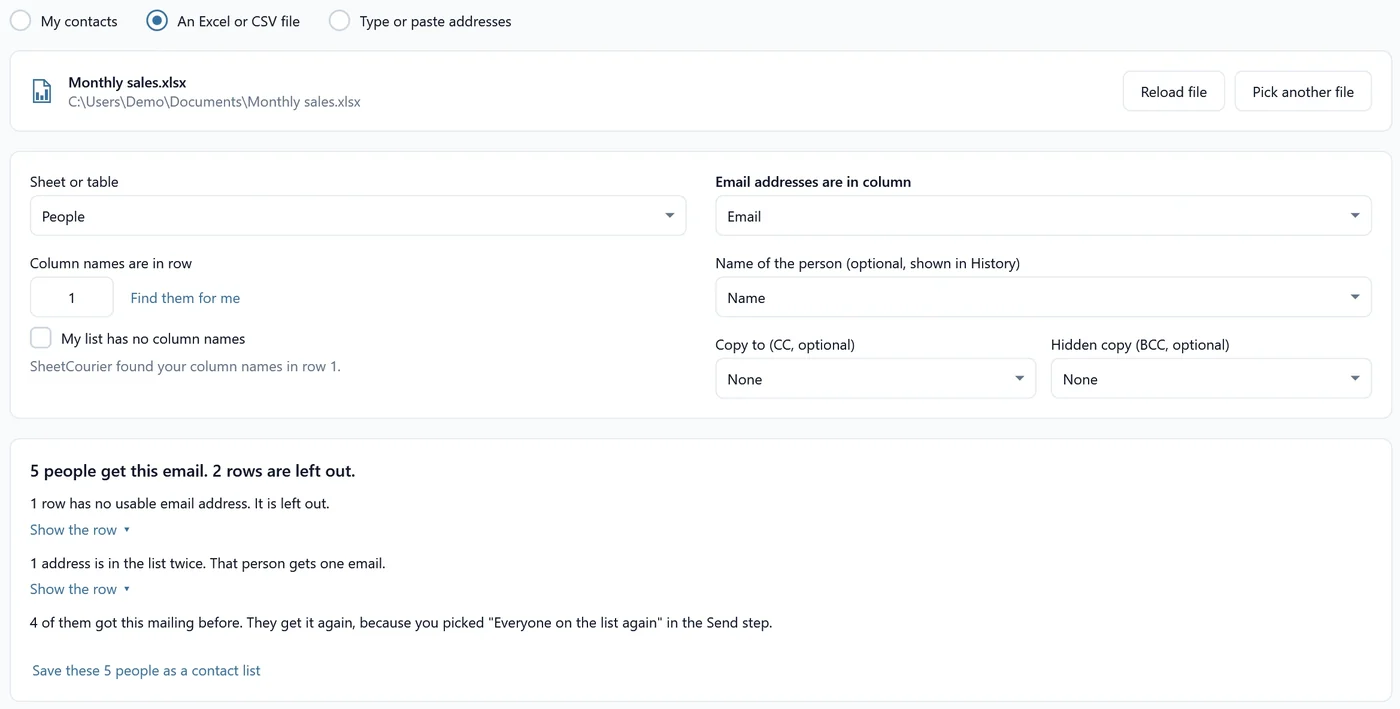
Pick your Excel file. Click New mailing and choose An Excel or CSV file. SheetCourier finds the column with the email addresses and checks the list. A row without an address is left out, and a person who is on the list twice still gets only one email.
-
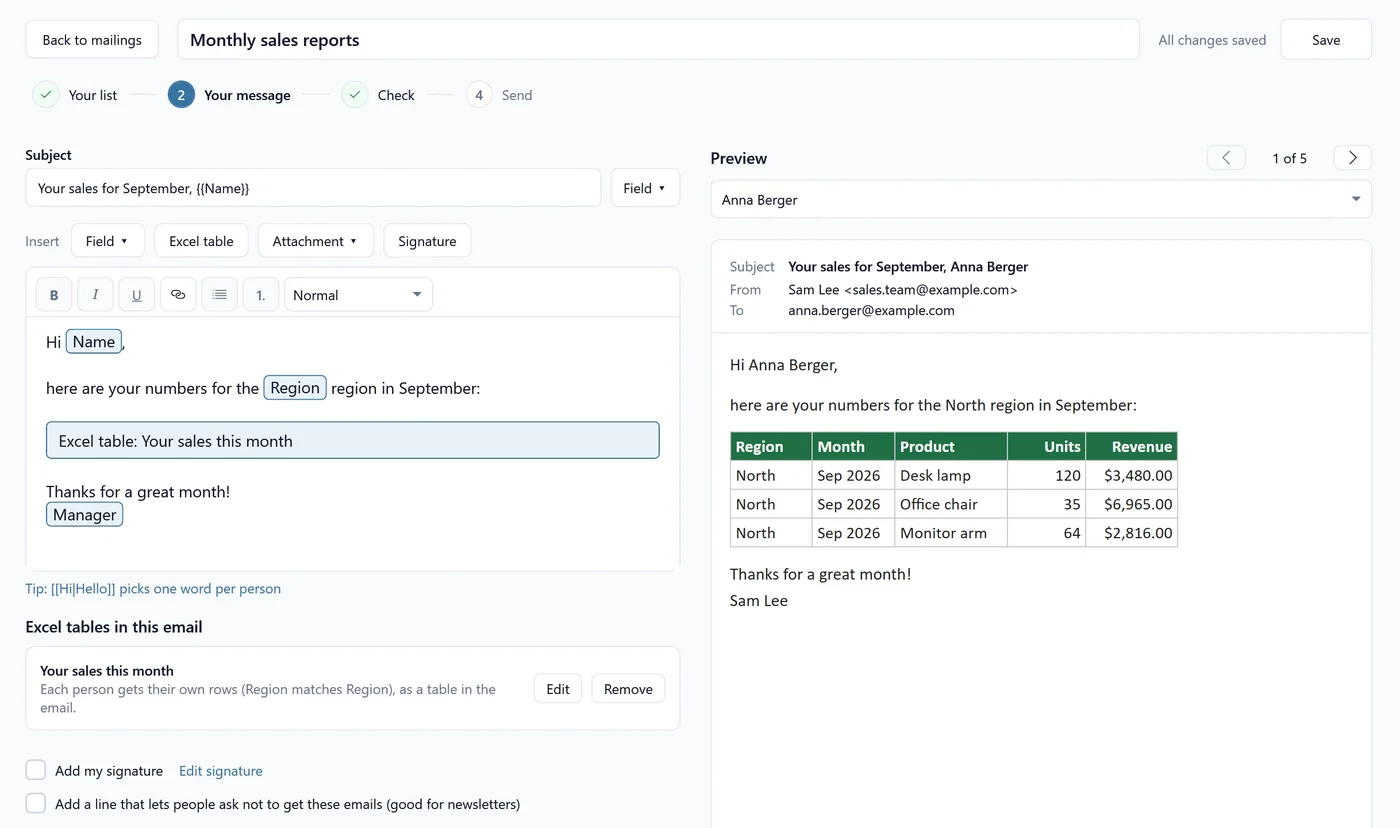
Write the email. Add the subject and the text like in any email. To make it personal, click Field and pick a column, such as Name or Region. A field can go in the subject too. The preview on the right shows the email for each person, and the arrows flip from Anna to Ben and on.
-
Check. The Check step prepares every email without sending anything. If something needs a decision, for example a person whose file is missing, it asks you here.
-
Send. Pick the email account to send from and click Send. SheetCourier sends the emails one by one from your own address, so replies come straight back to you. History shows who got the email and when.
SheetCourier sends through the email you already have. Under Email accounts you can add Gmail or Google Workspace, classic Outlook on your PC, Microsoft 365 or Outlook.com, Yahoo, iCloud, your own domain and a few more.
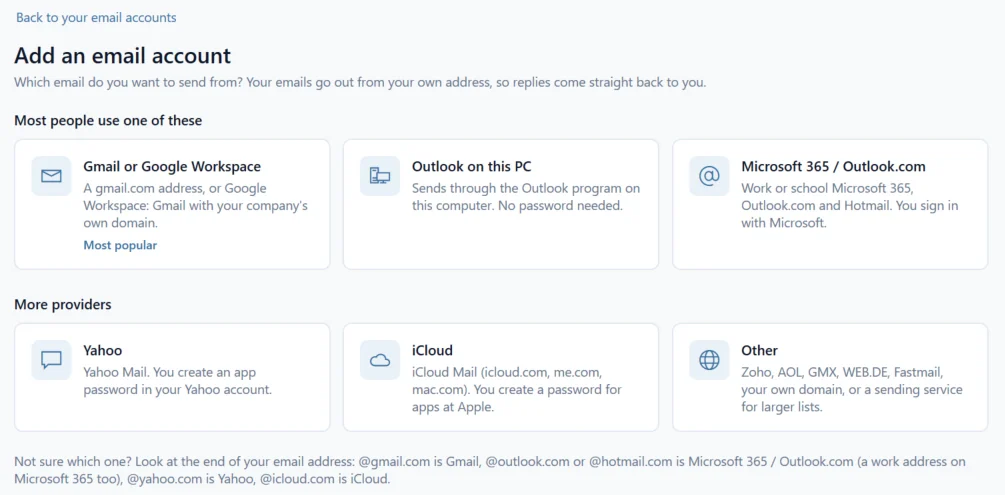
Outlook on this PC needs no password and every email shows up in Outlook’s Sent Items. Gmail connects with an app password, which the Connect Gmail guide walks through step by step. The mailing is saved, so next month you update the workbook, open the mailing and click Send again.
A different attachment per person
Put all the files in one folder and add a column to your Excel list with each person’s file name, for example Invoice-1042.pdf. Then tell the mail merge tool which column holds the file name and which folder holds the files. Word cannot do this; SheetCourier and a Python script can.
This is the most common reason people give up on Word’s mail merge. Invoices, certificates and payslips all share one email text, but every person needs their own PDF.
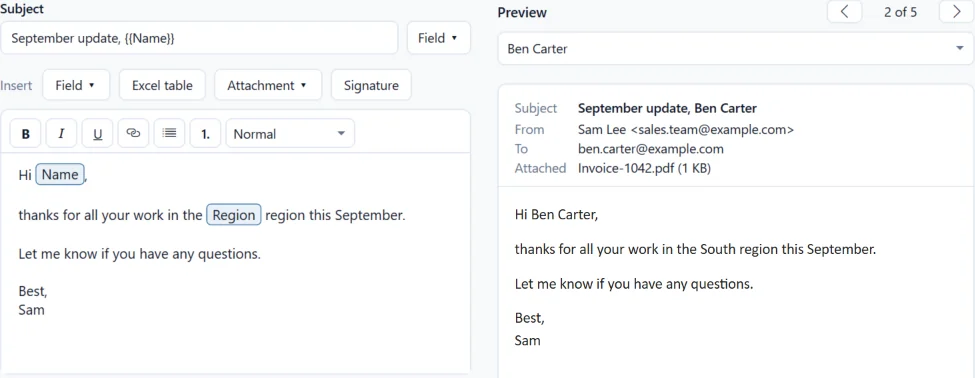
In SheetCourier, click Attachment in step 2 and choose A different file for each person. Pick the column with the file name and the folder with the files. You also decide what happens when a person’s file is missing: ask in the Check step, skip that person, or send without the file. The preview then shows the right file next to Attached for each person.
- Put several files for one person in one cell, separated by a semicolon.
- Name the files after something in the list, like the invoice number, so the column is easy to fill with a formula.
- Gmail accepts emails up to about 25 MB, and attachments grow by about a third when sent. Keep big files out of a mail merge.
If you still have to create those PDFs, my post on creating PDF invoices from Excel in bulk shows how to turn a table into one PDF per customer. For Word documents instead of PDFs, see how to create Word documents from Excel data.
Each person’s own rows
Keep all the data in one sheet and tell the tool which column links a row to a person, such as Region or Name. Each email then carries only the rows that match that person. Word has no built-in way to do this; SheetCourier calls it “Each person gets their own rows”.
This is what a monthly report really needs. The list has one row per rep, and the Sales sheet has every sale for every region. In SheetCourier, click Excel table, pick the Sales sheet, choose Each person gets their own rows and match the Region column of the table with the Region column of your list.
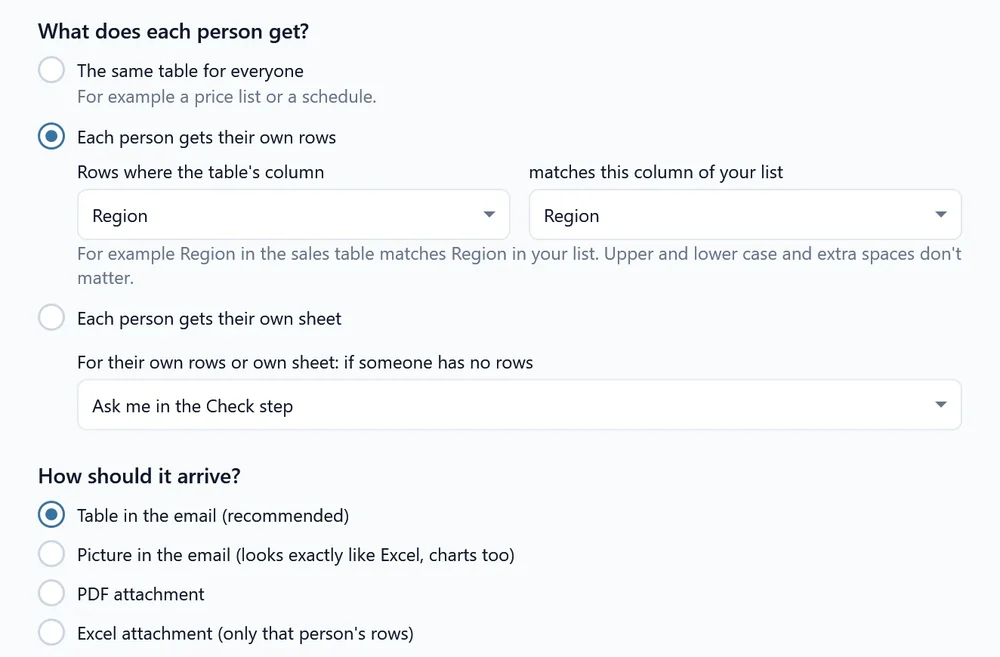
Anna now sees only North and Ben only South. The table can arrive in the email itself, as a picture, or as a PDF or Excel attachment with only that person’s rows. The picture and PDF options use Excel on your PC to get the exact look; the table in the email and the Excel attachment work without Excel. If your table has a totals row, it is worked out again for each person’s rows.
If you prefer code, the same idea in Python is a pandas groupby: one file or table per group, then one email per group. My older video on creating and distributing Excel files with Python and Outlook shows that approach.
Check before sending
Preview the email for several different people, especially rows with empty cells, then send a test to yourself. Most mail merge mistakes are a field name that does not match a column, or an empty cell that leaves “Hi ,” at the top of an email.
The preview below works like SheetCourier’s. Paste a few rows from Excel (column names in the first row), write a subject and a message with fields in two curly brackets, and flip through the emails. The fields work like in SheetCourier: upper and lower case and spaces don’t matter, and {{First name|there}} gives “Hi there” when the first name is empty. Nothing you type leaves your browser.
Mail merge preview
Message: Hi {{First name|there}}, your invoice for {{Company}} is ready. The amount of {{Amount due}} is due on {{Due date}}.
| Row | The email starts with |
|---|---|
| Anna, Berger Design, $480.00, Dec 15 | Hi Anna, your invoice for Berger Design is ready. The amount of $480.00 is due on Dec 15. |
| Ben, Carter Builders, $1,250.00, Dec 18 | Hi Ben, your invoice for Carter Builders is ready. The amount of $1,250.00 is due on Dec 18. |
| First name empty, Diaz Dental, $315.50, Dec 20 | Hi there, your invoice for Diaz Dental is ready. The amount of $315.50 is due on Dec 20. |
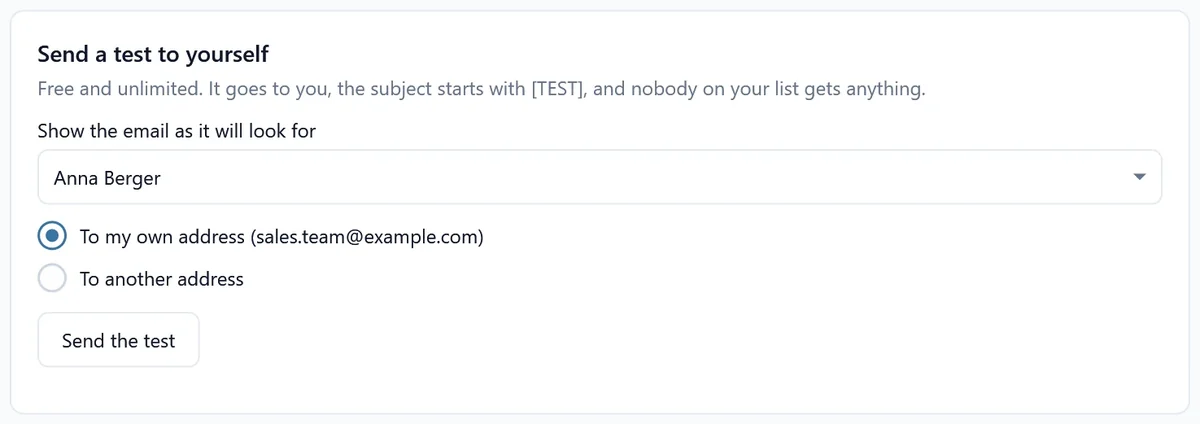
Then send a real test. In Word, merge a copy of the list that holds only your own address. In SheetCourier, the Send step has Send a test to yourself. It shows the email as it will look for any person you pick, the subject starts with TEST, and nobody on your list gets anything.
Sending limits
The limit comes from your email provider, not from Excel. A free Gmail account allows about 500 emails a day, Google Workspace about 2,000, and Outlook.com a few hundred. Work accounts on Microsoft 365 allow more. Go over the limit and the provider stops your emails for the rest of the day.
| Email account | About how many emails a day |
|---|---|
| Gmail | 500 |
| Google Workspace | 2,000 |
| Outlook.com or Hotmail | 300 |
| Microsoft 365 work or school | 10,000 recipients, 30 emails a minute |
| Yahoo | 500 |
| iCloud | 1,000 |
Providers change these numbers and new accounts often get lower ones, so treat them as a ceiling, not a target. Word sends everything at once and does not count. SheetCourier keeps count per account, stays a little below the limit and offers to send the rest the next day. The details are in my daily sending limits guide.
A mail merge from your own mailbox is for people who expect to hear from you: your team, customers, members, students. For a newsletter to thousands of people, use a newsletter service. Cold emails to a bought list break your provider’s rules whatever tool you use.
Troubleshooting
Most failures come from four things: Word cannot find classic Outlook, a field does not match a column name, the Excel file is open or the data sits on the wrong sheet, or the provider refuses the sign-in or the daily volume. Each has a quick fix.
- Word says there is no email program, or nothing happens after Finish & Merge. Word needs classic Outlook as the default email program. Turn off the New Outlook switch, or open Outlook (classic) from the Start menu, and run the merge again.
- Dates or amounts look wrong in Word. Word often ignores Excel’s number format, so $480.00 arrives as 480 and dates come out in a different format. Add a text column in Excel with
=TEXT(F2,"mmm d")or=TEXT(G2,"$#,##0.00")and merge that column instead. - “Hi ,” at the top of an email. The cell is empty. Fill it, or use a fallback such as
{{First name|there}}in SheetCourier. - A field shows up unfilled. The column was renamed in Excel. Rename it back, or change the field in your message.
- Gmail refuses the password. Gmail needs an app password for other apps, not your normal password. Turn on 2-Step Verification first, then create the app password.
- The emails stop halfway. You hit the provider’s daily limit. Wait a day and send to the people who did not get it yet.
- Emails land in spam. Send to people who know you, skip shortened links and all-caps subjects, and set up your domain for sending if you use your own domain.
Mail merge from Excel through your own Outlook, Gmail or other email account, without Word. Each person can get their own file and their own rows of a table. Try it with 100 free emails, every feature included.