
How to Integrate ChatGPT into Excel With VBA
A VBA module in your Personal Macro Workbook sends the selected cells to the OpenAI API and writes the answer to a new sheet. You can run it from the Quick Access Toolbar, a button on the sheet or your own add-in, in any workbook. You need desktop Excel on Windows and your own OpenAI API key.
Update (November 2026): The models in the videos (text-davinci-003, gpt-4, gpt-3.5-turbo) have been shut down by OpenAI, so both modules on GitHub now use gpt-6-luna, and the code below is that current version.
Table of contents

What you need
The macro talks to the OpenAI API directly, so it needs an API key and a paid API balance, not a ChatGPT subscription. It runs in desktop Excel on Windows; the code exits with a message on a Mac.
-
Create an OpenAI account. Sign in at platform.openai.com and add a payment method or prepaid balance under Billing. Without it, every request fails with a 429 error.
-
Create a secret key. Open the API keys page, create a new key and copy it. Keep it private: anyone with the key can run requests on your bill.
-
Download the module. Get
mChatGPT.basfrom one of the two repositories listed under Resources at the end of this post.
There are two versions of the module. The one from the video above (Integrate-GPT4-in-Excel-using-VBA) has more checks and a system message setting, but it also needs JsonConverter.bas and the Microsoft Scripting Runtime reference. The single-file version (Integrate-ChatGPT-in-Excel-using-VBA) needs nothing else, and its full code is in the next sections.
Set up the module
Store the code in your Personal Macro Workbook (PERSONAL.XLSB). Excel opens that hidden workbook every time it starts, so the macro is available in every file, including normal .xlsx workbooks.
-
Show the Developer tab. Right-click the ribbon, choose Customize the Ribbon, tick Developer and click OK.
-
Create the Personal Macro Workbook. On the Developer tab click Record Macro, set “Store macro in” to Personal Macro Workbook, click OK and stop the recording straight away. That is enough to create PERSONAL.XLSB.
-
Import the code. Press Alt+F11, select the PERSONAL.XLSB project and use File, Import File to add
mChatGPT.bas(andJsonConverter.basfor the video version). For that version also tick Microsoft Scripting Runtime under Tools, References. -
Add your key. Paste your key into the constant at the top of the module (
API_KEYin the single-file version,OPENAI_API_KEYin the video version) and save PERSONAL.XLSB.
To ask a question, type a prompt into a cell, select that cell (or several cells) and run the macro. The single-file version writes the answer to a sheet called Result, the video version to a sheet called AI_OUTPUT.
The VBA code
This is the complete single-file module. It joins the selected cells into one prompt, sends it to the Chat Completions endpoint and writes each line of the answer into its own row.
The model is the MODEL constant. To use another one, change that line to a name from OpenAI’s model list. REASONING_EFFORT trades speed and cost against answer quality, and MAX_TOKENS caps the answer length.
Option Explicit

'#################################################################################
'##  Title:   ChatGPT Chat Completions using OpenAI API
'##  Author:  Sven from CodingIsFun
'##  Website: https://pythonandvba.com
'##  YouTube: https://youtube.com/@codingisfun
'##
'##  Updated: November 2026 (text-davinci-003 and the "completions" endpoint were shut down
'##           by OpenAI, so the script now uses the "chat/completions" endpoint)
'##
'##  Description: This VBA script uses the OpenAI API endpoint "chat/completions" to generate
'##               a text completion based on the selected cell and displays the result in a
'##               worksheet called OUTPUT_WORKSHEET. If the worksheet does not exist, it will be
'##               created. The API key is required to use the API, and it should be added as a
'##               constant at the top of the script.
'##               To get an API key, sign up at https://platform.openai.com/api-keys
'#################################################################################

'=====================================================
' GET YOUR API KEY: https://platform.openai.com/api-keys
Const API_KEY As String = "<API_KEY>"
'=====================================================

' Constants for API endpoint and request properties
Const API_ENDPOINT As String = "https://api.openai.com/v1/chat/completions"

' MODEL: change this line to use another OpenAI model.
' List of current models: https://developers.openai.com/api/docs/models
Const MODEL As String = "gpt-6-luna"

' Maximum number of tokens the model may generate (this includes its internal reasoning)
Const MAX_TOKENS As String = "4096"

' Reasoning effort: "low" keeps answers fast and cheap. Other options: "medium", "high"
' (Current GPT models no longer accept the old "temperature" setting together with reasoning.)
Const REASONING_EFFORT As String = "low"

'Output worksheet name
Const OUTPUT_WORKSHEET As String = "Result"


Sub OpenAI_Completion()

    #If Mac Then
10            MsgBox "This macro only works on Windows. It is not compatible with macOS.", _
                  vbOKOnly, "Windows Compatibility Only"
20            Exit Sub
    #End If

30        On Error GoTo ErrorHandler
40        Application.screenupdating = False

          ' Check if API key is available
50        If API_KEY = "<API_KEY>" Then
60            MsgBox "Please input a valid API key. You can get one from https://openai.com/api/", vbCritical, "No API Key Found"
70            Application.screenupdating = True
80            Exit Sub
90        End If

          ' Get the prompt
          Dim prompt As String
          Dim cell As Range
          Dim selectedRange As Range
100       Set selectedRange = Selection

110       For Each cell In selectedRange
120           prompt = prompt & cell.Value & " "
130       Next cell

          ' Check if there is anything in the selected cell
140       If Trim(prompt) <> "" Then
              ' Clean prompt to avoid parsing error in JSON payload
150           prompt = CleanJSONString(prompt)
160       Else
170           MsgBox "Please enter some text in the selected cell before executing the macro", vbCritical, "Empty Input"
180           Application.screenupdating = True
190           Exit Sub
200       End If

          ' Create worksheet if it does not exist
210       If Not WorksheetExists(OUTPUT_WORKSHEET) Then
220           Worksheets.Add(After:=Sheets(Sheets.Count)).name = OUTPUT_WORKSHEET
230       End If

          ' Clear existing data in worksheet
240       Worksheets(OUTPUT_WORKSHEET).UsedRange.ClearContents

          ' Show status in status bar
250       Application.StatusBar = "Processing OpenAI request..."

          ' Create XMLHTTP object
          Dim httpRequest As Object
260       Set httpRequest = CreateObject("MSXML2.XMLHTTP")

          ' Define request body
          Dim requestBody As String
270       requestBody = "{" & _
              """model"": """ & MODEL & """," & _
              """messages"": [{""role"": ""user"", ""content"": """ & prompt & """}]," & _
              """max_completion_tokens"": " & MAX_TOKENS & "," & _
              """reasoning_effort"": """ & REASONING_EFFORT & """" & _
              "}"

          ' Open and send the HTTP request
280       With httpRequest
290           .Open "POST", API_ENDPOINT, False
300           .SetRequestHeader "Content-Type", "application/json"
310           .SetRequestHeader "Authorization", "Bearer " & API_KEY
320           .send (requestBody)
330       End With

          'Check if the request is successful
340       If httpRequest.Status = 200 Then
              'Parse the JSON response
              Dim response As String
350           response = httpRequest.responseText

              'Get the completion and clean it up
              Dim completion As String
360           completion = ParseResponse(response)

              'Stop if the response contains no text (for example, when MAX_TOKENS is too low)
361           If completion = "" Then
362               MsgBox "The request worked, but the response contains no text." & vbCrLf & vbCrLf & response, vbExclamation, "Empty Response"
363               Application.StatusBar = False
364               Application.screenupdating = True
365               Exit Sub
366           End If

              'Split the completion into lines
              Dim lines As Variant
370           lines = Split(completion, "\n")

              'Write the lines to the worksheet
              Dim i As Long
380           For i = LBound(lines) To UBound(lines)
390               Worksheets(OUTPUT_WORKSHEET).Cells(i + 1, 1).Value = ReplaceBackslash(lines(i))
400           Next i

              'Auto fit the column width
410           Worksheets(OUTPUT_WORKSHEET).Columns.AutoFit

              ' Show completion message
420           MsgBox "OpenAI completion request processed successfully. Results can be found in the 'Result' worksheet.", vbInformation, "OpenAI Request Completed"

              'Activate & color result worksheet
430           With Worksheets(OUTPUT_WORKSHEET)
440               .Activate
450               .Range("A1").Select
460               .Tab.Color = RGB(169, 208, 142)
470           End With

480       Else
490           MsgBox "Request failed with status " & httpRequest.Status & vbCrLf & vbCrLf & "ERROR MESSAGE:" & vbCrLf & httpRequest.responseText, vbCritical, "OpenAI Request Failed"
500       End If

510       Application.StatusBar = False
520       Application.screenupdating = True

530       Exit Sub

ErrorHandler:
540       MsgBox "Error " & Err.Number & ": " & Err.Description & vbCrLf & "Line: " & Erl, vbCritical, "Error"
550       Application.StatusBar = False
560       Application.screenupdating = True

End Sub
' Helper function to check if worksheet exists
Function WorksheetExists(worksheetName As String) As Boolean
570       On Error Resume Next
580       WorksheetExists = (Not (Sheets(worksheetName) Is Nothing))
590       On Error GoTo 0
End Function
' Helper function to parse the response text
' Returns the text of the first answer (choices > message > content).
' Escaped characters such as \n and \" are kept and handled later in the macro.
Function ParseResponse(ByVal response As String) As String
600       On Error Resume Next
          Dim pos As Long
          Dim ch As String
          ' Find the "content" field of the answer
605       pos = InStr(response, """content"":")
610       If pos = 0 Then Exit Function
615       pos = pos + Len("""content"":")
          ' Skip spaces and line breaks after the colon
620       Do While pos <= Len(response) And InStr(" " & vbTab & vbCr & vbLf, Mid(response, pos, 1)) > 0
625           pos = pos + 1
630       Loop
          ' The content must be text (it is null if the model refused to answer)
635       If Mid(response, pos, 1) <> """" Then Exit Function
640       pos = pos + 1
          ' Read until the closing quote. A backslash escapes the next character (\" or \n)
645       Do While pos <= Len(response)
650           ch = Mid(response, pos, 1)
655           If ch = "\" Then
660               ParseResponse = ParseResponse & Mid(response, pos, 2)
665               pos = pos + 2
670           ElseIf ch = """" Then
675               Exit Do
680           Else
685               ParseResponse = ParseResponse & ch
690               pos = pos + 1
695           End If
698       Loop
699       On Error GoTo 0
End Function
' Helper function to clean text
Function CleanJSONString(inputStr As String) As String
650       On Error Resume Next
          ' Escape backslashes so they do not break the JSON payload
655       CleanJSONString = Replace(inputStr, "\", "\\")

          ' Remove line breaks and tabs
660       CleanJSONString = Replace(CleanJSONString, vbCrLf, "")
670       CleanJSONString = Replace(CleanJSONString, vbCr, "")
680       CleanJSONString = Replace(CleanJSONString, vbLf, "")
685       CleanJSONString = Replace(CleanJSONString, vbTab, " ")

          ' Replace all double quotes with single quotes
690       CleanJSONString = Replace(CleanJSONString, """", "'")
700       On Error GoTo 0
End Function
' Replaces the backslash character only if it is immediately followed by a double quote.
Function ReplaceBackslash(text As Variant) As String
710       On Error Resume Next
          Dim i As Integer
          Dim newText As String
720       newText = ""
730       For i = 1 To Len(text)
740           If Mid(text, i, 2) = "\" & Chr(34) Then
750               newText = newText & Chr(34)
760               i = i + 1
770           Else
780               newText = newText & Mid(text, i, 1)
790           End If
800       Next i
810       ReplaceBackslash = newText
820       On Error GoTo 0
End Function
Quick Access Toolbar
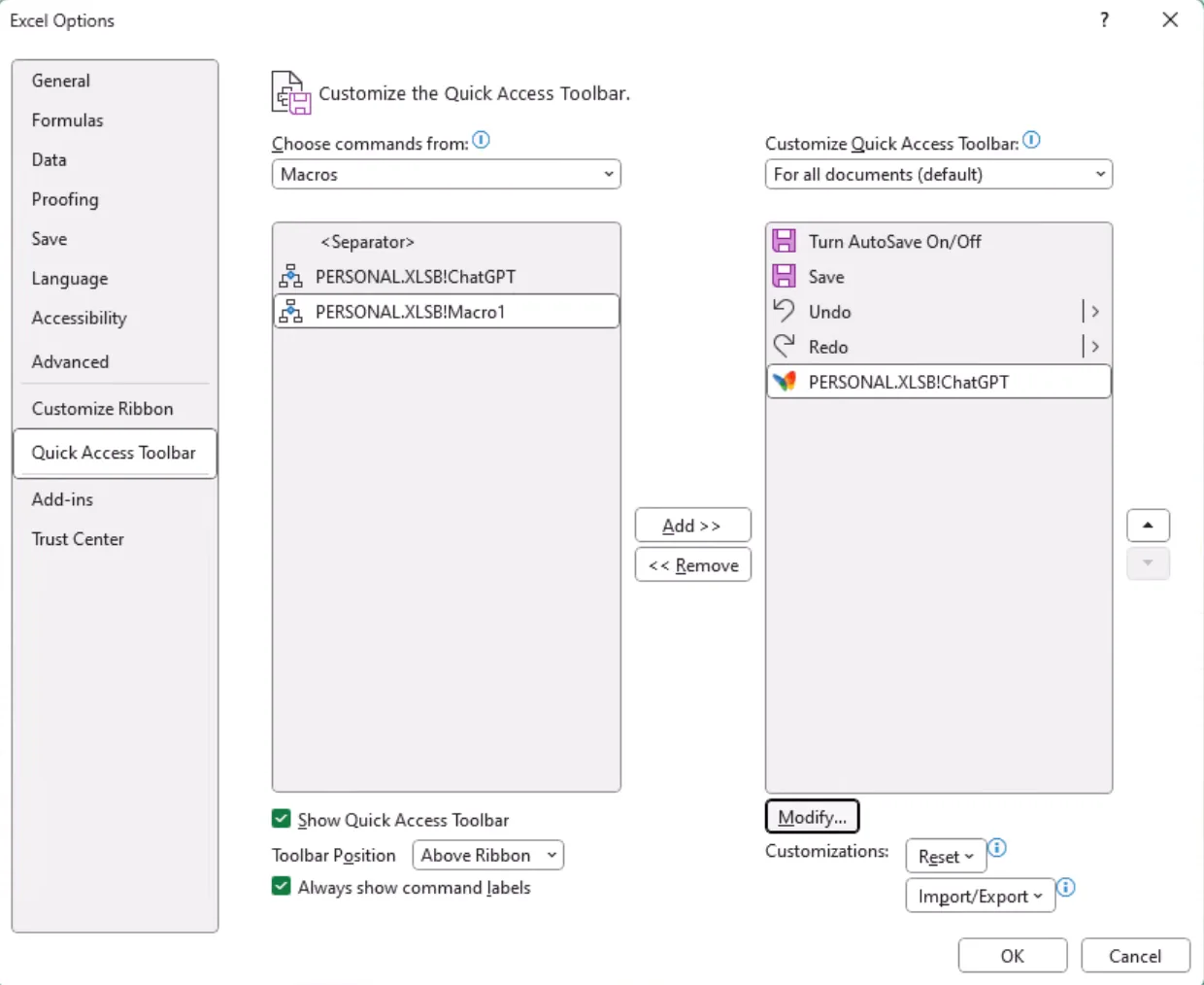
A Quick Access Toolbar button is the most convenient way to run the macro, because the toolbar is there in every workbook. Type a prompt, select the cell and click the button.
Open the toolbar dropdown, choose More Commands, set “Choose commands from” to Macros, select the macro from PERSONAL.XLSB and click Add. Modify lets you pick an icon.
A button on the sheet
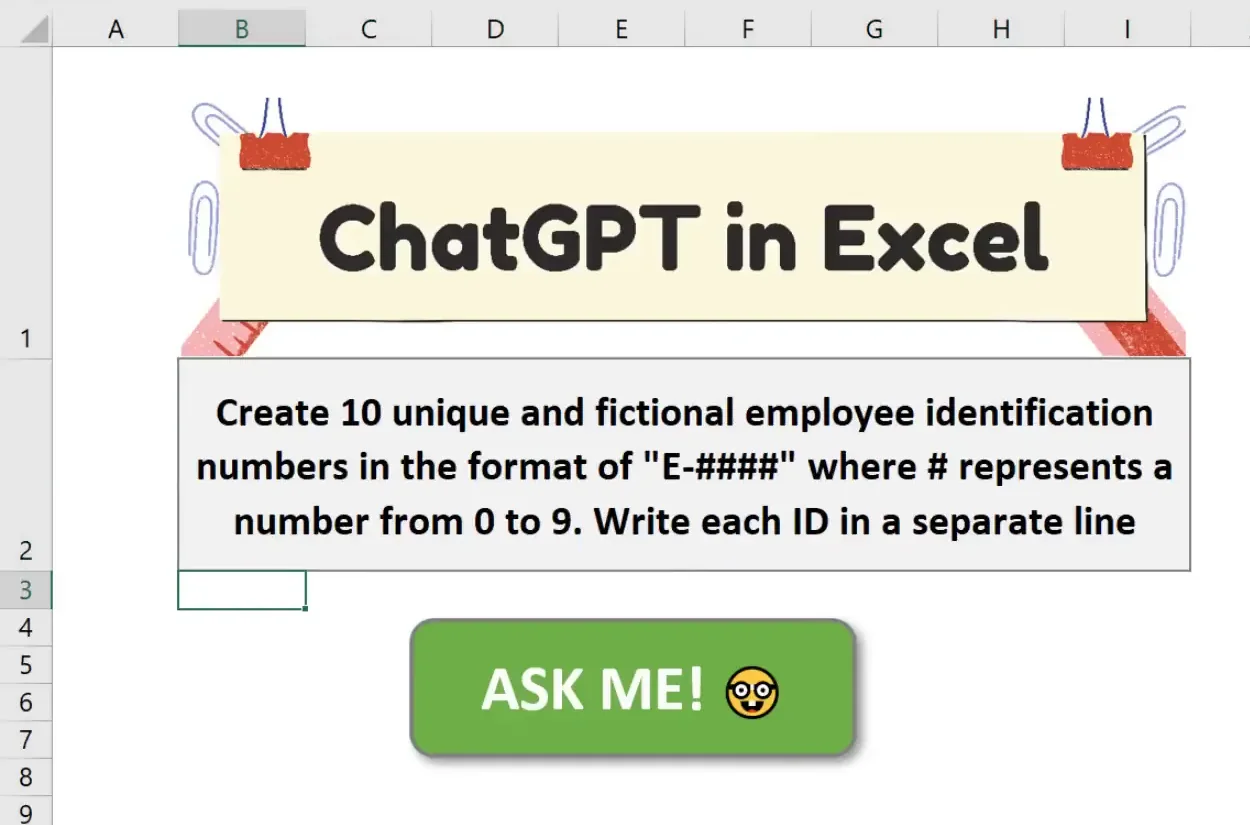
A button on the worksheet suits a workbook you share or a dedicated prompt sheet like the one at the top of this post. It works the same way: select the prompt, click the button.
On the Developer tab click Insert, choose Button (Form Control), draw it on the sheet and assign the macro. If the code lives in PERSONAL.XLSB, the button only works on a PC that has the same Personal Macro Workbook, so for a shared file put the module into the workbook itself and save it as .xlsm.
Your own add-in
Packing the module into your own add-in gives it a ribbon tab and makes it easy to install on another PC. The custom tab in the video has an Ask ChatGPT button next to a few helper tools.

The steps, from the ribbon XML to the .xlam file, are in my walkthrough on creating a custom Excel add-in.
Prompt examples
Anything you would type into ChatGPT works as a prompt, but the answer arrives as plain text, one line per row. Prompts that ask for a list, a formula or code give the most useful results on a sheet.
Trip plans. “Create an itinerary for a day trip to Barcelona, Spain” returns a schedule, one stop per row, on the Result sheet within a few seconds.
Sample data. Ask for test data in an exact format, and say how you want it laid out:
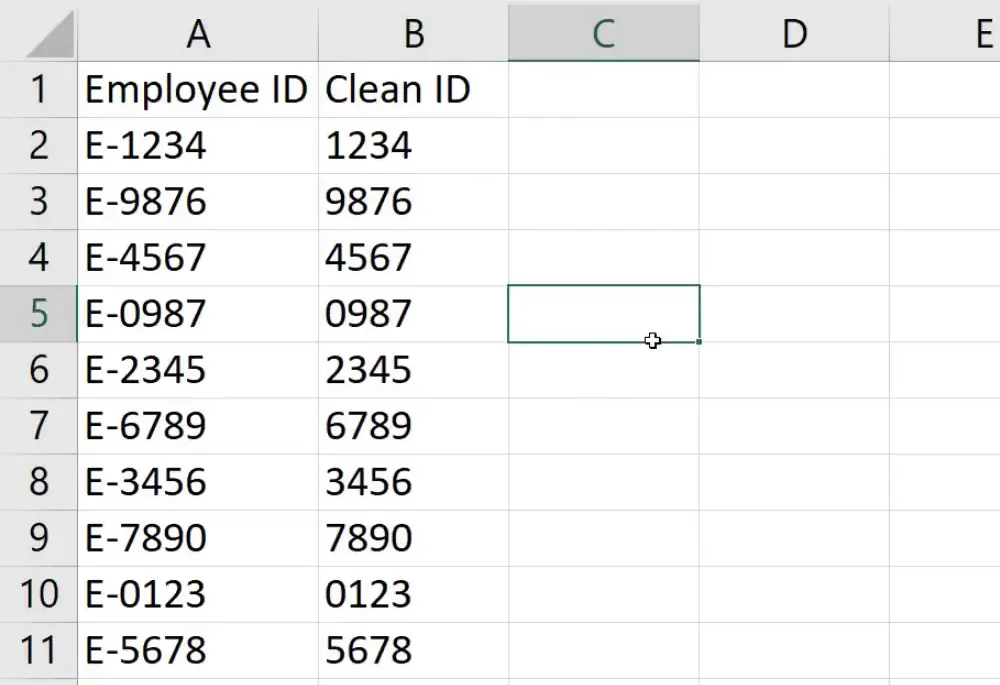
Formulas. Paste one example value and ask for the formula that extracts what you need, such as the number from an ID like E-1234. Check the suggestion on a few rows, then fill it down.
VBA code. “Write VBA that saves each worksheet of the current workbook as a separate file” returned working code. I copied it from the Result sheet into the VBA editor and only had to change the folder path. The same job without AI is in saving Excel sheets as separate workbooks, and more examples, with the fixes the generated code needed, are in four macros ChatGPT wrote for me.
Any workbook. Because the macro sits in PERSONAL.XLSB, it also answers in a plain .xlsx file:
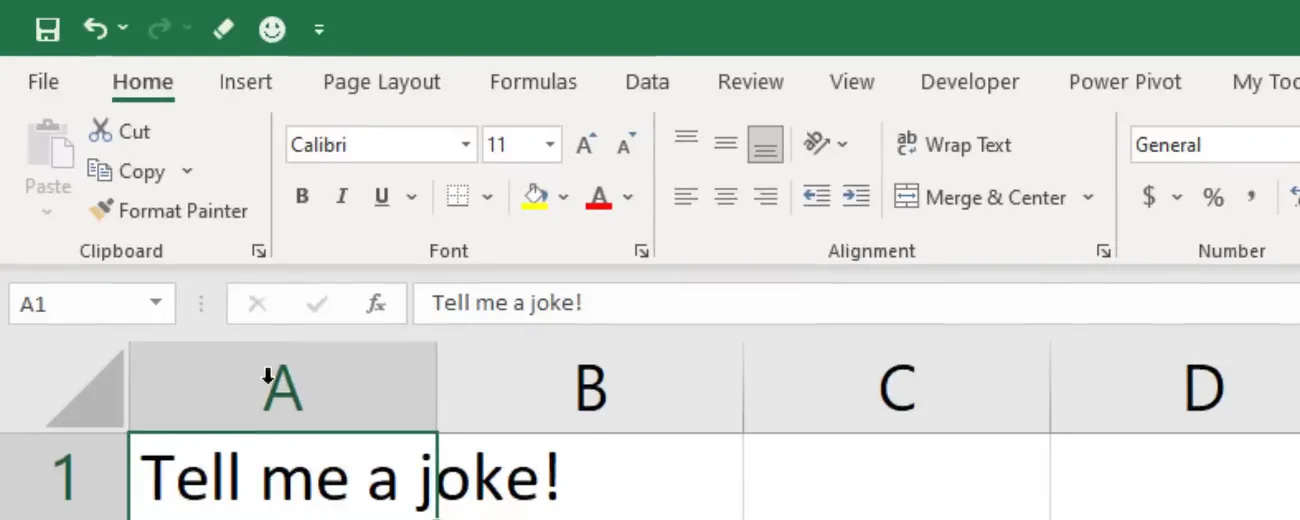
The idea for this setup came from Leila Gharani’s video, which does the same with Office Scripts; I rebuilt it in VBA.
Troubleshooting
Most failures show up as a message box with the status code and OpenAI’s error text. These are the ones I see most often.
- 401, invalid API key. The key is wrong, revoked or pasted with an extra space. Create a new key and paste it again.
- 429, exceeded your current quota. The account has no balance. Add billing details or credit on the OpenAI platform.
- 404 or “model does not exist”. The model name in the module is retired or not available to your account. Change the model constant to a current model from OpenAI’s list.
- Empty Response. The request worked but no text came back, usually because
MAX_TOKENSran out during the model’s reasoning. Raise it or set the reasoning effort to “low”. - Old model still in the demo workbook. The Demo_ChatGPT.xlsm files in both repositories may still contain the old module. Delete it in the VBA editor and import the current
mChatGPT.bas. - “Programmatic access to Visual Basic Project is not trusted” (video version). Its reference check reads the VBA project. Tick “Trust access to the VBA project object model” under File, Options, Trust Center, Trust Center Settings, Macro Settings, or use the single-file version.
- “That name is already taken” on the second run (video version). From PERSONAL.XLSB, the module looks for the AI_OUTPUT sheet in the personal workbook, does not find it and tries to create it again in your workbook. Delete or rename the old AI_OUTPUT sheet before the next prompt, or use the single-file version, which reuses its Result sheet.
The same VBA pattern works with other providers: Gemini in Excel and DeepSeek in Excel each need one API key. To send a chart instead of text, see my AI chart analyzer for Excel. If you prefer Python to VBA, the xlwings Lite version calls OpenAI from Python inside Excel.
The ready-made option
If you would rather not maintain VBA, my MyToolBelt add-in has the same idea built in. It stores your API key in a settings window, lets you pick the model, and adds an Ask AI worksheet formula next to the AI Companion button.

The free version includes basic AI with five AI formulas per sheet; Pro unlocks the full AI settings without that limit. The formula is covered in my guide to the Ask AI formula.
The video also shows another MyToolBelt feature: it creates a Jupyter Notebook for a selected range that reads the data into a pandas DataFrame.
from pathlib import Path  # Python Standard Library
import pandas as pd  # pip install pandas openpyxl

# Read Excel file (CodingIsFun.xlsm) into a pandas DataFrame.
this_dir = Path(__file__).parent if "__file__" in locals() else Path.cwd()
wb_file_path = this_dir / "CodingIsFun.xlsm"
df = pd.read_excel(
    io=wb_file_path,
    engine="openpyxl",
    sheet_name="Demo",
    skiprows=3,
    usecols="B:D",
    nrows=4,
)
df
Year Sales Profit
0 2019 31514 6302.800
1 2020 30706 3531.190
2 2021 48546 9320.832
3 2022 37249 7822.290If you would rather not build and maintain the macro yourself, this is the finished version: ChatGPT as a worksheet formula and a button. The free version includes five AI formulas per sheet.