
How to Send a Mass Text Without a Group Chat
To send a mass text without a group chat, send each person their own individual text instead of one group message. You can do that with a phone setting, an online texting platform with a business number, or a PC app that sends one-to-one texts from your own Android phone. Get consent first, keep the text short, and add an opt-out line.
Table of contents
- Why is a group text the wrong way to send a mass text?
- What are the ways to send a mass text?
- Which mass text option should you pick?
- How do I send a mass text from my own number with a PC?
- How do I write a mass text people answer?
- What are some good mass text examples?
- Is it legal to send a mass text?
- How many people can I text at once from my phone?
- What are the most common mass text mistakes?
Why is a group text the wrong way to send a mass text?
A group text puts everyone into one shared conversation. Every recipient sees every other number, and every reply goes to the whole group. That is fine for five friends planning dinner. For customers, members or tenants it leaks phone numbers and floods people with replies.
A mass text, a text blast and bulk SMS are the same thing: one message sent to many people at once. The word changes by country. In the US people say mass text or text blast. In the UK and Australia it is usually bulk SMS.
Type twenty numbers into one message and your phone turns it into a group conversation, usually sent as MMS, which needs mobile data and can arrive late. When one person answers “Sounds good”, everyone gets that too. People mute the thread and miss your next message. And a parent in your soccer club never agreed to share their number with thirty other parents.
What you want instead is the same message sent as separate texts. Each person sees only your number and replies only to you.
What are the ways to send a mass text?
There are four practical ways: a group chat on your phone, a phone setting that sends separate texts, an online texting platform that uses a business number, or a desktop app that sends individual texts from your own phone. Each one fits a different list size and purpose.
1. A group chat on your phone
This is what most people try first: add the contacts, write the message, hit send. It costs nothing extra and needs no setup.
It works for a few people who already know each other, like your family or five volunteers who are happy to share numbers. It breaks down with customers or a bigger club. Everyone sees everyone’s number, replies go to the whole group, you cannot use first names, and group size is capped. There is no opt-out either. People just mute the chat.
2. Your phone’s option to send separate texts
Some Android messaging apps have a group messaging setting that sends a message to several people as individual SMS instead of one group chat. Replies then come back to you one by one. Many phones have no such switch at all.
It is better than a group chat, but everyone gets the exact same wording, so no names and no appointment times. You still pick recipients by hand on a small screen. The setting usually applies to every group message, including the ones to friends. And nothing tracks who replied STOP.
3. An online texting platform with a business number
This is the classic bulk SMS service. You upload a list to a website, and the platform sends from a number it gives you. It is built for volume, scheduling and automation, and it handles thousands of messages without trouble.
The trade-offs are cost and setup. In the US, business texting from a regular 10-digit number needs 10DLC registration with the carriers, which means paperwork and a wait. You pay per message segment, plus fees. Recipients see a number they do not recognize, which lowers replies, and the replies land in a web dashboard instead of on your phone. I explain the difference in detail in my post on A2P vs P2P text messaging.
4. Individual texts from your own number, sent from a PC
A desktop app on your PC sends one text per person through your own Android phone. That is what I built QuickText SMS for. If you used my old Excel-based QuickText template, this Windows app replaces it.
Each person gets their own SMS from the number they already know, with their first name or appointment time in it. Replies come back one to one, and you answer them from your keyboard. There is no new number and no per-message fee from the app. Your normal mobile plan and its limits apply.
The limits: you need a Windows PC and an Android phone with an active SIM, so no iPhone. It sends SMS and picture messages (MMS), at a steady pace instead of all at once. Picture messages need mobile data and a plan with MMS.
Which mass text option should you pick?
Pick by list size and by whether you want replies. A group chat suits a few friends. A phone setting suits a small list with identical wording. A platform suits thousands of automated texts. Your own number from a PC suits tens to a few hundred people who know you.
| Option | Recipients see each other | Uses names | Replies go to | Best for |
|---|---|---|---|---|
| Group chat | Yes | No | Everyone | Friends and family |
| Phone setting for separate texts | No | No | You | Small lists, same wording |
| Online platform, business number | No | Yes | A web dashboard | Thousands of texts, automation |
| Your own number from a PC | No | Yes | You, one to one | Tens to hundreds of people who know you |
Most small businesses, clubs, churches, teams, landlords and teachers text 20 to 300 people who already know them. That is where your own number works best, so the rest of this guide uses that option.
How do I send a mass text from my own number with a PC?
Install QuickText on your Windows PC, pair your Android phone through the free KDE Connect app, import your contacts, write one message with name placeholders, check it, send yourself a test, and then send. Each person gets a separate text from your number.
Step 1: Pair your Android phone
Install QuickText SMS from the Microsoft Store on your Windows 10 or 11 PC. On your Android phone, install the free KDE Connect app from Google Play or F-Droid. Put both on the same Wi-Fi, pair the phone with QuickText, and allow the SMS permission on the phone. Nothing else goes on the PC. It takes about five minutes. For every screen of the setup, see my guide to sending bulk SMS from a PC with an Android phone.
Step 2: Import your contacts
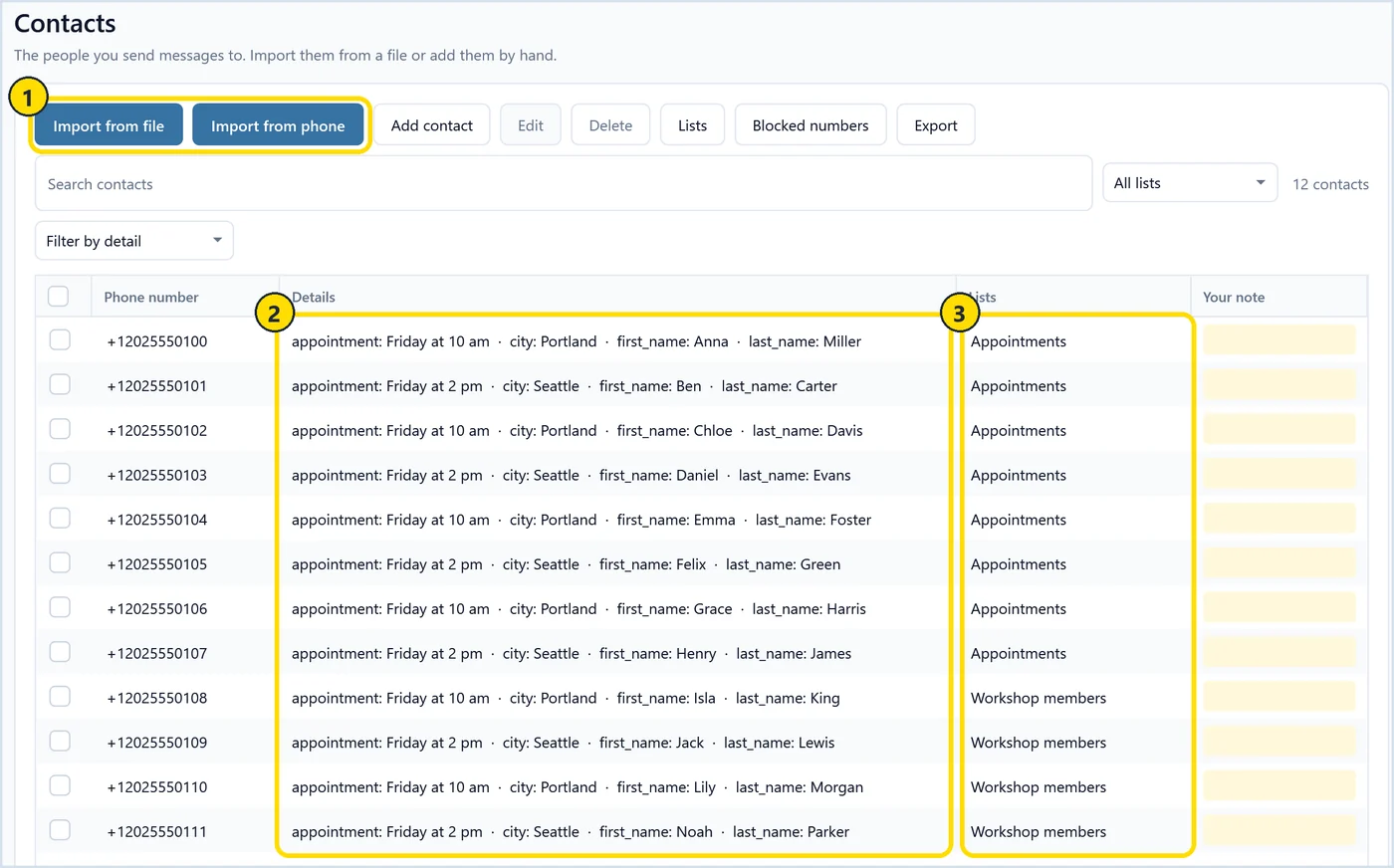
QuickText imports Excel (.xlsx), CSV and vCard (.vcf) files, or reads contacts straight from the phone (marker 1). Every extra column in your file becomes a contact detail you can drop into the message, such as first name, city or appointment time (marker 2). You can sort people into lists, for example one for workshop members and one for appointments (marker 3). If your list lives in a spreadsheet, my post on bulk SMS from an Excel list shows how to set up the columns.
Step 3: Write one message that reads like many
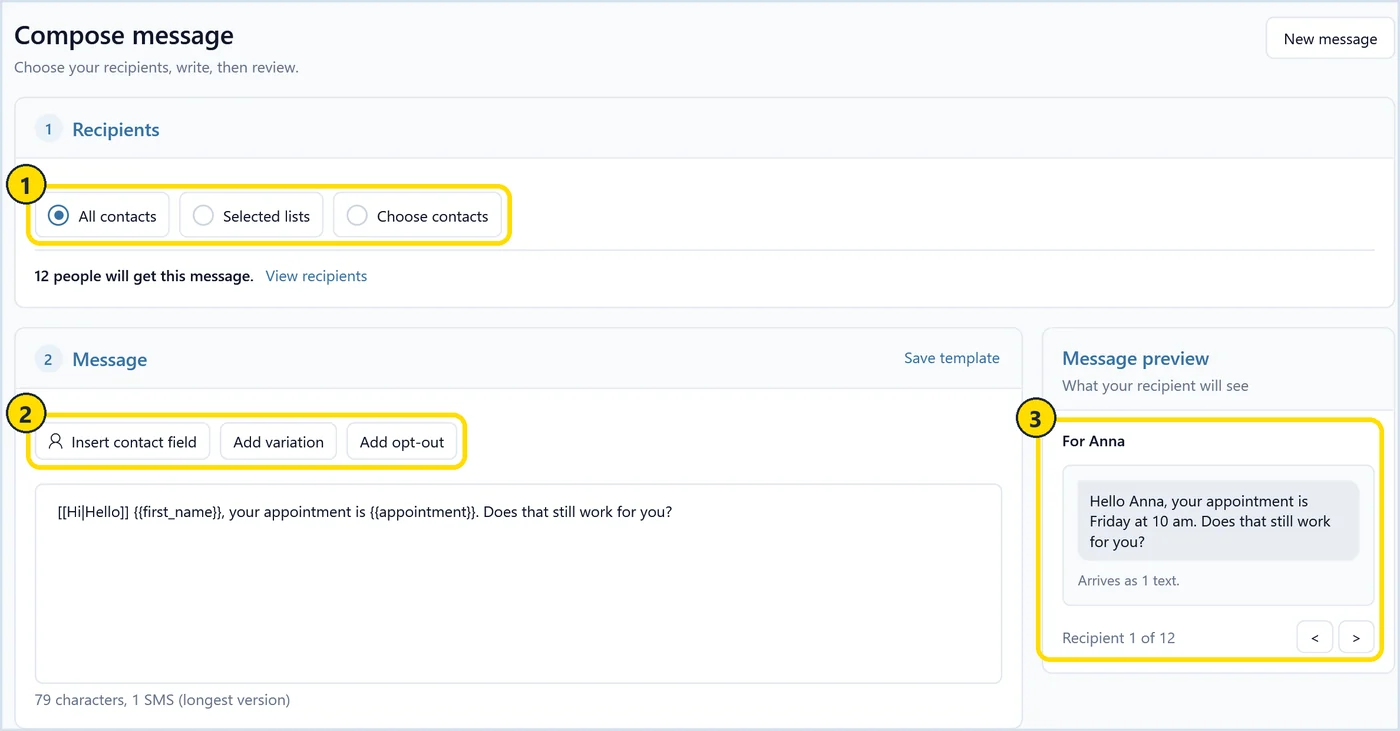
On the Compose page, pick who gets the text: all contacts, selected lists, or people you choose one by one (marker 1). Then write the message. Insert contact field adds placeholders such as {{first_name}}. Add variation adds wording choices like [[Hi|Hello]], so the texts are not all identical. Add opt-out appends an opt-out line (marker 2). The preview shows the exact text each person gets, recipient by recipient, and how many SMS segments it uses (marker 3).
Step 4: Check the message and set the pace
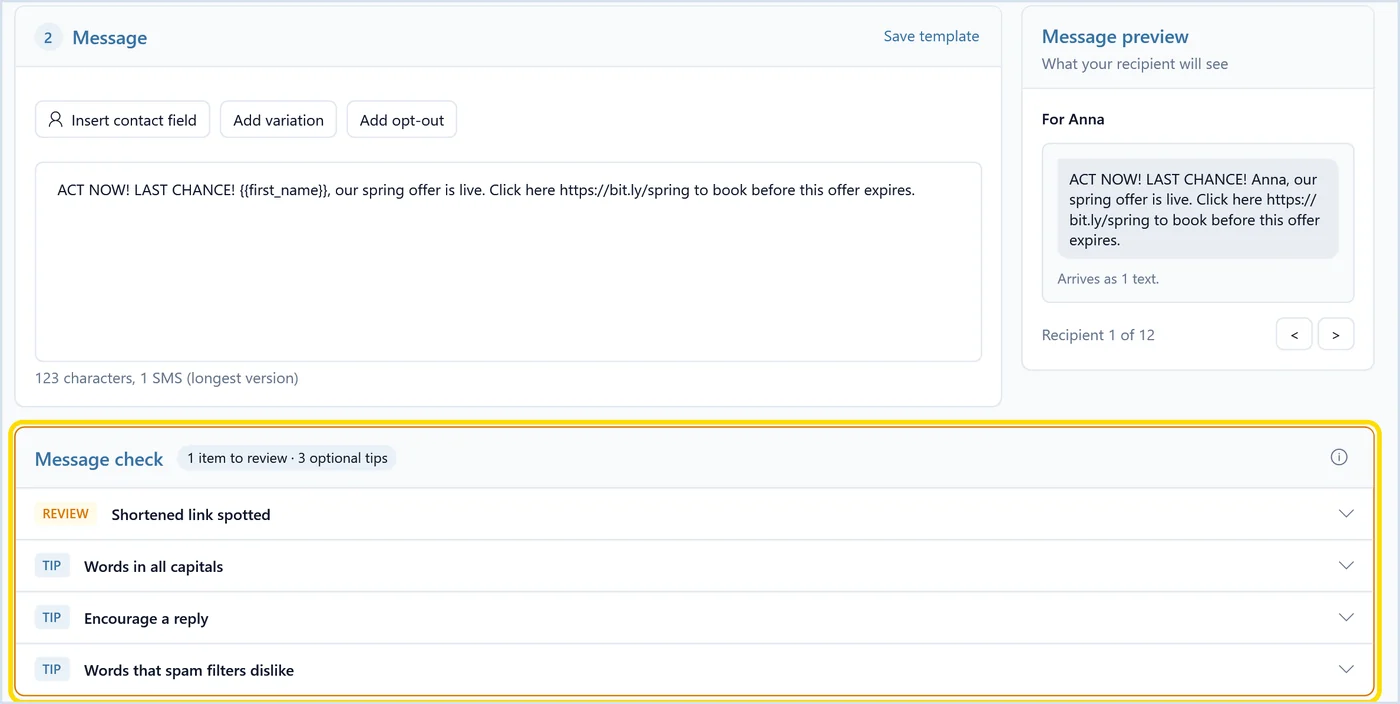
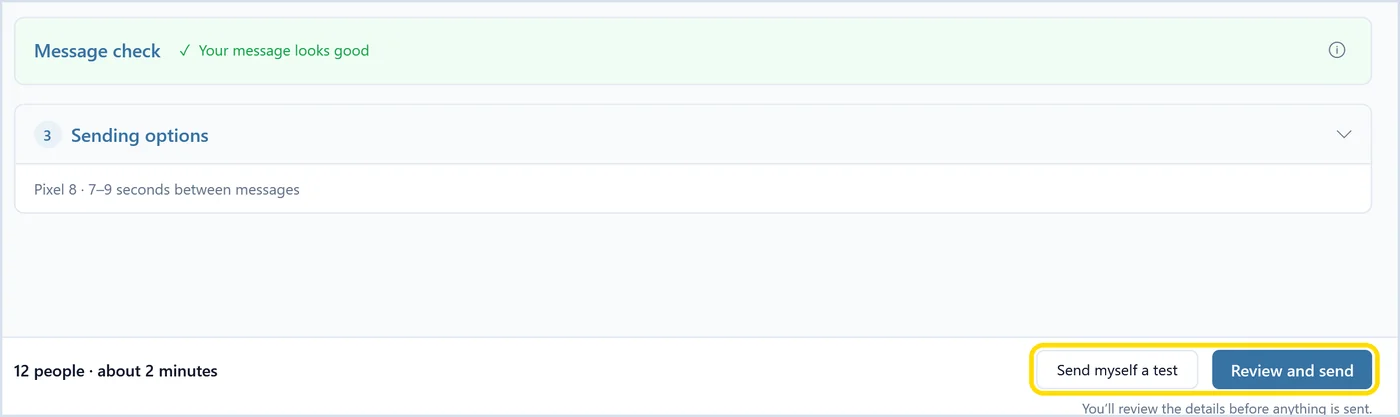
Before you send, QuickText runs a message check. It flags shortened links, words in all capitals and phrases that spam filters dislike, and suggests asking for a reply. It is advice, not a blocker. The draft below is deliberately bad.
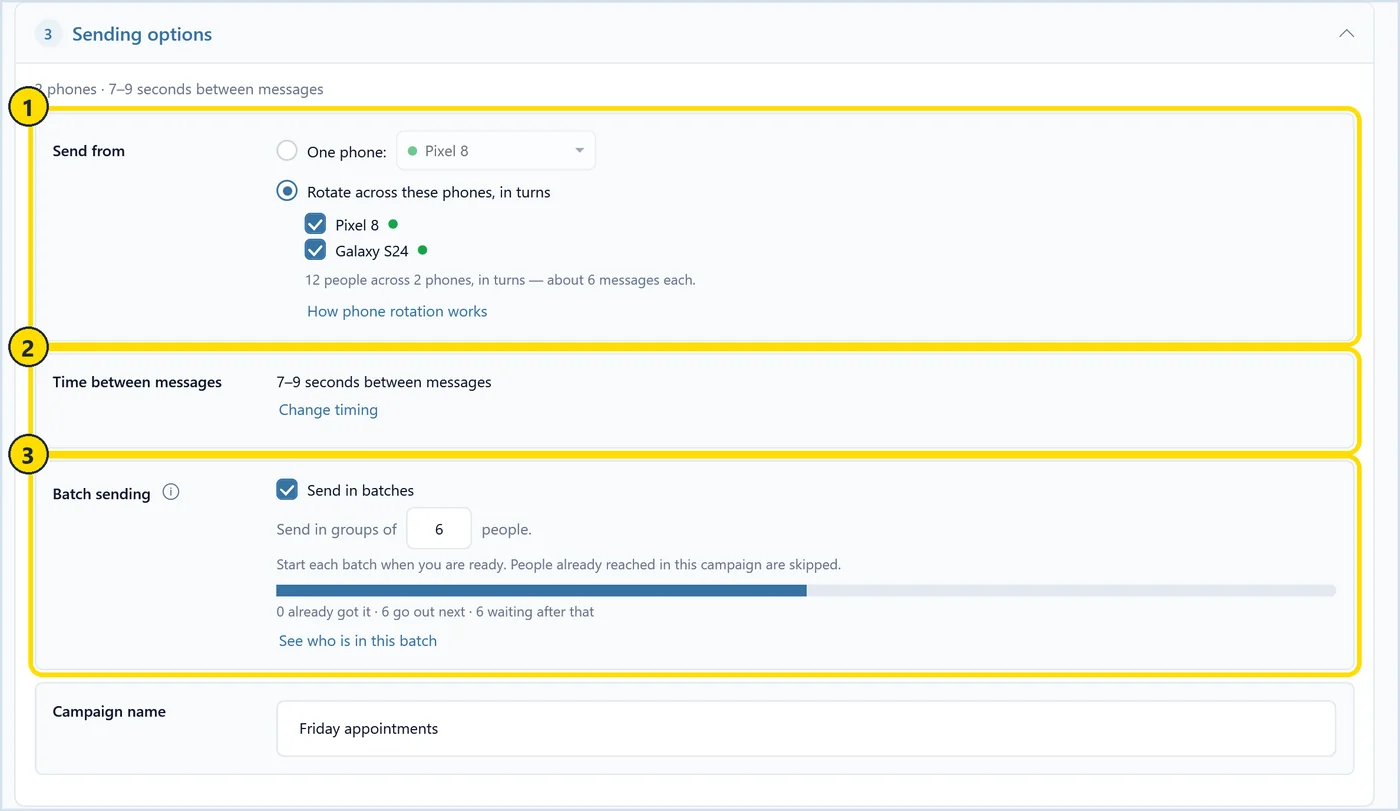
Then set the pace. By default QuickText waits 7 to 9 seconds between texts (marker 2). You can send in batches, such as groups of 6, and start each batch when you are ready (marker 3). If you paired two or more phones, it can rotate between them so each phone sends a share (marker 1).
Step 5: Send yourself a test, then review and send
Click Send myself a test to get the message on your own phone first. It is the quickest way to catch a broken placeholder. Then click Review and send. You see the number of people and an estimated time, and nothing goes out until you confirm.
Step 6: Answer the replies
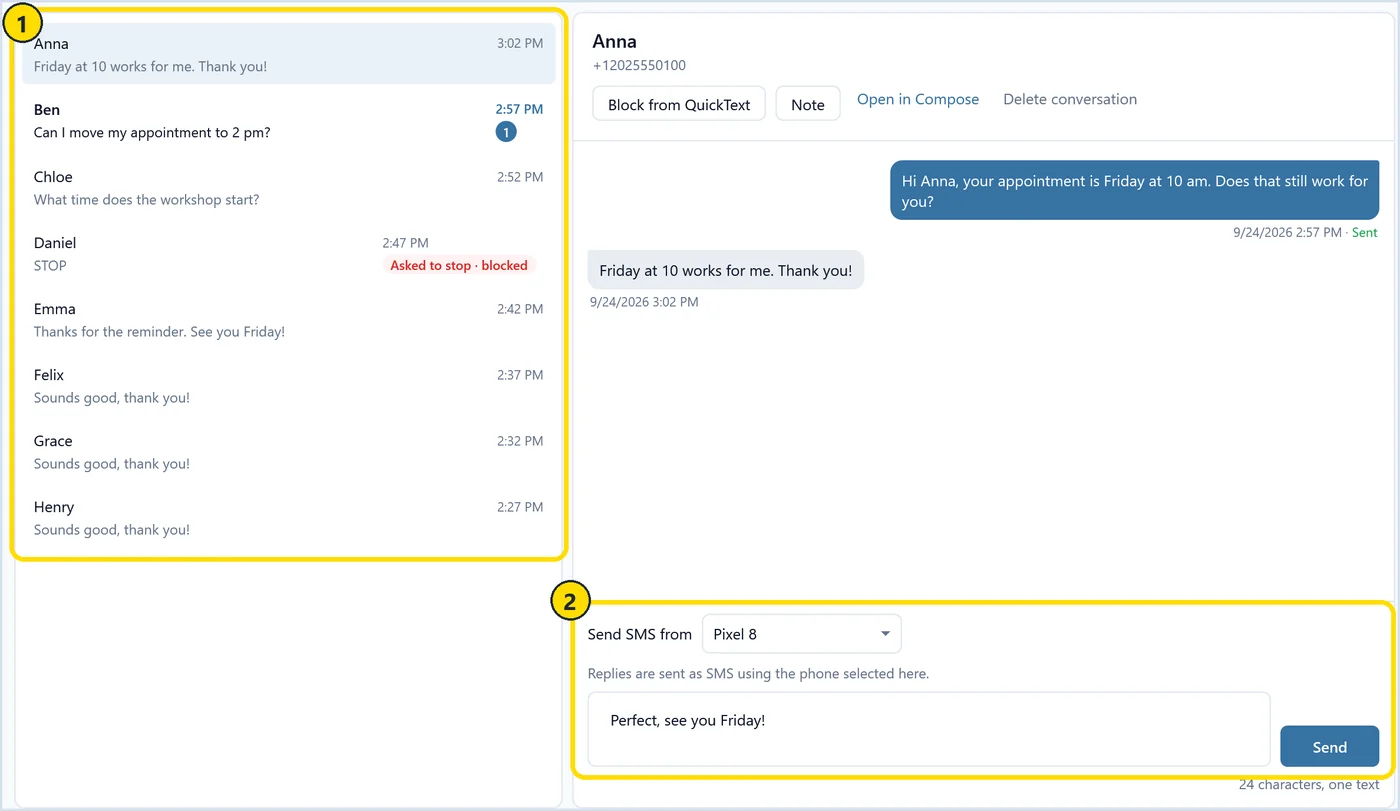
Replies show up on the Messages page, one conversation per person (marker 1). You answer from the PC keyboard and choose which phone sends the reply (marker 2). If someone replies STOP, QuickText puts the number on the block list automatically, so that person does not get your next mass text.
How do I write a mass text people answer?
Keep it short, use the person’s name, say who you are in the first line, make one clear ask, and end with an opt-out line. A text that reads like it came from a person gets replies. A text that reads like an ad gets ignored.
- Say who you are right away. “Hi Anna, it’s Maria from Oakridge Tennis Club” beats a bare message from a number she may not have saved.
- Ask one thing, ideally a yes or no question. “Can you make Saturday?” gets more answers than “let me know”.
- Skip all capitals, rows of exclamation marks and shortened links. They look like spam to people and to filters.
- Stay within one SMS segment of 160 plain characters when you can. One emoji or curly quote can drop that limit to 70 characters.
- Add a short opt-out line, like “Reply STOP to opt out”, to anything business related.
If you want a starting point, my free SMS template generator writes templates with placeholders and wording variations. The SMS spam checker scores a draft before you send it.
What are some good mass text examples?
Good mass texts are short, name the sender and ask for one thing. Here are four I would send: a club reminder, a customer update, an event change and a landlord notice. Swap the placeholders for your own contact fields.
Club reminder:
Hi {{first_name}}, it’s Maria from Oakridge Tennis Club. Practice moves to 6 pm this Thursday because of a court booking. Can you still make it? Reply STOP to opt out.
Customer update:
[[Hi|Hello]] {{first_name}}, this is Tom at Riverside Bikes. Your bike service is done and ready for pickup. We are open until 6 pm today and 9 to 5 tomorrow. Which day suits you?
Event change:
Hi {{first_name}}, Ann from Grace Community Church here. Sunday’s picnic moves indoors to the church hall because rain is forecast. Same time, 12 noon. Will your family still come? Reply STOP to opt out.
Landlord notice:
Hi {{first_name}}, it’s Dave, your landlord at {{address}}. The water will be off on Tuesday from 9 am to 12 noon for a pipe repair. Reply here if that causes a problem.
If most of your texts are reminders, I collected 25 ready-made appointment reminder text templates for salons, clinics, coaches and trades.
Is it legal to send a mass text?
Usually yes, if people agreed to hear from you, you say who you are, and you stop when they ask. Marketing texts to people who never gave consent can break the law in most countries. This is general information, not legal advice.
In the US, the Telephone Consumer Protection Act (TCPA) requires prior express written consent for marketing texts, and penalties run from $500 to $1,500 per message. In the UK, the PECR rules require consent for marketing texts, with a narrow exception for existing customers. In Australia, the Spam Act requires consent, a clear sender identity and a working way to unsubscribe.
A reminder to a club member who signed up, or an update to a customer about their own order, is on much safer ground than a promotion to a list you bought. Never text purchased or scraped numbers.
Honor STOP every time. QuickText adds a STOP reply to the block list automatically, and my docs page on handling opt-outs in QuickText explains how it works and how to unblock someone who asks to rejoin.
How many people can I text at once from my phone?
There is no single number. Carriers set their own limits and rarely publish them, and personal plans are meant for personal use. From one phone I would keep each batch to a few dozen texts and spread bigger lists over several sessions.
In my experience around 100 to 300 texts a day from one phone has been fine when spread over the day, but that is not a guaranteed allowance. Unlimited texting on a phone plan means unlimited personal texting. Many plans have fair-use terms against commercial bulk sending, and a carrier that sees hundreds of identical texts in a few minutes may slow down or block the line.
Pace matters as much as volume. At QuickText’s default of 7 to 9 seconds between texts, 12 people take about 2 minutes and 100 people take roughly 13 minutes. That rhythm looks much more like a person than a burst does.
If your list is bigger, split it into batches, send on different days, or pair a second phone and rotate between them. My guide on sending from multiple phones covers the rotation. If you need thousands of texts a day, a registered business platform is the better tool, and I say that even though I sell the other option.
What are the most common mass text mistakes?
The big ones are using a group chat for customers, texting people who never opted in, leaving out who you are, sending a broken placeholder, and blasting a whole list in one burst. Each of them costs you replies or gets your number flagged.
- Starting a group chat with customers or parents.
- Forgetting to say who you are. Many people have not saved your number.
- Pasting a shortened link or writing in all capitals.
- Skipping the test. A broken placeholder sends “Hi {{first_name}}” to your whole list.
- Ignoring replies. People answer a mass text like any other text.
- Texting someone again after they replied STOP.
- Sending late at night. In the US, marketing texts outside 8 am to 9 pm local time are a legal risk, and they annoy people everywhere.
Most of these come down to one habit: write the text as if it goes to one person, because that is how each person reads it.
Send a mass text from your own Android number as separate one-to-one texts, straight from your Windows PC. The download lets you send 20 real messages to check it works with your phone before you buy.