
Solve the Travelling Salesman Problem in Excel | Multi-Stop Route Optimizer Template
Solve the Travelling Salesman Problem in Excel with a Multi-Stop Route Optimizer
Imagine you have a stack of addresses for deliveries, sales calls, or a whirlwind city tour. You want to start at one place, visit every stop once, and finish back at the start or at a different location. The goal is simple to state and maddening to solve: find the shortest possible route that visits all stops exactly once. That is the Travelling Salesman Problem, and yes, you can solve it in Excel without specialized software or a PhD in algorithms using this Excel Route Planner template.
Why Solving the Travelling Salesman Problem in Excel Matters
In plain English, optimizing multi-stop routes saves time, fuel, and stress. For businesses it improves delivery efficiency and customer experience. For trip planners it removes the guesswork. Using Excel as the interface means the tool fits into workflows that already exist, and it is approachable for anyone who can paste a list of addresses into a spreadsheet.
If you want to see a full distance matrix across all your locations first, the Excel Distance Matrix Calculator is a useful companion tool. It shows every location-to-location distance in a grid before you commit to an optimized route.
Quick Overview of How the Route Optimizer Works
The template calculates the optimal order of stops and returns the total distances and travel times between consecutive points. It uses live data from Google Maps, so the results reflect real-world travel conditions. You control the start and end locations, paste your stops, press a single button, and get the optimized route back in seconds.
How Many Stops Do You Have?
| Number of locations | Recommended tool |
|---|---|
| 2 | Excel Distance Calculator |
| 3 to 25 | Excel Route Planner |
| Any (compare all pairs) | Excel Distance Matrix Calculator |
Step-by-Step: From Addresses to Optimized Route
- Enter your start and end addresses. The end address can be the same as the start or different if you prefer a one-way route.
- Paste the list of stops. The tool accepts full or partial addresses, building names, landmarks, or geo coordinates. The tool works with addresses from anywhere in the world, including routes that cross international borders.
- Click the optimize button. The template calculates the best order and shows distances and times for each leg. Each press of the Optimize Route button counts as one route calculation against your monthly quota.
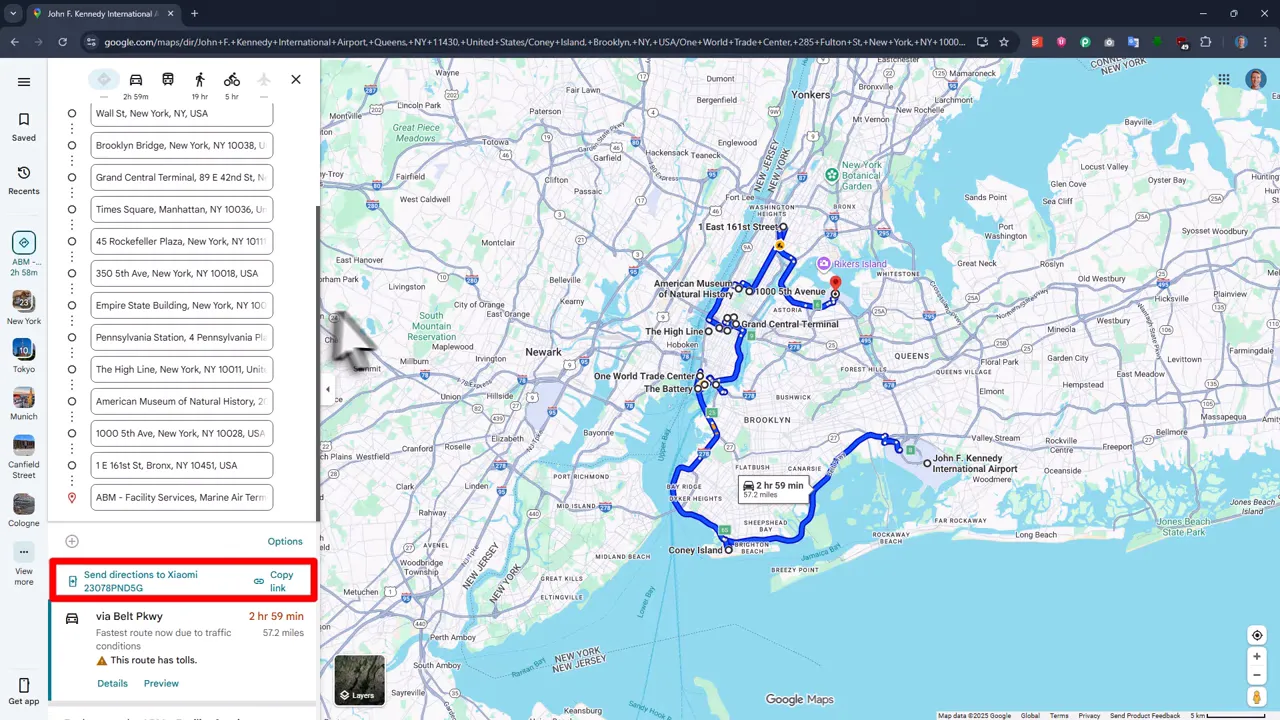
- View or export the route. You have three options: (a) click “Open in Google Maps” to view the optimized route on your desktop, (b) send it to your smartphone for live turn-by-turn navigation, or (c) save it as a PDF for a printable paper backup.
What You See in the Results
The output lists your start and end addresses, the optimal order of stops, the distance between each pair of consecutive points, and travel time for each leg. Everything is based on live traffic if you choose to include it.
Settings Tab: Every Option You Can Configure
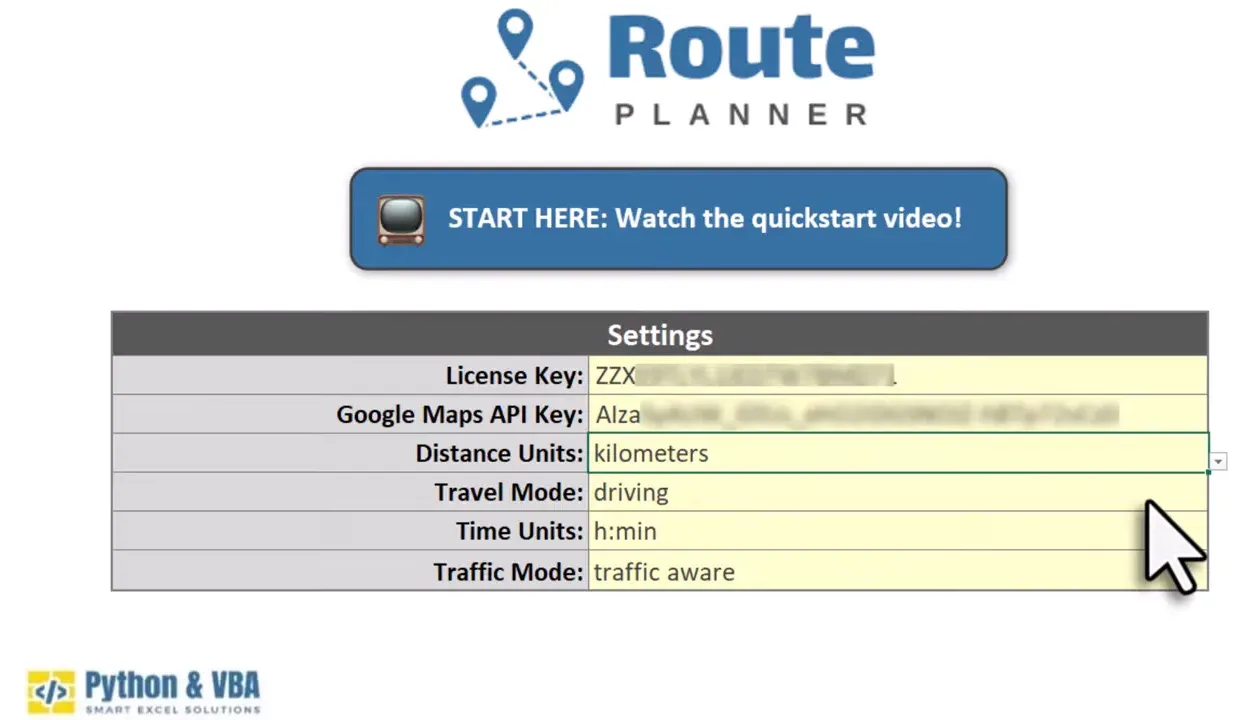
Before you run an optimization, check the settings to match your needs. Important options include:
- Units: Miles or kilometers.
- Travel mode: Driving, walking, bicycling, or two-wheeler. The two-wheeler mode is optimized for smaller vehicles or scooters, which is useful for urban delivery scenarios where standard driving routes may not apply.
- Time format: Minutes, hours, or both.
- Live traffic: Include current traffic conditions or use uncongested estimates.
How the Route Optimization Works: Google Maps + Excel
Under the hood the spreadsheet taps into Google Maps to compute distances and times. That means results reflect real routes and traffic. To use this functionality you will need a Google Maps API key. Getting one takes only a couple of minutes and is free to start. Google provides 10,000 route calculations per month free with that key. Each time you press the optimize route button it counts as one route calculation. If you exceed the free quota, the current rate is about $5 for every additional 1,000 calculations.
No subscription needed. The template itself is a one-time purchase with a lifetime license.
Pricing at a Glance
- Google: 10,000 free calculations per month; $5 for each additional 1,000 calculations
- Excel template: One-time payment, lifetime license
Compatibility, Limits, and What to Expect
A few practical details to keep in mind:
- Waypoint limit: The tool supports up to 25 waypoints between start and end. This limit comes from Google Maps.
- Excel versions: Works on most desktop Excel versions from Excel 2007 up through Excel 365 on both Windows and macOS. This includes macOS: the template is not Windows-only. The web version of Excel is not supported.
- Purchase model: The template is a one-time purchase. After purchase you receive the Excel file, a license key, and a welcome email with a link to the getting started video, where I walk you through every setup step. You can also go straight to the getting started guide and follow along at your own pace.
For quick one-off distance checks between two points, the Excel Distance Calculator is the simpler option.
Tips for Better Results
- Use clear, consistent address formatting. Partial addresses and landmarks are fine, but cleaner input reduces ambiguity.
- Decide whether live traffic should be included depending on whether you need typical conditions or real-time estimates.
- Keep the number of stops within the 25-waypoint limit, or split into multiple routes if you have more locations.
- If your stop list is copied from a CRM and addresses are inconsistent, clean and standardize them first with the Excel Address Formatter. Cleaner input means more accurate routes.
Troubleshooting Common Issues
- Waypoint limit error: If you have more than 25 stops, split them into two route segments and run each separately. You can then combine the results manually.
- API key error: Confirm the Directions API is enabled in your Google Cloud Console project, not just the Maps API. The route optimizer specifically requires the Directions API to be active.
Frequently Asked Questions
How many stops can the Excel Route Planner handle?
Up to 25 waypoints between your start and end point. That limit comes from the Google Maps API. If you have more stops, split the route into two segments and run each one separately.
Can the Excel Route Planner handle addresses from different countries?
Yes. The tool works with addresses from anywhere in the world, including routes that cross international borders. As long as Google Maps can route between the locations, the optimizer can handle them.
Do I need a subscription to use the Excel Route Planner?
No subscription is needed. The template is a one-time purchase with a lifetime license. The only ongoing cost is Google Maps API usage beyond the free tier (10,000 calculations per month), which runs about $5 per 1,000 additional calculations.
Does the optimized route work on a Mac?
Yes. The template works on both Windows and macOS in the desktop version of Excel. It does not work in web-based or mobile Excel.
The TSP in Plain English: Why Route Order Actually Matters
Tackling the Travelling Salesman Problem in Excel turns a classic algorithmic headache into a practical tool for everyday planning. It is worth pausing to appreciate why route order matters so much.
With 10 stops, there are 10 factorial divided by 2 possible routes: that is 1,814,400 unique orderings. With 15 stops, the number exceeds 43 billion. Checking them all by hand is not a strategy. It is a career. The optimizer uses real routing data from Google Maps to find a near-optimal order in seconds, cutting through those millions of possibilities to give you a practical, driveable route.
To put that in everyday terms: a field service team with 12 daily stops that drives them in list order instead of optimized order typically adds 15 to 30 percent unnecessary distance. On 200 km of daily driving, that is 30 to 60 km wasted every single day. Over a working month, that is hundreds of kilometers of avoidable driving.
“What is the shortest possible route that covers all stops one time?” That is the question this tool answers for you.
Wrapping Up
If you juggle deliveries, sales visits, field service calls, or multi-stop trips, this Excel solution makes optimization accessible and practical. You get live-aware routes, flexible settings, and a familiar interface. Try it with a handful of addresses first to see how dramatic the time and distance savings can be. And if you like a neat paper backup, export the route as a PDF and stick it to the dashboard like a battle plan. Old-school and satisfying.
Happy routing, and may your stops always fall into a tidy, efficient line.
—Sven
👉 Get the Excel Route Planner here: Excel Route Planner
