
f you’re seeing this error:
Failed to get a valid response from Ollama. (HTTP Status: 408 - Server message: Request Timeout: The operation timed out)
Follow the steps below to resolve it:
✅ Step 1: Check the Ollama Connection
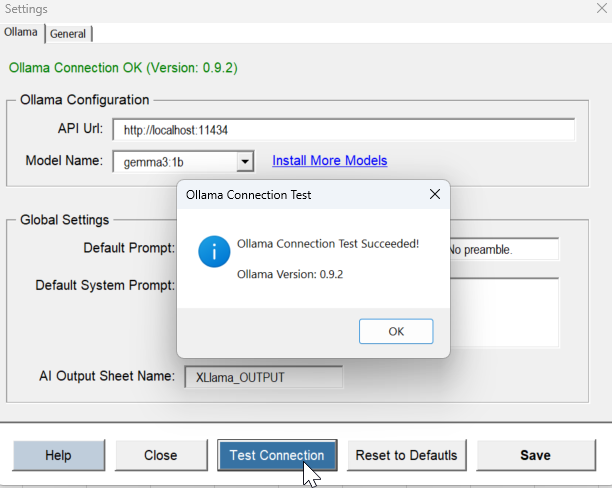
- In Excel, go to the XLlama tab and click Settings.
- In the settings window, click the Test Connection button.
- If the connection test succeeds, move to the next step.
- If it fails, make sure Ollama is installed and running in the background.
🛠 How to start Ollama
- Windows: Use the Start menu search bar and look for Ollama. Click to launch.
- macOS: Open Launchpad or use Spotlight search. Once running, you should see the Ollama icon in the menu bar (top right).
Now go back to Excel and try the Test Connection button again.
✅ Step 2: Try a Simple Prompt
If the connection works but you still get the error when running a prompt:
- Try something lightweight like:
=XLlamaPrompt("Tell me a joke")
If that works, it means the issue is not with the connection — it’s that your original prompt was too large or complex for your system to handle in time.
So, what can you do?
- Use a smaller model
Heavier models (likellama2:13b) need a lot of resources. Try switching to something lighter, likegemma:1b - Simplify your prompt
Shorten your instructions and reduce the selected data. Start small and gradually expand. - Increase the timeout
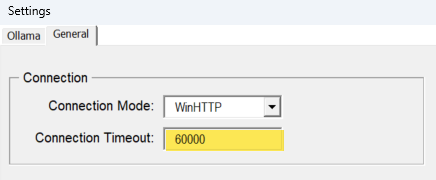
Go to the General tab in the Settings window and raise the timeout limit.
It’s in milliseconds — so120000means 2 minutes.
Only do this if your machine can handle it.
In most cases, using a simpler prompt or lighter model will fix it without needing to increase the timeout.
