
How to Merge Multiple PDF Files in Excel Using Python
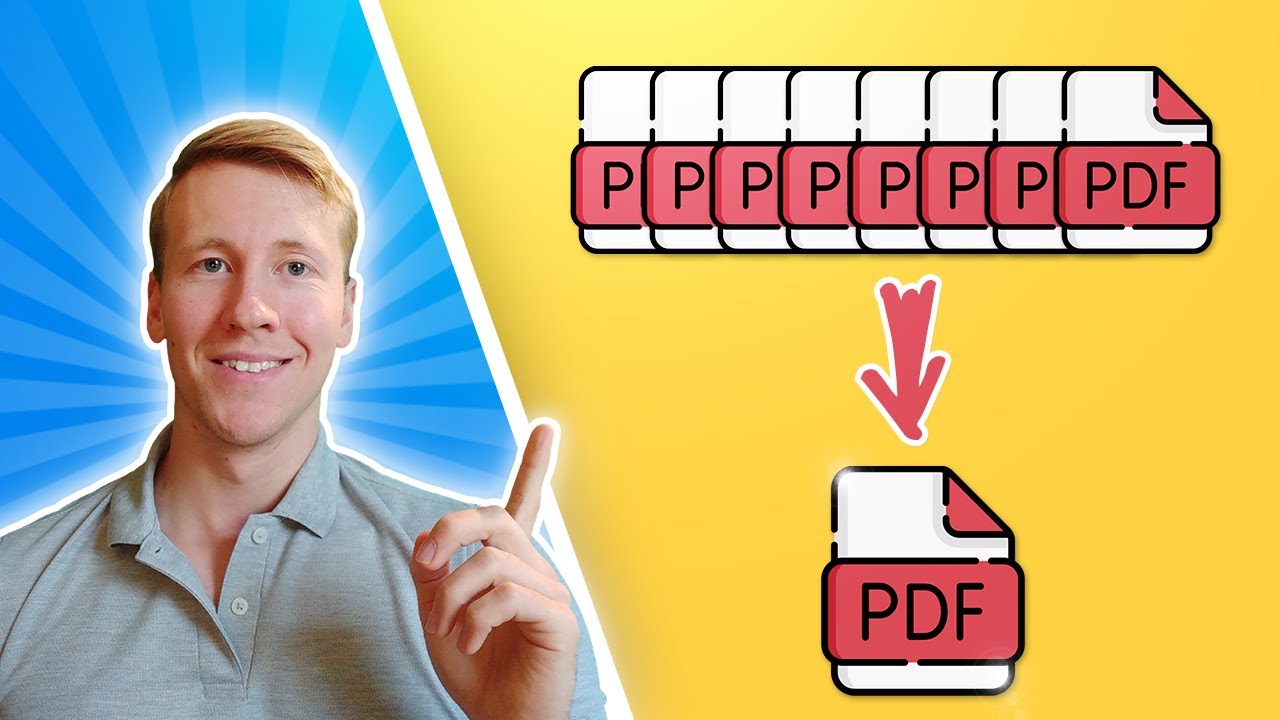
An Excel workbook that merges PDFs: you set the input folder and output name in named ranges, click a button, and a Python script run through xlwings combines every PDF it finds into a single file. No separate PDF software needed.
Update (November 2026): The video uses PyPDF2’s PdfFileMerger and PdfFileReader, which PyPDF2 3.0 removed, so the original script stops with a DeprecationError on a current install. The code below and in the GitHub repository uses pypdf and its PdfWriter instead, and works with pypdf 7.2.
What you build
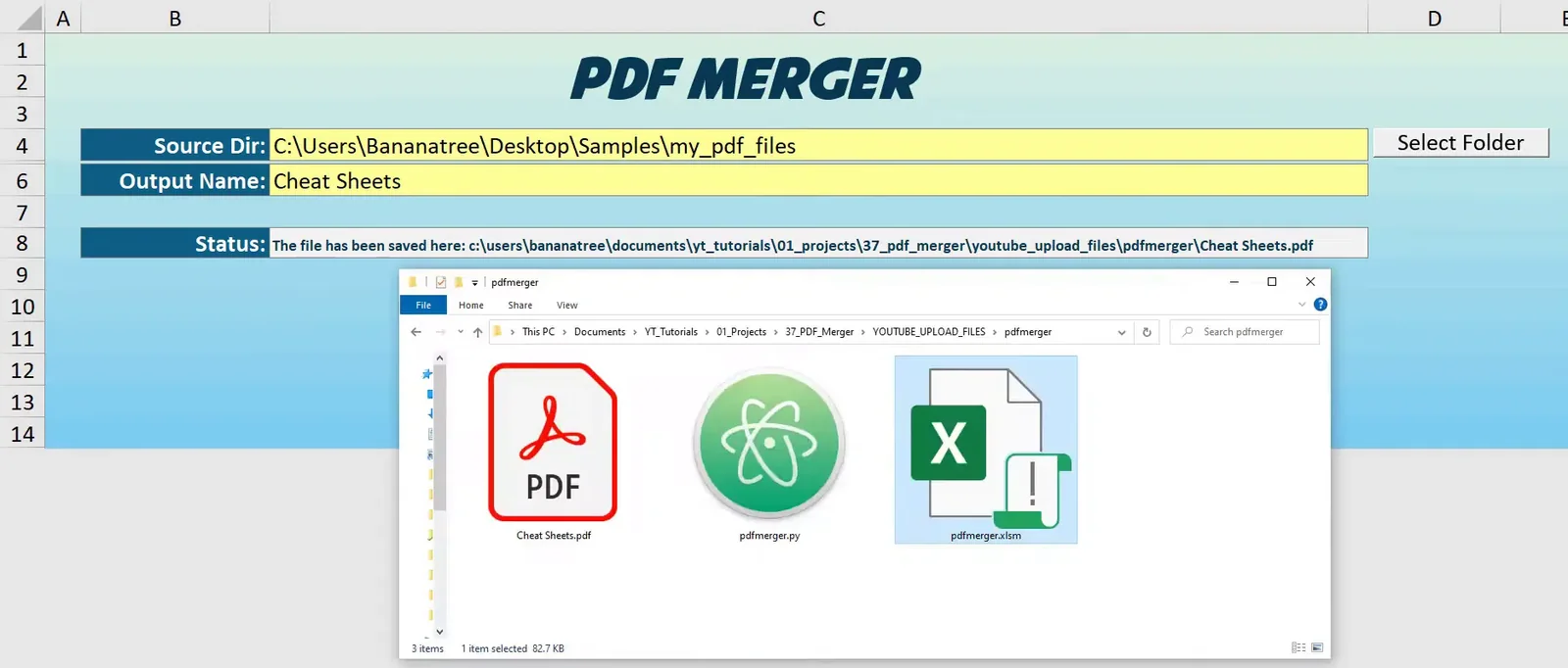
The workbook merges all PDFs in a folder into one file. In the example, one folder holds a mix of Excel workbooks, PDF documents and a text file, and another holds 300 single PDF files. Each folder becomes one merged PDF. In the workbook you:
- Enter the source folder that holds the PDF files.
- Enter an output name for the merged PDF.
- Click a button to merge, and read the result in a status cell.
If the PDFs you want to combine do not exist yet, for example one invoice per customer, my guide on creating PDF invoices from Excel in bulk generates them from an order table first.
Set up
The workbook runs the script through xlwings, so you need desktop Excel on Windows or Mac with Python installed.
If Python is not installed yet, my tutorial on installing Python with Miniconda gets you set up.
Open a terminal or command prompt and install the two libraries:
pip install pypdf xlwingsThen create a new project. This makes a folder in your current directory with the Excel and Python files:
xlwings quickstart pdfmerger --standaloneBuild the workbook
Open the Excel file xlwings created and go to the Developer tab. If it is not visible, enable it under File > Options > Customize Ribbon. Insert a button and assign the macro sample_call to it. If everything works, “Hello xlwings” appears in cell A1 when you click it.
Next, give the cells names so the script can find them. Click the cell that will hold the folder path, type source_dir into the name box and press Enter. Do the same for the output name cell (output_name) and the status cell (status).
Optional: a folder picker
Instead of typing the folder path, a short VBA macro can open a folder dialog. Open the Visual Basic Editor and paste this into Module 1:
Sub SelectFolder()
    With Application.FileDialog(msoFileDialogFolderPicker)
        .Title = "Select a Folder"
        If .Show = -1 Then
            Range("source_dir").Value = .SelectedItems(1)
        End If
    End With
End Sub
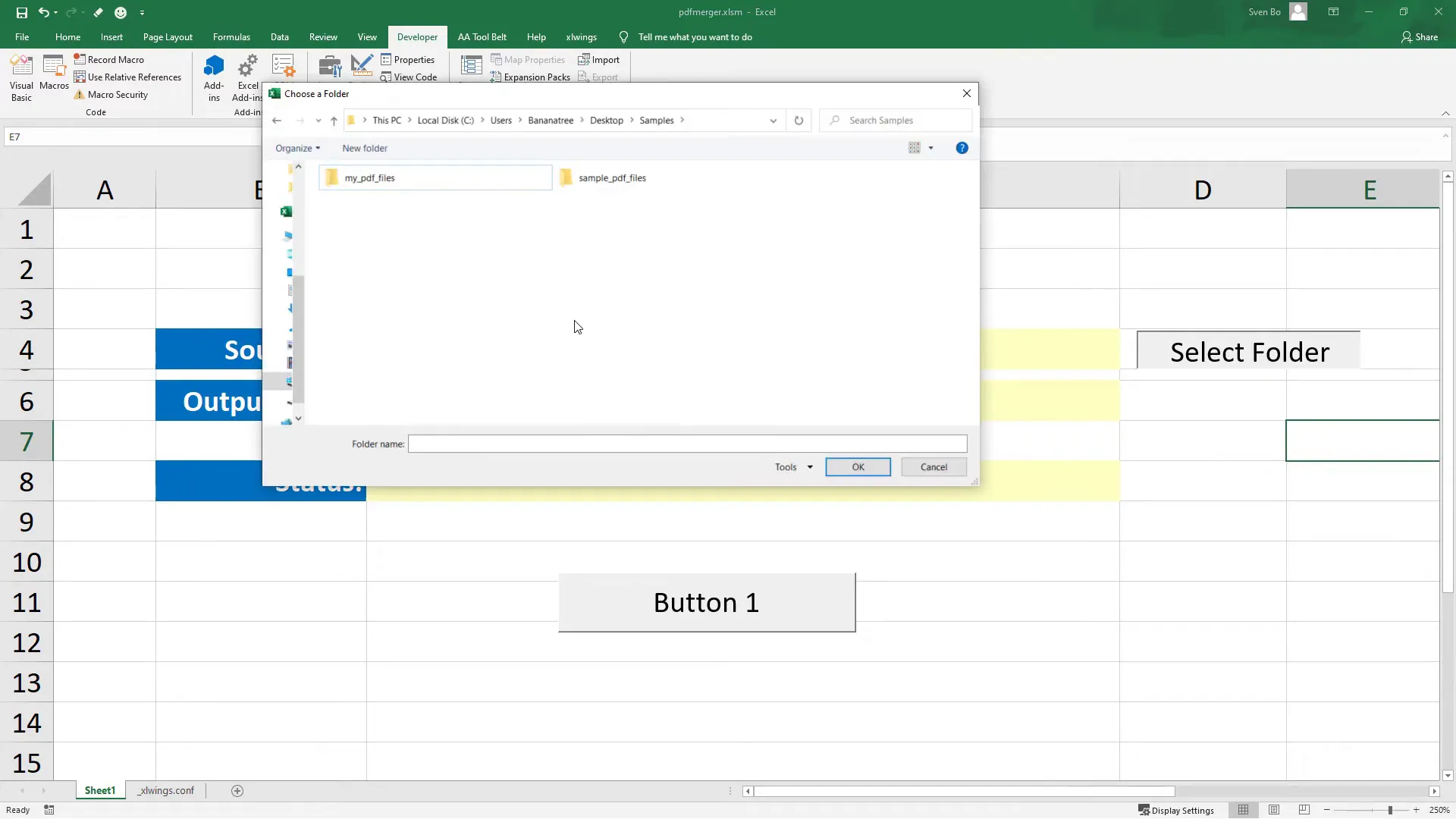
Assign the macro to a button called “Select Folder”. Clicking it opens the dialog and writes the chosen path into source_dir.
The Python script
Open the Python file xlwings created and delete the sample code. The script imports Path, xlwings and PdfWriter from pypdf. Inside the main function, it does five things:
- Creates a PdfWriter, which collects the pages, and clears the status cell.
- Reads the source directory and the output name from the named ranges and adds “.pdf” to the name.
- Lists every PDF file in the source directory with
glob("*.pdf"), so other file types are skipped. - Appends each PDF to the writer.
- Writes the merged PDF next to the script and puts the output path into the status cell.
This is the complete pdfmerger.py. With pypdf, PdfWriter takes over both roles of the old PyPDF2 classes, and append() accepts the file path directly.
from pathlib import Path  # Standard Python Library
import xlwings as xw  # pip install xlwings
from pypdf import PdfWriter  # pip install pypdf


# ---Documentations:
# pypdf: https://pypdf.readthedocs.io/en/stable/
# xlwings: https://docs.xlwings.org/en/stable/


def main():
    wb = xw.Book.caller()
    sheet = wb.sheets[0]

    merger = PdfWriter()
    sheet.range("status").clear_contents()
    source_dir = sheet.range("source_dir").value
    output_name = sheet.range("output_name").value + ".pdf"
    pdf_files = list(Path(source_dir).glob("*.pdf"))

    for pdf_file in pdf_files:
        merger.append(str(pdf_file))

    output_path = str(Path(__file__).parent / output_name)
    merger.write(output_path)
    merger.close()
    sheet.range("status").value = f"The file have been saved here: {output_path}"


if __name__ == "__main__":
    xw.Book("pdfmerger.xlsm").set_mock_caller()
    main()
Run it
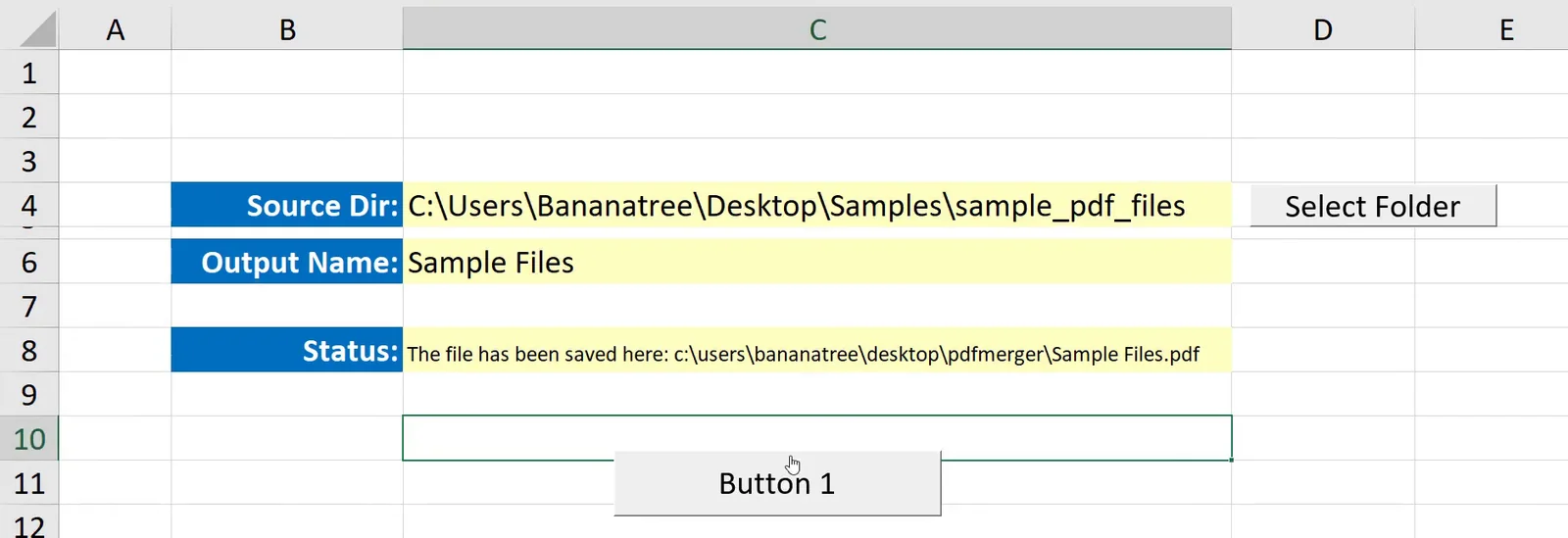
Save the script, go back to Excel and click the button. The script merges all PDFs in the source folder into one file, and the status cell shows where it was saved. You can test the other folder with the 300 single PDF pages the same way.
If your files should be merged in groups by their names rather than all into one file, merging PDF files by name shows that variation. For a version without a separate Python install, the free xlwings Lite add-in runs Python inside Excel, and my xlwings Lite guide covers the setup. Running a Python script from Excel with VBA is another way to wire up the button.