
Convert an Excel range into a Jupyter notebook #
Demo video
Use this feature to create a Jupyter notebook from your selected cell range. When you click the button, a notebook is generated in your workbook’s directory, containing the code to load the selected Excel range directly into a pandas DataFrame. The code specifies the workbook path, sheet name, columns and rows, as well as how many rows to skip or include.
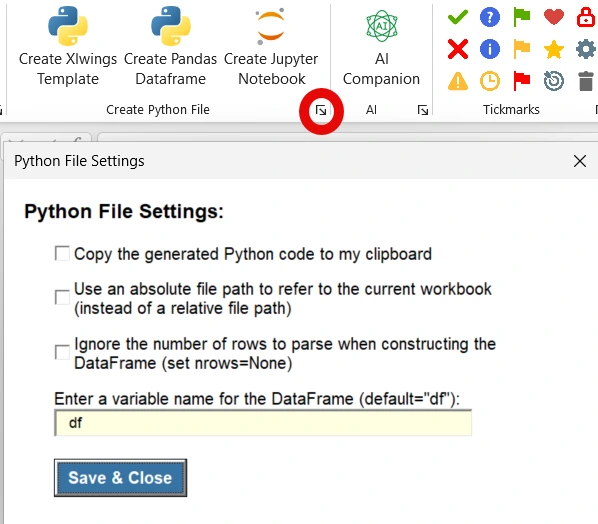
These additional settings are available:
- Copy Python Code: copy the generated Python code to your clipboard instead of creating a Jupyter notebook. Useful if you already have a Python file or notebook.
- Use Absolute Path: use an absolute file path instead of a relative one.
- Ignore Row Parsing: helpful if you expect new data to be added to your Excel file, as it automatically expands to include the last row.
- Change DataFrame Name: set a custom name for your DataFrame variable. The default is
df.
Convert an Excel range into a pandas DataFrame #
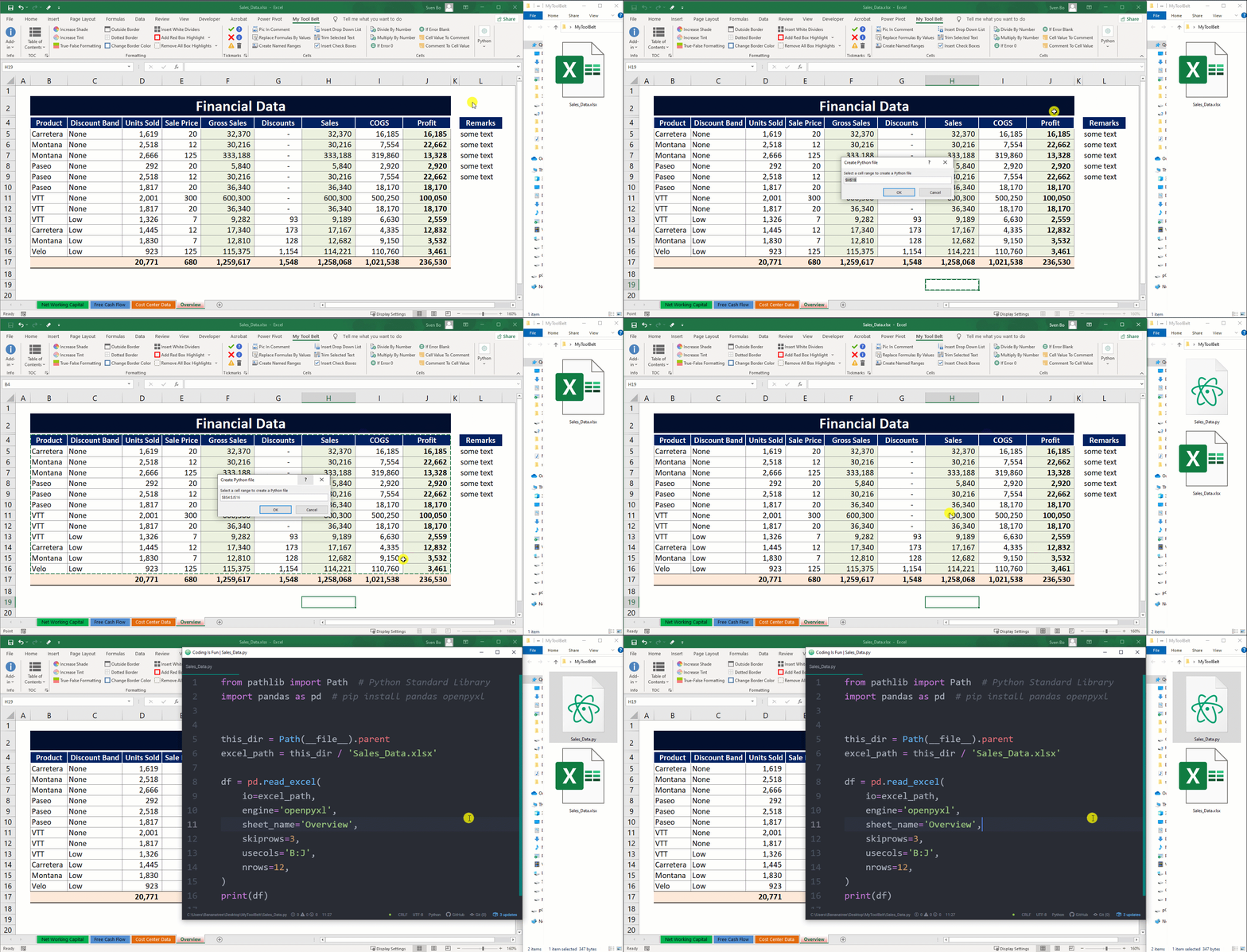
Use this feature to convert a selected Excel range into a pandas DataFrame. When you click the button, a Python file named after the current workbook is generated in your workbook’s directory. It contains code to load the selected Excel range directly into a DataFrame, including the workbook path, sheet name, columns and rows, as well as how many rows to skip or include.
These additional settings are available:
- Copy Python Code: copy the generated Python code to your clipboard instead of saving it to a file. Useful if you want to paste it into an existing script.
- Use Absolute Path: use an absolute file path instead of a relative one.
- Ignore Row Parsing: helpful if you expect more data to be added, as it automatically expands to include the last row.
- Change DataFrame Name: set a custom name for your DataFrame variable. The default is
df.
Demo video
Create an xlwings Python file #
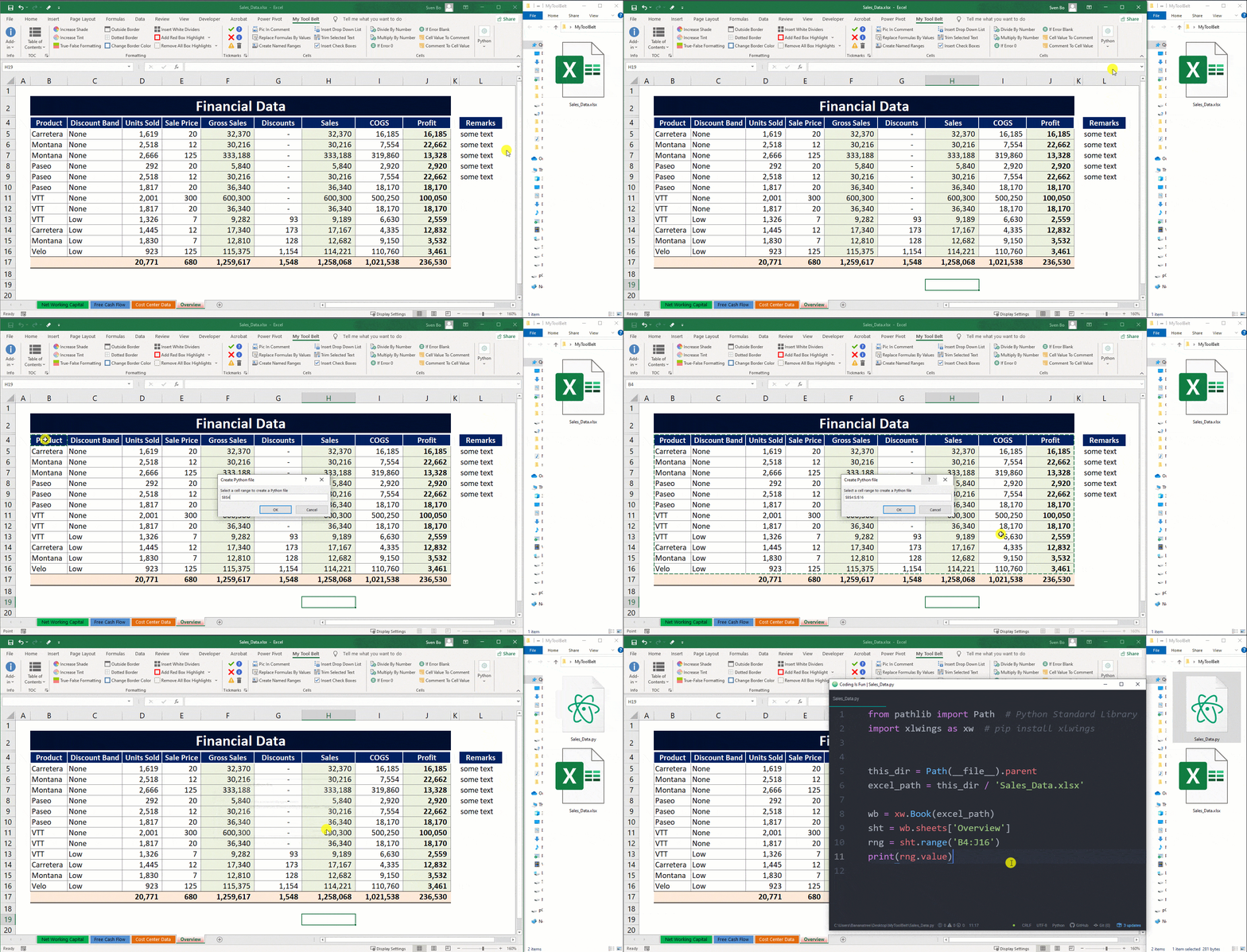
Use this feature to generate a Python file from your selected cell range. When you click Create Xlwings Template, a Python file is created in the workbook’s directory. It contains boilerplate code to access the selected range using xlwings, which is ideal for automating tasks in Excel. Almost all VBA features are available in xlwings, as it uses the same Win32 COM API.
Check out the xlwings documentation for more details on its capabilities and how to use it.
Run Python files from Excel #
Use this feature to execute Python files directly from Excel. This is useful if you want to trigger Python automation or run any kind of Python script right from your workbook.