
How to Send Texts from Your Computer Using Your Android Phone
To send texts from your computer, install QuickText from the Microsoft Store on your Windows PC and the free KDE Connect app on your Android phone. Put both on the same Wi-Fi, pair them and allow SMS permission. You can then type one-off texts and replies on your PC keyboard, or send a personalized text to many people. Every message goes out from your own number.
Table of contents
- What do you need to send texts from your computer?
- How do you connect your Android phone to your PC?
- How do you send a text from your computer to many people at once?
- How do you personalize each text?
- Can you read and reply to texts on your computer?
- How fast can you send texts from a PC?
- How many texts can you send per day from your own phone?
- Does texting from a computer work with an iPhone?
- Is it legal to mass text from your own number?
- What mistakes should you avoid?
What do you need to send texts from your computer?
You need a Windows 10 or 11 PC, an Android phone with an active SIM and mobile plan, the free KDE Connect app on that phone, and QuickText from the Microsoft Store. The phone and the PC must be on the same Wi-Fi network.
Here is the full list:
- A Windows 10 or 11 PC. QuickText is a desktop app you install from the Microsoft Store.
- An Android phone with an active SIM. The texts are sent by this phone, from its number, on its plan.
- KDE Connect on the phone. A free app from Google Play or F-Droid. It is the link between the phone and the PC.
- One Wi-Fi network that both devices are connected to.
I built QuickText because I wanted to type texts on a real keyboard without giving up my own number. There is no SMS gateway, no new sender number and no shortcode, and QuickText charges nothing per message. Your carrier’s normal charges and limits still apply.
If you read an older version of this guide, it used an Excel template together with KDE Connect for Windows. That Excel template is retired. The desktop app replaces it, and you no longer install KDE Connect on the PC at all.
How do you connect your Android phone to your PC?
Install QuickText on the PC and KDE Connect on the phone, join both to the same Wi-Fi, pair the phone from inside QuickText and allow SMS permission on the phone. Then send yourself a test text. The whole setup takes about five minutes.
Step 1: Install QuickText on your PC
Open the Microsoft Store on your Windows PC, search for QuickText SMS and click Install. Open the app once it is done. That is the only thing you install on the computer.
Step 2: Install KDE Connect on your Android phone
The Your phone page in QuickText shows a code you can scan with the phone camera, which opens the right page in Google Play. You can also search for KDE Connect in Google Play (or F-Droid, if you prefer it). Install it, open it once and allow notifications when Android asks. Leave the app installed and running in the background.
Step 3: Put both devices on the same Wi-Fi
The phone and the PC find each other over your local network. If the phone is on mobile data or a guest network, pairing fails. This is the most common reason the phone does not show up.
Step 4: Pair the phone with QuickText
In QuickText, open the Your phone page. Your Android phone appears in the list by itself once KDE Connect is open on the same Wi-Fi. Click Pair next to it. A code shows on the PC and the same code shows in the request on the phone. Check that the two match, then tap Accept on the phone. If the codes differ, decline, because something else on the network is answering.
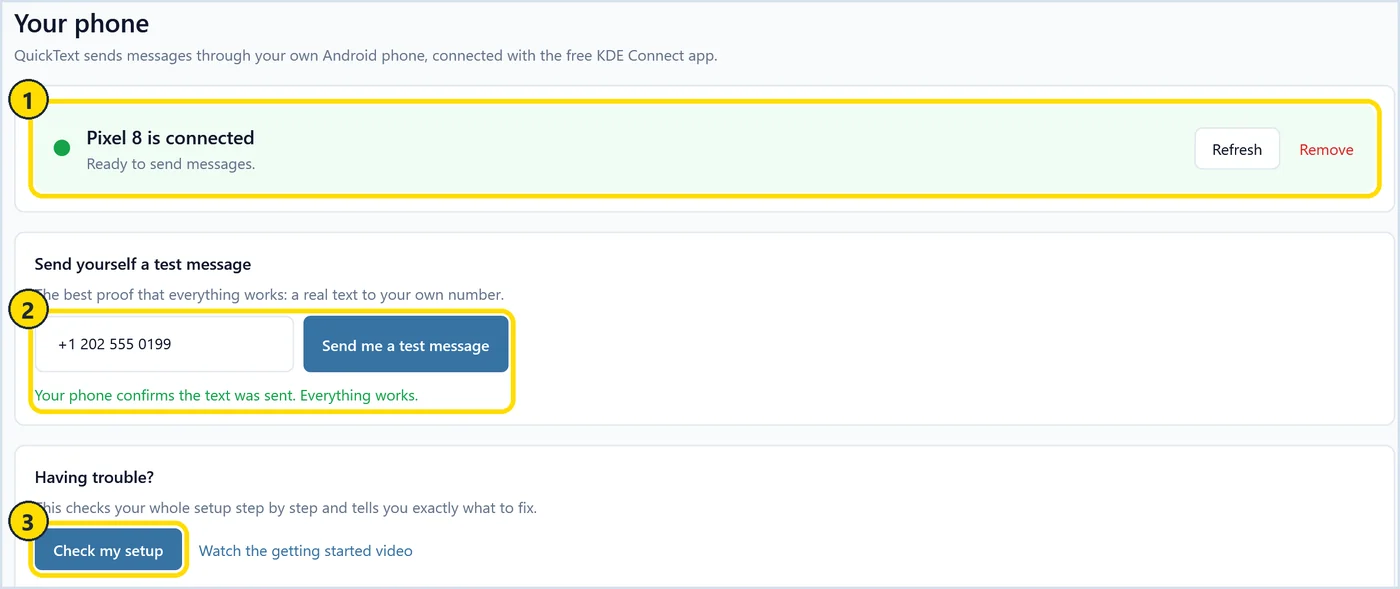
Marker 1 is what you want to see: the phone is connected and ready to send. Marker 2 is the test box on the same page, where you type your own number and send yourself a real text. If anything is off, Check my setup at marker 3 walks through the whole connection step by step and tells you what to fix.
Step 5: Allow SMS permission (do not skip this)
The first time QuickText sends a text, the phone asks once whether KDE Connect may send SMS. Tap Allow. This is the number one setup problem I see: pairing works, the phone looks connected, and still no text goes out, because that prompt was dismissed. If it happened to you, fix it on the phone:
- Open KDE Connect on the phone and tap your paired PC.
- Look for the note that some plugins need permission to work.
- Tap the SMS item in that list.
- Allow every permission Android asks for.
Step 6: Send yourself a test text
Write a short message on the Compose page and click Send myself a test. It goes to your own number first, so you see exactly what a recipient gets. The download lets you send 20 real messages to check that everything works with your phone before you buy a license. If the phone will not connect, my KDE Connect troubleshooting guide covers the usual fixes.
How do you send a text from your computer to many people at once?
Import your contacts, choose who gets the text, write it once and click Review and send. QuickText then sends every person their own individual text from your phone. It is not a group chat, so nobody sees the other recipients and replies come back one to one.
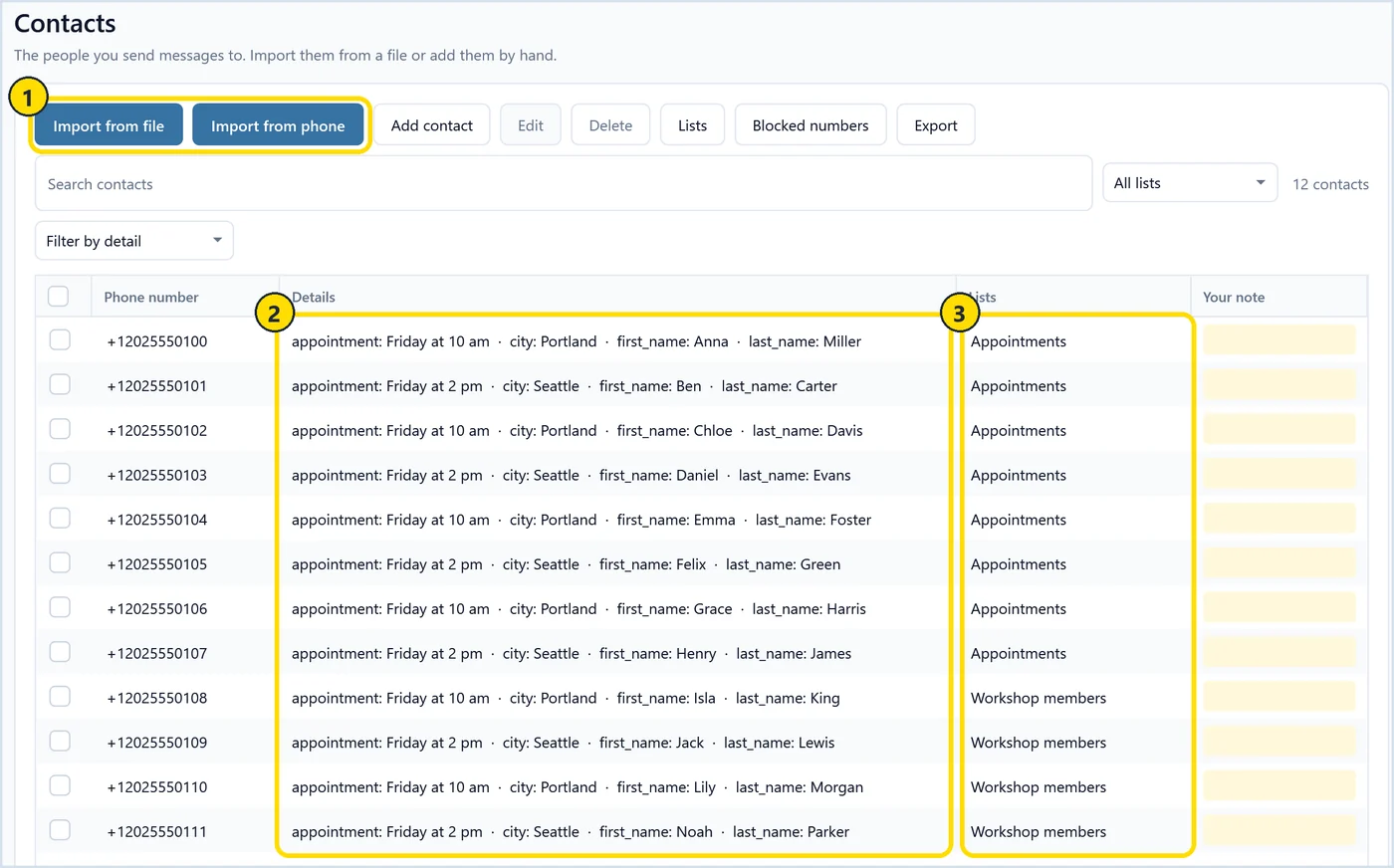
Start on the Contacts page. You can import from an Excel file (.xlsx), a CSV file, a vCard file (.vcf), or straight from the phone. Marker 1 shows the Import from file and Import from phone buttons. Any extra columns in your file, like first name, city or appointment time, become contact details you can drop into the message later (marker 2). You can also sort people into lists such as Appointments or Workshop members (marker 3).
If your list already lives in a spreadsheet, I wrote a separate walkthrough on sending bulk SMS from an Excel list.
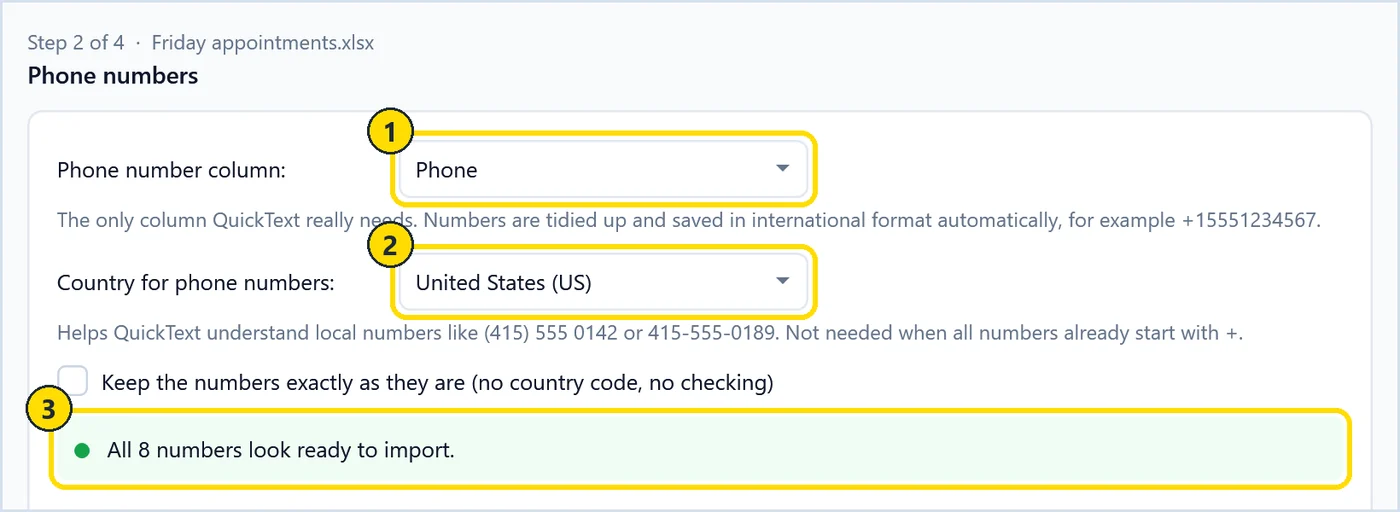
Import from file opens a short wizard. The step that matters most asks which column holds the phone numbers (marker 1) and which country local numbers belong to (marker 2). QuickText then tidies every number into international format and tells you how many look ready (marker 3).
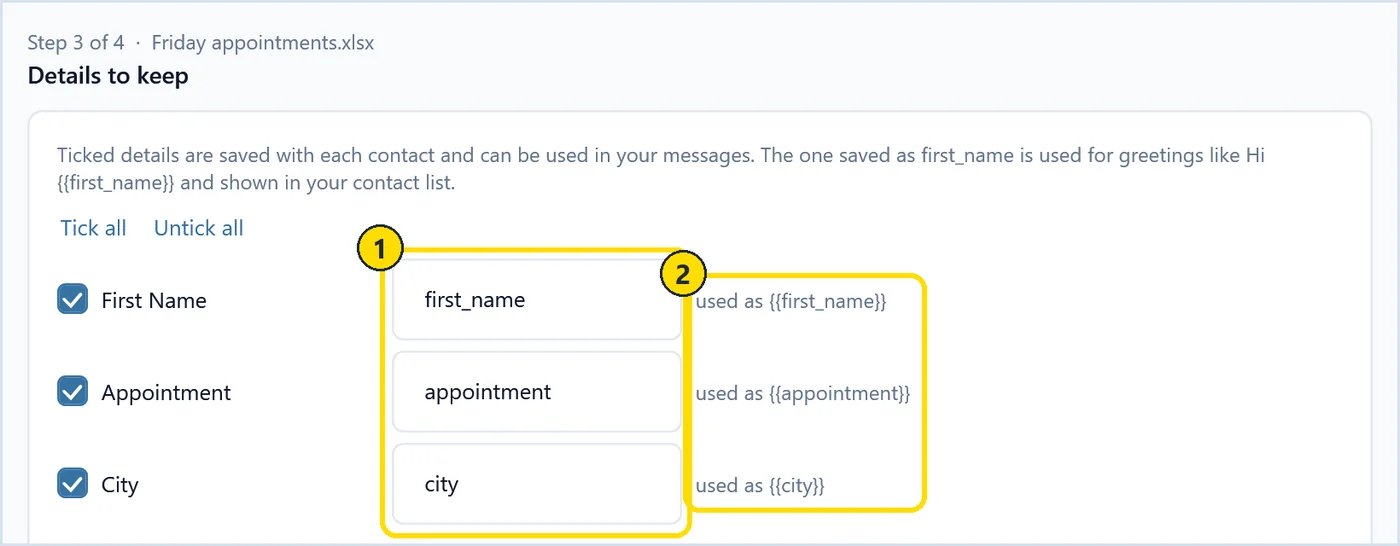
The next step lists your other columns. Tick the ones to keep and give each a short field name (marker 1). The hint beside it shows the placeholder you will type in the message, such as {{appointment}} (marker 2).
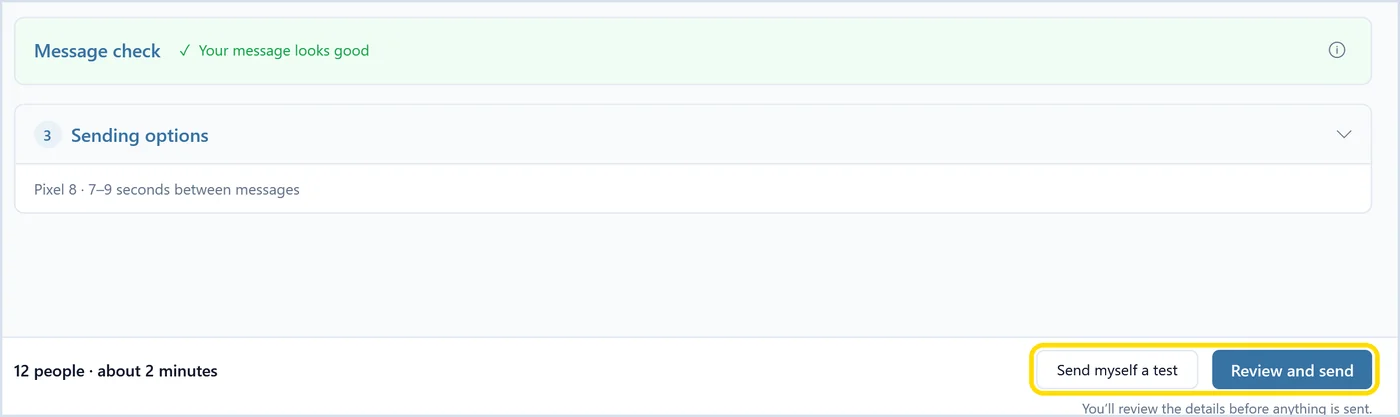
On the Compose page, pick the recipients: all contacts, selected lists, or contacts you choose by hand. Write the message, then look at the bar at the bottom. It shows how many people you picked and roughly how long the send will take. Send myself a test goes to your own number. Review and send opens a final review, and nothing goes out before you confirm it. If you are still weighing a group chat against individual texts, my guide on how to send a mass text without a group chat compares the options.
How do you personalize each text?
Insert contact fields like {{first_name}} or {{appointment}} into your message, and add wording variations written like [[Hi|Hello]]. QuickText fills in each person’s details and picks one variation per text. A live preview shows the exact message every recipient gets.
A text with the person’s name and their own appointment reads like you typed it for them. Identical texts sent back to back are exactly what carrier spam filters look for.
Marker 1 shows the recipient choice. The buttons at marker 2 do the work: Insert contact field adds a placeholder from your imported columns, Add variation adds alternative wordings, and Add opt-out adds a short line telling people how to stop your texts. The example message here is “[[Hi|Hello]] {{first_name}}, your appointment is {{appointment}}. Does that still work for you?”
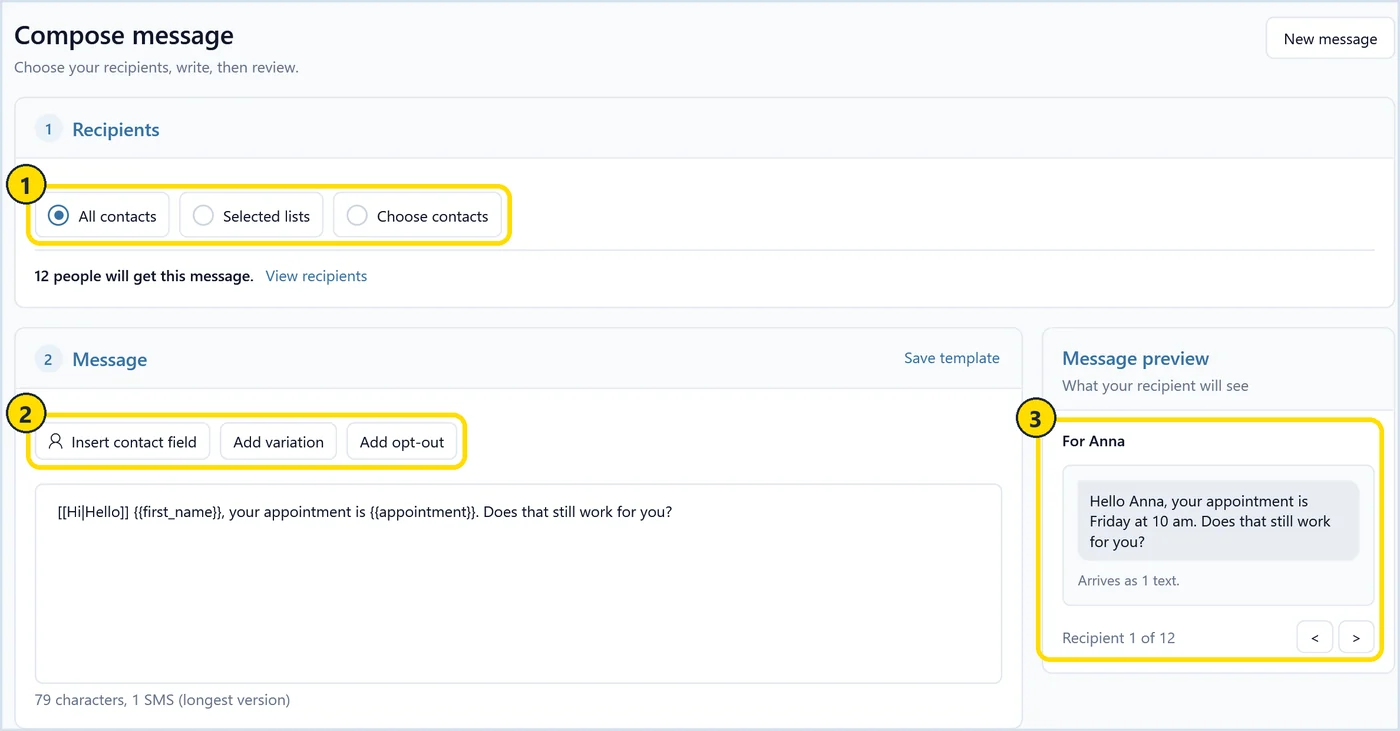
Marker 3 is the preview. You can step through it recipient by recipient, so you see “Hello Anna, your appointment is Friday at 10 am” before anything leaves the PC. It also tells you how many SMS segments the message takes. If you are stuck on the wording itself, my free SMS template generator writes a first draft with placeholders and variations already in place.
Can you read and reply to texts on your computer?
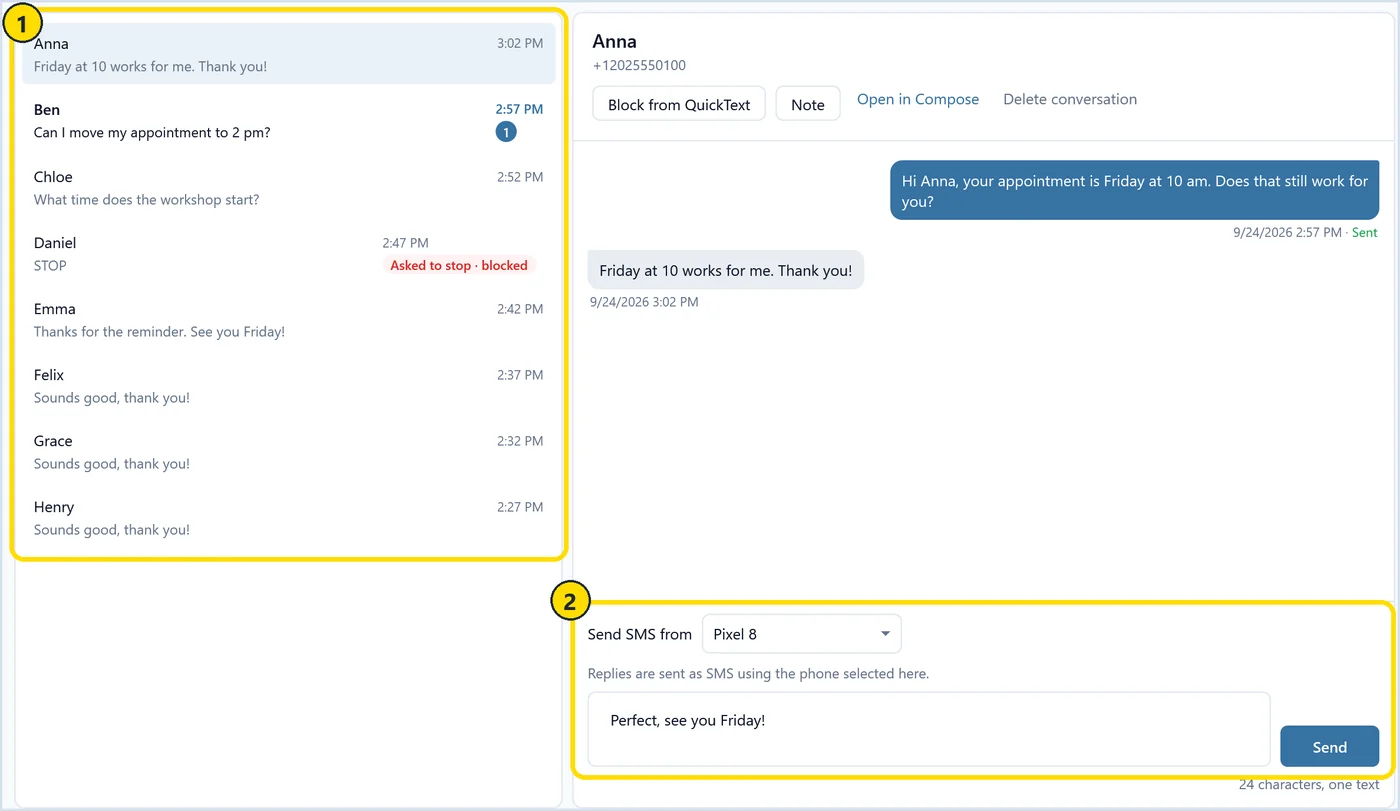
Yes. The Messages page in QuickText shows the replies people send back, and you can answer them from your PC keyboard. You choose which paired phone sends the reply. You can also include your other SMS conversations from the phone if you want them on the PC.
This is the part I use most on normal days. Someone replies “Can I move my appointment to 2 pm?” and I answer from the computer while I have the calendar open, instead of picking up the phone. Marker 1 shows the conversation list. Marker 2 is the reply box, where you pick the sending phone (Pixel 8 in this example) and type the answer.
For a one-off text to a single person, open Compose, use Choose contacts and pick just that one contact. It goes out exactly like any other text from your phone.
Contacts, messages and send history are stored locally on your PC and are not uploaded anywhere.
How fast can you send texts from a PC?
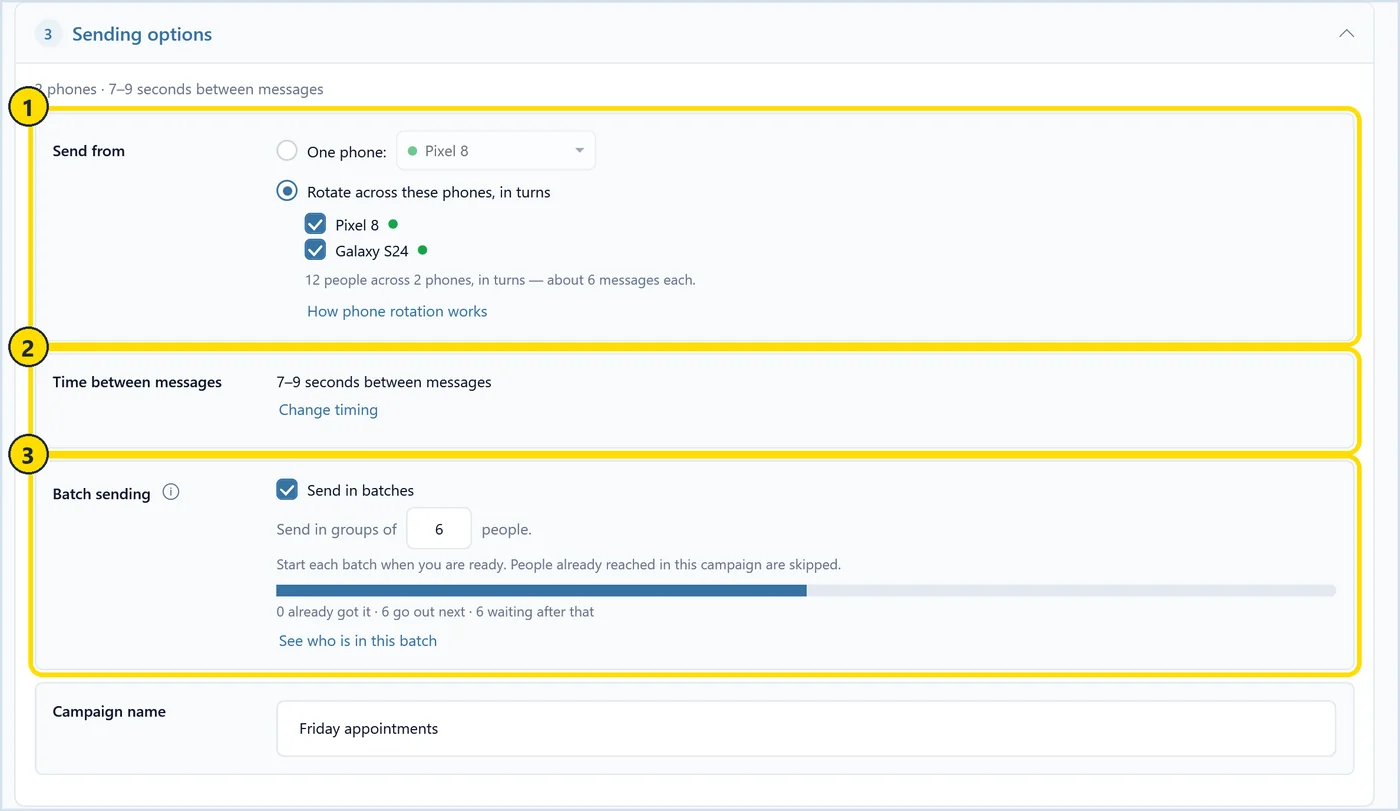
By default QuickText waits 7 to 9 seconds between messages, so 12 people take about two minutes and 100 people take roughly 13 to 15 minutes. You can change the gap. The pace is deliberately slow, so your phone sends at a human rhythm.
The Sending options panel has three settings. Marker 1 lets you send from one phone or rotate across two or more paired phones in turns. Marker 2 is the time between messages. Marker 3 splits a send into batches, for example groups of 6. You start each batch when you are ready, and anyone already reached is skipped if you resume later.
A rough guide at the default pace of about 8 seconds per text:
- 25 texts take about 3 to 4 minutes.
- 50 texts take about 7 minutes.
- 100 texts take about 13 to 15 minutes.
I would not shorten the gap much. Carriers look at how texts leave a phone, and a steady stream every second or two is the clearest sign of automated sending.
How many texts can you send per day from your own phone?
Your carrier decides, and most do not publish a hard number. In my experience around 100 to 300 texts a day from one phone has been fine when spread over the day, with personalized wording and a question that invites a reply. Ask your carrier before you rely on it.
Many plans say “unlimited texting”, but the fine print usually limits that to personal use. Carriers watch for patterns: hundreds of near-identical texts in one sitting, lots of new numbers, and almost no replies. That combination can get your sending throttled for a while, and it is your real number at stake.
What keeps you on the safe side:
- Send in batches, for example some in the morning and some in the afternoon.
- Personalize every text with names and variations.
- End with a question. Replies are the strongest sign that people want your texts.
- Keep the default gap between messages.
If you have two Android phones on separate plans, QuickText can rotate between them, so each one sends about half. My guide to sending from multiple phones explains the setup. Use it to share normal volume, and still respect each carrier’s rules.
Does texting from a computer work with an iPhone?
Not with QuickText. It needs an Android phone with an active SIM, because Android lets a paired app like KDE Connect send SMS on your behalf. An iPhone does not allow other apps to send texts for you in the background, so it cannot be paired.
The same goes for the computer side. QuickText runs on Windows 10 and 11 only, so a Mac is not supported either.
If your main phone is an iPhone, a practical option is a basic Android phone with its own SIM as a work number. It only has to stay on the Wi-Fi with KDE Connect installed.
Also keep the message type in mind. QuickText sends SMS and, since version 1.6, picture messages (MMS). Picture messages need mobile data on the phone and a plan with MMS. It does not send RCS chats or group messages, and it has no scheduled sending. You start each send yourself.
Is it legal to mass text from your own number?
Sending texts from your own phone is legal, but consent rules apply no matter how you send. Only text people who gave you their number and expect to hear from you, say who you are, and stop when someone asks you to stop.
In the US, the TCPA requires prior express consent for marketing texts. In the EU, GDPR and the ePrivacy rules require opt-in for direct marketing. These rules apply whether a text came from a platform or from your personal phone. I am not a lawyer, so check the rules for your country and your type of message.
Businesses that send high volumes through commercial platforms in the US register for 10DLC. Texting from your own phone at normal person-to-person pace works differently, and my post on A2P vs P2P text messaging explains where the line is.
Appointment reminders, order updates and follow-ups with existing customers carry far less risk than promotions. QuickText is not meant for cold or unsolicited marketing. When someone replies STOP (or something similar), their number goes on the block list automatically and the opt-out shows in Messages. You can read more in my opt-out guide.
What mistakes should you avoid?
The mistakes I see most are identical texts to everyone, spammy wording, shortened links, sending too many at once and texting people who never asked to hear from you. On the setup side, skipping the SMS permission on the phone is the classic one.
- Sending the exact same text to everyone. Use placeholders and variations so every text is a little different.
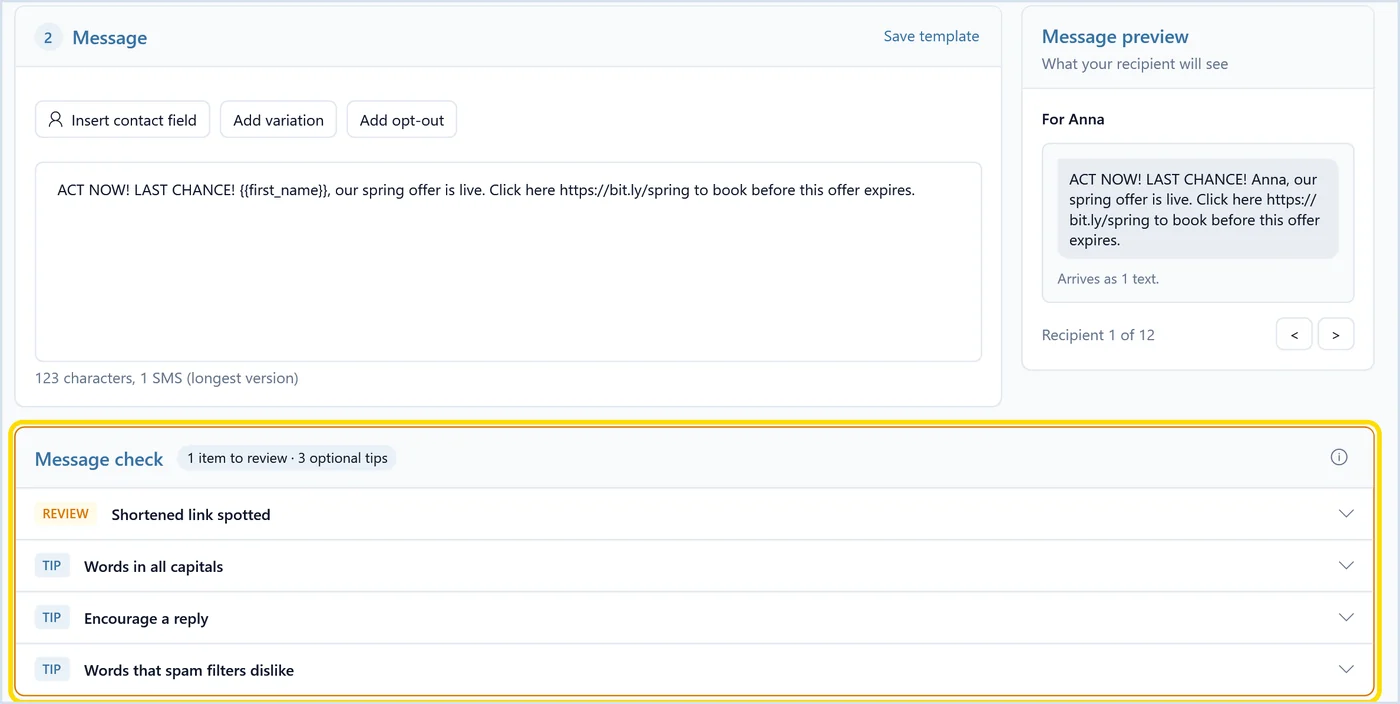
- Writing like an advert. Words in all capitals and phrases like “act now”, “limited time” or “you’ve won” come straight from the spam playbook, and carriers filter for them.
- Using link shorteners. Shortened links like bit.ly get extra scrutiny. Use your full domain instead.
- Adding emojis or curly quotes without thinking. A normal SMS holds 160 characters. One emoji or curly quote switches the encoding and cuts that to 70 per segment, so one text quietly becomes two or three. The preview shows the segment count.
- Not asking a question. “Does that still work for you?” gets replies. Replies are good for you and for how your carrier sees your number.
- Texting people who never opted in. Complaints land on your real number, and it is the fastest way to get it blocked.
- Skipping SMS permission in KDE Connect. Everything looks connected, but nothing sends.
QuickText has a message check built in. It flags things like shortened links and words in all capitals, and suggests encouraging a reply. It is advice, not a blocker, so you decide what to change. Here it caught a bit.ly link and gave three tips on a very pushy draft.
You can also paste any draft into my free SMS spam checker before a big send.
Send texts from your Windows PC through your own Android phone and number, personalized for each person, with replies on your computer. Paid plans come with a 14-day money-back guarantee.