
How to Schedule WhatsApp Messages From Your Phone or PC
To schedule one WhatsApp message, type it, press and hold the send button and pick a date and time. WhatsApp started rolling this out in November 2026, so your app may not show it yet. To schedule personal messages for a whole list, such as appointment reminders, use a PC app like SendCommander: import the list, write one message with name fields, and set a start time.
Table of contents
WhatsApp’s built-in scheduling
Yes, for one chat at a time. In the new version you type a message, press and hold the send button and choose a date and time. WhatsApp says you can schedule from 10 minutes to 14 days ahead, and the message arrives even if your phone is off.
WhatsApp announced scheduled messages on its blog on November 25, 2026 and is rolling them out over several weeks. My video, recorded a few weeks earlier, says there is no built-in option. If holding the send button shows nothing on your phone, update WhatsApp and check again later.
According to the announcement, scheduling works in one-to-one chats and groups, with text, photos and videos. You can see your upcoming scheduled messages and delete one before it goes out. The recipient sees an ordinary message, and it stays end-to-end encrypted. WhatsApp’s help center says the feature is currently not available for WhatsApp Business.
It does not send to many people with their own details. You schedule chat by chat, and every message reads exactly as you typed it. For one birthday message or a reminder to a colleague, that is perfect. For 20 clients with different appointment times, it means 20 scheduled messages typed by hand.
The Business app
The Business app can schedule paid marketing messages, and its away message runs on a schedule. The new press-and-hold scheduling for normal chats is, according to WhatsApp’s help center, currently not available for WhatsApp Business. Greeting messages and quick replies are answers, not scheduled sends.
Marketing messages are a paid feature of the Business app. You open them from the storefront icon, then Marketing messages. Each one needs at least a photo, you add a payment method, and Meta reviews the message before it goes out. On the review screen, Schedule lets you pick a date and time instead of sending right away. WhatsApp’s help center says your device must be connected to the internet at the scheduled time. You can insert the receiver’s name, so each contact sees their own name. Other per-person details, such as an appointment time, are not mentioned in the help article.
The away message is the other scheduled option. From the Tools tab, tap Away message and turn on Send away message. The schedule options are Always send, Custom schedule and Outside of business hours. It only reacts when someone messages you first.
For high-volume automated business messaging, the official route is the WhatsApp Business Platform (the API), which needs approved message templates. I compare the three routes in WhatsApp personal vs Business vs API.
Which option to use
Use WhatsApp’s own scheduling for one chat or one group. Use a PC app that sends through your account when many people should each get a personal message at a set time. Use the Business API when you need large automated volumes. Scheduler apps on your phone are a fallback with drawbacks.
| Option | Many recipients | Personal details per person | Device must stay on | Best for |
|---|---|---|---|---|
| WhatsApp’s built-in scheduling | No, one chat or group at a time | No | No | A single message or group post |
| Business app marketing messages | Yes, contacts or lists you pick | The receiver’s name | Online at the send time | Paid promotions with a photo |
| Business app away message | Only people who write to you | No | No | Out-of-office answers |
| Scheduler apps on your phone | Varies | Varies | Usually the phone, often unlocked | Occasional use |
| WhatsApp Business API through a provider | Yes | Yes, in approved templates | No, it runs on a server | Large automated volumes |
| SendCommander on your PC | Yes, a list or group | Yes, from your columns | Yes, the PC | Reminders to people who know you |
Most scheduler apps from the Play Store work by opening WhatsApp and pressing send for you, so the phone has to be awake and often unlocked. On a PC the WhatsApp session runs in a window you can watch, which is why I built the list scheduling there.
Schedule a list from your PC
Install SendCommander, link your WhatsApp account with the QR code, import your list from Excel, and write one message with placeholders. Then open Sending options, tick Start at under Schedule start, pick the time and confirm the review. The app waits and sends from your own account.
SendCommander is the Windows app I built for this. It works with personal WhatsApp and WhatsApp Business, on Android or iPhone, and every message comes from your own number. It is independent and not affiliated with WhatsApp or Meta. The example schedules appointment reminders for eight clients.
-
Install and connect. Install SendCommander from the Microsoft Store and open it. On your phone, open WhatsApp, go to Linked devices, and scan the QR code on the WhatsApp screen. It logs in on the official WhatsApp Web page inside the app, so there is no extra server in between, and your contacts stay on your PC.
-
Import your list. All you need is one column with phone numbers. Add a First Name column and any detail you want in the message, such as Appointment Time. Drag the Excel, CSV or vCard file onto the Contacts page, pick the country for local numbers, keep the extra columns and put everyone in a list, for example Clients. If the people are already in WhatsApp, Import from WhatsApp brings in saved contacts or the members of a WhatsApp group without a file.
-
Pick the recipients. In Compose, choose All contacts, Selected lists, Choose contacts or WhatsApp groups. To schedule a message for one person, use Choose contacts. Here I tick the Clients list, and the line under it says 8 people will get the message.
-
Write one message that reads like many. Use Insert contact field to add
{{first_name|there}}and{{appointment_time|your booked time}}. The part after the bar is the fallback for people without that detail. Click the arrows in Message preview to see what each client gets.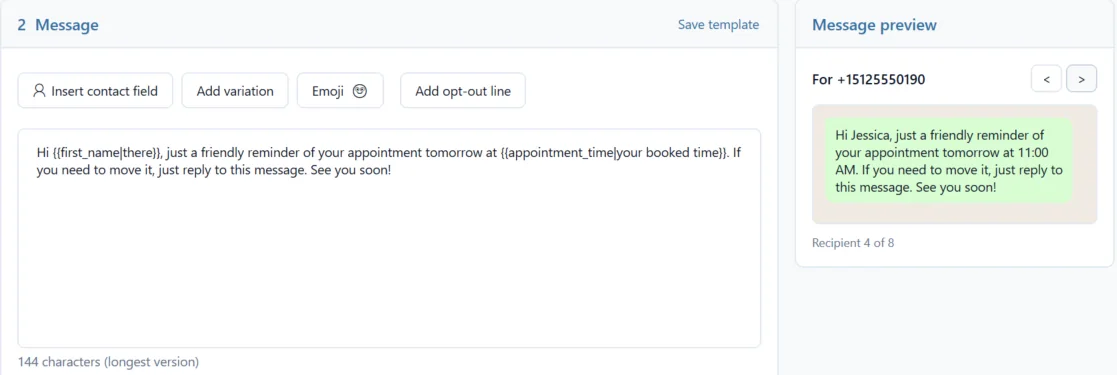
-
Set the start time. Scroll to Sending options, open Schedule start and tick Start at. Pick the hour and minute. The time uses your PC’s clock, and a time that already passed today means tomorrow. Since version 1.7 you can also pick a day up to a week ahead.
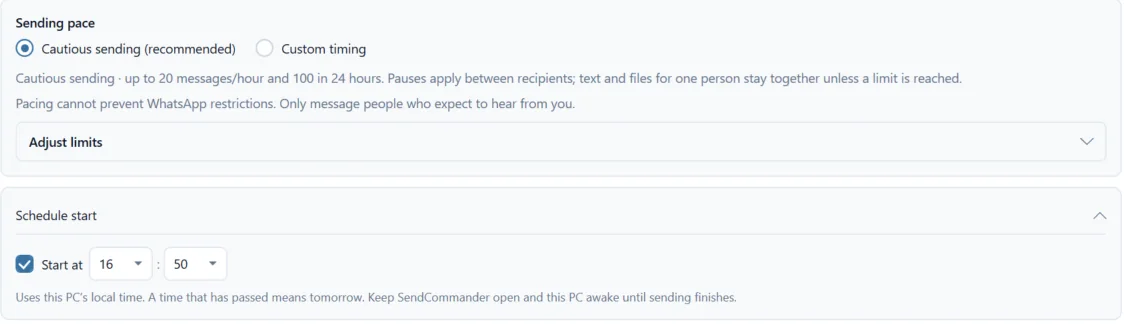
This screenshot is from version 1.5. Current versions add a day picker next to the time. -
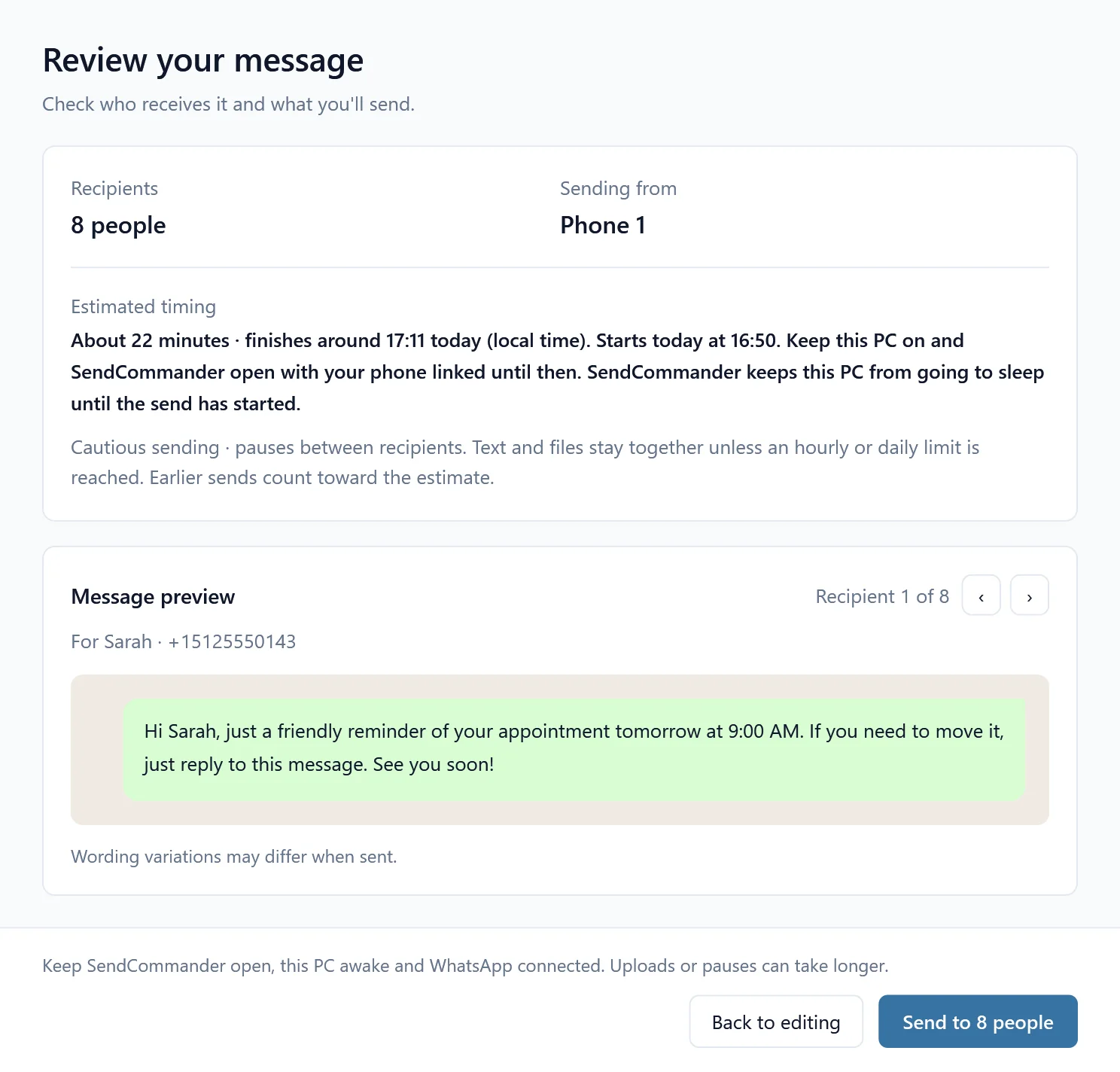
Review and send. Click Review and send. Under Estimated timing you see when sending starts and roughly when it finishes, in your local time. Click the arrows once more to check a preview, then click the send button.
-
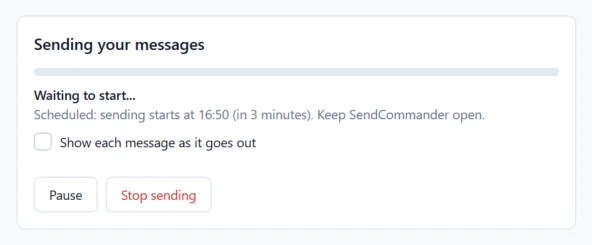
Let it wait. Compose shows Waiting to start with a countdown. You can minimize SendCommander and keep working. To cancel, click Stop sending and nothing goes out.
At the start time, SendCommander switches to its WhatsApp screen and sends one message after another. For each person it looks for the number in your saved contacts, opens the chat and types the message. If the number is not saved on your phone, it checks that the number is on WhatsApp and starts a new chat, so you can reach clients you never saved. Your keyboard, mouse and phone stay free while it works. Afterwards, History lists every message with the time it was sent.
Imports, placeholders and attachments are covered in my guide to sending WhatsApp messages from an Excel list.
Spread of the send
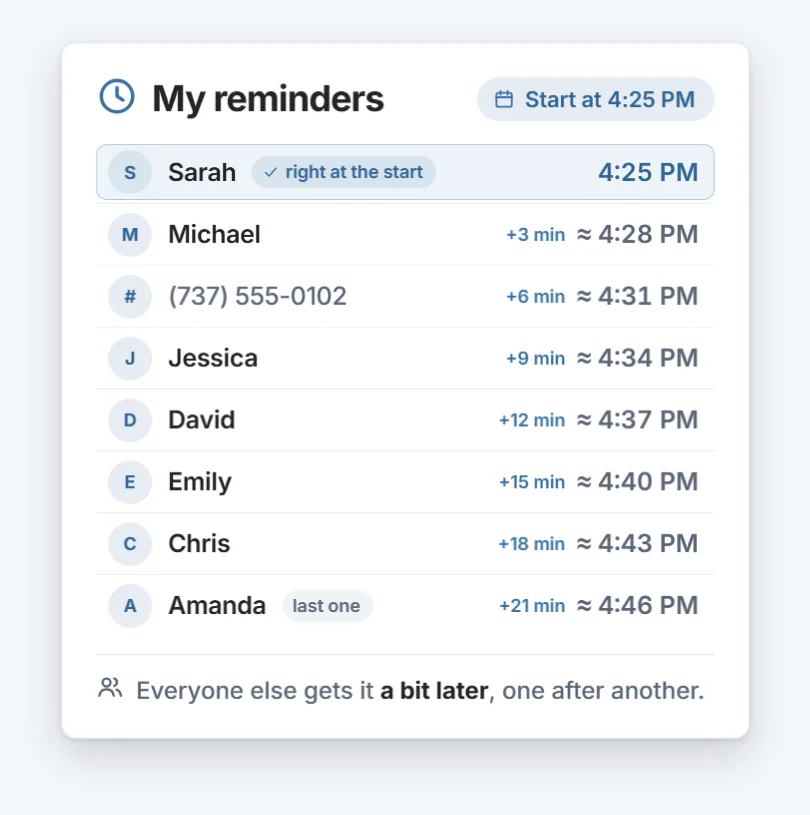
Only the first person gets the message at the start time. SendCommander uses cautious sending by default, which waits at least three minutes between people, so eight reminders that start at 4:25 PM finish around 4:46 PM. Plan the start time with that spread in mind.
The pause matters. A number that suddenly sends many messages in a few seconds looks automated, and WhatsApp may restrict it. Cautious sending allows, for each WhatsApp number, up to 20 messages per rolling hour and 100 per rolling 24 hours, spaced at least three minutes apart. Those are app defaults, not limits WhatsApp has approved as safe.
For a bigger list this adds up. 100 people take at least five hours, and the 24-hour limit stops the rest until the next day. If reminders must arrive before a fixed time, start earlier, or split the list. My send planner estimates the finish time for any list size before you commit to a start time.
The PC must stay on
SendCommander has to be open and the PC awake and online at the start time and until the last message is sent. Minimizing the window is fine, but closing SendCommander cancels the waiting send. This is the main difference from WhatsApp’s built-in scheduling, which runs without your device.
While a send waits, SendCommander keeps the PC from going to sleep. It cannot help if the PC is shut down or loses power. If your PC was off at the start time, SendCommander asks you before anything goes out, so a reminder never arrives hours late without you noticing. After any interruption you review the people who were not reached before continuing. Sending does not restart on its own.
Your phone can be used as normal the whole time. It only needs to stay linked to WhatsApp, the same as for WhatsApp Web.
Reminder list template
The workbook below has a Clients sheet with Phone, First Name and Appointment Time columns, formatted as text so Excel keeps the plus and leading zeros, plus the reminder message from the video with fallbacks for missing names and times.
WhatsApp appointment reminder list
A ready-to-import client list with eight fictional clients, the reminder message with placeholders, and short steps for scheduling it.
Write the time the way it should read inside a sentence. “Friday at 10 am” works in a message, a date serial number does not. If your list has numbers in mixed formats, my free bulk phone number validator tidies them before the import.
Reminder wording
Say who is writing, give the one detail that matters, such as the time, and make replying easy. A reminder that invites a reply gets answers, and replies from people who know you are a good sign for your number.
Appointment reminder, the day before:
Hi {{first_name|there}}, just a friendly reminder of your appointment tomorrow at {{appointment_time|your booked time}}. If you need to move it, just reply to this message. See you soon!
Class or workshop, the morning of (class_time is a column in your list):
Hello {{first_name|there}}, it’s Maria from Oakridge Yoga. Your class starts today at {{class_time}}. Bring water and a towel. Can you still make it?
Payment due, sent at 9 am on the due date (invoice_number is a column too):
Hi {{first_name|there}}, this is Tom from Riverside Lawn Care. Invoice {{invoice_number}} is due today. Reply here if anything looks wrong and I will sort it out.
My appointment reminder templates were written for SMS but work just as well on WhatsApp.
Limits
SendCommander runs on Windows 10 and 11 only, needs the PC on during the send, and sends slowly on purpose. No sending mode can guarantee that WhatsApp will not restrict your number. Message only people who expect to hear from you, such as clients with a booking.
- Not for cold messages. If many people report or block you, WhatsApp will most likely ban the number, and no app can undo that. Read the guide to sending safely first.
- Honor opt-outs. Anyone who replies STOP goes on the block list automatically. Other ways of saying no are yours to handle.
- Windows only. On a Mac it works only inside a Windows virtual machine.
- One start time per send. Each scheduled send has one start time. For a reminder every week, schedule each week’s send.
- Free plan. The free download includes 100 messages and 100 number checks, once per computer, with every feature, scheduling included. A paid plan removes the limits.
For one scheduled message, use WhatsApp’s own option once it reaches your phone. For many personal reminders that go out by themselves from your own number, use SendCommander. Before a big send, my WhatsApp number checker guide shows how to find numbers without a WhatsApp account. If you would rather have customers start the chat, a wa.me click-to-chat link with a pre-filled message does that.
Schedule personal WhatsApp messages for a whole list from your Windows PC. Each person gets their own message from your number, at a careful pace, with names and details from your Excel columns.