Change Color Shares #
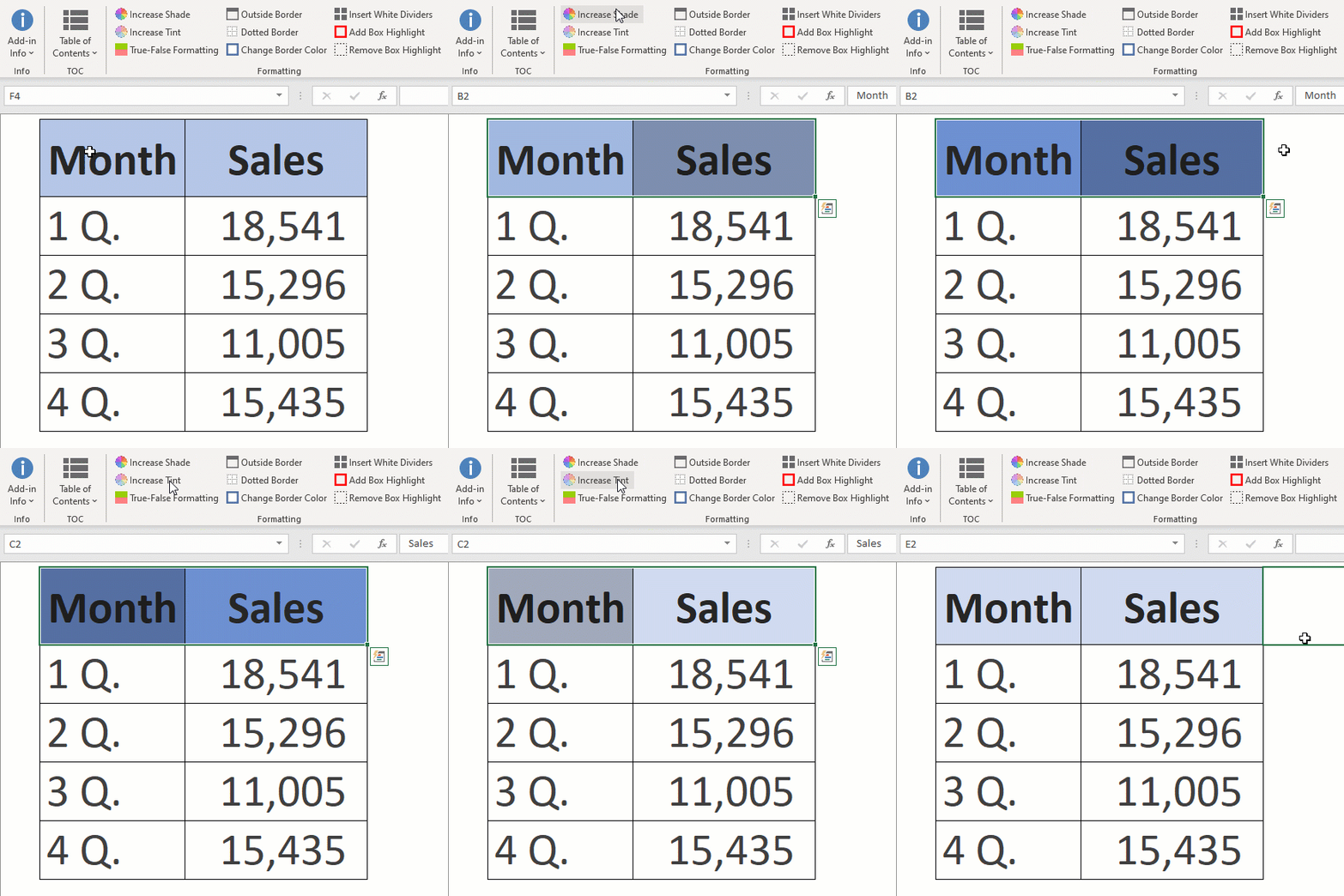
Use this feature to adjust the tint or shade of a selected cell to create a cohesive, professional look.
Tip: This also works on charts and shapes.
Colored Box Highlights #
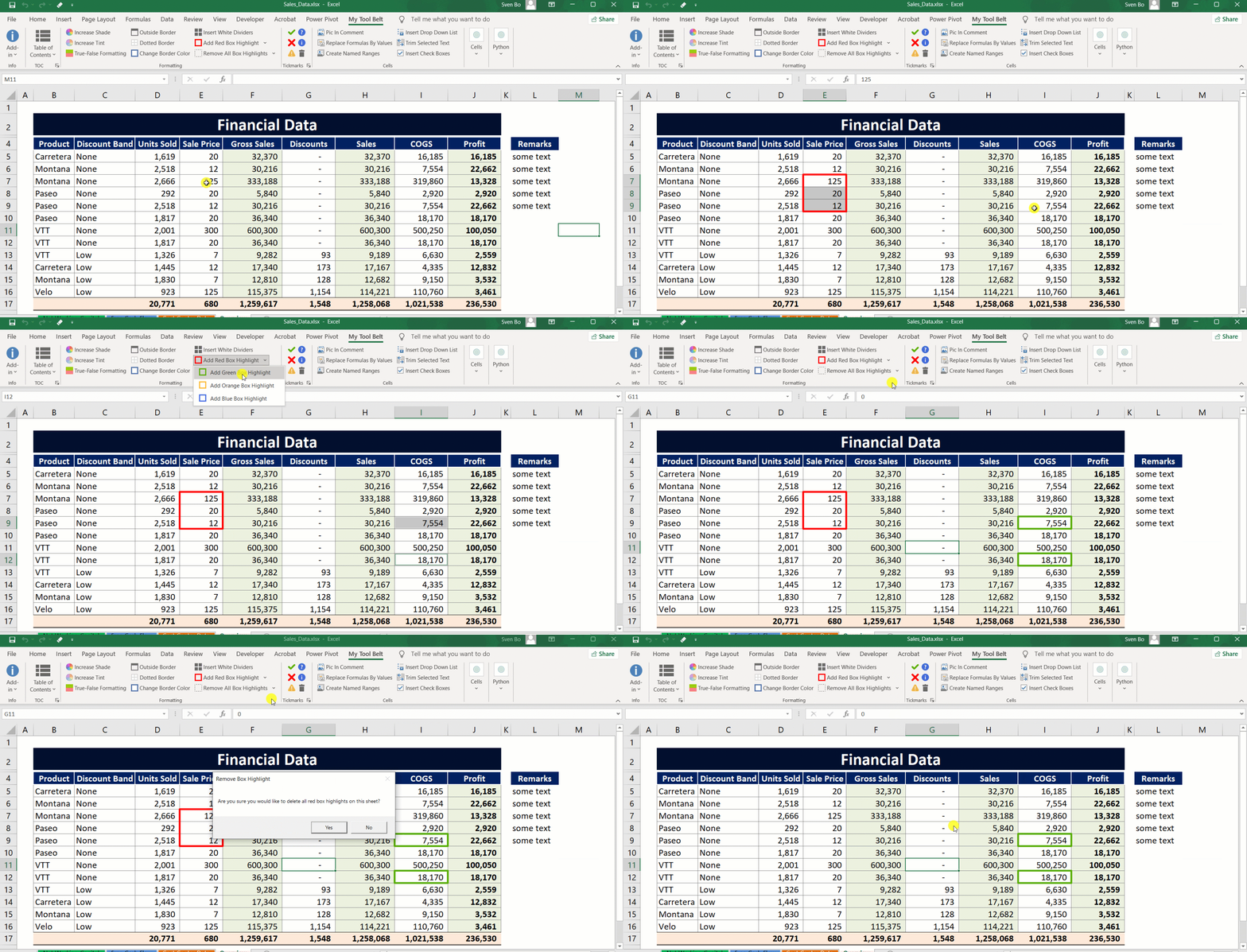
Use this feature to add colored boxes to one or multiple cells. You can choose different colors and easily remove them later. Remove all colored boxes or just certain colors, depending on your needs.
Great for highlighting key data during presentations. After you’re done, you can quickly clean up the colored boxes.
Other Formatting Features #
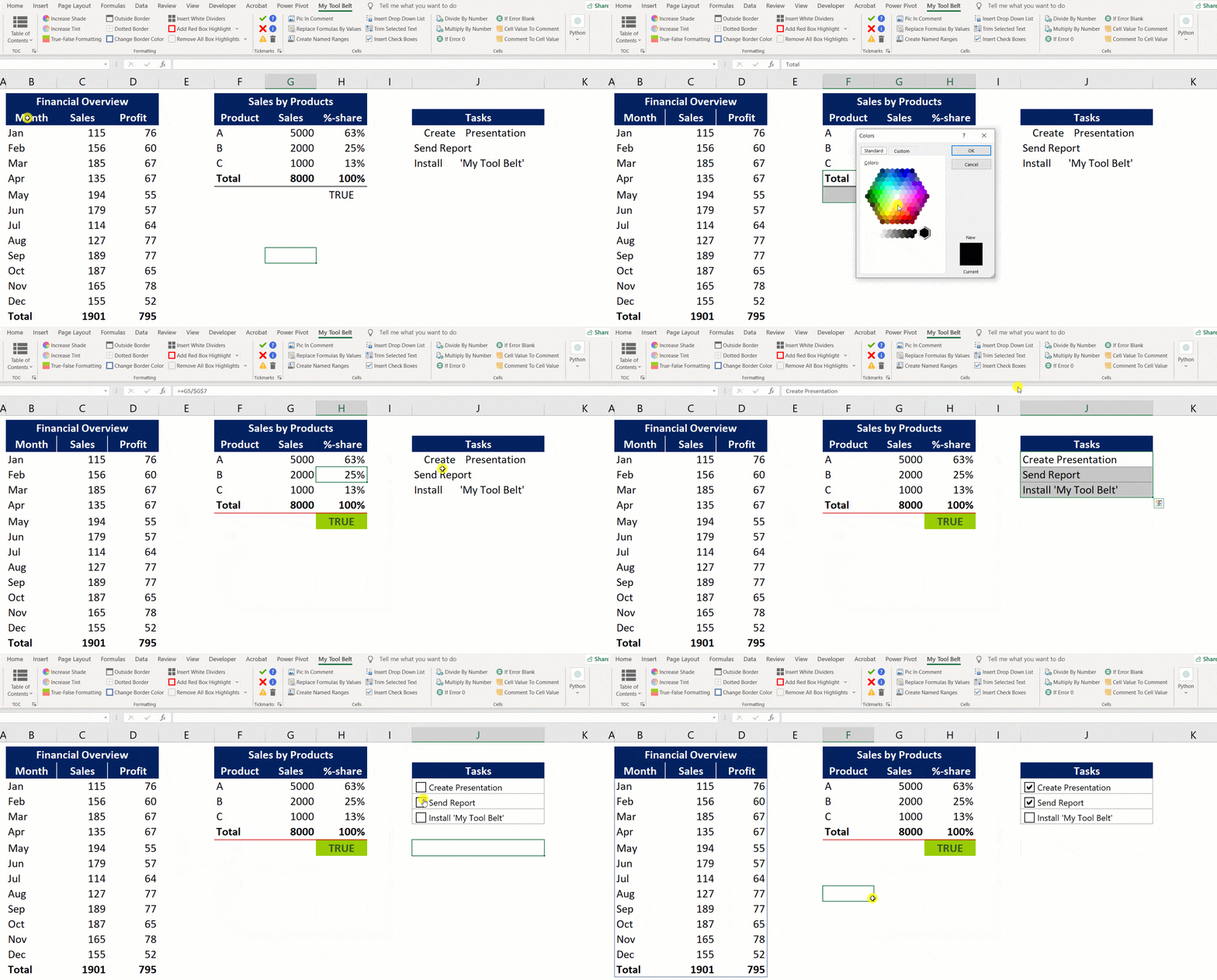
Most of these features are straightforward. Check the demo below for a quick look:
- Insert White Dividers
Select the cells and click the button to insert white dividers (borders). Clicking the button again rotates the dividers between inside and outside the selected area. - Change Border Color
Quickly change border colors by selecting the borders and clicking the button to choose a color. Note: changing colors for large ranges might take some time. - Dotted Border
Use this feature to apply dotted borders to your selection, providing a subtle and professional touch instead of the default solid lines. - Outside Border
Select a range, and the background color of the first cell will be applied as the border color. This helps you quickly create consistent and professional-looking borders. - True-False Formatting
Automatically apply conditional formatting to cells with TRUE or FALSE values. TRUE will get a green background, and FALSE a red one—perfect for highlighting important checks. - Trim Selected Text
Select a range and click the button to remove extra spaces (leading, trailing, or in between words). - Insert Checkboxes
Convert selected text into checkboxes with a single click, ideal for tracking tasks or lists.