
Chat Merge can open each chat in three places. The default needs nothing installed and works on every platform, so you can leave it as it is and switch only if another choice suits you better.
Change the setting #
- Open the menu at the top left of the pane and choose Settings. Under the Open this chat buttons, the line Opens in with its Change link takes you there too.
- Under Open chats in, select one of the choices below.
- Choose Back. The choice is remembered on this computer, for every workbook.
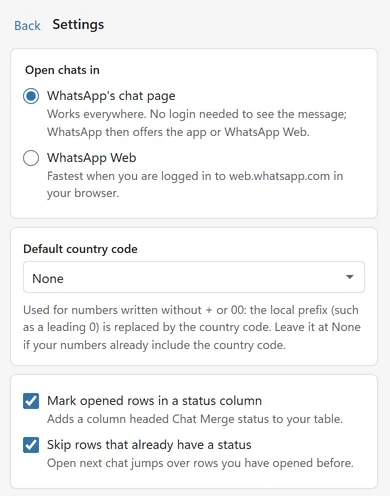
The three choices #
- WhatsApp’s chat page (the default). Opens WhatsApp’s own chat page in your browser with the message filled in. It works everywhere. You do not need to be logged in to see the message; WhatsApp then offers to continue in the app or in WhatsApp Web.
- WhatsApp Web. Opens web.whatsapp.com directly. It is the fastest choice when you are already logged in to WhatsApp Web in that browser.
- WhatsApp desktop app. Opens the installed WhatsApp app on your computer directly. This choice is offered in Excel on Windows only. The first time, Excel asks "An add-in is trying to open this application": choose Open and tick Always remember my choice. See Excel asks to open an application.
Which one to pick #
- Not sure, or using Excel on Mac or the web: keep WhatsApp’s chat page.
- You keep WhatsApp Web open all day: choose WhatsApp Web.
- You use the WhatsApp app on Windows and want to skip the browser: choose WhatsApp desktop app, and make sure WhatsApp is installed and you are logged in.
Good to know #
- With the chat page and WhatsApp Web, the chat opens in a new browser tab. In Excel on the web your browser may block that tab, see Nothing opens when I click Open this chat.
- Whichever you choose, nothing is sent until you press Send in WhatsApp.