
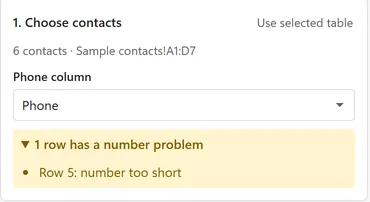
Before you open any chat, Chat Merge checks the phone numbers in the column you chose. Rows with a number it cannot use are listed in a yellow box under the Phone column list in 1. Choose contacts, so you can fix them in Excel before you start. The other rows work as usual.
What the reasons mean #
Each entry names the Excel row, for example Row 5: number too short.
- the phone cell is empty: there is nothing in the cell.
- number too short: fewer than 8 digits, which is too few for a full international number.
- number too long: more than 15 digits.
- number has letters: the cell holds letters or another stray character, for example a plus sign in the middle.
- more than one number in the cell: put each number in its own row.
- number has decimals: the cell holds a number with decimals, for example 447700900123.5, instead of a whole phone number.
- add the country code, or set a default country in Settings: the number starts with 0 and Chat Merge does not know which country it belongs to.
Spaces, dots, dashes and brackets inside a number are fine, so +44 7700 900123 and 0044 7700-900123 both work. A number can start with a plus sign or with 00.
Set a default country #
Local numbers are usually written without a plus sign or 00, often with a national prefix such as a 0, for example 07700 900123 in the United Kingdom. WhatsApp needs the country code instead of that prefix, so Chat Merge can add the code for you.
- Open the menu at the top left of the pane and choose Settings.
- In the Default country code list, choose your country, for example United Kingdom. The list has every country, from A to Z.
- Choose Back. The list of problems updates.
The code is added to numbers written without + or 00, and the national prefix is handled the way that country writes it:
- In most countries a leading 0 is dropped: 07700 900123 becomes 447700900123 for the United Kingdom.
- Italy and San Marino keep the 0, because it is part of the number: 06 1234 5678 becomes 390612345678.
- Russia and Kazakhstan use a leading 8 as the prefix: 8 912 345 67 89 becomes 79123456789.
- Hungary uses 06: 06 30 123 4567 becomes 36301234567.
- Other countries follow their own rule, for example the leading 1 of an 11-digit number in the United States and Canada.
Numbers that already include the country code, with a plus sign or 00 in front, are left alone. If all your numbers already include the country code, leave the list at None.
A warning about a missing country code #
Some numbers are valid but worth a second look, and the yellow box lists them too:
- Row 7: 7700900123 has no country code. Add it, or choose a default country in Settings. This appears when no default country is set and a number has no plus sign, no 00 and at most 10 digits. Excel removes a leading 0 from a cell formatted as a number, so this is the usual cause. Choose a default country, or type the number again with the country code and a plus sign, for example +447700900123. Formatting the phone column as Text before you type or paste the numbers keeps the 0.
- Row 7: 1234567890123 is too long for a local number, so it is used as it is. Check that it starts with the country code. This appears with a default country set, when a number is too long to be a local number and has no plus sign. Add the plus sign if the number already starts with the country code.
What happens to a row with a problem #
- The preview says This row has no valid number with the reason, and Open this chat refuses that row and asks you to fix it in Excel or choose another row.
- Open next chat skips the row.
- When the same number appears in more than one row, Chat Merge tells you. Each row still opens its own chat.
After you change a cell, choose Use selected table in the 1. Choose contacts card to read the table again.