
A few minutes from install to your first chat. No account and no key: Chat Merge is free. The pane has three steps, 1. Choose contacts, 2. Write the message and 3. Check and open, and you work through them from top to bottom. Nothing is sent until you press Send in WhatsApp.
1. Get Chat Merge from Microsoft Marketplace #
You need Excel on Windows or Mac with Microsoft 365 or Excel 2021 and later, or Excel on the web. Chat Merge is free on Microsoft Marketplace. In Excel, open the Home tab, choose Add-ins, search for Chat Merge and choose Add. If the search shows no result, choose More Add-ins and search there.
2. Open the pane #
On the Home tab, click the Chat Merge button. The Chat Merge pane opens on the right. The menu is the three lines at the top left of the pane.
3. Try the sample contacts #
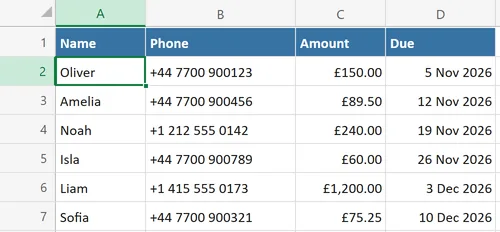
Until you pick a table, step 1 asks you to click any cell in your contact table, and offers an Insert sample contacts button (the menu has the same entry). Click it. Chat Merge adds a sheet named Sample contacts with six made-up people and the columns Name, Phone, Amount and Due, and the pane fills itself from it. The pane uses the Excel table that holds your selected cell, or the block of data around it. To use your own list later, click any cell inside it. If you change cells afterwards, choose Use selected table to read the table again.
4. Pick the phone column #
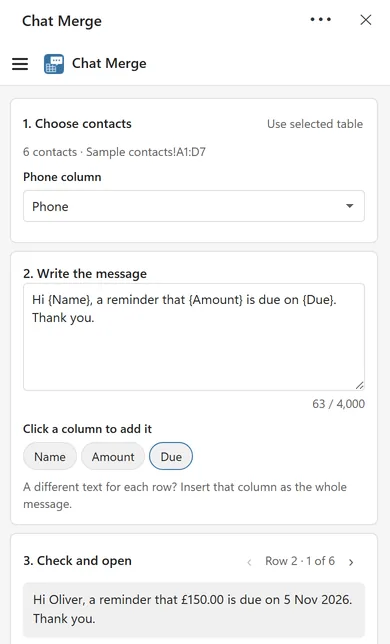
Under 1. Choose contacts, a line such as 6 contacts · Sample contacts!A1:D7 shows what was read. Chat Merge looks at the column headings and at what the cells contain to find the phone numbers, and the Phone column list shows what it chose. If it picked the wrong column, or found none and asks you to choose the phone column, pick the right one from the list. Rows with a number that cannot be used are listed under the list, see Fix numbers that cannot be used.
5. Write the message with fields #
Type your message in the box under 2. Write the message. Below it, Click a column to add it shows one button for each column of your table except the phone column. Click one to put that column into the message at the cursor, for example {Name}. You can also type the field yourself. A message can hold up to 4,000 characters, and the message is saved with the workbook. If every row needs a different text, keep that text in one column and insert that column as the whole message.
6. Check the preview #
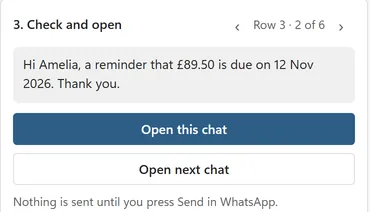
The 3. Check and open card shows the message for one row, exactly as the cells display: a price shows as £150.00 and a date as 5 Nov 2026. Next to the arrows, Row 2 · 1 of 6 gives the Excel row number first, then the position among your contacts. Use the arrows to step through the rows. If a field is empty in a row, the preview tells you. If the message uses a field that is not a column, the pane names it so you can fix the message or rename the column.
7. Open the chat and press Send #
Click Open this chat. A chat for the previewed row opens with the number and your message filled in. Check it and press Send in WhatsApp. Chat Merge never sends the message itself. The first time, the pane also explains that opened rows are marked in a new column, Chat Merge status.
Come back to Excel and click Open next chat. It jumps to the next row that has a valid number and has not been opened yet, and opens that chat. Repeat until the pane says that every row has been opened.
The first time you open a chat in the WhatsApp desktop app, Excel may ask for permission. See Excel asks to open an application. On a Mac, if Excel cannot open your browser from the pane, the pane shows the chat link with a Copy link button. Copy it and paste it into your browser’s address bar.
8. See who you have messaged #
By default Chat Merge adds a column headed Chat Merge status at the right edge of your table and writes Opened with the date and time for each row you open. Open next chat skips those rows, so you can stop and continue another day. See Track who you have messaged.
Having trouble? #
If nothing opens when you click Open this chat, see Nothing opens when I click Open this chat. For anything else, contact support.