
This guide compares two tables or ranges in the open workbook, for example this month’s price list and last month’s. For a file on your computer, see Compare with another workbook or file.
1. Choose Old and New #
Old is the earlier version and New is the later one. Open each list and choose a source:
- Excel tables come first, each shown as table name, sheet and number of rows, for example Prices_Sep · Table Compare sample · 25 rows.
- Sheets with data come next, shown as sheet name and used range, for example Sheet2 · A1:F503. Sheets that Table Compare wrote itself (report sheets) and sheets that are only a copy of one table are left out.
- Use current selection and From a file on this computer… are at the end of the list.
When the workbook has exactly two tables, or no tables and exactly two sheets with data, Table Compare fills Old and New for you and puts the older one first. It reads month names, dates, old and new, v1 and v2, before and after, and numbers in the names. With more candidates, the lists show Choose the older version and Choose the newer version.
2. Or use your selection #
Click a cell in your data and click Use selection above the list. What you get depends on where you clicked:
- One cell inside an Excel table: the whole table without its totals row. Table Compare says The selection is inside Prices_Oct. Using the whole table.
- One cell outside a table: the block of data around that cell, up to the first empty row and column.
- Several cells: exactly those cells, trimmed to the cells that hold data.
If the selected cells are empty, Table Compare asks you to click a cell inside your data. Swap trades Old and New.
3. Check how rows are matched #
Once both are chosen, a line under them says how rows will be paired: Match rows by SKU (auto), or Match rows by row order (no ID column found). Click Change to open Options at the Match rows by field. How rows are matched explains the choices.
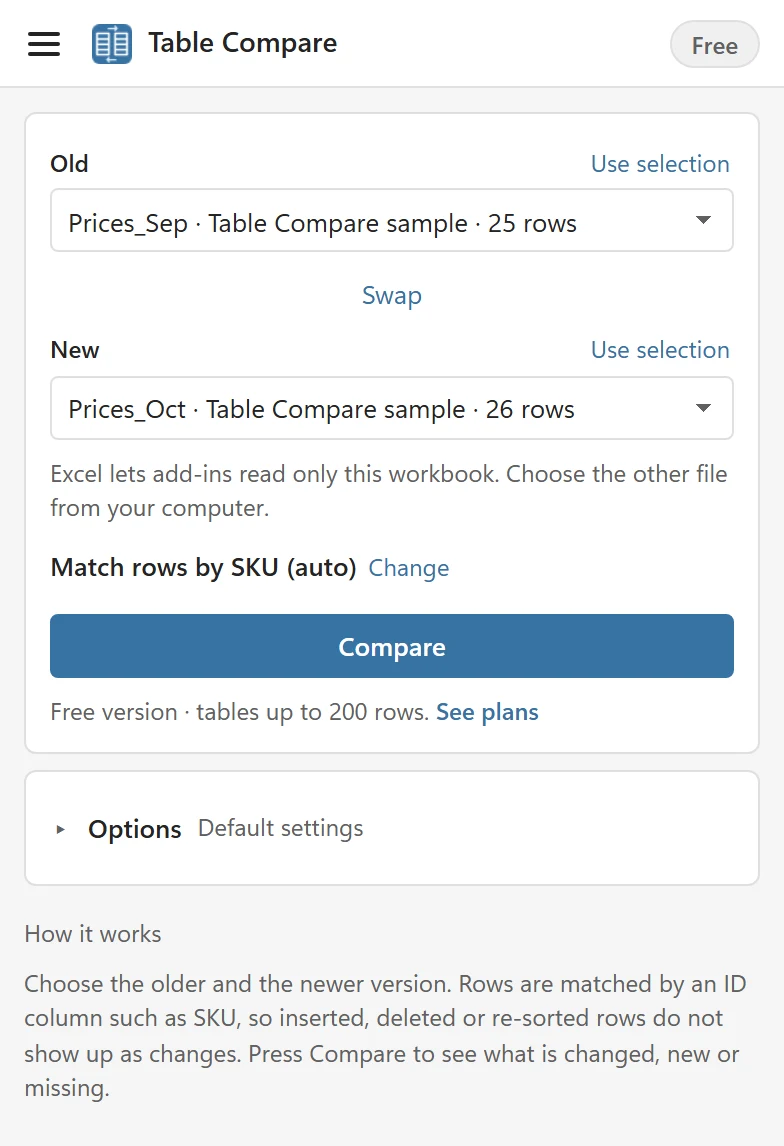
4. Press Compare #
Compare is greyed out until both sides are chosen, and a line under it says what is missing, for example Choose the Old and New tables to compare. or Old and New are the same source. Choose two different ones. That last line appears when Old and New are the very same table or sheet. If you chose two different sources that cover exactly the same cells, for example a table and a selection of it, Compare stops with Old and New cover the same cells (A1:D26 on Sheet1). Choose two different sources. While it runs, the pane shows what it is doing, such as reading rows and comparing, with a Stop link that cancels between steps. Compare only reads your data; it does not change any cell.
5. Read the result #
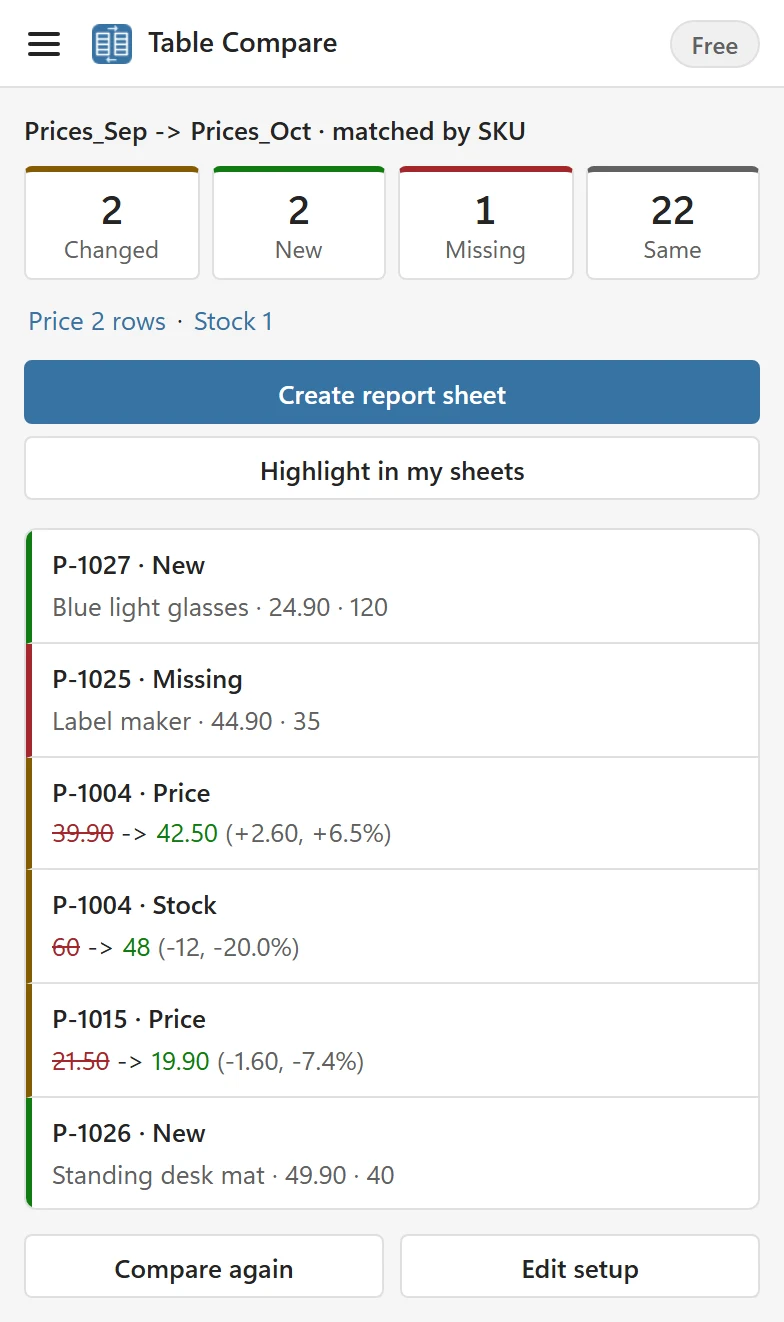
- The tiles Changed, New and Missing filter the list when you click them. Click the selected tile again, or Show all above the list, to see everything. Same only counts.
- Under the tiles, the changes per column show where the differences are, largest first, for example Price 2 rows. Click a column name to show only its changes.
- A Check line appears under the tiles when something needs a look, such as an ID that appears twice. Its Show button lists those rows.
- Changed cells read old value, an arrow and the new value. For numbers the difference and the change in percent follow in brackets, formatted like the column.
- The list shows 50 items at a time. Click Show more below it to add the next ones; the link says how many it adds, for example Show 50 more.
- Click an item, or move with the arrow keys and press Enter, to select that cell in your workbook. A missing row is selected in the Old table.
When both tables are identical you see a calm message instead: No differences. 25 rows match on SKU.
6. Next steps #
- Create report sheet and Highlight in my sheets keep the result in your workbook; see Read the report sheet and Highlight changes in your sheets.
- Compare again reads both tables again with the same settings, and Edit setup goes back to Old and New with your choices kept.
Things Table Compare tells you #
- Old and New that share only some cells are compared, with a warning, because the shared cells are compared with themselves: Old and New share cells on Sheet1 (A1:D26). Those cells are compared with themselves. Choose sources that do not overlap for exact results.
- Hidden or filtered rows are compared like every other row: Some rows in Prices_Oct are hidden or filtered out. They are compared like every other row.
- Merged cells are read as they are, with a warning: Merged cells in A3:B4. Unmerge them and compare again for exact results.
- A source on a protected sheet cannot be read: Prices_Oct is on a protected sheet. Unprotect it or choose another source.
- If a table changes while Table Compare reads it, you see The table changed while comparing. Compare again.