
The summary sheet shows a row per changed row. The Cell changes sheet shows a row per changed cell, which is the better shape for questions such as “which prices went up the most?”. It is written together with the summary when you press Create report sheet, and named Cell changes 2 Oct with the same date as the summary.
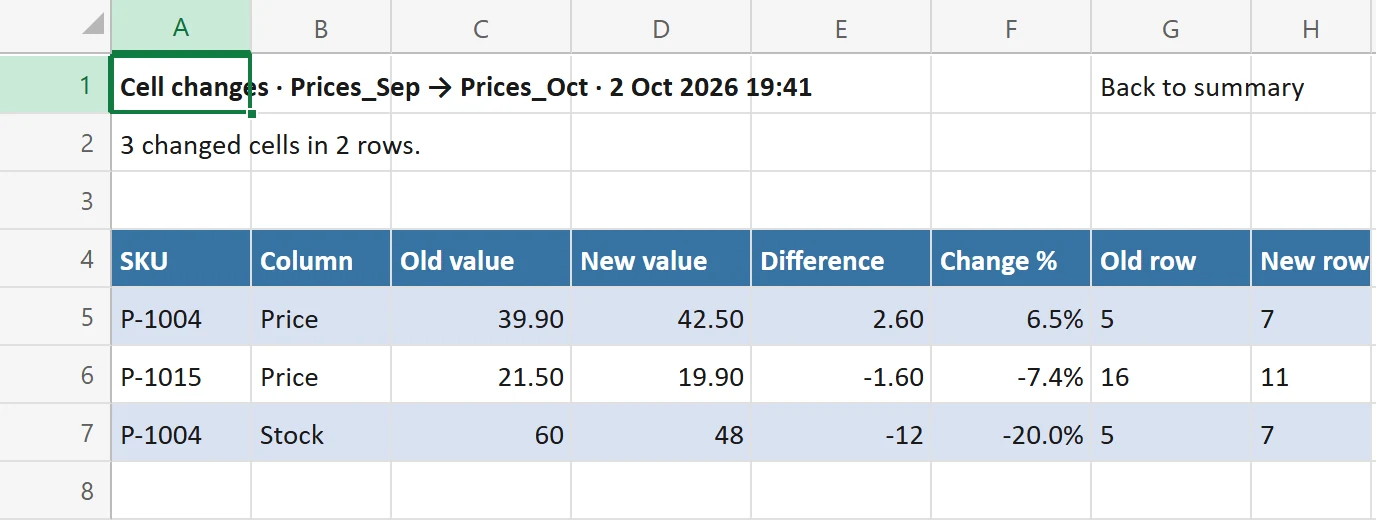
The layout #
- Row 1 holds the title, for example Cell changes · Prices_Sep → Prices_Oct · 2 Oct 2026 18:32, and a link Back to summary.
- Row 2 counts the changes: 3 changed cells in 2 rows.
- From row 4 down an Excel table has these columns: the ID column or columns (or Row when rows were matched by order), then Column, Old value, New value, Difference, Change %, Old row and New row.
Difference and Change % #
When both values are numbers, Difference is New minus Old and Change % is that difference divided by the old value, so a price from 39.90 to 42.50 shows 2.60 and 6.5%. These are real numbers, not text, in the number format of the column, so you can sort and sum them. For text or dates the two cells stay empty, and when the old value is 0 there is no percentage.
Old row and New row #
These columns hold the row number in the source sheet as a link. Click one to go to that row in the Old or New table. They are empty for a file source, unless you used Keep a copy in this workbook.
Ideas for using it #
- Filter Column to Price and sort Change % to see the biggest price moves first.
- Filter Column to one field to review one kind of change at a time.
- Insert a PivotTable with Column as rows and a count of changes, or the sum of Difference, to see where the total moved.
- Copy the table into an email or a review document.
The table holds up to 100,000 changed cells, the same limit as the report. Rows that are New or Missing have no changed cells, so they are only on the summary sheet.