
Last month’s version is often in another workbook. Table Compare reads files you choose from your computer: .xlsx, .xlsm, .xls and .csv, up to 50 MB.
Why other open workbooks are not listed #
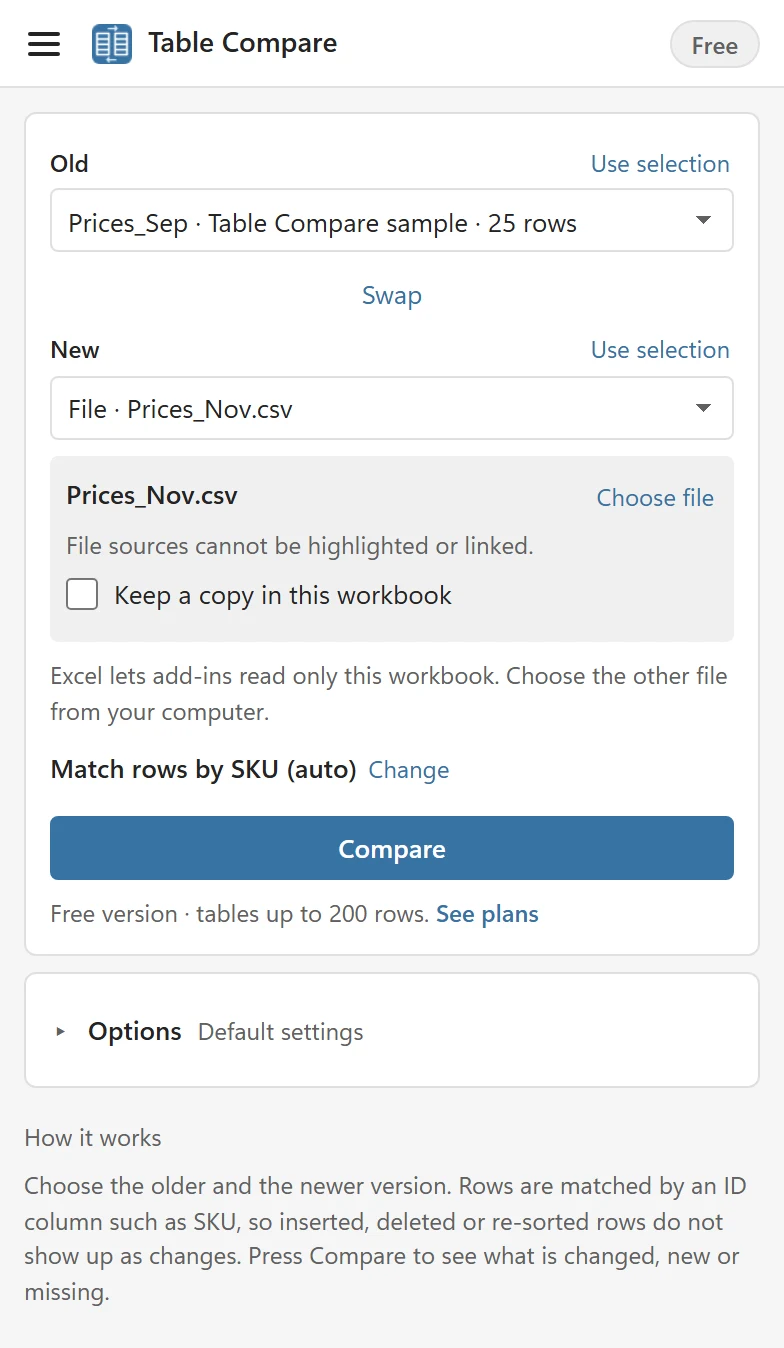
Excel lets an add-in read only the workbook it was opened in. Table Compare cannot see your other open workbooks or files in OneDrive, and the pane says so: Excel lets add-ins read only this workbook. Choose the other file from your computer. The same applies on Excel for the web: choose a copy you downloaded to your computer.
Choose a file #
- Open the Old or New list and choose From a file on this computer….
- Select the file. The pane shows the file name and a Choose file link to pick another one.
- If the file has several sheets with data, a Sheet list appears. Table Compare preselects the sheet that has the same name as the table or sheet on the other side, and otherwise the first sheet with data.
- Press Compare as usual.
The file is read on your computer, inside the pane. It is not uploaded anywhere. Table Compare tells you if the file is empty, password protected or too large, and what to do: for example This file is password protected. Save it without a password and try again.
What works with a file, and what needs a copy #
A file is not part of your workbook, so Table Compare cannot color its cells or link to its rows. The pane notes this under the file: File sources cannot be highlighted or linked. You still get the counts, the list, the report sheet and Copy these rows to a new sheet.
To get everything, turn on Keep a copy in this workbook under the file before you press Compare. Table Compare then writes the file’s sheet into your workbook as a new sheet named after the file and the date, for example Prices_Nov (2 Oct), with values only, and uses that sheet as the source. Highlights, links from the report to the rows, clicking a list item and Compare again then work as with any sheet of your workbook.
Without a copy, clicking a list item shows This row is not in a table in this workbook, so there is nothing to select. Keep a copy of the file in this workbook to jump to its rows.
When you come back later #
Table Compare remembers your setup in the workbook, but never keeps access to a file. When you reopen the workbook, the file slot reads Choose the file again followed by the file name. Choose the file again, then press Compare.