
Instead of reading a list, you can look at your own tables with the differences colored.
Add the highlights #
- Compare two tables of your workbook.
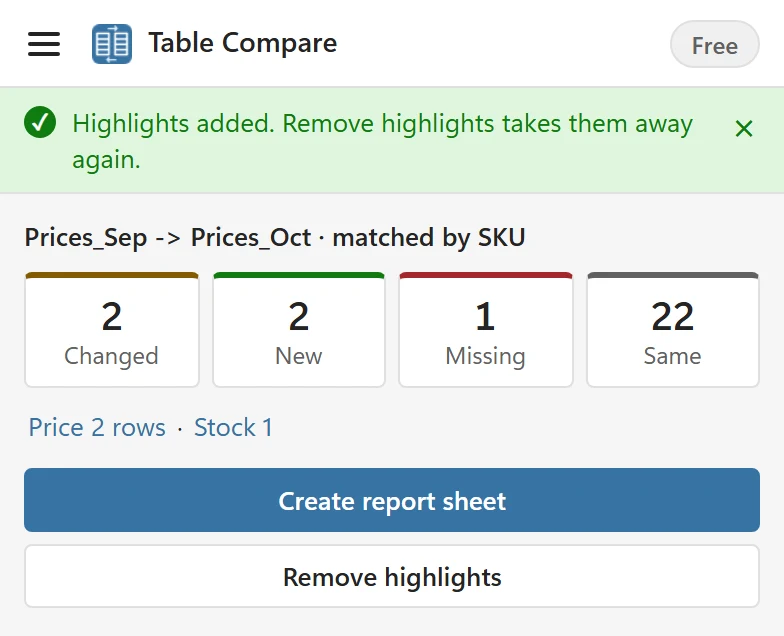
- In the results, click Highlight in my sheets. The status line says Highlights added. Remove highlights takes them away again.
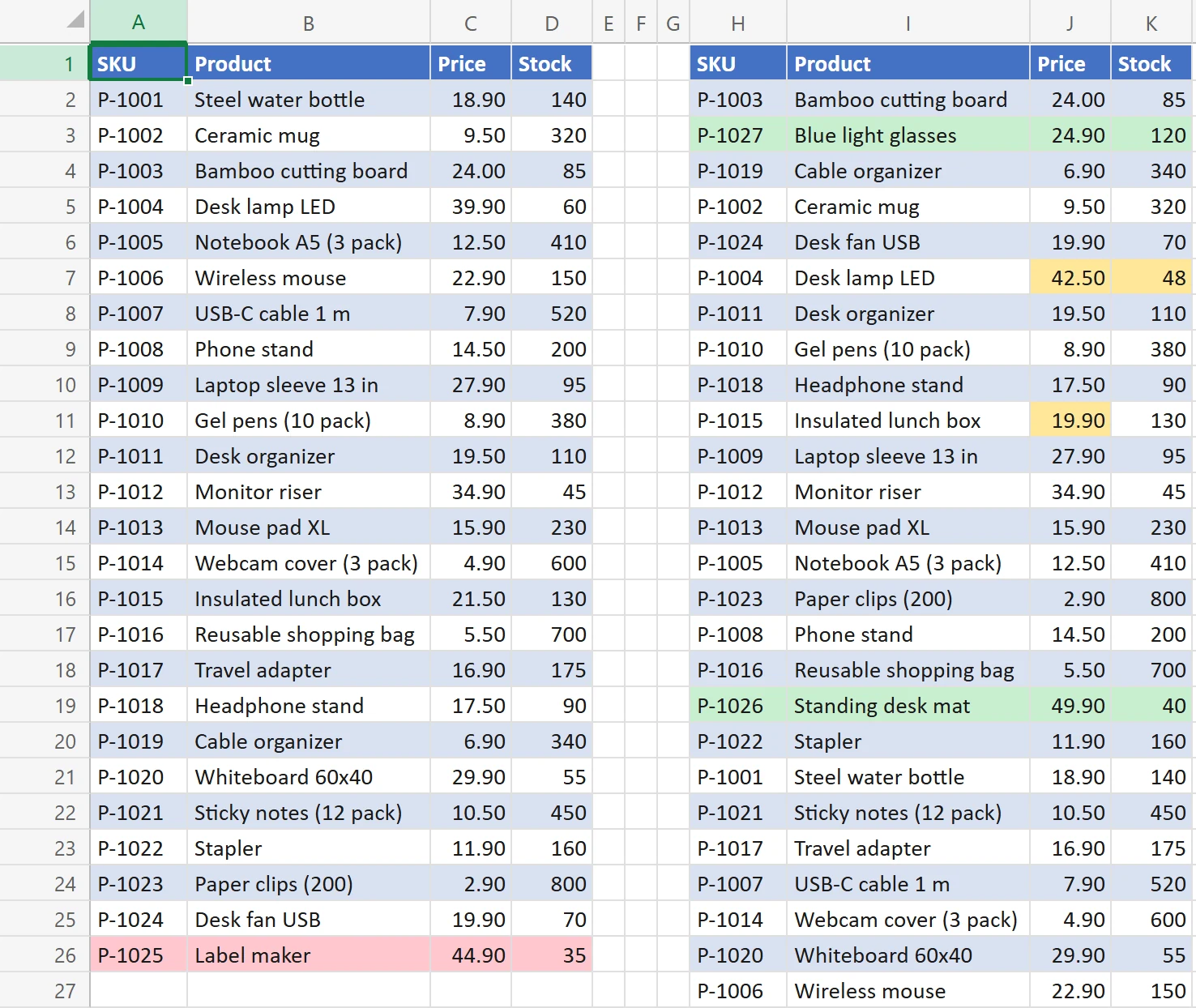
- Yellow: each changed cell in the New table.
- Green: each new row, in the New table.
- Red: each missing row, in the Old table.
Rows listed under Check are not colored. The same colors are used in the report sheet.
Remove the highlights #
While highlights are on, the button reads Remove highlights. Click it and the sheets look as before: Highlights removed. This also works after you saved and reopened the workbook.
Why your own colors are safe #
Table Compare does not paint the cells. It adds conditional formats, which sit on top of your formatting. Your fills and fonts are untouched, and removing the highlights deletes exactly the formats Table Compare added and nothing else. If you deleted some of them by hand in Conditional Formatting, removing the rest still works.
Things to know #
- Highlights need the tables to be in your workbook. For a file, turn on Keep a copy in this workbook before you compare; the button is otherwise unavailable and says Files cannot be highlighted. Choose Keep a copy in this workbook to highlight them.
- The colors mark cells by their position at the time of the comparison. If you sort the table or insert rows afterwards, the colors do not follow. Remove the highlights and compare again.
- Highlighting again replaces the earlier highlights instead of adding to them.
- Protected sheets cannot be changed. Table Compare skips them and lists them, in one of two ways. If some sheets could be highlighted: Highlights added. Protected sheets are skipped: Prices_Oct. Unprotect them (Review > Unprotect Sheet) and highlight again. If every sheet is protected, nothing is added: Nothing was highlighted. Protected sheets are skipped: Prices_Sep, Prices_Oct. Unprotect them (Review > Unprotect Sheet) and highlight again.
- The highlights are stored in the workbook, so colleagues see them too.