
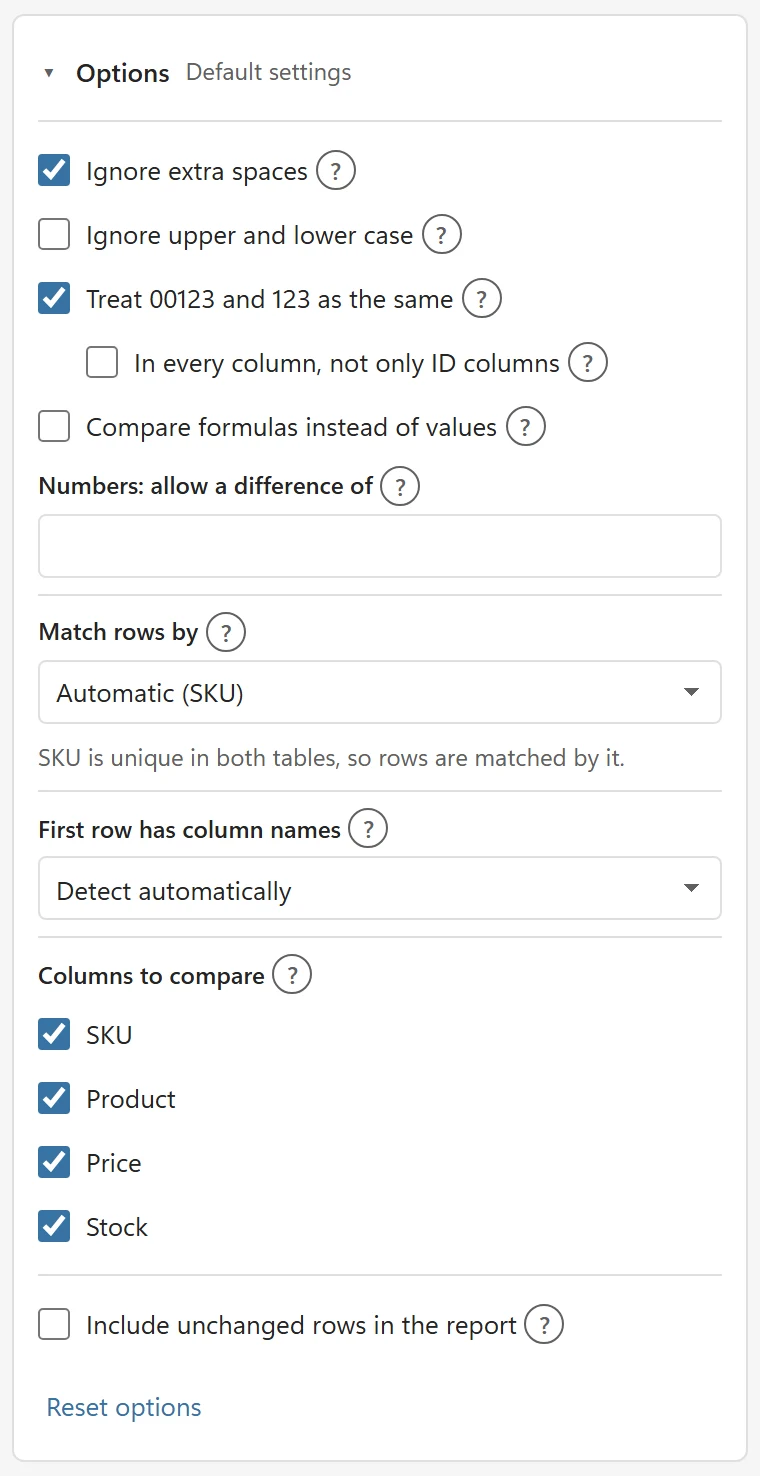
A difference that is not a real change wastes your time. Most of them come from spaces, capital letters, leading zeros or tiny rounding gaps. The Options section under the Compare button removes them. It is closed by default; its title line shows a short summary of what you changed, or Default settings.
Text and numbers #
- Ignore extra spaces (on): spaces at the start and the end and doubled spaces inside a text are ignored. Steel bottle equals Steel bottle. Spaces are never removed completely.
- Ignore upper and lower case (off): turn it on when North and NORTH should be the same.
- Treat 00123 and 123 as the same (on): numbers with leading zeros equal the same number without them. The box In every column, not only ID columns extends this from ID columns to all columns. With the main box off, 00123 and 123 differ everywhere.
- Numbers: allow a difference of: type a value such as 0.01, and two numbers that differ by no more than that count as equal. Use it for rounding. Leave it empty to compare exactly. Tiny binary rounding noise, such as 0.1 + 0.2 against 0.3, is ignored without this setting.
- Compare formulas instead of values (off): compares the formula text wherever a cell has a formula, and the value everywhere else. Leave it off to compare what the cells show.
Some equalities always hold: a number and the same number stored as text are equal (without leading zeros), TRUE and the text TRUE are equal, and an empty cell equals an empty text. A cell that holds only spaces counts as empty too, but only while Ignore extra spaces is on; with it off, spaces-only text differs from an empty cell. Dates are compared as Excel date values. A date typed as text is not converted, so a text date in one table and a real date in the other show as a change; make both real dates first.
First row has column names #
Table Compare decides itself whether the first row holds column names. If it guesses wrong, set First row has column names to Yes or No. The default is Detect automatically. Excel tables always have column names.
Columns to compare #
Under Columns to compare every column that exists in both tables has a checkbox. Clear a box to leave a column out, for example a Last updated column that always differs. The summary then reads Columns left out: 1. Columns that were paired with a different name show it, for example pairs with SKU.
Columns that exist in only one table appear below as Columns only in Old. Pair them with a column of New: with a list per column. Choose a New column there to pair them by hand, or leave Not paired.
Match rows by #
This field decides how rows are paired; see How rows are matched.
Include unchanged rows in the report #
Off by default, so the report lists only differences. Turn it on to also list the rows that are the same; see Read the report sheet.
Reset and remember #
Reset options returns every option to its default. Your options are saved with the comparison in the workbook, and they carry over to new tables with the same column names; see Compare again next month.