
The report keeps the result of a comparison in your workbook, as ordinary sheets you can filter, copy and send. Press Create report sheet in the results.
Table Compare adds two sheets and opens the first one. Their names carry the date, for example Compare 2 Oct and Cell changes 2 Oct; a second report on the same day gets (2) after the name. The status line confirms it: Report written to Compare 2 Oct and Cell changes 2 Oct. This guide covers the first sheet. The second is described in Read the Cell changes tab.
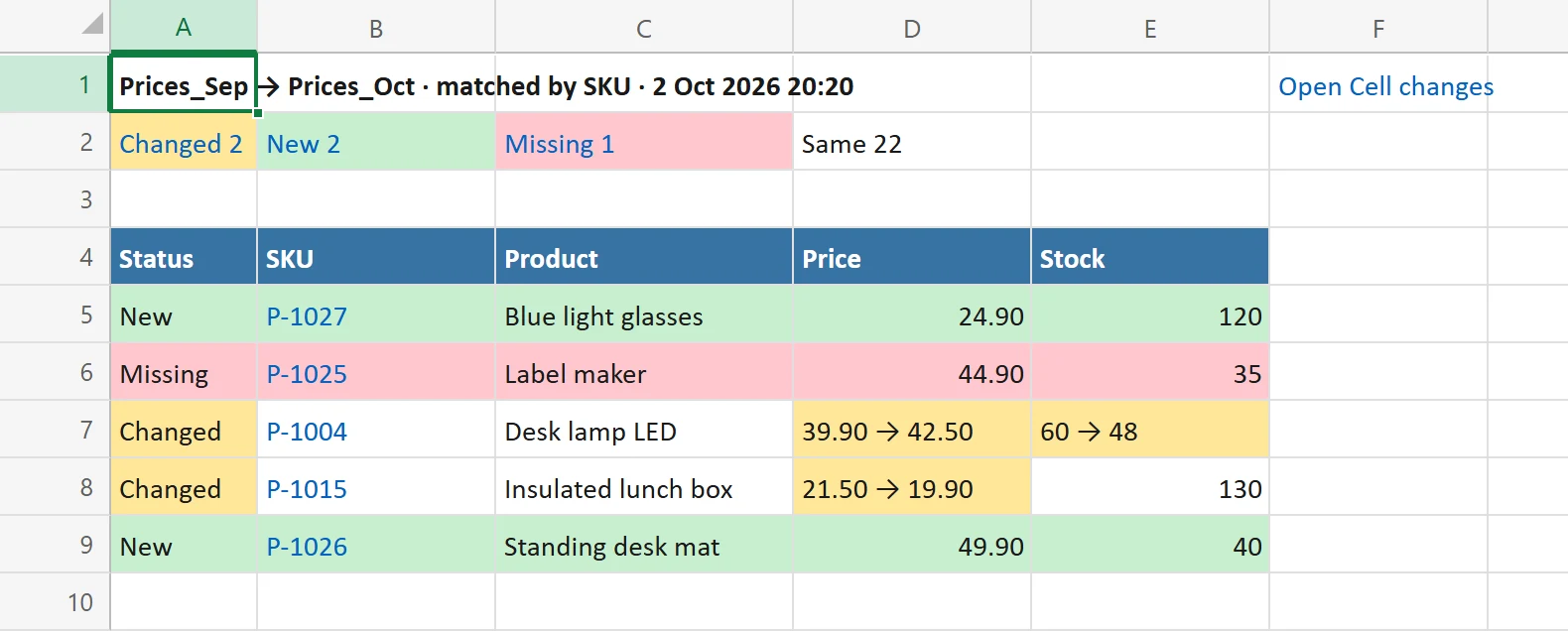
Top of the sheet #
- Row 1 holds the title: the two sources, how rows were matched and when, for example Prices_Sep → Prices_Oct · matched by SKU · 2 Oct 2026 18:32. A link at the right, Open Cell changes, jumps to the second sheet.
- Row 2 holds the counts, one cell per status in the status color. Click one to go to the first row of that status. A purple Check count appears when something needed a look.
The table #
From row 4 down, an Excel table lists the differences, with a frozen header row so it stays visible while you scroll. Filter and sort it like any table.
- Status: Changed, New, Missing or Check. Same appears only if you turned on Include unchanged rows in the report in Options.
- Then the ID column or columns the rows were matched by. When rows were matched by row order, a Row column holds the row number instead.
- Then every compared column, named as in the New table.
Colors and values #
- Changed rows show the old and the new value in each changed cell, for example 39.90 → 42.50, on a yellow fill. The Status cell is yellow too. Cells that did not change keep their value and number format.
- New rows are green and show the values from the New table.
- Missing rows are red and show the values from the Old table.
- Check rows are purple, with the note in the first column after Status, for example that an ID appears twice.
Values that would start a formula in Excel, such as text beginning with =, +, – or @, are written as text, so nothing in the report can run as a formula.
Links back to your rows #
For tables and sheets of your workbook, the ID cell of each row is a link to that row in the source. Click it to go there. For a Missing row it goes to the Old table, otherwise to the New table. Rows from a file have no links unless you used Keep a copy in this workbook; see Compare with another workbook or file.
Good to know #
- With identical tables the sheet says so: No differences. 25 rows match on SKU.
- The report holds up to 100,000 differences. Beyond that, a note above the table says how many rows were left out and the status line says The report stops at 100,000 differences.
- Large reports are written in steps with progress such as Writing report (20,000 of 61,000 rows), and Stop cancels. A report that is stopped or fails is removed again.
- Report sheets are yours: rename, move or delete them. A new comparison never overwrites an old report, and the add-in does not offer its own report sheets as Old or New.
- If the workbook structure is protected, Excel cannot add sheets: The workbook structure is protected, so no sheet can be added. Unprotect it (Review > Protect Workbook) and create the report again.