
When you click Add key in Settings, Table Compare checks the key with the license server. The message under the button tells you what went wrong.
A license key has 21 characters #
The key is too short or too long. Copy it fresh from your purchase email, without spaces before or after. The eye button next to the field shows the key so you can check it.
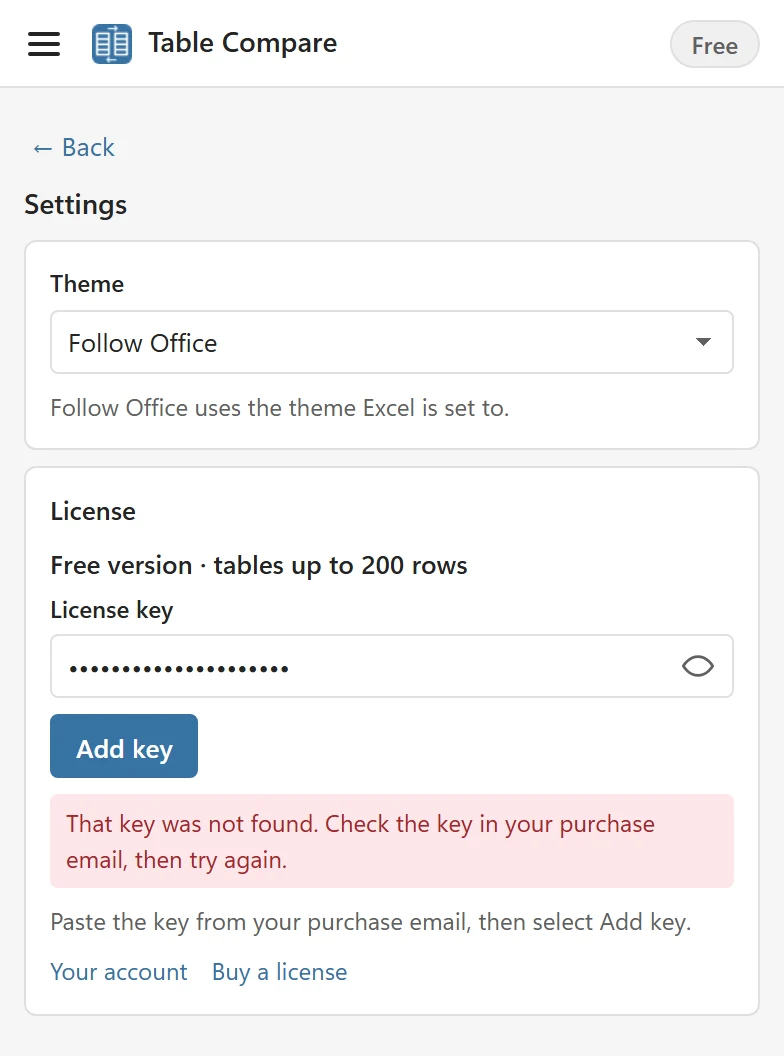
That key was not found #
- Check for a typo, such as the letter O for the digit 0.
- A key of another product does not work here.
This license is not active, was refunded or has expired #
A refunded or deactivated license no longer unlocks Table Compare, and Settings says so. If you think that is a mistake, contact support with the email address you bought with.
The license is already active on its maximum number of devices #
Each license covers a fixed number of devices: 3 for Personal and 15 for Team. Free a device in your account, or open Settings on a computer you no longer use and click Remove key there. Then add the key again.
The license server did not answer #
Check your internet connection and try again. A key that was verified recently keeps working for up to 7 days without a check, and Settings shows the date. After that, the free version is on until the key is checked again: The license could not be checked for more than 7 days, so the free version is on. Connect to the internet, then reopen Settings. If you are online and the check still fails, a firewall may block api.pythonandvba.com; ask IT to allow it.
Settings shows the free version #
Without a key that works, the free version is on and Settings reads Free version · tables up to 200 rows. It has every feature but compares tables of up to 200 rows each. Add a key, or fix the one you added with the steps above, to remove the limit.